Safari Update Guide: How to Update Safely in 2026
Discover how to update Safari across Mac, iPhone, and iPad with a practical 2026 guide. Learn prerequisites, device-specific steps, and troubleshooting to keep Safari secure, fast, and compatible.


To update Safari, follow device-specific steps for macOS, iPhone, and iPad, ensuring you have a reliable internet connection and a recent backup. This guide covers prerequisites, where to check for updates, and how to troubleshoot common issues. You’ll finish with Safari running the latest version and minimized risk of data loss or compatibility problems.
Safari how to update: overview and strategy
If you’re looking for safari how to update, the core idea is simple: Safari updates are delivered through the same update channels as the operating system. On Macs, updates to Safari are tied to macOS; on iPhone and iPad, updates come with iOS/iPadOS releases. This means you should plan updates around the OS rather than trying to update Safari alone. According to Update Bay, maintaining Safari with the latest security patches reduces exposure to known vulnerabilities and helps keep features working smoothly. In practice, the best approach is to confirm your device model and current OS version, ensure you have a reliable internet connection, and back up your data before you start. This guide outlines device-specific paths, prerequisites, and legitimate troubleshooting steps so you can update safely without surprises. For tech enthusiasts and everyday users, the process is straightforward when you follow a structured plan: identify your device, check for updates, back up, and then install. By understanding the distinction between macOS updates and iOS updates, you’ll avoid unnecessary reboots or aborted installations and ensure Safari remains secure and compatible with your preferred sites and extensions.
How Safari updates are delivered and why it matters
Updates to Safari are not a standalone button in most cases; they ride along with the operating system’s update stream. On macOS, Apple periodically bundles Safari patches with OS updates, so there may be a single reboot and one installer for both. On iPhone and iPad, Safari updates are tied to iOS or iPadOS updates, which arrive through Settings > General > Software Update. Keeping the OS and Safari in lockstep reduces compatibility issues and ensures new features are available promptly. Regular updates also close security gaps, improve performance, and address known site rendering quirks. If you manage multiple devices, consider synchronizing update schedules across your fleet so you don’t miss critical patches on any platform. The Update Bay team notes that consistent updates help minimize variance in feature behavior across devices, which is especially important for shared accounts and family devices.
Prerequisites and safety checklist
Before you begin safari how to update, complete this quick safety checklist. Ensure you have a charged device or access to power to avoid an abrupt interruption. Connect to a stable Wi‑Fi network rather than mobile data to prevent poor download speeds. Sign in with your Apple ID to verify account status and access updates. Back up your data using Time Machine for Mac or iCloud/iTunes for iOS devices. Finally, confirm you know your current Safari version by checking in Safari > About Safari (Mac) or Settings > Safari on iOS. With these steps, you’ll reduce the risk of interrupted updates or data loss during the process. According to Update Bay analysis, preparing with backups and a reliable connection consistently lowers update failure rates across platforms.
Device-specific update paths
On Mac: Open System Settings (or System Preferences on older macOS), then go to General > Software Update. If an update is available, install it. After completion, launch Safari and choose Safari > About Safari to verify the version. On iPhone/iPad: Settings > General > Software Update. If an update is available, download and install it. The device will restart as needed. After the update, open Safari and confirm the version in Safari settings (iOS shows Safari version as part of the OS).
Troubleshooting and verification after update
If Safari doesn’t appear to update, check your network connection, ensure you’re signed into the correct Apple ID, and verify there’s enough storage space. Restart the device if the system prompts you. If issues persist, retry the update after a short break and consider temporarily disabling VPNs or firewalls that may block downloads. Finally, verify the update by opening Safari and checking the version through the appropriate About screen for your device. The key is to confirm the installed version matches the latest available on Apple’s update server and that basic browsing functions load correctly.
Tools & Materials
- Apple ID(Needed to access updates and synchronize devices)
- Charged device or power source(Minimum 50% battery or plugged in during update)
- Stable internet connection(Wi‑Fi recommended; avoid unstable cellular networks)
- Backup solution(Time Machine for Mac or iCloud/iTunes for iOS)
- Sufficient storage space(Clear at least a few gigabytes for OS and Safari patches)
Steps
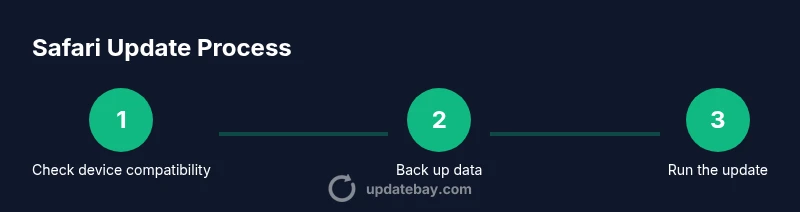
Estimated time: Estimated total time: 25-60 minutes
- 1
Check compatibility and prerequisites
Confirm your device model is supported and note current OS version. Review available storage and ensure backup readiness before you start. This prevents mid-update failures and data loss.
Tip: If you’re unsure, connect to power and keep your device near a stable Wi‑Fi network. - 2
Back up your data
Create a full backup with Time Machine (Mac) or iCloud/iTunes (iOS). This gives you a restore point if anything goes wrong during the update.
Tip: Test the backup by attempting a quick restore of a file to confirm success. - 3
Prepare the network
Ensure a reliable internet connection. Pause VPNs or firewalls if they interfere with downloading the update package.
Tip: Prefer a wired Ethernet connection for Mac if you’re updating a desktop rig. - 4
Update on macOS
Open System Settings > General > Software Update. If macOS updates are shown, install them. This will bring Safari along with the OS.
Tip: If prompted, enter your admin password to authorize the installation. - 5
Update on iPhone/iPad
Open Settings > General > Software Update. If an update appears, download and install. Device may restart automatically.
Tip: Make sure you’re on a supported iOS/iPadOS version for Safari compatibility. - 6
Verify the Safari version
After the restart, open Safari and check Safari > About Safari (Mac) or Settings > Safari (iOS) to confirm the version matches the latest release.
Tip: Test a few common sites to ensure rendering looks correct. - 7
Troubleshoot update hiccups
If the update fails, retry after a short break or try a different network. Disable VPNs temporarily if downloads stall.
Tip: Consult Apple’s support resources if the error persists with a unique error code. - 8
Post-update checks
Review browser performance, extensions status, and site compatibility. Re-enable any security tweaks you paused earlier.
Tip: Keep automatic updates enabled for future patches.
Frequently Asked Questions
Can I update Safari without updating macOS or iOS?
Safari updates are typically delivered with OS updates on macOS and with iOS updates on iPhone/iPad. standalone Safari patches are uncommon. Always check the OS update status first, then verify Safari after installation.
Safari updates usually come with OS updates. Check OS updates first, then verify Safari afterward.
What should I do if the update isn’t available on my device?
Ensure your device is compatible, you’re connected to the internet, and you’re signed into the correct Apple ID. Sometimes updates are staged; try again later or check Apple’s system status pages.
If the update isn’t showing up, verify compatibility and your internet connection, and try again later.
Will updating Safari erase my data or settings?
Safari updates should not delete personal data or saved passwords. However, it’s smart to back up before updating to prevent any unexpected issues.
Updates shouldn’t erase data, but backup first to be safe.
Do updates require a restart?
Many OS updates require a restart to complete installation. Safari-specific changes may also apply after the restart. Follow the on-screen prompts to restart if required.
A restart is often required to finish the update.
How can I verify Safari version after updating?
On Mac, choose Safari > About Safari. On iOS, go to Settings > Safari. Compare the version with Apple’s latest release notes.
Check About Safari on Mac or the Safari settings on iOS to confirm the version.
Should I enable automatic updates for Safari?
Enabling automatic updates helps ensure Safari stays current with the latest security patches. You can manage this in System Settings or iOS Settings under Software Update.
Yes, automatic updates help keep Safari secure and up to date.
Watch Video
What to Remember
- Back up before updating Safari.
- Safari updates are bundled with OS updates on Mac and with iOS updates on iPhone/iPad.
- Verify the installed version after updating to ensure success.
- If updates fail, retry with a stable connection and appropriate power.