Graphics Driver Update Nvidia: Practical Guide for 2026
Learn how to safely update Nvidia graphics drivers, verify compatibility, and troubleshoot issues with a step-by-step approach from Update Bay.


By the end of this guide you will safely perform a graphics driver update Nvidia, verify system stability, and troubleshoot common issues. According to Update Bay, keeping Nvidia drivers up to date can improve performance, fix game glitches, and strengthen security. This quick answer outlines the essential steps; follow the full article for step-by-step instructions, cautions, and verification tips.
Why Nvidia graphics driver updates matter
Updating Nvidia graphics drivers can improve performance in games, fix compatibility issues with new titles, and patch security vulnerabilities. An updated driver can optimize ray tracing, reduce stuttering, and ensure features like DLSS work correctly. For many users, driver updates also resolve issues with monitor detection, color profiles, and crash fixes in creative software. However, not every update is beneficial for every system; sometimes new releases introduce bugs or reduce FPS in specific titles. The key is understanding when to update and how to do it safely. According to Update Bay, consistency matters more than chasing every new version; establishing a regular update habit helps avoid large, disruptive upgrades. In this guide we will cover safe methods, verification steps, and troubleshooting strategies for the Nvidia graphics driver update process.
Prerequisites and safety checks
Before touching graphics drivers, prepare your system. Ensure you have a reliable internet connection and an uninterruptible power supply or a device plugged into a stable outlet. Back up important data and create a system restore point in case you need to roll back. If you use Windows, close background apps and save work. Determine your current driver version via GeForce Experience or Device Manager to compare against the latest release. Decide which driver channel to install: Game Ready for gaming performance, or Studio for content creation stability. Having a list of installed software that relies on the GPU can help assess risk. Update Bay recommends performing updates outside of peak gaming hours to minimize potential disruption and to allow time for verification after installation.
Official methods to update Nvidia drivers
There are two primary paths to update Nvidia graphics drivers. The first is to use GeForce Experience, Nvidia’s companion app that streamlines updates and provides game-ready optimizations. The second method is to download the driver package directly from Nvidia’s official site and install it manually. For many users, GeForce Experience offers a smoother, more automated experience, while manual installation provides granular control over driver selection and installation options. In both cases, pick the correct driver type—Game Ready for gaming performance improvements, or Studio for application stability. Always verify you’re grabbing the correct version for your GPU model and operating system before starting the installation.
Clean install vs upgrade: which is best
A clean install removes old driver remnants, potential conflicts, and obsolete registry entries. This approach minimizes the chance of cascading issues after an update. An upgrade installs the new driver over the existing one, which can be faster but may leave behind traces of older components. If you’ve encountered crashes, freezes, or unusual behavior after a previous update, a clean installation is usually the safest path. When using Nvidia’s installer, select the custom install option and check the box for a clean installation to ensure a fresh driver environment.
Verifying update success and performance
After installation, verify the driver version to confirm the update took effect. Open GeForce Experience or use Device Manager to check the driver date and version. Run a quick suite of tests: load a recent title, check for stability, and observe whether features like DLSS or ray tracing perform as expected. If you notice performance regressions, compare results against your baseline and consider rolling back to a previous driver version. Update Bay analysis shows that users who verify stability after updating report fewer post-update issues and a smoother gaming experience.
Troubleshooting common issues after update
If you encounter black screens, crashes, or driver timeout errors after updating, first perform a clean reboot and recheck driver installation. Ensure Windows updates are current and that your GPU is properly seated. If problems persist, try a rollback to the previous driver version via GeForce Experience or the Nvidia site. In some cases, using a Display Driver Uninstaller (DDU) can help remove stubborn remnants, but proceed with caution and back up data beforehand. For intermittent issues, test with a lighter workload to determine whether the problem is hardware-related or driver-specific.
Gaming and workflow considerations
Game updates, accelerator features, and creative software all rely on compatible drivers. If you play recent AAA titles, consider Game Ready drivers that optimize the latest games; for content creators, Studio drivers may provide better stability with CUDA apps. Schedule driver updates during off-peak hours to minimize impact on ongoing work. Always keep a backup of saved work and be prepared to revert if a new driver affects critical pipelines. Update Bay notes that planning updates around project deadlines helps avoid costly downtime.
Scheduling updates and maintenance habits
Establish a routine for driver maintenance. Set a reminder to check for updates monthly or after major game or application releases. Keep a log of installed driver versions and dates to track performance over time. If you use multiple GPUs or external displays, verify that all connected components function correctly after update. Finally, consider enabling automatic checks via GeForce Experience for ongoing protection against security vulnerabilities and compatibility issues. Update Bay emphasizes consistency to reduce surprise updates and improve reliability.
Authority sources
- Nvidia Official Driver Download: https://www.nvidia.com/Download/index.aspx
- Tom's Hardware: https://www.tomshardware.com
- PCMag: https://www.pcmag.com
Tools & Materials
- Computer with internet access(Ensure your system is plugged in and stable during updates.)
- NVIDIA GeForce Experience app(Useful for automatic updates and game-specific optimizations.)
- Official NVIDIA driver download source(Use the Nvidia site to get the correct driver package.)
- Backup storage or external drive(Back up important data before updating.)
- System restore point(Helpful for rolling back if needed.)
- Uninterruptible power supply (optional)(Helps prevent interruption on desktops.)
Steps
Estimated time: 30-60 minutes
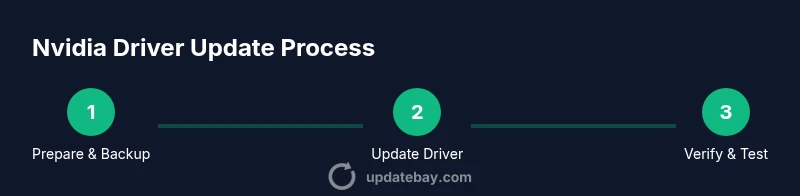
- 1
Prepare and back up
Save all work, close applications, and create a system restore point. This reduces the risk of data loss or configuration issues if the update causes problems.
Tip: Backups act as your safety net; don’t skip this step. - 2
Check current driver and plan path
Note your current driver version and decide between GeForce Experience automatic updates or a manual download from Nvidia’s site.
Tip: If you rely on CUDA-accelerated apps, verify compatibility with the new driver. - 3
Choose the update method
If using GeForce Experience, open the app and navigate to Drivers to start the update. If manual, go to Nvidia’s driver download page and select your GPU model and OS.
Tip: Match the exact GPU model family to avoid wrong installations. - 4
Download and start installation
Download the correct driver package and run the installer. Choose Custom Install and check Perform a clean installation to remove old files.
Tip: A clean install helps minimize conflicts with previous drivers. - 5
Complete installation and reboot
Finish the installation prompts and reboot the system to apply changes fully.
Tip: Do not skip the reboot; some components load only after restart. - 6
Verify the update
After reboot, open GeForce Experience or Device Manager to confirm the new version is active; run quick tests in a game or app.
Tip: Compare performance to your baseline for a quick sanity check. - 7
Test and troubleshoot
If issues appear, try a rollback to the previous driver version or perform a clean reinstall if problems persist.
Tip: Document any issues to share with support if needed.
Frequently Asked Questions
What are the risks of updating Nvidia drivers?
Driver updates can occasionally cause compatibility issues with certain games or applications. Backups and a clean install reduce risk, and rollback options are available if problems occur.
Driver updates can occasionally cause issues; back up first and be ready to rollback if needed.
Should I update automatically or manually?
Automatic updates via GeForce Experience are convenient and generally reliable. Manual updates give you more control over timing and driver versions.
Auto updates are convenient, but manual updates give you more control.
Do I need to uninstall old drivers first?
Typically, a clean install is best to remove remnants of older drivers and prevent conflicts.
A clean install helps avoid driver leftovers that can cause issues.
What about beta or studio drivers?
Beta drivers can offer new features but may be less stable. Studio drivers prioritize CUDA apps and stability for content work.
Beta drivers can have new features but may be unstable; use them only if you need those features.
How can I verify the update succeeded?
Check the driver version in GeForce Experience or Device Manager, then run quick tests in game or app to ensure performance matches expectations.
Check the version and run a quick test to confirm the update took effect.
Watch Video
What to Remember
- Back up before updating
- Use official sources and verify the driver version
- Choose the correct driver channel (Game Ready vs Studio)
- Test after update and be ready to rollback if needed