HP Laptop Update Screen: Fix, Update & Calibrate Guide
Learn how to diagnose and fix display issues on HP laptops, update display drivers and BIOS, and calibrate brightness and color for a reliable screen. Safe, practical steps with brand-aware guidance from Update Bay (2026).


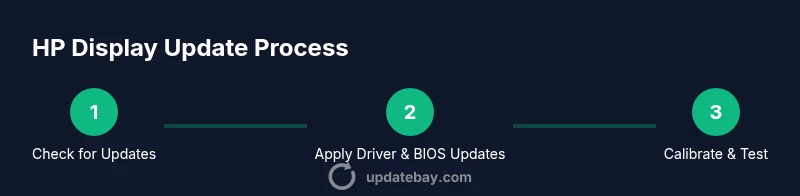
According to Update Bay, resolving update-screen issues on HP laptops starts with refreshing the display driver, applying BIOS/firmware updates, and calibrating the display for accurate color. This quick answer outlines safe update practices using HP Support Assistant and Windows Update, plus steps to diagnose symptoms like flicker, dimming, ghosting, or wrong resolutions. Backups and verification after each change are essential.
Understanding the Update Screen Problem on HP Laptops
On HP laptops, the term update screen describes when Windows or HP software changes the way the display is drawn. A healthy display stack involves the OS, the graphics driver, and the monitor's EDID data; when any piece misaligns, users notice flicker, dimming, color shifts, ghosting, or erratic resolution changes. A software-only cause is common after a driver update or BIOS setting change. Hardware faults—such as a loose display cable or a failing backlight—can mimic software symptoms, so it’s important to distinguish between the two. If you search for hp laptop update screen, you'll see how drivers, firmware, and color profiles interact to produce the symptom. In the sections below, we outline a practical path to diagnose and fix the issue without risking data or hardware damage.
Before You Start: Backups and Safety Tips
Before initiating any updates on your HP laptop, secure your data. Create a system restore point in Windows, back up essential files to an external drive or cloud storage, and ensure your battery is above 50% or plugged in during updates. BIOS and firmware updates carry minimal but real risk of bricking a device if power is lost; this is why a reliable power source is essential. Disable any non-critical background apps to prevent interference during installs. Finally, note the exact model and current driver versions; you’ll need them when chasing HP or Microsoft support resources. This preparation reduces the chance of needing a recovery later and keeps you in control of the process.
Check for System Updates and HP Support Assistant
Start with Windows Update: go to Settings > Update & Security > Windows Update and check for updates. Install all available patches, including driver updates if offered. Then run HP Support Assistant (if installed) to scan for recommended driver or BIOS updates specific to your HP model. Apply those updates in a staged manner, reboot when prompted, and verify display behavior after each reboot. This approach keeps you aligned with both Windows and HP's tested configurations and minimizes incompatibilities.
Authoritative sources
- https://support.microsoft.com
- https://support.hp.com
- https://nist.gov
Update Display Drivers and Graphics Settings
Display drivers control how content is drawn on the screen; outdated drivers are a frequent cause of update-screen issues. To update: open Device Manager, expand Display adapters, right-click the active driver, and choose Update driver. Select 'Search automatically for updated driver software' or download the latest from HP or the GPU vendor (Intel/NVIDIA/AMD). After updating, reboot and test. If you notice color anomalies, adjust color management: Windows color calibration, ensure HDR is off if your panel doesn’t support it, and review the color profile used (sRGB vs. Adobe RGB). For many HP laptops, the HP Support Assistant will offer a recommended graphics driver package, which ensures compatibility with your system BIOS and Windows version.
BIOS/UEFI and Firmware Updates: When and How
BIOS updates improve hardware compatibility and power management but carry risk. Only update if HP or Windows Update indicates a recommended BIOS update. Ensure the laptop is connected to AC power, temporarily disable sleep during update, and close all apps. Use the HP Support Assistant or the official HP download page to obtain the correct BIOS package for your exact model and BIOS revision. After the update, enter BIOS/UEFI settings (press F10 at boot) to confirm basic settings and reset to defaults if problems occur.
Calibration, Color Profiles, and Brightness
After software updates, recalibrate the display to ensure color accuracy and comfortable brightness. Use built-in tools: Windows 10/11 has a Display Color Calibration wizard; run it and adjust gamma, brightness, and contrast until you can distinguish test colors. If your HP laptop supports color profiles, download the official color profile (ICC/ICM) from HP or the display vendor and switch to it. For typical day-to-day use, a standard sRGB profile is usually the best balance of accuracy and compatibility.
External Monitors and Power Settings
Sometimes update-screen issues on laptops are isolated to the internal LCD; using an external monitor helps you determine if the GPU or the display is at fault. Connect an HDMI or USB-C monitor; test the same content at the same resolution. Check power settings: set to Balanced or High Performance, disable battery optimization that throttles GPU performance, and ensure the refresh rate matches the external display. If the external monitor works fine, the problem is likely internal to the laptop's display or its cable.
Common Scenarios: Flicker, Dimness, Ghosting, and Resolution Issues
Flicker can appear after driver changes or when HDR or dynamic brightness is misconfigured. Dimness may result from adaptive brightness or power-saving modes; adjust both Windows and BIOS settings. Ghosting often stems from memory or driver delays; updating or rolling back the driver can fix it. Resolution changes can be caused by incorrect EDID data or display scaling; ensure the correct native resolution is selected and that scaling is set to 100%. Always test with known-good content to compare before/after behavior.
Troubleshooting Checklist and When to Seek Help
Use this practical checklist: confirm Windows updates complete, run HP Support Assistant scans, update the graphics driver, apply a BIOS update if indicated, calibrate, test with an external monitor, and reboot. If the problem persists, consider restoring the previous driver or rolling back changes, and consult HP Support for warranty-covered issues. If you notice hardware symptoms (cracked panel, loose cable, abnormal noises), stop and seek professional service.
Tools & Materials
- HP Laptop (model varies)(Ensure model compatibility with HP Support Assistant and driver pages)
- Stable internet connection(Wi-Fi or Ethernet; used for updates and driver downloads)
- Backup storage (external drive or cloud)(Back up important files before BIOS/driver updates)
- HP Support Assistant app(Installed or accessible on HP devices for official updates)
- Windows Update enabled(Keep Windows Update active to fetch drivers and patches)
- Optional: USB flash drive for BIOS recovery(Only if you plan BIOS recovery via USB)
- External monitor (optional)(Test display behavior with another screen)
Steps
Estimated time: 60-90 minutes
- 1
Prepare device and backup data
Charge the battery to full or keep the charger connected. Save open work, create a system restore point, and back up critical files to external storage or cloud.
Tip: Create a system restore point before any driver/BIOS change. - 2
Check prerequisites and update Windows
Open Settings, run Windows Update, and install available patches. If offered, apply driver updates as part of the Windows Update cycle.
Tip: Do not interrupt updates; keep the device connected to power. - 3
Update display drivers
Open Device Manager, expand Display adapters, right-click the active driver, and choose Update driver. If possible, also check HP Support Assistant for recommended graphics drivers.
Tip: If Windows can’t find a newer driver, download the latest from HP or GPU vendor directly. - 4
Update BIOS/firmware
Use HP Support Assistant or HP's official download page to install the advised BIOS package for your model. Ensure AC power is connected and do not turn off the machine during the process.
Tip: BIOS updates can be risky—only perform if HP recommends it. - 5
Calibrate display colors
Run the Windows Display Color Calibration wizard and adjust gamma, brightness, and contrast. If available, apply an official color profile from HP or the panel vendor.
Tip: Test with color-test images to verify accuracy. - 6
Test with external monitor
Connect an external monitor to verify whether issues persist on external hardware. If the external display is stable, focus on internal display components.
Tip: Match refresh rate and resolution between screens. - 7
Finalize and verify
Reboot, recheck common tasks (web, video, documents), and observe for flicker, dimness, or ghosting. If issues remain, consider driver rollback or professional support.
Tip: If problems persist, document symptoms and steps taken for support.
Frequently Asked Questions
Why does HP laptop update screen flicker after updates?
Flicker commonly results from driver conflicts, a bad refresh rate setting, or power-saving features interacting with the GPU. Update or rollback the relevant driver, adjust the refresh rate, and disable conflicting settings to stabilize the display.
Flicker after updates is usually due to driver or refresh rate conflicts; try updating or rolling back the driver and adjusting settings.
Is it safe to update BIOS on an HP laptop?
BIOS updates can improve hardware compatibility but carry risk if power is interrupted. Only perform a BIOS update when HP or Windows Update recommends it, use a reliable power source, and follow official instructions exactly.
BIOS updates are important, but they carry risk if power is lost. Only update when advised and follow instructions.
How do I calibrate my HP laptop display after updates?
Run the built-in Display Color Calibration tool in Windows and, if available, apply the official color profile from HP. This ensures color accuracy after software changes.
Calibrate the display with Windows tools and HP color profiles to restore accurate colors.
What if Windows can’t find a driver update for my HP laptop?
If Windows can’t locate a newer driver, visit HP’s official driver page for your exact model or use HP Support Assistant to fetch the correct package. Ensure it matches your operating system version.
If Windows can’t find a driver, check HP’s site or HP Support Assistant for the right package.
How can I revert a bad driver update on my HP laptop?
In Device Manager, open Display adapters, choose the driver, and select Roll Back Driver if available. Reboot and test to confirm stability.
You can roll back the driver in Device Manager if the option is available.
When should I contact HP support?
If display issues persist after updating drivers and BIOS, or if you suspect hardware faults like a loose cable or cracked panel, contact HP support or a qualified technician. Have model, serial, and steps taken ready.
If updates don’t fix the problem, contact HP support with your model and what you’ve tried.
Watch Video
What to Remember
- Back up data before updates
- Use official sources for drivers/BIOS
- Calibrate display after updates
- Test with external monitor to isolate issues
- Verify results before proceeding to the next step