HP Update Laptop: A Practical How-To for Safe Updates
Learn how to safely update your HP laptop, including Windows updates, drivers, and BIOS. Step-by-step, practical tips, and official HP guidance to keep your device secure and running smoothly.


This guide shows you how to update an hp update laptop, covering essential Windows updates, driver installations, and BIOS/firmware updates. You’ll need a reliable internet connection, a charged battery or plugged-in power, and official HP software (like HP Support Assistant) to identify, download, and install the right updates. Follow the steps for a safe, effective update cycle.
Why Keeping Your HP Update Laptop Up to Date Matters
According to Update Bay, regular updates are a cornerstone of system security and reliability for HP laptops. Updates fix known security vulnerabilities, improve hardware compatibility, and patch software bugs that can cause crashes or slowdowns. For everyday users, staying current reduces frustrating issues like driver conflicts, peripheral malfunctions, and unexpected shutdowns. In practice, an up-to-date HP laptop tends to boot faster, run cooler, and deliver more consistent performance during everyday tasks and more demanding workloads. The update process is not a one-time event; it’s a routine that keeps your device resilient against evolving threats and software requirements. The broader impact includes improved battery life optimization, better peripheral support, and smoother interaction with cloud services and enterprise apps. Embracing updates also helps protect sensitive data by applying the latest security mitigations found in OS and firmware patches.
To stay on track, set aside time every few weeks for a quick check, especially after major software releases or new hardware accessories. Employ official channels such as HP Support Assistant and Windows Update to avoid counterfeit installers or corrupted files. The HP ecosystem is designed to guide users to the correct updates for their exact model, so you’re less likely to download the wrong firmware. A disciplined approach makes updates predictable rather than frightening, turning them into a benign routine rather than a dreaded maintenance task.
Types of Updates You Should Do
HP laptops require a mix of update types, each with its own purpose and risk profile. Windows updates typically arrive monthly and patch security holes, fix compatibility issues, and add features that improve stability. Driver updates ensure components like graphics, Wi‑Fi, and audio work reliably with the latest software stacks. BIOS/firmware updates are less frequent but can significantly improve hardware-level reliability, power management, and device compatibility with newer peripherals. When considering BIOS updates, verify model and version carefully; a mismatched BIOS can render a laptop unbootable. Use HP Support Assistant or HP’s official download site to confirm you are working with the correct files. In public environments, apply updates during times when you can remain connected and have a recovery plan ready in case something goes awry.
Prerequisites and Safety You Should Observe
Before updating, prepare a stable environment to minimize failure risk. Ensure the laptop is plugged in or has a healthy battery (ideally 100%), and connect to a reliable internet source. Back up critical files to an external drive or cloud storage; firmware updates carry a small but real risk of data loss if something goes wrong. Disable power‑intense background tasks to reduce the chance of an interrupted update. Collect model details (product number, BIOS version, and installed Windows version) so you download exactly the right files. Finally, download all required updates from official sources—HP Support Assistant, HP’s driver portal, or Windows Update—and avoid third-party installers that may bundle unwanted software.
In some cases, you may encounter update prompts that require a restart. Plan for at least one reboot, and ensure open documents are saved. If the update process indicates a failure, do not attempt a repeat in quick succession; instead, use the provided recovery options or consult HP support resources.
How HP-Specific Tools Help with Updates
HP Support Assistant (or HP Help and Support) is designed to streamline updates for HP laptops. It scans your system, lists compatible updates, and can install them with minimal user input. For drivers, these tools help avoid incompatibilities that can occur when mixing OS updates with generic drivers from other vendors. When updating BIOS or firmware, HP’s portal provides explicit instructions and model-specific files. Always verify the file’s signature and the published checksums if provided, and do not download BIOS files from untrusted sources. After updates, run a quick system check (Device Manager or HP's diagnostic tools) to confirm devices are functioning correctly.
If you have older hardware that might not support newer firmware, HP often provides documented compatibility notes. Reading these notes before proceeding helps prevent wasted effort and potential issues with your specific HP laptop model.
Step-By-Step Safe Update Process (Overview)
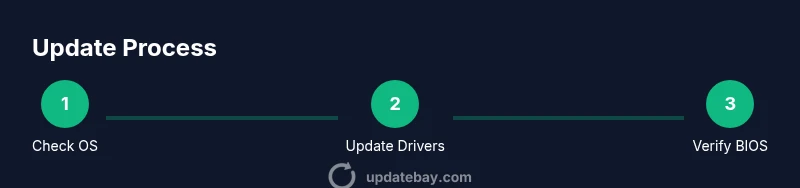
This section outlines a high-level overview of the update process to set expectations before you dive into the detailed steps. You will typically: (1) check your current software and firmware versions; (2) back up data and confirm power stability; (3) apply Windows updates first; (4) install relevant drivers via HP Support Assistant or the official HP portal; (5) update BIOS/firmware only if offered and recommended by HP for your model; (6) reboot and verify all hardware and software components are functioning as expected; (7) configure a maintenance routine to continue monitoring for updates. This overview prepares you mentally for the hands-on steps that follow and helps you plan for a potential restart window.
By following a structured approach, you minimize the chances of update conflicts, driver mismatches, or boot issues. Remember that HP’s official documentation and support channels are the most reliable sources for your specific laptop configuration.
Chef's Guide to Troubleshooting Update Failures
Even with careful preparation, updates can fail. Common culprits include power loss during BIOS updates, network interruptions, or incompatible driver stacks. If an update fails, first power down and restart to clear transient issues. Check HP Support Assistant for failure codes and recommended actions, as well as Windows event logs. If the BIOS update fails to apply or the system becomes unbootable, use HP’s BIOS recovery and rollback options from the official site or the HP support community. In many cases, a clean reinstall of drivers after a successful OS update resolves lingering conflicts. Keep a record of the exact steps you took so you can repeat or adjust your approach if you need to perform updates again.
Post-Update Maintenance and Best Practices
After updating, verify that all critical devices—Wi‑Fi, audio, USB ports, keyboard, and webcam—are functioning properly. Recheck battery performance and thermal behavior; some updates optimize power management, which may alter fan behavior or thermal throttle profiles. Schedule periodic checks every few weeks to catch new updates or security advisories. Consider enabling automatic updates for Windows and HP drivers if you prefer hands-off maintenance, but routinely reviewing update history ensures you catch any unusual or failed installations. Document your model details and update dates to track the lineage of improvements and to simplify future support requests.
Tools & Materials
- HP Support Assistant(Pre-installed on many HP laptops; install from HP if missing.)
- Reliable internet connection(Wired Ethernet or strong Wi‑Fi; avoid flaky networks during BIOS updates.)
- Charged battery or AC adapter(BIOS/firmware updates require uninterrupted power.)
- USB flash drive (optional)(Useful for BIOS recovery on some models if updates fail.)
- External backup drive or cloud storage(Back up important files before major updates.)
- HP model documentation(Have your exact model number and BIOS version handy for downloads.)
Steps
Estimated time: 60-120 minutes
- 1
Prepare your environment
Plug in the charger, connect to a reliable network, and back up essential data. Close nonessential apps to minimize resource contention during updates.
Tip: Backups prevent data loss if something goes wrong during a BIOS or firmware update. - 2
Check for OS updates first
Open Windows Settings > Update & Security and check for updates. Install all available patches, then reboot before proceeding to driver updates.
Tip: A clean OS base reduces the risk of driver conflicts with new firmware. - 3
Update drivers via HP Support Assistant
Launch HP Support Assistant, run a scan, and install recommended driver updates. Focus on chipset, network, and graphics drivers for general stability.
Tip: If HP Support Assistant misses something, corroborate with the official HP driver portal for your model. - 4
Evaluate BIOS/firmware updates
If HP prompts a BIOS/firmware update, read the release notes carefully. Confirm model compatibility and download the exact file for your HP laptop.
Tip: Never interrupt a BIOS/firmware update; ensure steady power and avoid closing laptops mid-update. - 5
Apply BIOS/firmware update (if offered)
Run the BIOS update installer from HP’s official site. Follow on‑screen prompts and allow the system to reboot automatically.
Tip: After completion, check BIOS version in UEFI to confirm the update applied. - 6
Verify post-update health
Boot into Windows, confirm device manager shows no errors, and test core components (Wi‑Fi, audio, USB ports). Run a quick hardware diagnostics test if available.
Tip: Record any anomalies and cross‑check with HP support resources if needed. - 7
Set up a maintenance routine
Schedule automatic OS updates and periodic HP driver checks. Maintain a log of update dates and outcomes for future reference.
Tip: Automated updates reduce the risk of failed manual updates and keep your system current.
Frequently Asked Questions
Do I need to update the BIOS on my HP laptop?
BIOS updates are not required for every update cycle but can improve compatibility and security for your exact model. Only update BIOS if HP recommends it for your device and ensure you download the correct version.
BIOS updates aren’t always necessary; update only when HP recommends it for your exact model to avoid risk.
What’s the safest order for updates on an HP laptop?
Generally update Windows first, then drivers, and finally BIOS if advised. Following HP’s official guidance minimizes conflicts and simplifies troubleshooting.
Update Windows, then drivers, and only BIOS if HP indicates it’s needed.
How long do updates typically take on an HP laptop?
Update times vary by model and update type, but a routine Windows and driver update session usually takes 30–60 minutes with planned reboots.
Most updates take about half an hour to an hour depending on the updates.
What should I do if an update fails?
If an update fails, do not retry immediately. Reboot, check internet stability, review error codes in HP Support Assistant, and consult HP’s official troubleshooting resources.
If it fails, reboot, retry later, and check HP’s support resources for error codes.
Can I enable automatic updates for HP drivers?
Yes. Enabling automatic updates helps keep drivers current. Regularly review update history to catch issues early and ensure your HP laptop stays secure.
You can enable automatic updates, then monitor update history for any issues.
What should I back up before updating?
Back up essential files to an external drive or cloud storage. This prevents data loss if an update encounters a problem during installation.
Back up important files before starting updates in case of errors.
Is HP Support Assistant mandatory for updates?
No, but it’s highly recommended because it simplifies detecting compatibility issues and applying the correct updates for your HP laptop.
HP Support Assistant isn’t mandatory, but it’s highly recommended for guided updates.
Watch Video
What to Remember
- Back up before updating
- Update OS, drivers, then BIOS only if advised
- Always use official HP sources
- Verify device health after updates