Sound Driver Update: A Practical Guide to Better Audio
Learn how to update sound drivers to fix glitches, improve compatibility, and enhance audio quality across Windows, macOS, and Linux with a practical, step-by-step approach.


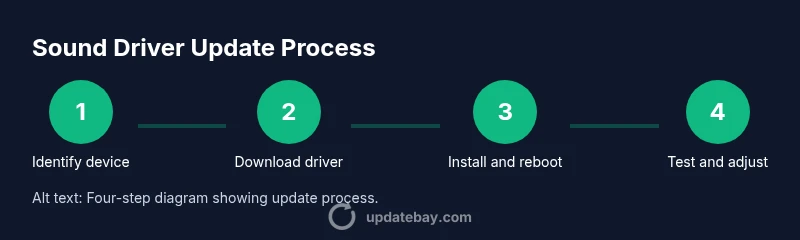
This guide helps you perform a sound driver update to improve audio performance, fix glitches, and ensure compatibility. You’ll identify your audio hardware, download the correct driver from the official source, install it safely, and verify sound output after reboot. The steps apply to Windows, macOS, and Linux systems across modern PCs today.
Why sound driver updates matter
Sound drivers are the software bridges that turn digital audio data into clean, synchronized output for headphones, speakers, or built-in speakers. When drivers are outdated or buggy, users report crackling, dropouts, mismatched sample rates, and even no sound at all. According to Update Bay, keeping sound drivers current reduces the risk of these issues and helps your system take advantage of bug fixes and compatibility improvements introduced by hardware vendors. Staying updated also enables newer audio features, better power management, and improved integration with surround sound setups. If you’re a regular listener or a gamer, a small driver update can translate into noticeably smoother, more reliable sound. For most users, setting a reminder to check driver status every few months is enough to catch critical updates before they cause disruption. Update Bay’s guidance emphasizes practical, non-disruptive updates that protect both audio quality and system stability.
How sound drivers work and what they control
A sound driver sits in the operating system's audio stack and translates digital audio commands into electrical signals that your DAC or integrated audio chipset can produce. It manages sample rates, bit depth, channel mapping, latency, and effects like equalization or virtual surround. Driver updates may fix latency jitter, improve compatibility with new audio codecs, and unlock bug fixes for specific devices. On Windows, the driver interacts with the Windows Audio subsystem; on macOS, Core Audio handles the interface with drivers; on Linux, ALSA or PipeWire routes audio through the kernel. Understanding this helps you see why an update can noticeably improve clarity or reduce crackling, especially after OS updates or new hardware. Regular updates also pave the way for better support of newer formats and features such as spatial audio or multi-channel setups, which can enhance both music listening and gaming experiences.
How to identify your audio hardware across operating systems
Identify the exact model of your audio device and the OS version to download the correct driver. In Windows, open Device Manager and expand 'Sound, video and game controllers' to locate the audio device; note the vendor and model. On macOS, go to About This Mac > System Report > Audio to see the device name. In Linux, run commands such as aplay -l or lspci | grep -i audio to list cards. If you use an external USB sound card or headset, check the package documentation for model numbers. Having precise details prevents accidental installs that can worsen issues. Keep a simple log of your device IDs for future updates.
Safe sources and OS-specific considerations for drivers
Always download drivers from the official vendor site or your computer maker's support page. Avoid unofficial mirrors or third-party aggregators, which may host tampered files. Verify compatibility with your OS edition and architecture (32-bit vs 64-bit, or ARM). Windows users should heed driver signing prompts and consider creating a system restore point before installation. macOS users typically install drivers via vendor installers or kext bundles; Linux users may need to install from distribution repositories or compile from source. If you see new, unusual prompts (like bundled software), skip them and review the vendor's release notes. Regularly reviewing release notes helps you understand what the update fixes and what new effects it enables.
Troubleshooting post-update: common issues and fixes
If sound disappears after an update, first reboot and test with different apps and audio devices. Use the OS sound settings to set the correct default playback device and sample rate. If issues persist, roll back to the previous driver or use the vendor's uninstall utility, then reinstall the latest version. Check for conflicts with audio enhancements, spatial sound, or exclusive mode settings in apps. For Linux, restart PulseAudio or PipeWire and verify that the correct sink is selected. When in doubt, consult the vendor's release notes for known issues and recommended fixes. If problems continue, consider rolling back to a driver version you trust while keeping a note of the version you used.
Quick checks after install and best practices
After updating, run a quick suite of checks: play a variety of audio formats (stereo music, 5.1 content, and a headphone test), test both output and input devices if you use a microphone, and verify there are no driver-related error messages in the OS event logs. If you notice new noise, crackling, or CPU overhead, revert to a previous driver version and review compatibility notes. Finally, document the driver version and date of installation to simplify future troubleshooting and ensure you’re consistently using a supported build. A systematic approach reduces ambiguity and helps you stay current without downtime.
Tools & Materials
- Computer with admin rights(You may need to approve prompts during installation.)
- Active internet connection(Needed to download drivers and verify online.)
- Official driver package from the vendor(Download the exact model and OS version from the vendor's site.)
- System restore point or backup(Create a restore point before installing drivers.)
- Backup of current audio settings(Export EQ or enhancements if available.)
- USB drive for offline copy (optional)(Carry the driver installer in case of network issues.)
- Test headphones or speakers(Have a known-good audio device for testing.)
- Access to admin utilities (Device Manager, System Settings)(Be ready to navigate to correct panels.)
Steps
Estimated time: 30-60 minutes
- 1
Identify device and OS version
Identify your audio device name, model, and the operating system version you are running. This ensures you download the correct driver package and avoids compatibility issues. Include notes on whether you use integrated audio or a dedicated sound card.
Tip: Take a screenshot of the device properties for reference. - 2
Download the official driver
Visit the vendor's support page, locate your model and OS, and download the latest full driver package. Avoid beta or generic drivers unless you know they address your issue. Ensure the download matches your OS edition and architecture.
Tip: Verify the URL begins with https and matches the vendor domain. - 3
Create a restore point
Before installation, create a system restore point so you can revert quickly if something goes wrong. This step protects you from unforeseen compatibility conflicts and driver rollback challenges.
Tip: Document the restore point name and date for quick reference. - 4
Prepare the system for installation
Close unnecessary apps and disable audio recording tools temporarily to avoid conflicts during installation. If you use USB audio devices, disconnect them to simplify driver replacement and testing.
Tip: Save all work before proceeding; some updates require a reboot mid-process. - 5
Install the new driver
Run the driver installer and follow on-screen prompts. Choose a clean or custom install if offered, and avoid optional extra software unless you need it. Do not force-patch or override system protections without intent.
Tip: Watch for prompts that install extra software; deselect anything you don’t want. - 6
Restart the computer
Reboot to finalize the driver installation and ensure the new files load correctly. Post-restart, open the sound settings to confirm the updated driver is active.
Tip: If a restart is advised, save work and allow ample time for the boot process. - 7
Test audio output and input
Play sample audio through speakers and headphones, and test microphone input if you use one. Check for crackling, latency, or missing channels. If anything seems off, run a quick device check in the OS and environment.
Tip: Test with multiple apps to confirm consistency across software. - 8
Tune settings or rollback if needed
If issues persist, adjust sample rate/bit depth or disable enhancements. If problems continue, rollback to the previous driver version using the uninstall tool or restore point.
Tip: Keep notes on the exact driver version used for future reference.
Frequently Asked Questions
Do I always need to update my sound driver?
Not always. Update drivers when you experience audio glitches, new hardware, or improved features. If your sound is stable, you can postpone updates until a compelling reason arises.
Driver updates aren’t always required; update when you notice issues or need compatibility.
Can updating drivers cause more problems?
In rare cases, a driver update can cause compatibility issues or installer conflicts. To minimize risk, use official sources, back up, and rollback if needed.
Most updates fix issues, but rollback is a safe fallback if something goes wrong.
How can I verify a successful driver update?
Check the driver version in your OS's device manager or system information. Test playback across multiple apps and devices to confirm stability and audio quality.
Open sound settings, confirm the version, and test with several apps.
Should I update drivers for external USB sound cards?
Yes. If the manufacturer provides updates for your OS, applying them can improve compatibility and performance with the USB device.
Check for updates from the USB sound card maker and install if available.
How often should I check for sound driver updates?
Check quarterly or after major OS updates. Regular checks help catch important fixes before they affect your workflow.
Every few months or after major OS updates.
Is it safer to update audio drivers on Windows or macOS?
Both platforms offer controlled update paths. Windows may require more manual steps; macOS handles many updates through system updates. Always use official sources.
Both are safe when using official sources and following platform-specific steps.
Watch Video
What to Remember
- Identify hardware and OS before updating
- Always use official driver sources
- Back up or restore before changes
- Test audio and adjust settings after install