How to Update Audio Drivers: A Practical Guide
Learn how to update audio drivers safely on Windows and macOS. This practical, step-by-step guide covers identification, sources, installation, troubleshooting, and best practices to improve sound quality in 2026.


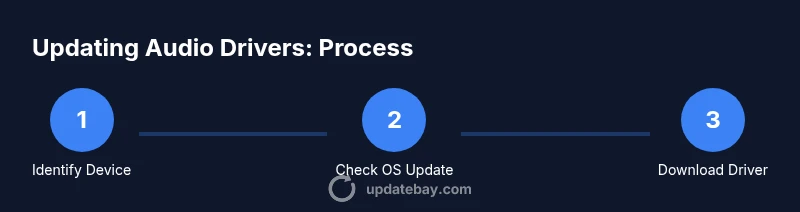
Update audio drivers by identifying your audio hardware, obtaining the latest driver from the manufacturer or Windows Update, and performing a clean install. Reboot afterward and test playback to confirm improved stability or new features. This process reduces crackling, latency, and compatibility issues across apps like games and video calls.
What updating audio drivers does for your PC
Audio drivers are the software that translates digital audio signals into sound your hardware can produce. Keeping these drivers current improves compatibility with applications, reduces latency, and fixes bug-induced crackling or dropouts. When a vendor releases a new driver, it can enhance support for features like surround sound, microphone input, and sample-rate handling. This is particularly important for gamers, streamers, and remote workers who rely on stable, clean audio. According to Update Bay, timely updates can prevent performance regressions that linger after major OS patches. In 2026, many devices rely on a mix of Windows,
Why updating audio drivers matters in 2026
Audio drivers control how your computer’s sound hardware communicates with the rest of the system. Out-of-date drivers can cause crackling, latency spikes, stuttering audio in games, or failure to detect microphones in conferencing apps. New driver releases often fix known issues reported by users and improve performance with new OS versions. Update Bay’s analysis shows that many end users see tangible improvements after a clean driver install, including better compatibility with USB-C audio devices and external DACs. You’ll also get security patches that reduce exposure to driver-level vulnerabilities. Note that some updates can reset customization such as sample rate or EQ settings, so you should document your preferences before updating. In short, staying current helps you avoid avoidable issues and gain access to enhancements released by manufacturers.
How to identify your audio hardware
To choose the right driver, you must know your audio device: the motherboard’s onboard audio, a dedicated PCIe sound card, or a USB DAC. On Windows, open Device Manager and look under Sound, video and game controllers to see the exact device name (for example, Realtek High Definition Audio or NVIDIA High Definition Audio). On a Mac, open About This Mac > System Report > Audio to see input and output devices. With mobile devices, note that many manufacturers rely on integrated SoCs where drivers are bundled with OS updates. Once you know the device name and vendor, you can locate the correct driver on the manufacturer’s site or through Windows Update. If you’re unsure, search the device ID online, which often reveals the precise model and supported driver version.
Where to get the latest drivers: Windows Update vs. manufacturer
Two safe sources exist for driver updates: Windows Update and the device manufacturer. Windows Update bundles drivers for supported devices and tends to be the simplest route for most users. If the device is older or uses a specific chipset, the manufacturer’s download page will usually offer the latest WHQL-signed driver and optional software. For Mac users, most audio drivers are delivered through
How to install drivers: a simple overview
First, download the driver package from an official source. Run the installer with administrator privileges and follow the on-screen prompts. If prompted to perform a clean install, choose that option to avoid conflicts with older files. After installation, reboot the system to complete integration with the OS. Once back online, you should hear the updated driver in action; test with a variety of audio sources to confirm there are no crackles, dropouts, or misnamed devices. If the device doesn’t appear, re-run the installer or use Device Manager to manually rescan hardware changes.
Troubleshooting common issues after updating
Crackling or no sound after an update can happen if the driver conflicts with software settings. Start by confirming the correct playback device is set as default in your OS sound settings. Check the sample rate and bit depth; a mismatch can create artifacts. If problems persist, roll back the driver to the previous version using Device Manager (Windows) or the appropriate
Best practices for keeping audio drivers up to date
Schedule regular checks for updates, especially after OS patches or major application updates. Subscribe to vendor newsletters or follow official support channels to receive alerts about new drivers. Maintain a clean system by removing old drivers and keeping backups. For critical productions, test updates in a sandbox or non-production environment before deploying broadly. Document driver versions and installation dates as part of your hardware maintenance log.
Resources and how Update Bay helps
Beyond step-by-step instructions, Update Bay curates practical guidance on software, hardware, and service updates. Our 2026 coverage includes practical tips for driver updates, security considerations, and compatibility notes across Windows and
Common misconceptions about driver updates
Many users assume driver updates are optional or only needed for new hardware. In reality, older devices can benefit from updates, especially when OS patches alter audio subsystems. Some people fear that updates will reset all custom settings; while this can happen, a quick reconfiguration is usually all that’s required. Finally, some believe third-party updater tools are safer; these can introduce malware or incompatible drivers. Stick to official sources and verify notes before installing.
Tools & Materials
- Stable internet connection(Essential for downloading drivers or updates.)
- Administrative access(Run installers as administrator to apply changes system-wide.)
- Official driver installer or manufacturer page(Download from the vendor to avoid malware.)
- Backup/restore point(Create a system restore point or Time Machine backup before updates.)
- USB drive (optional)(Useful for offline installs or archiving installers.)
- Supported OS version(Ensure compatibility with Windows 10/11 or macOS version in use.)
Steps
Estimated time: 15-45 minutes
- 1
Prepare your system
Back up important data and create a system restore point. Check that you have administrative access and a stable internet connection before starting any driver download.
Tip: Having a restore point makes it easy to revert if something goes wrong. - 2
Identify your audio device
Open Device Manager (Windows) or System Information (macOS) and record the exact device name and vendor. This ensures you download the correct driver variant.
Tip: Note whether you’re using onboard audio or a dedicated USB DAC. - 3
Check for updates via Windows Update or macOS
First try the OS update mechanism; it often includes tested drivers. This reduces risk and ensures compatibility with the current OS.
Tip: If an OS update provides the driver, it’s usually the simplest route. - 4
Visit the manufacturer’s site
Navigate to the driver section for your device. Confirm you’ve selected the correct OS and architecture (32-bit vs 64-bit).
Tip: Use the driver version with the latest release notes or security fixes. - 5
Download the correct driver
Download the full installer or a standalone driver package from the official site. Avoid bundled utilities unless you trust the source.
Tip: Save the file to a known location for easy access during installation. - 6
Install the driver
Run the installer with administrator rights. If offered, choose a clean install to remove older files that could conflict.
Tip: If prompted to remove old drivers, accept to minimize conflicts. - 7
Restart and verify
Reboot the system after installation. Set the correct playback device in your sound settings and test a few audio sources.
Tip: Test with both headphones and external speakers to ensure broad compatibility. - 8
Document and monitor
Log the driver version, install date, and any settings changes. Monitor for a few days and note any issues for rollback if needed.
Tip: Keep a simple changelog for future reference.
Frequently Asked Questions
Why should I update my audio drivers?
Driver updates can fix audio glitches, improve compatibility with apps, and patch security vulnerabilities. They also sometimes unlock new features and better hardware support.
Driver updates fix glitches and boost compatibility, often with added features.
How do I find my audio device name on Windows?
Open Device Manager, expand Sound, video and game controllers, and note the exact device name. You can then download the matching driver from the vendor or use Windows Update.
Check Device Manager under Sound devices to locate your audio hardware.
Can I update drivers on macOS?
Mac drivers are typically updated through macOS system updates. Check for the latest macOS patch notes and install any audio-related updates via Software Update.
Mac users usually get audio driver updates via OS updates.
Do driver updates fix latency issues reliably?
Driver updates can reduce latency and improve performance, especially after OS patches. Results vary by hardware and software configuration, so test after installing.
Updates can help latency, but results depend on your setup.
Is it safe to update drivers from Windows Update?
Yes, Windows Update provides signed drivers tested for compatibility with your OS. For critical setups, back up before applying updates and verify sound after installation.
Windows Update is generally safe, with built-in compatibility checks.
What should I do if a driver update causes issues?
If issues arise, roll back to the previous driver version via Device Manager, recheck settings, and consider a clean install or vendor support forums for guidance.
Roll back to the previous driver and seek official guidance if problems occur.
Watch Video
What to Remember
- Identify your audio device before updating.
- Use official driver sources for downloads.
- Create a system restore point before installing.
- Test audio after installation and adjust settings if needed.
- Document changes for future troubleshooting.