How to Update Drivers in Windows 11: A Step-by-Step Guide
Learn to safely update Windows 11 drivers with step-by-step methods, best practices, and troubleshooting tips from Update Bay. Keep your system stable, secure, and performing at its best with confidence.


You will learn how to update Windows 11 drivers safely and efficiently. The guide covers using Windows Update for core drivers, updating essential hardware drivers (graphics, audio, network, chipset), when to use Device Manager or manufacturer tools, and practical troubleshooting for failed updates. It also includes backup practices and a rollback plan to minimize risk.
Why keeping drivers up to date matters
Keeping drivers current is essential for stability, security, and performance on Windows 11. When you update drivers, you improve hardware compatibility, reduce crashes, and gain access to bug fixes that address security flaws or feature gaps. If you search for 'update drivers windows 11' you’ll find a mix of general guidance and device-specific tips—the right approach blends built-in tools with trusted manufacturer installers. According to Update Bay, maintaining current drivers helps devices run more smoothly during everyday tasks and intensive workloads alike: gaming, video editing, data transfer, and peripheral use. Outdated drivers can cause random freezes, boot issues, and compatibility problems with new software updates. By staying current, you reduce the chance of driver-induced errors and make it easier to troubleshoot when problems arise. This section lays the groundwork for a practical, risk-aware update workflow.
How Windows 11 handles drivers and updates
Windows 11 centralizes driver delivery primarily through Windows Update, which aims to keep core system drivers current without manual intervention. The OS classifies driver updates as optional or recommended, and it may install some updates automatically while leaving others for user approval. In practice, this means you should periodically check the Update settings and view the update history to identify which drivers were installed and when. For hardware like GPUs, sound devices, and network adapters, manufacturers often release specialized drivers that offer optimized performance and new features; these can be installed via vendor software or manual downloads if you need the latest version beyond what Windows Update provides.
Identify the drivers that matter most
Not all drivers require frequent updates, but several categories benefit most from regular attention. Graphics drivers (NVIDIA, AMD, or Intel) influence gaming and content creation performance and can fix rendering glitches; chipset and storage controllers affect boot times and disk throughput; network adapters improve connectivity stability; audio chips ensure clear sound; and peripheral hubs influence device compatibility. If you’re unsure which drivers to prioritize, start with graphics and chipset, then move to the network and audio subsystems. Based on Update Bay analysis, focusing on these key drivers yields the most noticeable improvements in system reliability and user experience.
Methods to update drivers on Windows 11
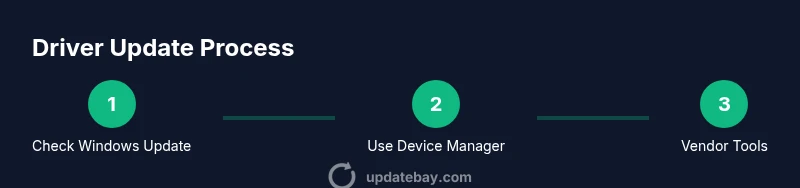
There are multiple safe paths to update drivers on Windows 11, and you can use them in combination for best results. The built-in Windows Update path is the least disruptive, and it’s the recommended first step for most users. For more control, you can update drivers via Device Manager by locating the device, selecting Update driver, and choosing to search automatically or browse your computer for driver software. Manufacturer tools—such as NVIDIA GeForce Experience, AMD Radeon Software, Intel Driver & Support Assistant, Realtek HD Audio Manager, or Broadcom network utilities—often provide more recent or specialized drivers, with one-click install and rollback options. Finally, for offline environments or specific enterprise needs, you can download drivers from the vendor site and install them manually, ensuring you verify compatibility and check for digital signatures. Always confirm the date and version before installing so you can compare against Windows Update releases.
Step-by-step workflow for updating drivers
This workflow outlines a safe, repeatable process you can follow on any Windows 11 PC. First, ensure you have a restore point and a current backup of important files. Then, run Windows Update to fetch recommended drivers; review the update list and install what’s available. Next, use Device Manager to verify drivers for critical components and install newer versions if offered. For graphics and chipset drivers, visit the vendor’s official site or use their companion software for the latest builds. After installation, reboot and check for stability. If problems arise, use the rollback option and test with incremental updates.
Safety and backup practices before you update
Before you update, take safety steps to protect your system. Create a System Restore Point so you can revert if something goes wrong. Back up essential files to an external drive or cloud storage. Ensure you have a stable internet connection and enough time to complete the process without power interruptions. If you’re updating drivers for a mission-critical workstation, consider performing updates in a maintenance window to minimize disruption. These precautions reduce the risk of driver installation failures and data loss.
Troubleshooting common update issues and realistic expectations
Driver updates sometimes fail to install or cause new issues. If an update doesn’t install, review the installation log, check for compatibility notes, and run the system file checker (sfc /scannow) if you suspect system corruption. If you experience crashes after a driver update, try rolling back to the previous version via Device Manager or Windows Update history, and test with incremental updates. In some cases, a clean install of chipset or GPU drivers may help. Remember to verify digital signatures and avoid third-party installers from untrusted sources. The goal is to stabilize the system while preserving security and performance gains.
Best practices for ongoing driver maintenance
Adopt a regular maintenance rhythm: run Windows Update monthly, review driver update notices, and keep critical drivers updated with vendor tools. Use a restore point strategy and maintain backups. Document drivers in use to help troubleshooting. For laptops, keep battery health in mind, since driver updates can influence power management and thermal behavior. Finally, refrain from installing every driver the moment it’s released; weigh stability against novelty, especially on production machines. The Update Bay approach emphasizes measured updates that balance security, performance, and reliability.
Tools & Materials
- Windows 11 PC(A supported device running Windows 11)
- Active internet connection(Stable connection to download updates and drivers)
- Administrative privileges(Admin rights to install or modify drivers)
- System Restore Point(Create before making driver changes)
- Backup storage(External drive or cloud storage for files)
- Vendor driver installers (optional)(Direct downloads from GPU, chipset, network, or audio vendors)
Steps
Estimated time: 60-90 minutes
- 1
Prepare and backup
Ensure you have a restore point and current backup of important files. Confirm you’re logged in with an administrator account. This minimizes risk if a driver update causes issues.
Tip: Create a system image if possible for quick full recovery. - 2
Check Windows Update
Open Settings > Windows Update and review available driver updates. Install any that are offered as recommended or optional.
Tip: Note the update versions and dates for future reference. - 3
Update critical drivers via Device Manager
Open Device Manager, locate key components (graphics, network, audio, chipset), and choose Update driver > Search automatically for drivers.
Tip: If Windows can’t find a newer driver, visit the vendor’s site. - 4
Use vendor tools for latest versions
Run GeForce Experience, Radeon Software, or Intel Driver & Support Assistant for tailored, vendor-released drivers.
Tip: These tools also provide rollback options if needed. - 5
Manual vendor downloads (offline/advanced)
If you need the absolute latest, download directly from the manufacturer and install after verifying compatibility and signatures.
Tip: Avoid unverified sources to prevent malware. - 6
Reboot and verify
Restart the PC and verify that devices operate correctly. Check for improved performance and test stability with common tasks.
Tip: If issues appear, use rollback to revert to the previous driver.
Frequently Asked Questions
Why should I update drivers on Windows 11?
Driver updates improve compatibility, security, and performance. They can fix bugs and enhance hardware support. Regular updates reduce the likelihood of conflicts with new software.
Driver updates improve compatibility and security and reduce conflicts with new software.
What is the best method to update drivers on Windows 11?
A layered approach works best: start with Windows Update, then use Device Manager for critical devices, and finally leverage vendor tools for the latest releases. This balances safety and access to new features.
Start with Windows Update, then Device Manager, then vendor tools for the latest drivers.
How can I tell if a driver update caused issues?
If problems appear after an update, check Device Manager for conflicts, review update history, and use the rollback option to revert to the previous version. Running a repair scan (sfc) can help diagnose system issues.
Use rollback if issues occur after an update and run diagnostics if needed.
Should I update all drivers at once?
Prefer incremental updates focused on essential components first (graphics, chipset, network). This minimizes risk and makes it easier to identify which driver caused trouble if something goes wrong.
Update important drivers first, then assess overall stability.
What if Windows Update doesn’t find driver updates?
Visit the device or hardware vendor’s site to download the latest drivers manually or use their official tooling. Ensure you verify compatibility and signatures before installing.
If Windows Update isn’t finding updates, download from the vendor site and install manually.
Watch Video
What to Remember
- Back up before updating.
- Start with Windows Update for core drivers.
- Prioritize graphics and chipset drivers.
- Have a rollback plan ready.