Windows Driver Update: A Practical, Step-by-Step Guide
Learn how to safely update Windows drivers with practical steps, checks, and best practices to improve hardware performance, security, and stability on modern systems.


Learn how to safely update Windows drivers to improve performance, fix compatibility issues, and boost security. This guide explains how to identify outdated drivers, choose between automatic and manual methods, and verify installations. The Update Bay team notes that regular driver updates reduce crashes and hardware conflicts, especially on the latest Windows releases. By following practical steps, you can keep devices running smoothly without risking system stability.
What is a Windows driver update and why it matters
A Windows driver update is software that lets Windows communicate with hardware devices more reliably. It can fix bugs, improve performance, and close security gaps. According to Update Bay, a Windows driver update is essential for stability, especially on newer hardware and Windows versions. Keeping drivers current reduces crashes, enhances feature support, and minimizes compatibility problems with peripherals such as printers, GPUs, and network adapters. In practice, most devices rely on a chain of drivers—from chipset to device-specific firmware—to operate correctly; missing updates can silently degrade performance over time. This explains what a driver update is, how it differs from ordinary software updates, and why you should treat it as part of regular system maintenance.
How driver updates differ from software updates
Driver updates are device-specific components that enable hardware to function with the operating system and drivers are often provided directly by the hardware manufacturer or through Windows Update. They focus on low-level communication, power management, and firmware compatibility, whereas typical software updates target applications and system utilities. The windows driver update may be delivered automatically or manually, and its impact is usually visible through improved device responsiveness, fewer crashes, and better peripheral support. For most users, treating driver updates as part of routine maintenance helps avoid cascading issues that arise when a single driver is out of date.
Common signs your drivers need updating
If your hardware acts oddly, updates might be the remedy. Look for devices that show warning symbols in Device Manager, peripherals that lag or disconnect, or apps that crash when a device is in use. Performance issues, system slowdowns during hardware-intensive tasks, or reduced gaming frame rates can also indicate out-of-date drivers. According to Update Bay, the presence of stale drivers is a common reason for compatibility headaches with new Windows releases. If you experience any of these symptoms, plan a driver check as part of your regular maintenance routine.
How to check your current driver version
Start by opening the Device Manager and expanding the category for the device you want to inspect. Right-click the device, select Properties, and navigate to the Driver tab to view version information and the driver provider. For graphic and network devices, you can also use the Settings app or a dedicated utility from the manufacturer to confirm the latest version. Keeping a record of installed driver versions helps you compare them against official release notes. If you notice a mismatch or an outdated version, it’s a signal to pursue an update.
Safe methods to update Windows drivers
There are several reliable paths to update drivers safely. Use Windows Update for broad, tested driver packages, especially for core components like graphics and network adapters. Use Device Manager for targeted updates when you know the specific device that needs revision. For hardware requiring specialized features or newer firmware, visit the manufacturer’s official site to download the latest driver package. Always verify digital signatures and download sources, and back up your system before applying updates. The emphasis is on integrity and reliability, not speed.
Manual vs automatic updates: Pros and cons
Automatic updates reduce effort and ensure drivers stay current, but they can install optional updates that you don’t want. Manual updates give you control and allow you to review each driver before installation, at the cost of time and extra steps. Some users prefer automatic updates for critical components like GPU and chipset drivers, while manually updating peripheral devices helps avoid conflicts. Weigh the trade-offs and choose the approach that matches your tolerance for rebooting and monitoring.
Troubleshooting post-update issues
If a driver update causes instability, start by rebooting and testing the device again. If the problem persists, roll back the driver from Device Manager to the previous version and test stability. Using a System Restore point or a recent backup can help revert the system to a known-good state. Verify that the issue isn’t caused by other recent changes, such as software updates or peripheral reconfigurations. This approach minimizes downtime and preserves system integrity.
Best practices for maintenance and security
Schedule regular driver checks and enable automatic updates where appropriate. Create a system restore point before major updates and maintain current backups. Prefer official sources and digital signatures to avoid tampered files. Consider combining driver updates with a brief system health audit, checking storage health, RAM integrity, and BIOS/firmware status. This holistic approach keeps your system robust and reduces the risk of cascading failures when new drivers are released.
Tools & Materials
- PC or laptop with internet access(Stable connection recommended during download/install.)
- Administrative rights on the computer(You may need to approve installations.)
- Backup method (external drive or cloud backup)(Create a system restore point if possible.)
- Official driver sources (manufacturer or Windows Update)(Avoid third-party aggregators.)
- USB drive (optional)(Useful if network access is temporarily unavailable.)
- Stable power source (no unplugging during install)(Keep the device plugged in during updates.)
Steps
Estimated time: Total time: 30-60 minutes
- 1
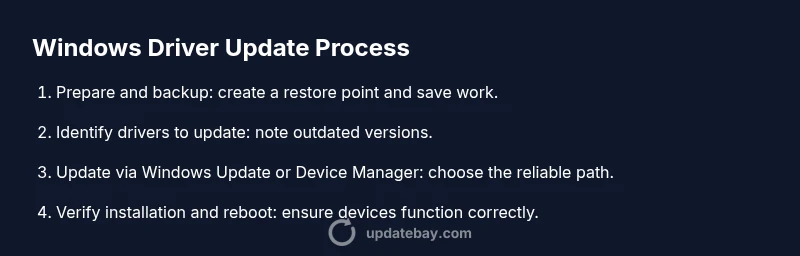
Prepare and back up
Create a system restore point or full backup before starting. Check for a quiet, uninterrupted power source and save all open work. This protects you if an update causes issues and you need to revert.
Tip: Backup first, then proceed with updates to minimize risk. - 2
Identify drivers to update
Open Device Manager and note devices with warning icons or outdated version numbers. Use the manufacturer's site or Windows Update to confirm the latest available version for each device.
Tip: Document current versions so you can compare after the update. - 3
Update via Windows Update
Go to Settings > Update & Security > Windows Update and check for driver updates. Install available driver packages that Windows deems essential for your hardware.
Tip: Prioritize drivers labeled as critical or recommended by Windows. - 4
Update drivers via Device Manager
Right-click a device, choose Update driver, and select automatically search. If you know a specific version, choose Browse my computer for drivers to pick the official package.
Tip: If automatic search fails, download from the official site and install manually. - 5
Update from the manufacturer site
For graphics cards, network adapters, and specialized hardware, download the latest driver directly from the vendor. Verify compatibility with your Windows version and hardware model.
Tip: Use the exact model number to avoid mismatches. - 6
Verify installation and reboot
After installation, reboot the system and verify that the device operates normally. Recheck driver versions to confirm the update took effect.
Tip: Run a quick test (e.g., print a document, run a video, or ping a network host). - 7
Rollback if issues arise
If instability appears, revert to the previous driver version through Device Manager and test again. If rollback isn’t available, restore from the backup created earlier.
Tip: Document any symptoms that appear after updates to guide rollback. - 8
Test hardware after updates
Perform a short validation suite on affected devices (graphics, audio, USB peripherals, network). Monitor for crashes, stutters, or device drops.
Tip: Keep an eye on system temperatures and fan behavior during tests.
Frequently Asked Questions
What is a Windows driver update?
A Windows driver update is software that fixes and improves how Windows communicates with hardware devices. It can boost performance, fix bugs, and address security vulnerabilities. Keeping these drivers current helps maintain system stability.
A Windows driver update brings fixes and improvements to how your computer talks to its hardware, helping stability and performance.
Should I enable automatic driver updates?
Automatic updates reduce manual effort and keep drivers current, particularly for critical hardware. However, you may want to review optional updates to avoid unwanted changes. Balance convenience with control based on your needs.
Auto updates are convenient for staying current, but review options if you need specific drivers.
Can driver updates cause problems?
Driver updates can occasionally introduce compatibility issues with certain software or peripherals. If problems occur, rollback to a previous version or restore from a backup. Start with windows driver update sources you trust.
Yes, occasionally updates cause issues; rollback or restore if that happens.
How do I rollback a driver update?
Open Device Manager, locate the device, choose Properties > Driver, and click Roll Back Driver if available. If the option is not available, use a System Restore point or a full backup to revert.
Use Roll Back Driver in Device Manager if the option exists, or restore from backup.
How often should I check for driver updates?
Check for driver updates regularly, especially after major Windows updates or when you notice hardware issues. Tie checks to your maintenance schedule to avoid neglect.
Check drivers regularly, especially after Windows updates or hardware problems.
Watch Video
What to Remember
- Back up before updating drivers.
- Use official sources for downloads.
- Test hardware after updates to verify stability.
- Know how to rollback if needed.