Update or Reinstall Network Drivers: Step-by-Step Guide
Learn how to update or reinstall your network drivers to fix disconnects, improve speeds, and resolve driver errors. This step-by-step guide covers Windows, macOS, and Linux with safety backups and verification checks.


According to Update Bay, updating or reinstalling network drivers can fix flaky connections, improve security, and boost performance. Update Bay analysis shows that many common connectivity issues are resolved by a clean driver reinstall rather than a full OS reset. This guide walks you through OS-specific steps, essential backups, and verification checks.
What are network drivers and why updating matters
Network drivers are small software programs that let your computer's operating system communicate with network hardware, including Wi-Fi adapters, Ethernet NICs, and Bluetooth modules. They translate OS commands into device-specific actions, manage power behavior, and optimize data throughput. When these drivers become outdated, you may see slower speeds, intermittent disconnects, or new features that your hardware supports but cannot use. Updating or reinstalling network drivers can fix compatibility issues, close security gaps, and restore peak performance. According to Update Bay, keeping drivers current is a critical part of maintaining reliable connectivity for everyday browsing, streaming, and work tasks. This is especially true after major OS updates, after hardware changes, or when you notice degraded performance. In this article, you’ll learn how to identify the right driver, choose safe download sources, and apply updates across Windows, macOS, and Linux environments.
Signs you should update or reinstall network drivers
Look for warning signs that point to driver issues rather than hardware faults. Frequent disconnects, dropouts when streaming, slow Wi‑Fi performance, or devices failing to connect after an OS update are common indicators. You may also notice devices listed with yellow warning icons in Device Manager, or inconsistent connection speeds between different networks. If the built‑in diagnostics point to the network adapter rather than the modem or router, it’s time to check drivers. Another robust cue is when you install a major OS upgrade or a new security patch that coincides with network instability. In these cases, the issue may be resolved by a fresh driver install rather than a full system reset. Running a Windows Update check, visiting the manufacturer’s site, or using a vendor utility can confirm whether a newer driver is available. Update Bay’s guidance emphasizes verifying the driver version after install to ensure the update actually took effect.
Backups and safety: prepare before you change drivers
Before updating or reinstalling network drivers, protect your data and system configuration. Create a system restore point or a backup image so you can roll back if something goes wrong. Note down your current driver version and the exact model of your network adapter; this makes it easier to find the right update later. Connect to a reliable power source if you’re on a laptop, and avoid performing driver changes during critical tasks. If you share a PC in a work environment, check with IT policies to avoid policy conflicts. For extra safety, copy the hardware ID and vendor name to a notepad file; these identifiers help when you fetch the correct driver from the manufacturer's site. If you’re using a USB network adapter, keep a spare adapter as a fallback in case the primary one loses connectivity during the update.
How to identify your network adapter and current driver version
Start by opening Device Manager (Windows) or System Information (macOS) to locate your network hardware. In Windows, expand the Network adapters section, right‑click your adapter, and choose Properties to view the driver version and date. On macOS, navigate to About This Mac > System Report > Network, then identify the hardware ID and driver status. Linux users can run commands like lspci -nnk | grep -iA3 network to identify the kernel module in use. Note the driver’s version and download date to compare against official sources. If you’re unsure about the exact model, you can physically inspect the label on the device or check the BIOS/UEFI if your adapter is integrated. Having precise details reduces the risk of installing an incompatible driver, which can cause more problems than it solves.
Update network drivers on Windows: step-by-step
Windows users can update drivers through Windows Update, Device Manager, or vendor download pages. Start with Windows Update to install any recommended driver packages. If you prefer manual control, open Device Manager, right‑click the network device, and choose Update driver > Search automatically for updated driver software. If that fails, download the latest driver from the vendor’s site and run the installer, choosing a clean install if offered. When performing a manual install, always reboot after the process completes to ensure the new driver is loaded. In some cases, you’ll need to disable the old driver and then enable the new one after a reboot. Consider creating a system restore point beforehand in case the new driver causes issues. See diagrams or vendor guides for any vendor‑specific steps, since the UI can vary by version.
Update network drivers on macOS and Linux: differences and options
Mac users rely on system updates and vendor patches delivered through macOS Software Update; there isn’t a single ‘driver installer’ in most cases. For macOS, keeping the system up to date generally maintains the most compatible network drivers for built‑in Wi‑Fi adapters. Linux users have a different path, typically updating kernel modules or firmware via the distribution’s package manager (apt, dnf, pacman) and specific firmware packages. Check the distribution's documentation for the exact commands and compatibility notes. Some hardware requires manual firmware updates from the vendor; in those cases, follow the vendor’s instructions and verify with a system reboot. Regardless of OS, always test network connectivity after applying updates and ensure the network interface shows an active status. Update Bay’s approach is to document OS‑specific steps clearly so you don’t confuse generic instructions with platform‑specific commands.
Performing a clean reinstall when updates fail
If a standard update doesn’t resolve connectivity issues, a clean reinstall of the network driver can help. Uninstall the current driver via Device Manager (Windows) or the equivalent on your OS, then restart the computer before installing the latest version fresh from the vendor. In some cases, you may need to remove the driver package completely from the system and reinstall a fresh copy. A clean install reduces residual files or corrupted components that can linger after failed updates. If you’re unsure which driver is safe to remove, refer to the manufacturer’s uninstall guide. After reinstall, re‑enable the network adapter and verify that your connection works. If your system creates a restore point automatically, keep it as a fallback option.
Verification: test connectivity and performance after update
After updating or reinstalling, perform basic connectivity tests to verify success. Check that you can browse, stream, and download without drops. Run a speed test to compare results with your baseline and ensure there’s no unexpected throttling or latency. Check Advanced Network Settings to confirm the adapter is enabled, the correct network profile is selected, and no security software is blocking traffic. If you updated remotely, test VPNs or corporate network access to ensure compatibility. Keep an eye on event logs for warnings related to the network adapter. If you notice persistent issues, repeat the process with a rollback to a previous driver version or try an alternate driver from the vendor’s site. Update Bay emphasizes documenting the exact driver version you settled on for future reference.
Troubleshooting common post-update issues and rollback options
Even after a successful install, some users encounter post‑update issues. Common problems include temporary network instability, dropped connections, or misconfigured latency settings. If instability persists, attempt a rollback to the previous driver using the device manager (Windows) or the vendor tools on macOS/Linux. If rollback isn’t possible, use a restore point or reinstall an older driver from a saved installer. For stubborn issues, consult the vendor’s support resources or contact your IT department. Documentation and patience are key; most driver issues have a well‑defined remediation path when you follow official sources exactly.
Best practices and maintenance: staying up to date
Create a routine for checking driver updates, especially after major OS upgrades or new hardware additions. Subscribe to vendor notes and security advisories for your network adapter, since some updates address remote‑code execution or denial‑of‑service vulnerabilities. Maintain a small log of driver versions and dates to track changes and avoid rolling back to older, unsupported versions. Consider enabling automatic driver updates where appropriate, but disable automatic installs if you rely on controlled environments like a workgroup with IT policies. When possible, combine driver updates with a full system backup window to minimize disruption. Finally, use reliable sources and do not rely on unofficial installers found on untrusted sites. Update Bay’s ultimate advice is to keep drivers current, verify updates, and have a rollback plan ready for any change.
Tools & Materials
- Admin access on your computer(You’ll need an administrator account to install or remove drivers.)
- Internet connection(Used to download official drivers or run updates.)
- Backup drive or cloud storage(Keeps a copy of current drivers and a system restore point.)
- Compatible driver installer from official source(Download the exact driver for your adapter model and OS version.)
- System restore point(Always create before making driver changes.)
- USB drive for offline installation (optional)(Useful if you must install on a device with no internet access.)
Steps
Estimated time: 30-60 minutes
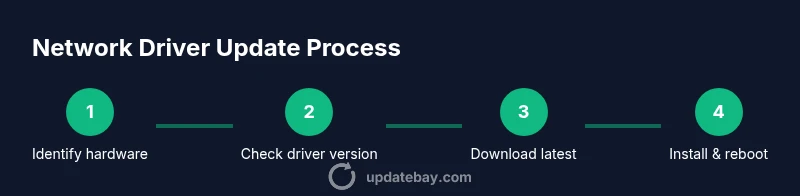
- 1
Identify your network adapter and driver version
Open the device manager or system information utility to locate the exact network adapter model and current driver version. Write down the version number and date to compare against official sources. This ensures you fetch the correct driver and avoid compatibility issues.
Tip: Take a screenshot of the device properties for quick reference. - 2
Choose update path and source
Decide whether to use Windows Update, macOS software updates, or a vendor download. Official sources reduce the risk of malware and ensure compatibility with your OS.
Tip: Avoid third-party updater tools that bundle unrelated software. - 3
Download the latest driver from official source
Visit the vendor’s site or use the OS’s built-in update utility to obtain the latest driver for your exact model and OS version. Verify the file name, date, and digital signature before downloading.
Tip: Double-check the model and OS compatibility before downloading. - 4
Install the driver and perform a clean install
Run the installer and select a clean install if offered. If not, uninstall the existing driver first, then install the new one. Reboot after installation to load the new driver properly.
Tip: If the installer asks to reboot in Safe Mode, follow the prompt for a clean state. - 5
Verify update and test connectivity
After reboot, confirm the driver version matches the new release and test connectivity by browsing, streaming, and running a speed test. Check for device status indicators in the OS.
Tip: Run a quick VPN test if you rely on corporate networks. - 6
If issues arise, rollback or restore
If the new driver causes problems, use the rollback option in Device Manager or restore from a previously saved restore point. Consider a repeat install with a different, official driver version.
Tip: Document the version you ended up with for future updates.
Frequently Asked Questions
Do I need to uninstall old drivers before updating?
Not always. Windows can replace a driver, but a clean uninstall can help resolve stubborn issues. Use vendor guidance for clean install options.
Usually you can update without uninstalling, but if issues persist, perform a clean uninstall and reinstall.
Can Windows automatically update drivers?
Yes. Windows Update can install driver updates automatically. Check settings to allow driver updates and consider manual checks for critical hardware.
Yes, Windows can handle driver updates automatically, but you can also manually check for newer versions.
What if I can’t connect to the internet to download drivers?
Use another device to download the correct driver installer and transfer via USB. Some vendors offer offline installers or a network adapter alternative.
If you’re offline, download on another computer and transfer the installer via USB.
How do I rollback a driver in Windows?
Open Device Manager, right-click the network adapter, choose Properties > Driver > Roll Back Driver. If unavailable, use a restore point.
Go to Device Manager, roll back the driver from the Driver tab or use a restore point.
Are macOS and Linux drivers different from Windows?
Yes. macOS relies on system updates for drivers; Linux uses distribution package managers to update kernel modules and firmware.
Mac and Linux have platform-specific paths: macOS uses system updates, Linux uses package managers.
How often should I update network drivers?
Update when you notice issues or after OS upgrades; avoid automatic installs if you manage a controlled environment.
Update when needed, especially after OS changes; control automatic installs if in a managed setup.
Watch Video
What to Remember
- Identify your exact network adapter first.
- Back up and create a restore point before updates.
- Install only official drivers from vendor sources.
- Test connectivity after updates and document the final driver version.
- Have a rollback plan for any driver change.