Network Drivers Update: Essential Guide for 2026
Learn how to safely update network drivers, why it's essential, and how to troubleshoot common issues. This practical Update Bay guide covers steps, tools, risks, and best practices for reliable connectivity.


You will learn how to safely update your network drivers, verify compatibility, and troubleshoot post-update issues. Before you start, gather your device model, current OS version, and a reliable driver source. This guide provides a step-by-step process, practical tips, and safety reminders to minimize risk and downtime for smoother networking experiences.
Why updating network drivers matters
Network drivers are the software bridges between your operating system and your hardware network adapters. When they are out of date, you can experience slower speeds, dropped connections, IP conflicts, and reduced compatibility with new routers or Wi‑Fi standards. A timely network drivers update can improve stability, security, and performance, especially after major OS updates or device changes. Update Bay's analysis shows that many connectivity issues stem from legacy drivers that have not been refreshed to support current security protocols or hardware features. By keeping drivers current, you reduce the risk of incompatibilities with recent standards like WPA3, IPv6 transitions, or new virtualization environments. In practice, a proactive update plan helps you avoid nagging symptoms and keeps your devices aligned with your network infrastructure. For most users, a quarterly review of network adapter drivers is sufficient, but you should investigate urgent updates after major OS releases or security advisories. Throughout this guide, you will learn how to identify the correct driver, safely install it, and validate the update across common operating systems.
How to identify the right driver for your device
Begin by identifying the exact network adapter in your computer. On Windows, open Device Manager and expand Network adapters; on macOS, check System Information; on Linux, run lspci or lsusb as appropriate. Note the device vendor and model, then visit the vendor's official download page to locate the matching driver for your OS version. If you are unsure, the OS’s built-in driver sometimes remains preferred, but a vendor-supplied driver can offer improved performance and security fixes. Cross-check the driver version currently installed against the version you plan to install. Some devices use generic drivers that are provided by the OS vendor; in these cases, file names might not reveal the exact model, so rely on the hardware ID or PCI ID when possible. Ensure you select the correct architecture (x86, x64, or ARM64) and the correct OS build.
Preparation and safety: backups and restore points
Before you touch any driver file, create a full system restore point or backup. This gives you a safety net if the update causes issues. Gather the exact device model, OS version, and current driver version so you can compare before and after the install. Make a note of any recent router changes or security updates that might interact with the driver. Turn off battery-only mode on laptops during the update to avoid an interruption, and prefer a wired Ethernet connection for下载 the driver package. If you use third-party driver tools, verify they source drivers from official channels to avoid tampering.
Step-by-step update workflow
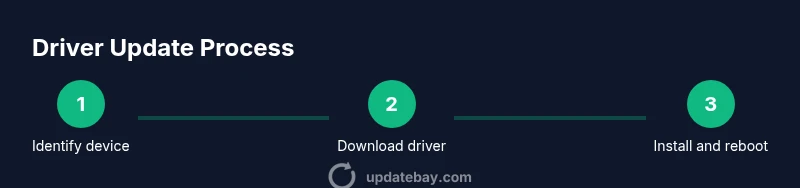
- Download the correct official driver file from the vendor page.2) Close unnecessary applications, and run the installer with administrative privileges.3) Follow on-screen prompts to install the driver, choosing a clean install if prompted.4) Reboot the system to complete the installation.5) After reboot, verify in Device Manager (or equivalent) that the driver version matches the downloaded package.6) Run a quick network test: ping your router, test Wi‑Fi speeds, and check for disconnects.7) If the install reports issues, use the rollback feature to revert to the previous version and attempt a fresh install.8) Document the update in your maintenance notes, including date, driver version, and observed performance.9) Reconnect to networks and resume normal activity.
Verifying installation and post-update testing
Check the new driver version in Device Manager or System Information to confirm the install succeeded. Run a speed test, check latency, and verify that VPNs or virtual machines maintain stable connectivity. If you rely on corporate or managed devices, ensure the update complies with your organization’s patch management policy. Monitor for unusual behavior for the next 24–72 hours and be ready to rollback if necessary.
Special cases: laptops, desktops, and external adapters
Laptops can auto-switch between wireless and wired networks; ensure both interfaces work post-update. For desktops with PCIe NICs, reseating the card and updating BIOS firmware may be beneficial in some cases. USB wireless adapters can present extra challenges; ensure you download the exact USB ID and install in the correct OS mode (32‑bit vs 64‑bit).
Rollback, versions history, and long-term maintenance
Maintain a log of driver versions and update dates. If a newer version introduces issues, you can rollback to the previous stable release while waiting for a fix. Establish a quarterly review cadence and align updates with OS patch cycles to minimize conflicts.
Security, privacy, and best practices for driver updates
Only download drivers from official vendor pages or trusted enterprise repositories. Keep your system restore points up to date, and avoid unsigned or dubious packages. Regularly review security advisories related to your network adapters to stay ahead of vulnerabilities.
Tools & Materials
- Official driver file from vendor(Download the correct version for your exact device model and OS.)
- Device model and OS version info(Record current driver version and OS build before updating.)
- Stable internet connection(Prefer wired Ethernet for reliability.)
- System restore point or backup(Create prior to update as rollback safety.)
- Admin access credentials(Needed to install drivers and modify system settings.)
- Power source for laptop(Keep device plugged in during update to avoid interrupt.)
- USB drive/offline installer (optional)(Useful if you install on machines without reliable internet.)
- Driver update utility/software (optional)(Can automate detection and installation in some environments.)
Steps
Estimated time: Total time: 60-90 minutes
- 1
Identify target driver
Locate exact device model and OS compatibility. Use hardware IDs if needed and confirm architecture (x86/x64/ARM64).
Tip: Cross-check the model against the vendor page to avoid incorrect downloads. - 2
Back up before installing
Create a system restore point and back up important settings. This ensures you can revert if something goes wrong.
Tip: A restore point is your safety net during driver updates. - 3
Download official driver
Get the correct, signed driver from the vendor’s official site. Verify file integrity if a checksum is provided.
Tip: Avoid third-party mirrors to prevent tampered files. - 4
Run the installer with admin rights
Approve any User Account Control prompts and follow the on-screen steps. Choose a clean install if prompted.
Tip: Close competing apps to avoid conflicts during installation. - 5
Reboot the system
Restart to complete the driver integration and apply system-level changes.
Tip: A full reboot ensures all services pick up the new driver. - 6
Verify the install
Open Device Manager/System Info to confirm the driver version. Run basic network tests.
Tip: Check for missing devices or warning icons in Device Manager. - 7
Test network functionality
Run a speed test, ping router, and check VPN connections if used. Look for stability over 15–30 minutes.
Tip: If drops occur, note time, router, and workload for troubleshooting. - 8
Document and monitor
Log the update date, driver version, and observed performance. Schedule the next review.
Tip: Maintenance logs simplify future upgrades. - 9
Plan for rollback if needed
If issues arise, use the rollback option or system restore to revert to the previous driver.
Tip: Rollbacks are faster when you prepared restore points beforehand.
Frequently Asked Questions
Do I need to update network drivers regularly?
Yes. Regular checks help maintain performance, security, and compatibility with new routers and OS features. Schedule a quarterly review and investigate urgent updates after OS releases or security advisories.
Regular updates are recommended to keep performance stable and secure. Check quarterly and after big OS changes.
Can I update drivers automatically?
Some systems support automatic driver updates via the OS or vendor utilities. Use automatic updates cautiously, and still verify the installed version afterward to avoid unintended rollbacks or incompatible builds.
Auto-updates can help, but always verify the final version to ensure compatibility.
What if network stops working after an update?
If issues occur, try rolling back to the previous version via Device Manager or the vendor utility, and test network connectivity again. If needed, restore from a backup and reattempt with an alternative driver version.
If problems arise, roll back to the previous driver and test connectivity again.
Should I delete old drivers before installing new ones?
Generally not required; the installer performs a clean install when offered. Deleting old drivers manually can cause system instability. Rely on the vendor’s installer options for clean installs.
Usually you don’t need to delete old drivers; use the installer’s clean install option if available.
How often should I check for driver updates beyond schedule?
Check after major OS updates, security advisories, or noticeable connectivity changes. If you rely on critical networks, consider monthly checks.
Check after OS updates or security advisories to stay current.
Is it safe to update drivers without admin rights on some systems?
Most driver installations require admin rights due to system-level changes. If you don’t have admin access, contact your IT admin or use a system with proper permissions.
Driver updates usually need admin access to proceed.
Watch Video
What to Remember
- Update drivers regularly to improve stability and security
- Always use official sources and create a restore point before changes
- Verify post-install performance with real-network tests
- Be prepared to rollback if issues occur
- Document updates for future maintenance