Update or Rollback Drivers: A Practical Comparison for 2026
An analytical guide from Update Bay on whether to update or rollback drivers, with a clear framework, step-by-step guidance, and platform-specific tips for Windows, macOS, and Linux.


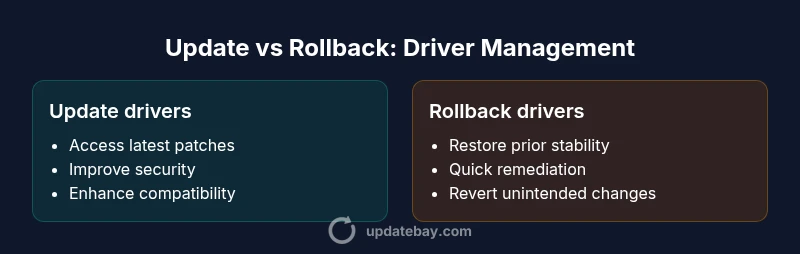
For most users, updating drivers is the default choice because it delivers security patches, bug fixes, and improved compatibility. Rollback should be considered only when a recent update causes persistent instability, a specific device fails to perform, or a critical workflow is disrupted. Always pair changes with a known backup or system restore point and test thoroughly before committing. The Update Bay guidance emphasizes cautious, repeatable testing to minimize downtime while maximizing long-term reliability.
Why update or rollback drivers matters in 2026
Driver management remains a foundational task for stability, security, and performance across devices ranging from consumer PCs to enterprise workstations. The decision to update or rollback drivers is not one-size-fits-all; it depends on hardware age, software ecosystems, and user risk tolerance. According to Update Bay, the challenge is balancing security with reliability as hardware stacks evolve. This section explains why driver choices matter for daily workflows, gaming, creative work, and IT patch cadences. You’ll find practical criteria, common pitfalls, and a repeatable decision process you can apply across Windows, macOS, and Linux environments. The goal is to move from guesswork to deliberate, data-informed decisions that minimize downtime and maximize performance over time.
The core decision factors: safety, stability, compatibility, and security
When deciding whether to update or rollback drivers, consider four central factors: safety, stability, compatibility, and security. Safety means avoiding driver changes that expose the system to untrusted software or destabilize essential components. Stability focuses on avoiding bluescreens, freezes, and driver crashes. Compatibility checks ensure the driver interacts correctly with your current software stack, peripherals, and firmware. Security covers the latest patches and vulnerability mitigations that reduce attack surfaces. In practice, you should assess each factor with device-specific tests, vendor guidance, and documented rollback plans. Update Bay’s framework emphasizes treating driver changes as controlled experiments, not one-off tweaks. This approach helps you protect critical workflows while staying current with essential improvements across platforms.
How to assess your current driver state
Before making any change, establish a baseline for comparison. Document the current driver version, date, and device behavior in normal operation. Create a system restore point or backup, if available, so you can revert quickly if issues arise. Check vendor release notes and community reports for known issues tied to the exact driver version. Use built-in tools (Device Manager on Windows, System Information on macOS, or lsmod/lspci on Linux) to verify your hardware identifiers and driver associations. Run representative workloads to observe performance deltas, error logs, and stability metrics. This evaluation phase is where Update Bay’s emphasis on evidence-based decisions begins to pay off, reducing the risk of unnecessary changes.
When to Update: scenarios and practical steps
Update scenarios typically include the need for security patches, bug fixes that affect your hardware or software, and enhanced compatibility with newer applications. Practical steps include creating a restore point, downloading the official driver package from the vendor, uninstalling the old driver if recommended, and performing a clean install. After installation, verify device functionality with your usual workloads and test for any regression in performance or stability. If multiple devices are involved (e.g., a workstation fleet), stagger updates and monitor for anomalies before rolling out broadly. Update Bay notes that rolling updates in batches can help identify issues earlier and minimize widespread disruption.
When to Rollback: triggers and methods
Rollback should be contemplated when a recent driver update introduces instability, compatibility regressions, or performance degradation that affects core tasks. Triggers include repeated crashes, degraded benchmarks, or peripherals failing to initialize properly. The rollback method depends on the platform: Windows typically offers a rollback option in Device Manager or a vendor-provided recovery package; macOS often relies on system restore points or previous macOS/driver bundles; Linux users may revert to an earlier kernel or package version using package management tools. Regardless of platform, ensure you have a tested rollback plan, a verified backup, and a clear set of conditions that justify returning to the prior driver state. Update Bay’s practical guidance stresses controlled reversions with measurable re-testing to confirm recovery.
Platform-specific considerations: Windows, macOS, Linux
Windows drivers sit at the intersection of vendor packages and Windows Update. Rollbacks and clean installs are well-supported, but driver stacking and feature back-compat can complicate recovery. macOS has a tighter control surface, with fewer driver-level rollbacks but robust system snapshots that aid reversions. Linux distributions vary by package managers and kernel versions; some drivers live in the kernel, complicating rollback decisions. Across all platforms, ensure your rollback plan aligns with backup strategies and hardware pecific firmware constraints. Update Bay highlights that platform nuances strongly influence the risk profile of updates and the feasibility of rollbacks.
Backup, restore, and rollback safety nets
Backups form the safety net that makes update or rollback practical. Create full system backups or at least disks/partition images, plus driver-specific restore points where available. Vendor recovery tools can speed up remediation, especially after a failed update. Maintain a repository of known-good driver versions for critical devices. Document each change with a timestamp, the rationale, and the observed outcomes. This documentation helps you compare pre- and post-change performance and provides a reliable rollback reference. Update Bay emphasizes that strong safety nets reduce the fear of updates and empower more proactive driver management.
Best practices and a practical workflow
A disciplined workflow starts with a clearly defined change request: update or rollback, device scope, and success criteria. Begin with a baseline test, then proceed with controlled updates or reversions in small batches. Always verify security patches and vendor-recommended steps, and maintain a rollback checklist if issues arise. After any change, run a representative workload suite and log the results. Use automation where possible for reproducible outcomes. Update Bay recommends documenting lessons learned after each cycle to refine future decisions and accelerate faster, safer driver management across devices.
Common pitfalls and how to avoid them
Common pitfalls include skipping backups, updating in the middle of critical work, and assuming every new driver is better without verifying performance. Other traps are ignoring known issues in release notes, skipping platform-specific procedures, and failing to validate peripherals after changes. To avoid these, establish a pre-change baseline, test with realistic workloads, and maintain a clear rollback plan. When in doubt, adopt a staged rollout, begin with a single device, and expand only after confirming stability. This cautious approach aligns with Update Bay’s emphasis on repeatable, evidence-driven decision making.
Comparison
| Feature | update drivers | rollback drivers |
|---|---|---|
| Stability after change | Often improves with fixes; risk of new bugs exists | Can restore known-good baseline; may reintroduce older issues |
| Security and patches | Access to latest security patches and mitigations | Rollback may leave older vulnerabilities if patches are missing |
| Software compatibility | Better alignment with current software stacks and APIs | Older drivers may conflict with newer software features |
| Backup and recovery | Vendor tools and restore points commonly available | Depends on reliable restore points or driver package availability |
| Time and effort | Usually quick with automated installers | Can be time-consuming if multiple devices are involved |
| Long-term maintenance | Supports ongoing security and feature updates | Rollback adds drift management and testing cadence |
Positives
- Improved security and performance with updates
- Access to new features and bug fixes
- Better compatibility with current software stacks
- Vendor-supported recovery tools and documented processes
Downsides
- Potential for new bugs after updates
- Rollback may reintroduce older issues or vulnerabilities
- Rollback requires reliable backups and restore points
Update drivers for ongoing security and compatibility; rollback when updates cause verified issues
The Update Bay team recommends prioritizing updates to maintain security posture and compatibility. Use rollback as a targeted remedy after confirming backups, testing changes, and ensuring business continuity.
Frequently Asked Questions
Should I always update my drivers?
Not always. Evaluate the need for security patches and bug fixes against potential stability risks for your specific device and workload. If your system is stable and updates cause issues, a controlled rollback may be more appropriate. The goal is to balance security with reliability.
Always update if you need security fixes, but test first. If updates cause issues, rollback with a plan.
What are the risks of rolling back drivers?
Rolling back can reintroduce older bugs or vulnerabilities that were mitigated by newer patches. It may also affect compatibility with newer software or firmware. Have a tested rollback plan and backup to minimize disruption.
Rollback can bring back old issues; ensure you have a solid backup and tested plan.
How can I safely back up before updating drivers?
Create a full system backup or disk image and, if possible, a driver-specific restore point. Document current configurations and keep vendor recovery tools ready. Backups enable a quick recovery if updates cause problems.
Back up fully first, then update. If something goes wrong, you can restore.
How do I rollback drivers in Windows 10/11?
Open Device Manager, locate the device, and select Properties > Driver > Roll Back Driver. If the option is unavailable, use a previously saved driver package or a system restore point. After rollback, test critical workflows to confirm stability.
In Windows, use Device Manager to roll back the driver if available; otherwise, restore from backup.
Can driver updates affect licensing or activation?
Most driver updates do not affect licensing or activation, but some enterprise configurations rely on hardware fingerprints. If you rely on specialized software licensing tied to hardware, verify with the vendor before updating.
Usually not, but check vendor guidance if licensing depends on hardware.
How can I test driver changes safely on a single device?
Isolate the device from critical workflows during testing, use a staging profile, and monitor for stability issues. Compare performance metrics before and after changes, and have a rollback plan ready if issues arise.
Test on a non-critical device first and monitor results closely.
What to Remember
- Prioritize updates for security and compatibility
- Use rollback only after validating issues with updates
- Always backup before changing drivers
- Test changes with representative workloads
- Follow platform-specific steps to minimize risk