How to Get Updated Rosters on Madden 25
A comprehensive, practical guide to obtaining the latest rosters in Madden 25, including official EA updates, how to download, troubleshoot, and keep your Franchise and online games current.


You can get updated rosters on Madden 25 by connecting online, signing into your EA account, and using the in-game roster update feature or official patch notes to download the latest player ratings and depth charts. This guide helps you locate official updates, apply them, and troubleshoot common hiccups for smooth online play and franchise mode.
Why updated rosters matter in Madden 25
If you’re wondering how to get updated rosters on Madden 25, staying current matters for accurate player ratings, depth charts, and real-world injuries that affect gameplay. Updated rosters ensure your Franchise and online leagues mirror the current NFL landscape. The Update Bay team emphasizes that roster accuracy improves fairness in matchups and keeps strategic decisions relevant. Expect fresher schemes, better overall balance, and fewer mismatches when rosters reflect the latest NFL standings.
Sources of roster updates
Official roster updates for Madden 25 typically come from EA Sports via online patches and server updates. These updates adjust player ratings, depth charts, injuries, and sometimes scheme tendencies. In addition to official patches, EA publishes patch notes detailing what changed, which is crucial for understanding how a new roster might impact your team. Community rosters and fan-made updates exist, but they vary in quality and can affect online play or franchise files. Always prioritize official updates first and treat third-party rosters as secondary or for offline use only.
How roster updates are delivered in Madden 25
EA’s roster delivery usually occurs through in-game prompts linked to your online profile. On most platforms, you’ll receive a notification directing you to download the latest roster update. Updates replace older data and refresh player attributes, injuries, and depth charts. The process is designed to be seamless: you launch Madden 25, navigate to Rosters or Updates, and confirm the download. If you’re playing offline, you may still see roster changes when you reconnect to the internet, as some patches require online verification.
Checking for updates on your platform
On consoles, go to the main menu, select Settings or EA Account, and check for updates under Rosters or Game Updates. On PC, launch the game through the EA desktop client or your platform’s storefront and look for patches or updates to Madden 25. If you rely on online multiplayer, ensure your console or PC is connected to the internet and your subscription services (Xbox Live, PlayStation Network) are active. If an update is available, you’ll typically see a prompt to install before launching the game.
How to install updates safely
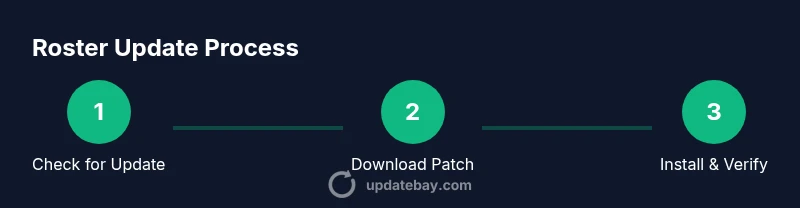
To install updates, confirm you have a stable internet connection and sufficient storage space. Start Madden 25, open the Rosters or Updates section, and select Download/Install. After the update finishes, restart the game to ensure changes take effect. If you encounter a failed install, retry once and verify your internet connection. Backup your saved files before major updates to prevent data loss in Franchise mode or custom rosters.
Manual roster management and community rosters: Pros and cons
Some players explore community rosters or manual edits to customize rosters beyond official updates. While these can offer rapid refreshes, they may disrupt online play, ratings consistency, or franchise progress if not aligned with EA’s official data. For most players, official roster updates provide the safest path to accuracy, especially in online leagues, while community rosters can be useful for offline experimentation. Always read the creator notes and test in a separate save before integrating.
Troubleshooting common issues
If updates don’t appear, verify your internet connection and retry, ensuring you’re updating the correct Madden 25 title edition for your platform. Confirm you’re signed into the correct EA account and that your region matches the patch. If you still encounter errors, check EA’s official support pages or forums for known issues and recommended workarounds. Clearing cache, restarting the console, or reinstalling the game are last-resort options to resolve stubborn update errors.
Online play implications and best practices
Keep rosters current to avoid mismatches in online play and leagues. In Franchise mode, roster accuracy affects contract values, progression, and draft outcomes. If updates are delayed, consider pausing online play until the patch lands, or run a separate offline league with outdated rosters to prevent skewed results. Update Bay recommends documenting when updates were applied to maintain consistency across multiple teams and save files.
Best practices for staying current
Set a routine to check for updates weekly during the season, especially after NFL changes or major patches. Enable automatic updates where available, and keep a log of version numbers for each save. If playing online, verify that all participants are on the same roster version before crucial games. Remember: how to get updated rosters on Madden 25 is easier with a stable internet connection and a clear update strategy.
Tools & Materials
- Internet connection(Stable, broadband recommended for large downloads)
- EA Account(Linked to your Madden 25 game and platform)
- Madden 25 game (disc or digital)(Latest installed edition for your platform)
- Console or PC with latest patch(Ensure system is updated to support patches)
- External storage or sufficient hard drive space(Helpful for large roster downloads and backups)
Steps
Estimated time: 20-40 minutes
- 1
Connect to the internet and sign in
Power on your console or PC, ensure network connectivity, and sign in to your EA account. A stable connection is essential to verify official roster updates and sync your progress.
Tip: Use a wired connection if possible to avoid drift in download speeds. - 2
Open Madden 25 and access the rosters menu
Launch the game, navigate to the Rosters or Updates section from the main menu, and locate the roster options. This is where you initiate the update download.
Tip: If you don’t see Rosters, check for a separate “Online” or “Patch Notes” submenu. - 3
Check for official roster updates
Choose the option to Check for Updates or View Patch Notes. This will show whether a new roster has been released and what changes it includes.
Tip: Review the patch notes to understand rating adjustments and injuries before downloading. - 4
Download and install the update
Confirm the download and let the system install the roster update. A restart of Madden 25 may be required for changes to take effect.
Tip: Avoid multi-tasking during download to prevent interruptions. - 5
Validate the update
After installation, start a quick exhibition game or check a key team to confirm the new rosters are in effect and that depth charts updated correctly.
Tip: Check multiple teams to ensure widespread changes are applied. - 6
Backup before major changes
If you’re updating rosters in a saved Franchise file, back up the save before applying updates to avoid data loss.
Tip: Create a separate save slot for testing the roster changes. - 7
Troubleshoot if you hit a snag
If the update fails, retry once, verify your connection, and consult official EA support or forums for guidance on known issues.
Tip: Clear cache or reinstall only as a last resort to prevent data loss.
Frequently Asked Questions
Do I need an internet connection to update rosters in Madden 25?
Yes. Official roster updates are delivered online, and a stable connection helps download patches quickly. Without internet, you may not receive the latest rosters.
Yes. You need internet to download roster updates, or you might miss important changes.
Are roster updates free?
Official updates are provided by EA at no additional charge beyond your game purchase. Some platforms might require ongoing network fees for online features.
Yes, official updates are free with the game; online play may incur platform fees.
Can I manually edit rosters after updates?
You can customize rosters offline, but manual edits may not sync with official data and can cause issues in online play or Franchise mode.
Manual edits are possible offline but can create problems online.
Will roster updates affect my Franchise progress?
Roster updates can affect player ratings, injuries, and depth charts, which in turn influence progression and contract values in Franchise mode.
Yes, updates can change outcomes in Franchise mode.
Where can I find official update notes for Madden 25 roster updates?
Check EA Sports official patch notes section and Madden 25 community threads for detailed changes and version numbers.
Look at EA’s patch notes or Madden community threads for details.
Watch Video
What to Remember
- Stay current with official EA roster updates for accuracy
- Back up saves before applying large roster changes
- Check patch notes to understand what changed
- Prefer online updates for online play and franchises
- Test changes in a separate save when possible