How to Update Roster Madden 25: Step-by-Step Guide
Learn how to update rosters in Madden 25 with official patches and trusted community rosters. This step-by-step guide covers preparation, download, verification, and troubleshooting to ensure realistic, current NFL rosters.


Update your roster Madden 25 by following official patch steps, then verify changes in-game. Gather your console or PC, an internet connection, and backup saves. This guide walks you through downloading, installing, and confirming roster updates for accurate gameplay.
Why roster accuracy matters in Madden 25
Roster accuracy directly impacts the realism and fairness of encounters in Madden 25. When players reflect real NFL rosters, you’ll see current team depth charts, updated player positions, and correct injury statuses. According to Update Bay, staying current with rosters helps players experience authentic matchups and fair progression in franchise modes. A precise roster also informs AI behavior, play-calling tendencies, and overall stats, making every game feel connected to the real league. In 2026, fans expect rosters to mirror season changes, free-agent moves, and draft results, so keeping rosters up to date is part of responsible game maintenance. This article focuses on practical, executable steps you can take today to update roster Madden 25 without risking your saved games.
Sources for roster updates
Reliable roster updates come from a mix of official patches and trusted community files. Start with the official patch notes from EA Sports, which typically list player movements, rating adjustments, and injury statuses. In-game update menus often prompt you to download patches, and again, EA’s website is the primary reference for patch details. Community-driven rosters can extend the realism by incorporating late-trade changes or alternative depth charts, but they require scrutiny for accuracy. Update Bay analysis shows that cross-checking official patches with credible community rosters yields the best balance of timeliness and reliability. Always favor official sources first, then verify any community files against multiple outlets before applying them to your Madden 25 installation.
Risks of incorrect rosters
Using outdated or incorrect rosters can lead to mismatched player ratings, unbalanced lineups, and unrealistic team chemistry. If a roster mislabels an injury or misplaces a star player, it can create gameplay that feels unfair or confusing. Incorrect rosters may also cause save inconsistencies if you try to transfer roster data between modes or platforms. To minimize risk, keep backups, verify patch notes, and test changes in a non-critical game mode before committing to a full franchise run. The goal is to preserve the immersion of Madden 25 without compromising your progression or saved games.
How updates are delivered (patches vs community mods)
Roster updates arrive in two main forms: official patches delivered through EA’s patch system and user-generated rosters shared via community channels. Official patches are the safest route, bundled with bug fixes and roster tweaks synced to NFL developments. Community mods can enhance realism but may introduce incompatibilities with your game version or platform. If you opt for community rosters, only use files from trusted sources and back up your saves first. Be mindful that mods often require manual installation steps and can occasionally destabilize the game if not applied correctly. The safest workflow remains applying official patches first, then evaluating community options with caution.
Prepare your Madden 25 setup
Before updating rosters, prepare your setup to reduce risk and streamline the process. Ensure you have a stable internet connection, and back up your current saves or roster data to cloud storage or an external drive. Confirm you’re running the latest game version and that your console or PC has enough free space for patch data. If you’re playing on multiple platforms, keep a record of which roster version you’re using on each one to avoid cross-platform confusion. Having a clear rollback plan helps you quickly restore a prior state if something goes wrong during the update.
Step-by-step overview of updating rosters (high-level)
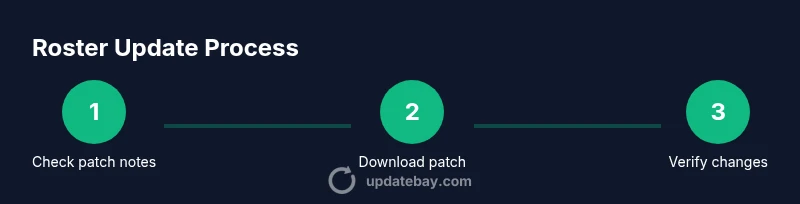
A high-level view of the update flow helps you stay organized. First, check for official roster patches and read the notes. Next, download and install the patch through the game’s update mechanism or your platform’s storefront. Then, launch Madden 25 and load the updated roster, confirming that player moves, injuries, and depth charts reflect the patch. Finally, test by playing a short exhibition to ensure no glitches or misalignments. This overview keeps you aligned with best practices and minimizes surprises when you start a new franchise.
Verify changes in Franchise mode
After updating, verify changes by entering Franchise mode and inspecting teams you care about most: starting lineups, depth charts, and rotation. Verify that rookies are properly added to rosters and that major trades are reflected in the roster file. Run a quick sim to observe that AI rosters respond to the changes and that injuries and ratings adjust as expected. If something seems off, re-check the patch notes and confirm you’re on the correct roster version. Consistent verification helps you catch issues before they affect a long-running franchise.
Troubleshooting common issues
If the roster update doesn’t appear or seems incomplete, start with the basics: reboot Madden 25, restart your device, and re-check for patches. Verify your internet connection, clear cache if applicable, and ensure you’re using the correct platform store account. If you’re using a community roster, re-download from a trusted source and reapply, ensuring you back up the previous roster. When all else fails, consult the official EA patch notes and forums for any known issues with the current roster update. Keeping a step-by-step log helps you identify where the problem arises.
Best practices for ongoing roster updates
To stay current without chaos, adopt a routine: schedule a monthly roster check, bookmark official patch notes, and maintain a dedicated backup folder for roster data. Consider creating a separate save state for testing new updates before applying them to your main franchise. Maintain a short changelog for each roster version you use, so you can reproduce setups or rollback easily. This disciplined approach reduces risk and keeps your Madden 25 experience fresh and realistic.
Quick wins for Franchise mode with updated rosters
Even small roster refinements can noticeably improve Franchise mode. Prioritize realistic draft classes, updated depth charts for key positions, and correct injury statuses, which influence AI decisions and player availability. A few well-timed updates can significantly improve the balance and enjoyability of long-running leagues. Keep a habit of validating critical players first—starters and captains—before scanning lesser-known role players. This approach helps you maximize the effect of roster updates without introducing new glitches.
The Update Bay approach to roster updates
At Update Bay, we emphasize practical, reliable roster updates grounded in official patch releases and tested community feedback. Our guidance centers on validating changes in-game, backing up saves, and avoiding risky third-party patches. By following a cautious, methodical process, you’ll preserve the integrity of Madden 25 while staying aligned with NFL realignments. The Update Bay team recommends combining official patches with selective, trusted community tweaks to achieve the best balance of accuracy and stability.
Tools & Materials
- Gaming console or PC with Madden NFL 25 installed(Ensure the game is legitimate and up to date before starting.)
- Stable internet connection(Wired ethernet is preferred for large patches.)
- External storage or adequate free space(Keep at least 5 GB free for patch files and backups.)
- EA/Origin account credentials(Needed to download official patches and save data.)
- Backup method (cloud save or USB drive)(Recommended before applying roster changes.)
Steps
Estimated time: 60-90 minutes
- 1
Prepare and back up current roster
Power on your console or PC, navigate to the Madden 25 data section, and back up your current roster. This protects you if the new roster update causes issues. Store backups on cloud storage or an external drive.
Tip: Label backups clearly with date and roster version for easy rollback. - 2
Check for official roster patches
Open the game’s update menu or visit the official EA Sports patch notes page to confirm whether a roster update is available. Read the notes to understand which players or teams are affected.
Tip: Prioritize patches addressing major trades or injuries. - 3
Download and install the patch
If a patch is available, initiate the download and allow installation to complete without interrupting the process. Ensure you have a stable connection during this step.
Tip: Avoid pausing mid-download to prevent corrupted patch files. - 4
Launch Madden 25 and load roster
Start the game and choose the roster update option if prompted. Allow the game to load the new roster data fully before entering a game mode.
Tip: Give the game a minute after loading to settle ratings and depth charts. - 5
Verify roster changes in-game
Enter a game or Franchise mode to verify updated players, positions, and lineups. Confirm that key players reflect the patch and that injuries or transactions are current.
Tip: Check multiple teams if you follow real-world NFL movements closely. - 6
Test with a quick exhibition
Run a short exhibition game to confirm gameplay balance remains intact and that AI behavior aligns with the new roster. Observe special teams, depth players, and rotation changes.
Tip: If something feels off, revert to a backup and reapply the patch. - 7
Document the update and back up again
Record what changed, note any issues, and back up the updated roster. Keep a separate backup for after the patch implementation.
Tip: Regular documentation speeds future updates and rollbacks.
Frequently Asked Questions
Why is roster accuracy important in Madden 25?
Roster accuracy ensures realistic player movement, depth charts, and injuries reflect NFL reality, improving game balance and immersion.
Roster accuracy keeps the game feeling like real football and improves balance in matchups.
Where can I find official roster patches for Madden 25?
Official patches are listed in EA Sports patch notes and on the EA Sports website. Use the in-game update prompt if available.
Check the patch notes on EA's site and update from the game if prompted.
Can I use community rosters for Madden 25?
Community rosters can enhance realism but should be used with caution. Verify credibility and back up saves before applying.
Community rosters can help, but only from trusted sources and with a backup first.
What should I do if the roster update doesn’t appear?
Verify your internet connection, re-check for patches, restart the game, and ensure you’re using the correct platform account.
If you don’t see an update, restart the game and check again, ensuring you’re on the right account.
Will updating rosters affect my Franchise mode?
Roster updates can affect player ratings and depth charts in Franchise mode, influencing AI decisions and team dynamics.
Expect changes in player rankings and team balance in Franchise mode after an update.
How often should I update rosters?
Update rosters when official patches are released or when major NFL changes occur, then test for stability.
Update after major NFL moves or patch releases, then test in-game.
Watch Video
What to Remember
- Back up rosters before updating
- Prioritize official patches for reliability
- Verify changes in-game with quick tests
- Document changes for easy rollbacks
- Use trusted community rosters cautiously