How to Update Minecraft: A Practical Step-by-Step Guide
Learn how to update Minecraft across Java and Bedrock editions with a safe, step-by-step approach, including backups, launcher updates, and troubleshooting tips.


You’ll learn exactly how to update Minecraft across Java and Bedrock editions, ensuring your worlds stay safe and compatible. This guide covers checking your current version, backing up data, updating the launcher, and troubleshooting common update issues. By following these steps, you’ll minimize disruptions and enjoy the latest features in Minecraft.
How to update minecraft: Why it matters
Minecraft updates bring essential bug fixes, performance improvements, new content, and security patches that keep your worlds safe and compatible with servers and mods. Whether you’re playing Java or Bedrock, staying current reduces crashes, prevents save corruption, and ensures your skins, resource packs, and mods load correctly. According to Update Bay, adopting a consistent update habit minimizes surprises and keeps your gameplay experience smooth. In this guide, we’ll explore practical steps to update Minecraft safely and efficiently, with a focus on data protection and version verification. You’ll see how to check versions, back up worlds, update the launcher, and troubleshoot common issues so you can enjoy the latest features without headaches.
The core idea is simple: start with a backup, then move through platform-appropriate update paths. This approach works whether you’re playing on PC, console, or mobile. If you’re asking how to update minecraft, you should plan for platform differences and potential mod or server compatibility concerns. A disciplined workflow reduces downtime and keeps your progress intact.
Understanding Minecraft updates across editions
Minecraft uses two major editions: Java Edition and Bedrock Edition. Each has its own update cadence, distribution method, and compatibility considerations. Java Edition updates are delivered through the official launcher and website, while Bedrock updates are pushed through app stores on Windows, consoles, and mobile. The speed of updates and patch notes varies by platform; in practice, Bedrock often reflects quicker platform-level distribution due to store pipelines. Understanding these differences helps you plan your update with minimal downtime. Based on Update Bay analysis, players who track edition-specific notes tend to avoid feature mismatches when joining servers or playing on cross-platform realms. Always check the platform-specific release notes to see what changed, including bug fixes, performance tweaks, and new content. When you’re learning how to update minecraft across platforms, keep a note of any mods or add-ons that could be impacted by the new patch.
Checking your current version and update compatibility
Before updating, confirm the exact game version you’re running and whether your save data or realms require the latest build. For Java Edition, open the Minecraft Launcher and look at the active profile’s version; for Bedrock, check the About or Settings area in your device’s Minecraft app, or view the store listing for the latest patch notes. If you manage servers or play on Realms, verify server compatibility notes and ensure realm backups are current. The goal is to align your installed version with the server or realm you intend to join. When in doubt, consult the official patch notes and Update Bay’s compatibility tips to minimize mismatches and wasted time.
Note how version identification can differ by platform: Java uses launcher profiles; Bedrock relies on store/app updates or the game’s own About page. Keeping a simple version log helps you quickly determine whether you’re up to date and ready to play.
Back up your worlds and data before updating
Backups are your first line of defense when updating Minecraft. Create a full copy of your worlds and important settings before applying any patch. On PC, copy the saves folder (often located in your user directory under .minecraft/saves) to an external drive or cloud storage. If you use Realms, export a local backup where possible, and for servers, make sure you have a server backup schedule. This reduces risk if the update introduces compatibility issues or corrupts a save. Consider keeping multiple restore points so you can roll back selectively if something goes wrong during update testing.
For players with large worlds, plan backups during low-activity windows to minimize performance impact. If you’re unsure where things are stored, consult your launcher’s help section or Update Bay’s platform-specific backup guidance. The time you invest here pays off with dramatically lowered recovery time after updates.
Step-by-step overview for common platforms
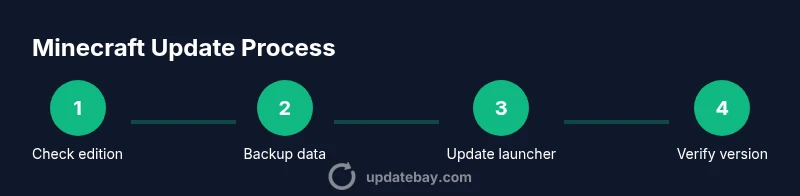
This section gives a high-level path you can adapt to Java, Bedrock, console, or mobile, without duplicating the exact step-by-step process in the dedicated STEP-BY-STEP block. Start by verifying your edition, then back up, update through the official launcher or store, launch the game to verify the version, and finally test a quick load to confirm everything works as expected. If you mod, or if you rely on custom resource packs, check compatibility before updating to avoid post-update surprises. Always review patch notes for breaking changes and new features that could affect your worlds or realms.
Troubleshooting and post-update checks
After updating, launch Minecraft to confirm the new version is active and your worlds load correctly. If you see crashes, errors, or missing textures, consult patch notes for known issues and verify mod/resource pack compatibility. If a world won’t load, restore from your backup and re-enter after patch stability is confirmed. For Bedrock users updating via stores, ensure you’re signed into the correct account and that the device’s date/time is accurate. If you still encounter problems, re-download the patch or reinstall the launcher/app, then run a fresh load to verify integrity. Regularly checking for patch notes and community reports helps you anticipate issues and plan your updates with confidence.
Tools & Materials
- Stable internet connection(Needed for downloading updates and verifying file integrity.)
- Minecraft launcher (Java) or Microsoft Store app (Bedrock)(Use official channels to obtain the latest update.)
- Account credentials(Sign-in to the correct launcher or store to access updates.)
- World backups (external drive or cloud storage)(Store a full copy of saves and settings before updating.)
- Backup/archive tool (optional)(Useful for packaging and storing large backups.)
- Notes on mods/resource packs (optional)(Check compatibility with the new version before updating if you use mods.)
- Sufficient disk space(Ensure you have room for the download and backup operations.)
Steps
Estimated time: 45-75 minutes
- 1
Verify your edition and platform
Identify whether you’re running Java Edition or Bedrock and confirm the platform you’ll update from (PC, console, or mobile). This ensures you follow the correct update path and avoid cross-edition issues.
Tip: Have your account credentials ready to sign in to the official launcher or store. - 2
Back up your worlds and data
Create a complete backup of all active worlds, settings, and any server data. Use external storage or cloud backup to store copies safely before applying any patch.
Tip: Backup before you patch; even small updates can cause save discrepancies. - 3
Update the launcher/app
Open the Minecraft launcher (Java) or Microsoft Store app (Bedrock) and apply the latest update. Allow the download to finish completely before launching the game.
Tip: Restart the launcher after installation to ensure all files are loaded fresh. - 4
Launch and verify the version
Start Minecraft and verify the version string shown in the main menu or in the launcher settings. This confirms you’re running the intended build.
Tip: If you see an older version, re-check the update status in your launcher or app store. - 5
Test a quick load and known features
Load a familiar world and test basic features (chat, inventory, and basic redstone) to detect any obvious issues early.
Tip: If mods are present, verify mod loader compatibility with the new version. - 6
Triage issues and finalize settings
If you encounter problems, consult the official patch notes and community resources for fixes or rollback options. Revalidate settings and mod configurations after updating.
Tip: Keep a separate backup of the pre-update world until you’re sure the update is stable.
Frequently Asked Questions
What is the safest way to update Minecraft?
Back up your worlds, use the official launcher or store app, and verify the version after updating.
Back up your worlds, use the official launcher, and verify the version after updating.
Do I need to back up my worlds before updating?
Yes. Backups protect your worlds and data from update issues or server compatibility problems.
Yes—back up your worlds and important data before updating.
Which edition should I update for?
Update based on the edition you play (Java or Bedrock). Each edition has its own launcher or store path.
Update according to your edition, using the proper launcher or store.
What happens if the update fails?
Common causes include incomplete downloads, corrupted files, or mod incompatibilities. Re-download the patch, verify integrity, and restore from a backup if needed.
If the update fails, re-download the patch and check for mod issues.
Can I delay updates if I have mods?
Delaying updates is possible, but you risk missing essential fixes. Check mod compatibility notes before deciding.
You can delay, but verify mod compatibility first.
How long does updating Minecraft take?
Update time varies by edition and platform, typically from several minutes to about an hour depending on download size and backup operations.
Update time varies depending on download size and backups.
Watch Video
What to Remember
- Back up your worlds before updating.
- Use the official launcher or store app to update.
- Check mod/resource-pack compatibility after updating.
- Verify the installed version to confirm success.
- Review patch notes for breaking changes and new content.