What Update Is Minecraft On? A Practical Guide (2026)
Discover which Minecraft update your world is on, how to verify the current version, and what changes to expect with each patch. Insights by Update Bay, 2026.


What update is Minecraft on
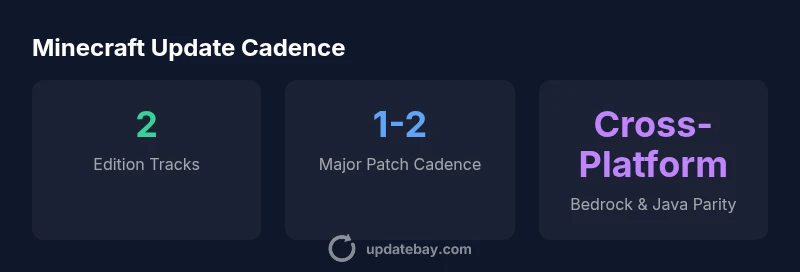
Two main update tracks govern Minecraft today: Java Edition and Bedrock Edition. Each track has its own release cadence, feature timeline, and compatibility considerations. According to Update Bay, understanding which update your world is on starts with identifying your edition and platform. The same patch note can look different depending on whether you're playing on a PC, console, or mobile device. In practice, the game you run on Java often differs from Bedrock in terms of version numbers and available content. This distinction matters for things like world compatibility, server rules, and mod availability. By knowing which track you’re on, you can better plan backups, server updates, and cross-play expectations.
Edition differences: Java vs Bedrock
Minecraft Java Edition typically receives development snapshots that precede stable releases and often feature experimental content. Bedrock Edition focuses on cross-platform stability and performance, with patches that must land across Windows, consoles, and mobile. This separation means a “latest update” can appear on one edition before the other, and feature parity is not always exact. For players who use both editions, it’s common to maintain two separate worlds or use compatible seed.settings to minimize surprises. Update Bay’s parity checks emphasize testing core mechanics, redstone behavior, and world-generation tweaks across editions.
Verifying your version across platforms
Locating the exact update you’re on is straightforward but varies by platform. On PC, open the launcher and check the version label; on Java, you’ll see a number like 1.x.y in the launcher. Bedrock players should check the game’s pause menu or the console’s system information page for the current patch number. Mobile players can verify in the game’s settings or the app store listing for the patch version. If you manage a server, ensure the server software is compatible with the client version to avoid login or data-loss issues.
What updates typically include for players
Updates cover a range of components, from gameplay features to bug fixes and performance improvements. New blocks, entities, and biome tweaks are common, but so are balance adjustments and quality-of-life enhancements. In addition, updates address security issues and resolve known crashes. If you run a modded setup or a dedicated server, you’ll see a higher emphasis on compatibility notes, mod loader updates, and server-side changes. From Update Bay’s perspective, keeping a local changelog helps players anticipate which changes will affect their builds and world data.
Safe update practices for your worlds
Before updating, back up your worlds and server configurations. In Bedrock, ensure cross-play settings remain consistent after updates; on Java, back up modded worlds and verify mod compatibility after patch notes. Check for a rollback option or a test world to experiment with the new patch before applying it to productive worlds. Review any seed or world-generation changes that could affect your existing builds, and be ready to adjust resource packs or shaders if necessary. A methodical plan reduces downtime and data risk during upgrades.
Managing multiplayer and mods during updates
If you play on a server or with mods, coordinate the update across clients and server software. Mods often require specific versions of the game and might break after a patch. Use your server’s version pinning and mod loader compatibility guides to align all participants. Maintain a backup policy for server worlds and test patches on a staging server. Clear communication with players about when updates occur helps minimize disruption and maintain a positive multiplayer experience.