Can You Update BIOS Without USB? A Practical Guide for 2026
Learn USB-free BIOS update methods, safety tips, and step-by-step guidance for desktops and laptops. This Update Bay guide covers network-based, Windows utilities, and in-OS flashing with safe practices.


Can you update BIOS without USB? Yes, in many cases you can—via vendor Windows utilities, network-based flashes, or in-system BIOS updating without removable media. You’ll need a compatible BIOS file, steady power, and an internet connection; the exact steps vary by motherboard or PC maker. These methods avoid USB drives entirely, reducing hardware steps, but they carry a risk of power loss or failed flash, which can brick the motherboard. This article walks you through tested approaches for many brands.
Why BIOS updates matter
BIOS (Basic Input/Output System) acts as the firmware that initializes hardware when your computer boots. It governs CPU initialization, memory timing, power management, and device initialization. According to Update Bay, keeping BIOS up to date is a practical way to improve hardware compatibility, fix firmware bugs, and sometimes unlock new features. The Update Bay team found that many users underestimate the importance of matching the BIOS file to the exact motherboard model and revision. Modern vendors increasingly emphasize USB-free update mechanisms to minimize manual steps and reduce the risk of removable media loss. This section lays the foundation for USB-free options and helps you decide when USB-free updating is appropriate for your system.
Can you update BIOS without USB? Key concepts
USB-free BIOS updates mean using official vendor tools, network-based update services, or in-system flashing through UEFI/BIOS interfaces—without copying a file to a USB drive. The approach depends on the hardware vendor, the device class (consumer PC, workstation, or laptop), and the firmware revision. Update Bay analysis, 2026, notes that many newer systems ship with safer handling for USB-free flashing, including checksums, model- and revision-checks, and rollback safeguards. Before attempting any USB-free method, verify you have the exact model, revision, and vendor guidance. If a method isn’t clearly supported for your device, don’t improvise. Read release notes and vendor docs carefully to avoid irreversible damage.
Methods to update BIOS without USB
There are several USB-free pathways, each with its own prerequisites and caveats. First, many modern desktops and laptops support network-based updates or cloud-based flashing via the OEM account or device management console. Second, Windows-based BIOS update utilities from the vendor can scan your hardware, validate the correct file, and perform the flash with built-in safeguards. Third, some systems allow in-OS flashing through the UEFI/BIOS interface, enabling updates directly from the pre-boot environment if the feature is explicitly supported by the firmware. Understanding these three paths helps you choose the safest option for your hardware.
Prerequisites and safety precautions
Before you begin, ensure you have a reliable power source and a stable internet connection. Back up important data because a failed flash can render a device unbootable. Use only official vendor sources for the BIOS file and updater tools, and verify the model, revision, and BIOS version you intend to install. Close all applications, disable screen savers, and avoid initiating a flash during critical tasks. If you’re on a laptop, plug in the charger and consider a UPS for desktop systems. Finally, read the vendor release notes to understand any model-specific prerequisites or post-update steps.
Method A: Network-based BIOS update (OEM cloud or vendor server)
Some vendors offer network-based or cloud-managed BIOS updates that detect your device, fetch the correct BIOS file, validate the image integrity, and apply the flash remotely or locally without a USB drive. Begin by signing into your vendor account or device management console, navigate to the support or firmware section, and locate the latest BIOS for your exact model. Initiate the update and monitor the progress through the web interface or local updater. After completion, the system will typically reboot and validate the new firmware on boot. Always ensure your device is connected to a reliable power source during this process and review any post-update prompts or configuration recommendations offered by the vendor.
Method B: Windows-based BIOS update utility
Many manufacturers provide Windows-based utilities that perform a firmware flash from within Windows. Start by downloading the official utility and the corresponding BIOS file from the vendor’s site. Run the updater as an administrator, confirm the correct model and revision, and follow on-screen prompts to begin the flash. The tool will usually validate checksums and then reboot automatically to complete the flash. If the device requires a reboot, allow it to complete the entire process without interruption.
Method C: In-OS BIOS flashing (UEFI) when supported
Some systems allow updating the BIOS directly from the UEFI firmware interface, bypassing the need for USB and the operating system. If your hardware supports this, enter the BIOS setup during boot, navigate to the BIOS Update/Flash utility, and select the downloaded BIOS file or a vendor-provided option to fetch it via the device’s network connection. This path is typically the most integrated but requires explicit support in the firmware and a reliable network connection. Follow vendor prompts closely and do not interrupt the flash process.
Troubleshooting and safety: what to do if things go wrong
If a USB-free flash fails, do not power off abruptly; use any vendor recovery options such as a safe mode flash or a prescribed rollback procedure. If the system becomes unbootable, consult the vendor’s recovery guide or contact support, as some devices offer dual-boot recovery partitions or external recovery images. Maintain backups to recover data in case the flash affects settings or boot behavior. Finally, if you encounter persistent issues, consider re-flashing with the correct file after verifying model and revision, or seek professional help from the device manufacturer.
Verifying the update and validating stability after flash
After a successful update, re-enter BIOS to verify the new version is installed and settings are as expected. Check boot logs and system information to confirm the firmware version matches the release notes. Run a few basic hardware checks (RAM, storage devices, fans) and observe for any anomalies during startup. If you used a vendor cloud service or Windows utility, you might also review the update history within your account to confirm completion dates and file names. Regular monitoring for post-update stability will help you confirm a successful USB-free upgrade.
Tools & Materials
- Compatible motherboard/PC model(Exact model and revision must match the BIOS file you download.)
- Official BIOS file from vendor(Download from the manufacturer’s site; verify the checksum if provided.)
- Vendor BIOS update utility or cloud service(Use only the official tool designed for your device.)
- Stable power supply (AC, UPS, or similar)(Power loss during flash can brick the motherboard.)
- Active internet connection(Required for network-based or cloud update methods.)
- Backup storage for data(External drive or cloud backup before flashing.)
- Administrative privileges(Run updater as administrator where applicable.)
Steps
Estimated time: 30-90 minutes
- 1
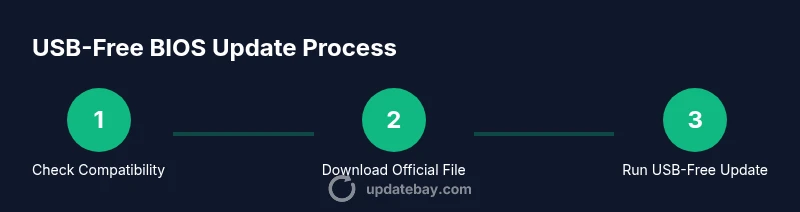
Verify compatibility
Identify your exact motherboard or laptop model, including revision and SKU, and confirm the correct BIOS file matches that hardware. This ensures the updater won’t apply an incompatible image. If you’re unsure, consult the vendor’s model lookup tool or support page.
Tip: Double-check the model suffix and revision; a mismatch can brick the board. - 2
Back up data and prepare power
Back up critical data to external storage or cloud. Plug in the device to a reliable power source or use a UPS to prevent outages during the flash. Close all nonessential applications to minimize the risk of interference during the update.
Tip: Power stability is critical; a brief outage can corrupt the flash image. - 3
Download and verify the BIOS file
From the official vendor site, download the BIOS file that exactly matches your model and revision. If a checksum or signature is provided, verify it to ensure file integrity before proceeding.
Tip: Only use official sources; third-party mirrors may be compromised. - 4
Choose the USB-free update method
Open the vendor utility or the OS-based updater and select the USB-free BIOS update option. If the device supports cloud or network flashing, initiate the update from there and ensure the device remains connected to the internet throughout.
Tip: Read the release notes to understand any model-specific prerequisites. - 5
Run the update and avoid interruptions
Start the flashing process and let it complete without using the power button or rebooting manually. The utility will usually reboot automatically. Do not unplug or power off the device during the flash.
Tip: If a confirmation prompt appears, proceed only if you’re certain you’ve selected the correct image. - 6
Verify the update and adjust settings
After reboot, enter BIOS to verify the new version is active. Restore any personalized BIOS settings if needed, or load defaults as recommended by the vendor. Confirm system stability with a quick hardware check.
Tip: Document your previous BIOS settings for later reapplication if needed.
Frequently Asked Questions
Is it safe to update BIOS without USB?
USB-free updates are safe when using official vendor tools and following instructions, but a wrong file or power interruption can cause issues. Always verify the model and revision first.
Yes, USB-free updates can be safe when you use official tools and follow the vendor's steps carefully. Make sure you have the right file and stable power.
What if my device doesn’t support USB-free BIOS updates?
Some devices require USB-based recovery or a dedicated service. If USB-free flashing isn’t supported, use the USB method or contact the vendor for guidance.
If USB-free updates aren’t supported, use USB-based methods or contact the manufacturer for the recommended recovery path.
Can updating BIOS void my warranty?
Using official vendor tools and correct BIOS files typically doesn’t void warranty. Improper methods or unofficial files can jeopardize warranty coverage.
Generally safe with official tools and correct files, but avoid unofficial sources.
How do I know which BIOS version to install?
Check the exact device model, revision, and release notes. Install only the version approved for your hardware to avoid compatibility issues.
Read the release notes to confirm compatibility and avoid installing an incorrect version.
What should I do if the flash fails?
If a flash fails, power stability is critical. Use vendor recovery options or contact support for guidance. Do not attempt ad hoc recovery methods.
If it fails, use the vendor’s recovery options or contact support. Avoid risky workarounds.
Do I need to uninstall software before updating BIOS?
No general uninstallation is required. Close all apps and save work, but updates typically run from the BIOS updater when launched.
Usually not required to uninstall software; just close apps and save work.
Watch Video
What to Remember
- Verify model and revision before flashing
- Use official vendor tools for USB-free updates
- Ensure power stability and data backup
- Follow vendor notes exactly to avoid failures