How to Know If BIOS Needs Update: A Practical Guide
Discover how to know if BIOS needs update with practical checks, safe preparation, and a step-by-step workflow to minimize risk and downtime.


By the end of this guide you’ll know if your BIOS needs an update. Quick check: identify your motherboard or system model, read the current BIOS version, and compare it with the latest release notes from the vendor. If your version is older or missing critical fixes, plan an update.
How BIOS updates work
How BIOS updates work can seem technical, but the core idea is straightforward: a firmware update replaces the stored microcode that boots your computer and initializes hardware. If you’re asking how to know if bios needs update, the answer starts with your hardware model and the current firmware version. Vendors publish release notes detailing fixes, security patches, and sometimes new features. Updating is not mandatory for every user; it’s a decision based on stability, security, and hardware compatibility. In practice, you should plan an update only when you have a confirmed need and a reliable update path. The Update Bay team emphasizes cautious handling because flashing firmware carries risk if interrupted. Always use official sources and verify your model before proceeding.
Signs your BIOS might need updating
Pushing a BIOS update is typically about stability, compatibility, and security. Signs that your firmware may benefit from an update include improved hardware compatibility (new RAM, PCIe devices), better boot reliability on some configurations, and fixes for vendor-reported security vulnerabilities. If your device experiences unexpected shutdowns during boot, hangs at POST, or peripheral devices misbehave, these can be indicators to review the latest BIOS notes. However, don’t update solely for minor changes; weigh the risk and confirm that the update addresses a verifiable issue you’re encountering. Update Bay analysis suggests prioritizing updates when they remedy confirmed problems rather than chasing every new feature.
How to safely check your current BIOS version
Knowing your current BIOS version is the first practical step. On Windows, you can run msinfo32 and look for BIOS Version/Date. On a Mac or Linux system, use dedicated system reporting commands. Entering the BIOS/UEFI during startup also reveals the version. Record the exact version string and date, then compare it to the vendor’s latest release notes. If your version is older or lacks documented fixes, you may be a candidate for an update. Always cross-check the version against the official vendor page to ensure you’re evaluating the correct release.
How to locate your motherboard model and vendor
Accurate identification is essential before any BIOS update. Start with your motherboard or system model from the documentation, a sticker on the motherboard, or your OEM’s support page. In Windows, tools like System Information, CPU-Z, or the motherboard manual can reveal the model. In BIOS/UEFI, the main splash screen often lists the vendor and model. Once you have the exact model, visit the vendor’s support site to locate the correct BIOS file and read the update notes. Mismatching firmware is a primary cause of bricked boards, so triple-check the model and revision.
Reading vendor release notes and version numbers
Vendor release notes explain what the BIOS update fixes and which hardware issues it covers. Read sections on security fixes, memory compatibility, and boot issues to determine relevance. Compare the version number to your current BIOS; the vendor page will show whether the update is newer and what benefits it brings. If the notes are vague or don’t address a problem you have, delaying the update is reasonable. Confirm that the update is intended for your exact motherboard revision, not a neighboring SKU, to avoid incompatibility problems.
Preparation: backups, power protection, and download sources
Preparation reduces risk when updating BIOS. Back up important data and create a system restore point or disk image so you can revert if needed. Use a stable power source—desktop PCs should be on a UPS, and laptops should be plugged in with a charged battery. Only download the BIOS file from the official vendor site, and verify checksums if available. Keep documentation of your current settings, as many boards reset to defaults after a flash. Having a tested recovery plan is essential if the flash encounters an interruption.
Step-by-step safe BIOS update workflow overview
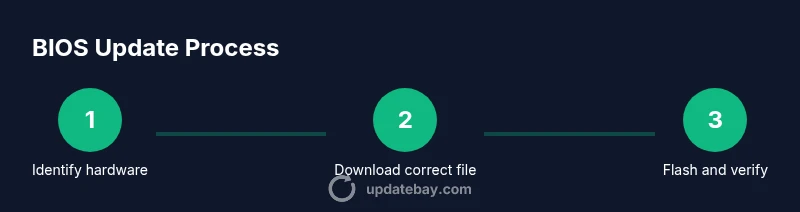
A cautious, repeatable workflow minimizes risk. Start by verifying model numbers, backing up data, and downloading the exact BIOS file. Prepare a clean flash media if the vendor requires USB flashing, otherwise you’ll update through the BIOS/UEFI interface. Ensure you have a reliable power source and close all unnecessary applications. After flashing, reset to defaults and reconfigure your preferred BIOS settings. Finally, boot to verify the system initializes normally and check the BIOS version to confirm the update succeeded.
Safe update practices during flash and after
During flash, do not interrupt power, avoid removing cables, and do not press random keys. Follow vendor-recommended steps precisely, including any required boot sequences or recovery options. After the update, load optimized defaults if advised, recheck critical settings (boot order, virtualization, memory timings), and run basic stability tests. If something goes wrong, refer to vendor recovery methods—dual BIOS or built-in recovery features dramatically reduce risk.
Troubleshooting and rollback options
If the flash fails or the system won’t boot, first power down safely and attempt the vendor recovery procedure. Having a backup BIOS recovery method or dual BIOS can be a lifesaver. If the system boots but behaves oddly, restore previous BIOS defaults and reflash with the correct file. In some cases, manufacturers provide a rollback path to the previous version; if not, you may need professional service. Understanding recovery options before you begin saves time and stress.
Post-update checks and configuring BIOS settings
After a successful update, recheck hardware settings such as memory timings, CPU voltage, and boot order. Update Bay recommends validating critical peripherals (RAID controllers, NVMe drives, USB adapters) to ensure continued compatibility. If features were disabled by default, re-enable them carefully. Finally, monitor system behavior for a few boot cycles to ensure stability before resuming normal use.
Tools & Materials
- Official BIOS update file from motherboard/vendor site(Must match exact model and revision; verify checksum if available)
- Backup of important data(Create a full disk image or system restore point)
- Stable power source (UPS for desktop, plugged-in laptop)(Avoid power interruptions during flash)
- Motherboard manual and model verification(Have revision details handy)
- USB flash drive (if offline/bare-metal flashing required)(Format as FAT32 and copy the BIOS file if requested by vendor)
Steps
Estimated time: Total time: 60-120 minutes
- 1
Identify hardware model
Locate your exact motherboard or system model and revision from the manual, sticker, or system information tools. This ensures you download the correct BIOS file.
Tip: Cross-check against the vendor’s SKU to avoid mismatches. - 2
Check current BIOS version
Record the BIOS version and date using system information tools or the BIOS splash screen. This gives you a baseline to compare with release notes.
Tip: Take a photo of the BIOS splash screen for reference. - 3
Review vendor release notes
Read the latest notes to confirm the update addresses issues you’re experiencing and to understand any changes in features or risks.
Tip: Ignore updates that don’t apply to your exact SKU. - 4
Prepare backup and power
Back up important data and ensure a stable power source. This is critical to prevent bricking if the flash drops power.
Tip: Use a UPS for desktop systems; ensure laptop is plugged in. - 5
Download the correct BIOS file
From the official vendor site, download the exact BIOS file for your model and revision. Verify its checksum if provided.
Tip: Do not rename the file before flashing. - 6
Choose the update method
Decide whether to flash from within the BIOS/UEFI or via a Windows/Linux flashing tool as documented by the vendor.
Tip: If your board supports dual BIOS, review recovery options first. - 7
Begin the flash process
Follow the vendor’s steps precisely to start the flash, do not interrupt power, and avoid using the PC during the update.
Tip: Have a saturated internet connection to monitor progress if possible. - 8
Post-flash verification
After reboot, enter BIOS to confirm the new version is active and reconfigure settings as needed.
Tip: Load defaults, then reapply your preferred settings. - 9
Run basic checks
Ensure OS boots cleanly, peripherals are recognized, and memory runs at expected speeds.
Tip: Run a short memory and disk check to confirm stability. - 10
Document the outcome
Note the new BIOS version and any changes you made in BIOS settings for future reference.
Tip: Keep a copy of the vendor notes and your final BIOS settings.
Frequently Asked Questions
Is updating BIOS risky for my laptop or desktop?
BIOS updates carry risk if power is lost or the wrong file is used, potentially rendering the board unusable. Always use official files, ensure power stability, and follow vendor instructions.
BIOS updates can be risky if power is unstable or the wrong file is used; always follow official steps and use power protection.
Do I need to update BIOS if my system runs fine?
If your system is stable and secure, an update may not be necessary. Consider updating only to fix specific issues, address vulnerabilities, or improve compatibility.
Only update if you have a verified need like fixing issues or improving security and compatibility.
Can I flash BIOS on a laptop without a reliable power source?
No. Always ensure a reliable power source and keep the charger connected during the update to prevent bricking.
Never flash BIOS without reliable power. Keep the charger plugged in.
What should I do if the BIOS update fails?
Power down safely, consult the vendor recovery method, and try the update again only if you can ensure recovery. If dual-BIOS exists, use it.
If the update fails, use the vendor recovery method and try again only if you can recover.
Will updating BIOS affect my operating system or data?
BIOS updates affect firmware and boot processes, not data stored on drives. However, a failed update can prevent booting, so proceed with caution.
BIOS updates don’t touch your data, but a failed update can stop your system from booting.
How can I verify a BIOS update succeeded?
After reboot, check the BIOS version in the firmware interface and confirm it matches the released version. Run a quick post-update check of hardware and boot behavior.
Check the BIOS version after reboot to confirm the update succeeded and test basic hardware behavior.
What if my vendor offers a rollback option?
Some vendors provide rollback or recovery tools if the new firmware causes issues. If available, use them before attempting another update.
If rollback is offered, use it before trying another update.
Should I disable security features during update?
In general, do not disable core security features. Follow vendor instructions about any required settings during the update.
Avoid disabling security features; follow the vendor’s guidance for any settings during flashing.
Watch Video
What to Remember
- Verify exact hardware model before downloading firmware
- Back up data and ensure a stable power source
- Follow vendor instructions precisely to flash BIOS
- Check post-update BIOS version and settings
- Know recovery options in advance