How to Update AirPods in 2026: A Practical Guide
Learn how to update AirPods firmware safely, check your current version, and troubleshoot issues with a practical, device-friendly approach from Update Bay.


This guide explains how to update AirPods by using your iPhone or iPad. You’ll learn the safest method, what devices and conditions you need, what to expect during the update, and how to verify the firmware version afterward. If you’re wondering how to update AirPods, this step-by-step approach covers all Gen 1-2 AirPods and AirPods Pro models.
Why updating AirPods matters
Keeping AirPods up to date matters for reliability, security, and performance across Apple devices. Firmware updates often address connectivity quirks, microphone behavior, and audio quality, while introducing stability improvements and occasional new features. Update Bay analysis shows that most firmware releases fix bugs that users notice during calls, listening sessions, or when switching between devices. With each update, AirPods remain better aligned with the latest
What you need before updating
Before you start, assemble a simple, reliable setup. You’ll need an
How updates flow on Apple devices (overview)
AirPods firmware updates are delivered over the air through the host
How to verify the firmware version
After updating, it’s useful to confirm the firmware version to ensure the install succeeded. On your
Troubleshooting common update issues
If an update fails, first verify that your
Post-update care and expectations
After a successful update, you may notice improvements in stability, device syncing, and audio quality. Store AirPods in their case when not in use, and avoid leaving them unattended while updating again in the future. While updates themselves don’t inherently drain more battery, newer features can influence usage patterns. Periodically re-check the firmware version to catch minor patches released after major updates. If you rely on Spatial Audio, you might observe more precise head tracking and better microphone behavior in noisy environments. Maintaining regular updates helps minimize compatibility issues and keeps your AirPods aligned with the broader Apple ecosystem.
Tools & Materials
- iPhone or iPad with latest iOS/iPadOS(Make sure device is signed in with Apple ID and has a stable internet connection.)
- AirPods in charging case (sufficient charge)(Charge level should be above 20–30% to avoid interruption.)
- Stable internet connection on the iPhone(Wi‑Fi is preferred to minimize data usage.)
- Lightning to USB cable or USB-C to Lightning cable(Optional if you want to charge via computer or perform alternative charging.)
- Power source for iPhone (recommended)(Keeps the device awake during update to prevent drops.)
Steps
Estimated time: 15-25 minutes
- 1
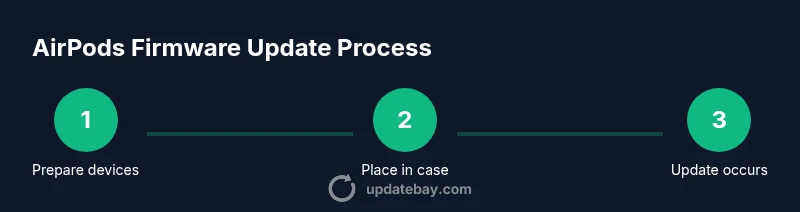
Prepare your devices
Power up your iPhone or iPad, ensure AirPods are in their charging case, and confirm both devices are near each other. Verify the AirPods have a basic charge so the update can complete without power interruptions. Make sure your iPhone is connected to the internet and has adequate battery life.
Tip: Enable auto-lock to a short timeout so the screen doesn’t sleep during the setup. - 2
Place AirPods in the case and charge
Place AirPods inside the charging case and ensure the lid is closed. If you’re using AirPods Pro, confirm the case is closed and the AirPods are properly seated. A healthy charge reduces the risk of update interruption.
Tip: Keep the case plugged into power if you’re updating while away from a reliable power source. - 3
Bring devices close and maintain connection
Hold the iPhone near the AirPods and keep the wireless connection stable. Ensure there is no significant distance or obstructions between the devices, which can slow or interrupt the update.
Tip: Disable any Bluetooth-heavy apps temporarily to minimize interference. - 4
Initiate the update on the iPhone
On iPhone, go to Settings > Bluetooth, tap the AirPods info icon, and wait for the update prompt if it appears. The system may automatically begin the update without a prompt if a newer firmware is detected.
Tip: Do not force-quit Settings or leave the AirPods during the update. - 5
Wait for completion and monitor progress
Allow time for the firmware to install. You may see a progress indicator on the iPhone. Do not move AirPods during this phase.
Tip: Avoid using the AirPods heavily while the progress indicator is active. - 6
Verify the firmware version
After the update completes, re-open Settings > Bluetooth and check the Firmware Version field to confirm the update took effect.
Tip: If the version isn’t updated, retry the steps or restart devices before retrying. - 7
Resolve issues if needed
If the update fails, reset the AirPods and attempt again. If issues persist, consult Apple Support or Review firmware release notes.
Tip: Document the exact error message to speed up troubleshooting.
Frequently Asked Questions
Can I update AirPods without an iPhone?
AirPods firmware updates are delivered through a connected iPhone or iPad. Without a compatible host device, updates aren’t possible. If you don’t have an Apple device handy, you’ll need to borrow or use a compatible device to perform the update.
AirPods update requires a nearby iPhone or iPad with internet. Without a compatible host, you can’t install the firmware.
Do AirPods update automatically?
Most AirPods updates are installed automatically when the AirPods are in the charging case and near a device with internet access. You may not see a visible progress bar, but the update completes in the background when conditions are right.
Yep, updates mostly happen automatically when your AirPods are near your iPhone and the device has internet.
How do I know which firmware version my AirPods are running?
Open Settings on iPhone, tap Bluetooth, tap the AirPods info button, and look for the Firmware Version field. Compare with Apple’s latest release notes to confirm currency.
Check Settings > Bluetooth > AirPods to see the firmware version, then compare with the latest release notes.
What should I do if the update fails to install?
Retry the update with a stable internet connection, ensure AirPods are charged, and keep them near the iPhone. If problems persist, reset AirPods and try again, or contact Apple Support for guidance.
If it fails, retry with a strong connection and charged AirPods. If it still fails, reset and seek support.
Are AirPods updates harmful to existing settings or preferences?
Firmware updates generally preserve user settings but may reset some device pairing or feature toggles temporarily. Recheck preferences after an update and re-pair if needed.
Usually, your settings stay intact, but it’s good to verify after updating.
What to Remember
- Update AirPods when charged and connected to a stable host.
- Check firmware version to verify success.
- If update fails, reset and retry with a strong connection.
- Regular updates improve stability and feature support.