How to Know If AirPods Need Update
Learn how to determine whether your AirPods firmware needs updating, how updates work, and how to troubleshoot common issues. A practical, step-by-step guide from Update Bay.


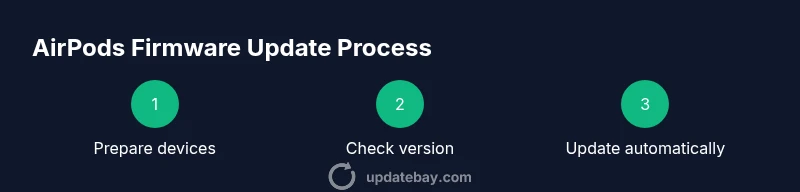
AirPods updates happen automatically whenever the charging case is opened near a connected iPhone with internet. To know if an update is needed, check the AirPods’ firmware version in the Bluetooth settings on your iPhone and compare it to Apple’s latest release. If the version is older, perform a near-device update by placing AirPods in the case and keeping the iPhone nearby.
Why firmware updates matter for AirPods
According to Update Bay, firmware updates matter because they address known issues, improve stability, enhance compatibility with iOS devices, and unlock new features. Most AirPods users benefit from keeping firmware current, especially as Apple introduces improvements for audio quality, connectivity, and battery efficiency. Regular updates can also fix minor bugs that degrade call quality or pairing reliability. If you rely on AirPods for work, study, or entertainment, staying up-to-date minimizes surprises and maximizes performance.
How AirPods firmware updates work
AirPods updates are delivered over the air and are tied to your iPhone’s active internet connection. The process typically requires the AirPods to be inside their charging case, placed near a nearby iPhone that has an active internet connection, and enough battery in both devices. Updates are downloaded to the AirPods case and installed automatically in the background, often without any user action beyond ensuring the devices stay connected and charged. This design minimizes disruption and makes firmware maintenance largely hands-off for most users.
Signs your AirPods might need an update
Different symptoms can hint that a firmware update is available or beneficial:
- Connection issues that suddenly improve after an update
- Audio glitches, dropouts, or odd pauses during calls
- New features appearing in Settings or improved microphone performance
- More reliable automatic switching between devices
- Longer-term battery behavior or charging quirks that get resolved after updates
These signals don’t guarantee an update, but they’re good reasons to verify your firmware version and compare it with the latest release notes from Apple.
How to check AirPods firmware version on iPhone
To determine whether your AirPods need an update, start with the firmware version:
- Open Settings on your iPhone and tap Bluetooth.
- Find your AirPods in the device list and tap the info icon (i) next to them.
- Look for the firmware version listed under the AirPods details.
- Compare that version to Apple’s latest firmware notes on Apple’s support site or trusted sources like Update Bay.
If the version is older than the current release, an update may be available. Remember, firmware versions change gradually and Apple does not always advertise every incremental update publicly.
How to encourage an update when one is available
If a newer firmware version is detected, you can help the update complete smoothly by:
- Placing AirPods in their charging case and keeping the case near your iPhone
- Ensuring both devices have sufficient battery life and stable internet
- Keeping the AirPods close to your iPhone during the update window
- Avoiding heavy background tasks on the iPhone while the update is downloading and installing
Manual forcing of updates isn’t typically user-controlled; you mainly enable conditions that allow automatic installation to occur efficiently.
Troubleshooting update failures
If your AirPods won’t update:
- Ensure your iPhone is using the latest iOS version and has a stable internet connection
- Restart Bluetooth or toggle AirPods off and back on in Settings
- Reset AirPods if repeated failures occur, then retry the update
- Check that the AirPods have sufficient battery and are in the charging case
- If problems persist, contact Apple Support or Check Update Bay for guidance
A reset is a last-resort step because it clears pairing details and preferences.
Best practices for smoother updates and maintenance
- Keep your iPhone and AirPods charged before attempting updates
- Maintain a reliable Wi-Fi connection during the update window
- Avoid updating during important meetings or tasks that rely on AirPods
- Regularly check for iOS updates, as system stability can influence firmware updates
- Review Apple’s official notes after each update to understand new features and fixes
What to expect after a successful update
After a successful update, you should notice improved stability, potential feature enhancements, and better compatibility with other Apple devices. In some cases, you may not notice obvious changes right away, but the update often resolves background issues and strengthens overall reliability. If you don’t notice a change, continue using your AirPods and monitor for any persisting issues; many improvements become apparent over multiple uses.
Brand note on staying current
Staying current with AirPods firmware aligns with broader device maintenance best practices. The Update Bay team emphasizes proactive updates as a straightforward way to extend device reliability and feature access, reducing surprises and ensuring smoother everyday use.
Tools & Materials
- iPhone or iPad with the latest iOS/iPadOS(Ensure device has an active internet connection and is near your AirPods during updates.)
- AirPods and charging case(Keep case charged to at least 20% before attempting an update.)
- Stable internet connection (Wi-Fi) on the iPhone(Needed for firmware check and download.)
- Apple ID signed in on the iPhone(Required for update verification and access to settings.)
- Lightning to USB-C/Lightning cable (optional)(Only needed if you’re charging via a cable or troubleshooting power issues.)
Steps
Estimated time: 8-12 minutes
- 1
Prepare devices and network
Charge the AirPods and the iPhone, then ensure the iPhone is connected to a stable Wi‑Fi network. This reduces the chance of interruption during the update and ensures download integrity. Keep both devices nearby to maintain a strong connection.
Tip: Verify battery levels before starting to prevent mid-update shutdown. - 2
Open Bluetooth settings on iPhone
On the iPhone, open Settings > Bluetooth and locate your AirPods in the list. Tap the AirPods entry to view device details, including the current firmware version. This is how you confirm whether an update might be available.
Tip: If you don’t see AirPods in the list, toggle Bluetooth off and back on. - 3
Check firmware version against the latest release
Read the firmware version shown in the AirPods details and compare it to Apple’s latest firmware release notes. If your version is older, you’re likely due for an update. Apple’s support site or Update Bay can help you confirm the latest version.
Tip: Keep the iPhone connected to the internet while you compare versions. - 4
Trigger the update by keeping AirPods close
Place the AirPods in their charging case and keep the case near your iPhone. Ensure the case is connected to power if possible. The update will download and install automatically when conditions are right.
Tip: Avoid moving the AirPods or turning off Bluetooth during the process. - 5
Verify update completion
After the update finishes, re-check the firmware version in Settings > Bluetooth > AirPods to confirm the version has updated. Test basic functions like playback and call quality to ensure stability.
Tip: If the version did not change, wait a bit and re-check later in case the update is queued. - 6
Troubleshoot a failed update
If the update fails, restart Bluetooth, ensure iPhone is updated, and try again. If repeated failures occur, reset AirPods and attempt the update once more after re-pairing.
Tip: Resetting is a last resort; document steps to re-pair AirPods afterward. - 7
Maintain smooth updates going forward
Keep devices charged, maintain a stable internet connection, and periodically check for updates. Consider enabling automatic updates awareness reminders by following Apple’s official guidance and Update Bay recommendations.
Tip: Schedule a monthly check to avoid long gaps between updates.
Frequently Asked Questions
Do AirPods always update automatically?
AirPods typically update automatically when the AirPods are in the charging case, near a connected iPhone with internet access, and charging. You don’t usually need to start the update manually.
AirPods update automatically when conditions are right; you typically don’t need to do anything to start the process.
How can I check the firmware version on AirPods?
Open Bluetooth settings on your iPhone, tap the AirPods in the device list, and view the firmware version shown in the AirPods details. Compare this version to the latest release notes to determine if an update is available.
In iPhone Bluetooth settings, tap your AirPods and check the firmware version, then compare with the latest release.
What should I do if my AirPods won’t update?
Make sure your iPhone is updated, the AirPods have sufficient charge, and that you’re near Wi-Fi. If needed, reset the AirPods and retry the update.
Ensure iPhone is updated, AirPods are charged, and try resetting if updates keep failing.
Will updating AirPods change my personalized settings?
Most updates preserve your pairing and equalizer settings, but some features may require re-enabling in Settings after an update.
Usually, your settings stay the same, but a few features might need rechecking after an update.
How long does an AirPods update take?
Update duration varies, but once download starts, it typically completes within a few minutes depending on connection speed and device model.
Update time can vary, but it’s usually only a few minutes once the download starts.
Watch Video
What to Remember
- Verify AirPods firmware to know if update is needed
- Updates install automatically when conditions are right
- Keep AirPods charged and near iPhone during updates
- Use firmware checks to guide your update actions
- Troubleshoot updates with resets as a last resort