Update Router Firmware: A Practical Step-by-Step Guide
Learn how to safely update your router firmware with a practical, step-by-step guide. This Update Bay article covers prerequisites, methods, best practices, and troubleshooting to keep your network secure.


By updating your router firmware, you improve security, fix bugs, and unlock new features. The process involves identifying your router model, downloading the latest firmware from the vendor’s site, and applying the update via the admin console or automatic update feature. This guide will walk you through safe, step-by-step actions to update firmware with minimal risk.
Why updating router firmware matters
Keeping firmware up to date is essential for home networks. Firmware controls how your router handles traffic, security features, parental controls, and wireless performance. Outdated firmware can expose your devices to vulnerabilities and miss improvements such as better QoS or compatibility with new devices. The Update Bay team has analyzed the state of consumer routers and found that many devices run firmware that hasn't been updated in months or even years. While every update carries a small risk, manufacturers design these updates to fix known issues and strengthen protection. Before starting, you should understand that updating firmware is not a one-and-done task; it's part of ongoing network maintenance. According to Update Bay, consistent firmware updates reduce security risk and improve device stability. Verify compatibility with connected devices, particularly smart home hubs and Wi-Fi extenders. In short, regular firmware updates help close vulnerabilities, improve performance, and extend the life of your hardware.
How firmware updates improve security and performance
Firmware updates address known vulnerabilities, implement stronger encryption standards, and fix bugs that can cause intermittent drops or reboots. They also unlock performance improvements, such as better wireless range, more reliable QoS for streaming, and improved device compatibility with new standards. Update Bay Analysis, 2026, indicates that consumers who apply updates regularly experience fewer router-related incidents and smoother device onboarding. Expect improvements like reduced latency on busy networks, better compatibility with smart devices, and enhanced protection against new threat vectors. While some updates are incremental, others may include major feature enhancements like updated parental controls, guest network enhancements, or improved firewall rules. Always read the release notes from your vendor to know what changes to expect and how to test post-update performance.
How to locate firmware version and model on your router
Start by identifying your router’s exact model number and current firmware version. Look at the label on the bottom or back of the device, or log into the admin interface and check the About or Status page. The model number ensures you download the correct firmware file, while the version helps you confirm whether an update is needed. If you’re using a managed service provider or a carrier-branded device, you may see different update channels or restrictions. Take note of your router’s current settings, especially any custom DNS, port forwarding, or QoS rules that you may want to back up before updating. These details will help you restore a known-good state if something goes awry during the process.
Preparing for the update: backups, settings, and power
Preparation reduces risk during firmware updates. Back up the router configuration if the option exists, export or write down critical settings (like port forwards, DHCP reservations, and VPN configurations), and ensure you have reliable power. Prefer a wired connection for the update to prevent interruptions from Wi-Fi drops. Disable automated features that could interfere with the process, such as auto-reboot schedules, and note any custom firmware features (like third-party DNS) that you may need to reconfigure afterward. If you’re updating a multi-device setup (modem, mesh satellites), document the order of updates to avoid cascading reboots. Finally, verify you have access to the vendor’s support resources in case you encounter issues.
Update methods: auto-update vs manual firmware upload
Many routers offer an automatic firmware update option within the admin interface. Auto-update can be convenient and reduces manual steps, but it may install updates at unpredictable times. Manual updates give you control over when changes occur and allow you to review release notes before proceeding. In some cases, automatic updates may be disabled by carriers or OEMs; in those cases, you’ll need to perform a manual update. If you choose manual, download the official firmware file from the vendor’s website and verify the file hash if provided. Also confirm that you’re installing the correct version for your model and region.
Step-by-step update flow (overview)
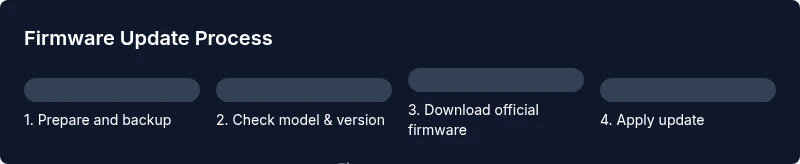
This section provides a high-level overview of the update flow that complements the detailed steps in the STEP-BY-STEP block. Start with backing up settings, then connect via a wired Ethernet, access the router’s admin panel, and locate the firmware update option. Choose to check for updates automatically or upload the firmware file manually. After initiating the update, avoid power loss and wait for the router to reboot. Finally, verify the new firmware version, reconfigure any lost settings, and run basic network tests to confirm stability. Remember to review security features and default credentials after the update to ensure continued protection.
Risks and cautions before updating
Firmware updates carry a small risk of bricking the device if the process is disrupted. Always ensure a stable power source, ideally using a UPS or a fully charged battery and a reliable network connection. Do not attempt updates during storms or when power stability is questionable. If your model uses dual-boot recovery modes, understand the recovery process beforehand. Read the official release notes to be aware of any known issues or compatibility caveats with connected devices. If you rely on business-grade configurations, coordinate with your IT team to minimize downtime.
How to verify the update success and test network performance
After the update completes and the router reboots, log back into the admin panel to confirm the firmware version matches the latest release and check that all settings are intact. Run speed tests, check for dropped connections, and verify guest networks and VPN configurations. If performance seems degraded, review QoS rules and channel selection, and consider rebooting connected devices to ensure compatibility. Keep an eye on the admin console’s logs for any unusual reboot messages or error codes. If there are issues, consult the vendor’s support page or revert to a backup configuration if possible.
What to do after updating: security settings and feature review
Post-update, re-check security configurations such as the firewall, WPA3 support, and guest network isolation. Reapply any custom DNS entries or parental controls if needed. Review new features enabled by the firmware, like improved guest networking, better device discovery, or enhanced parental controls. Update any connected devices to ensure compatibility and re-run essential network tasks to confirm stability. Finally, schedule a reminder to check for updates in the coming weeks so you stay protected against new threats and bug fixes.
Tools & Materials
- Computer or smartphone with internet access(Used to access the router admin page and download firmware.)
- Router model and admin credentials(Needed to log in and identify the correct firmware.)
- Ethernet cable (recommended)(Wired connection reduces update interruptions.)
- Official firmware file or vendor link(Download only from the router manufacturer or carrier site.)
- Backup method for router settings(Export settings if the option exists before updating.)
- Stable power source (UPS preferred)(Avoid power loss during the update.)
Steps
Estimated time: 20-45 minutes
- 1
Prepare your environment
Ensure a stable power source and a wired connection if possible. Back up existing router configurations and note any custom settings you might need to reconfigure after the update.
Tip: Use a UPS or fully charged device; do not update during a storm or outage. - 2
Identify your router model and current firmware
Look at the device label or log into the admin panel to confirm the exact model and the firmware version you’re running. This ensures you download the correct update.
Tip: Incorrect model selection is a common cause of failed updates. - 3
Check for the latest firmware on the official site
Visit the vendor’s support page, search for your model, and verify the latest firmware release. Read the release notes to understand changes and known issues.
Tip: Only download from the official site to avoid tampered files. - 4
Choose update method (auto vs manual)
Decide whether to use the router’s automatic update feature or perform a manual upload of the firmware file. Auto is convenient; manual gives you control over timing.
Tip: If you’re unsure, start with a manual update to review notes first. - 5
Apply the update in the admin interface
Navigate to the firmware or maintenance section and initiate the update by uploading the file or starting the auto-update. Do not unplug the router during this process.
Tip: Never interrupt the update once it begins. - 6
Wait for reboot and initial checks
Let the router reboot completely and re-establish connections. Check the status page to verify the new firmware version is installed.
Tip: If the device seems stuck, power cycle gently and retry from the recovery options. - 7
Restore settings and test connectivity
Reapply missing configurations such as port forwards, DNS, and QoS. Run speed tests and verify all devices connect reliably.
Tip: Document your configuration in case you need to reconfigure after future updates. - 8
Review security settings after update
Revisit WPA/WPA3, firewall rules, and guest network isolation. Enable any new security features introduced by the update.
Tip: Enable automatic security updates if your device supports them. - 9
Document and schedule next checks
Note the update details and schedule regular checks for new firmware releases to maintain security and performance.
Tip: Set a monthly reminder to review firmware notes.
Frequently Asked Questions
Is it safe to update router firmware?
In general, updating firmware is safe when you use the official firmware from the manufacturer, perform backups, and avoid power interruptions. Always read the release notes to understand changes and any known issues.
Yes, as long as you use official firmware and avoid power interruptions. Check the release notes first.
How often should I check for firmware updates?
Check for updates at least monthly, and consider enabling automatic notifications from the vendor. Regular checks help protect against recently discovered vulnerabilities.
Check monthly or enable auto-notifications from your vendor to stay current.
Will updating firmware reset my router settings?
Some updates preserve settings, but others may reset to default. Back up your configuration before updating so you can restore quickly if needed.
Some updates preserve settings, but it’s safer to back up first.
What should I do if the update fails?
If an update fails, try a safe power cycle and retry. If it still fails, consult the vendor’s recovery options or revert to a previous backup.
If it fails, power cycle and retry. If needed, use recovery or restore from backup.
Can I roll back to a previous firmware version?
Rollback availability depends on the vendor and device. If supported, use the recovery mode or vendor-provided tools to restore an older version.
Rollback depends on the device; use recovery options if available.
Watch Video
What to Remember
- Back up settings before updates
- Use official firmware from the vendor
- Prefer a wired connection during updates
- Verify the firmware version after update
- Test critical network services post-update