How to Update Router Firmware
Learn to update your router firmware safely with a clear, practical plan. This guide covers methods, backups, troubleshooting, and best practices to keep your network secure and running smoothly.


By updating your router firmware, you improve security, stability, and performance. Before you begin, locate your router’s model, ensure you have admin access, and use a stable internet connection. This quick guide outlines the update process, available methods, and essential precautions to help you complete the upgrade safely and effectively.
Why updating router firmware matters
Firmware is the low-level software that runs your router's hardware. It controls traffic handling, wireless security protocols, and how the device responds to network events. Manufacturers release firmware updates to fix security flaws, patch bugs, improve performance, and add features like enhanced parental controls or guest networks. Skipping updates leaves you exposed to vulnerabilities attackers can exploit, and it can degrade performance over time. According to Update Bay, many common network issues—random disconnects, slow performance, or devices failing to connect—are resolved after applying an official firmware update. Keeping firmware current also helps compatibility with newer devices and standards (for example, WPA3 or IPv6 improvements). Always download updates from the official vendor site or the router’s mobile app to avoid counterfeit software. Before you proceed, confirm your model and hardware revision to ensure you install the correct file. This reduces the risk of bricking the device and ensures you get the features you expect.
Check your current firmware and model
Knowing your exact router model and hardware version is essential because firmware files are model-specific. Start by locating the model number on the device label or in the admin panel. If you have dual hardware revisions, confirm the revision number to download the correct file. Record the current firmware version so you can compare after the update. This helps you verify that the update actually applied and reduces confusion if issues arise later. For many routers, you can view version info in the web interface under Status or Status > Firmware. If you’re using a mobile app, the update screen often shows the current version as well. Taking a quick screenshot of the current state can be a helpful backup.
Choose your update method
Most routers offer several paths to update: automatic updates via the admin UI, a mobile app, or a manual file upload. Automatic updates are the easiest but may be delayed by the vendor’s schedule. Manual updates require downloading the exact firmware file from the manufacturer and uploading it through the router’s interface. Some devices support updates over-the-air using the cloud account linked to your router. In all cases, ensure you download firmware intended for your exact model and hardware revision. Always verify the file checksum if the vendor provides one to guard against corrupted or tampered downloads. If you must use a USB or SD card, format the medium to the recommended filesystem and copy the firmware file exactly as instructed by the vendor.
Preparing to update
Preparation prevents many update failures. Back up your current router configuration, note your network settings (SSID, password, port forwarding), and ensure you have a stable power supply (prefer a UPS). Connect your computer directly to the router with an Ethernet cable for reliability, or place the router within a few feet of your access point if you must use Wi-Fi. Disable other bandwidth-heavy devices during the update to avoid interruptions. Make sure any VPNs or security software on your computer are temporarily paused if the update process requires disabling them to access the router. Reading the vendor’s release notes beforehand can alert you to potential reboots, feature changes, or reset behavior.
Step-by-step update process (example)
The following describes the typical flow for a standard consumer router. If your device uses a vendor app, adapt these steps to the app’s flow. Always follow the specific guidance for your model.
- Open the router’s web interface or app and navigate to the Firmware Update section.
- Confirm you want to check for updates or upload the downloaded file.
- If using a downloaded file, click Upload and select the correct firmware file.
- Start the update and do not close the page or unplug the device during the process.
- Wait for the router to reboot automatically; this may take several minutes.
- Reconnect and confirm the new version appears in the admin panel.
- Restore any customized settings if needed and test your network devices.
- If you backed up, consider restoring settings only if you encounter issues post-update. Always recheck security settings (passwords, encryption type).
If your router is using a cloud-managed update, the process may look slightly different—follow the vendor’s prompts and avoid using unofficial download sources.
Post-update verification and security hardening
After the update completes, verify that you can access the internet on multiple devices and that wired and wireless connections are functioning. Check your router’s admin page for the new firmware version and review security settings—enable the latest encryption (e.g., WPA3 if available), disable WPS if not needed, and reconfigure guest networks if you use them. Consider performing a quick speed test and ensuring QoS or parental controls behave as expected. If you notice issues like dropped connections, reboot and re-test. If the update didn’t apply, consult the vendor’s recovery or reset procedures rather than attempting a second failed flash.
Special cases: dual firmware images or OEM vs third-party firmware
Some routers ship with dual firmware images (A/B partitions) to reduce downtime and provide rollback options. In these cases, you may be prompted to select an image or let the router toggle on the next boot. Third-party firmware (e.g., community builds) can offer advanced features but carries higher risk; only proceed if you fully understand compatibility and warranty implications. Always use vendor-approved methods first, and only consider alternative firmware if you have a specific feature need and the device is clearly supported.
Troubleshooting update failures and rollbacks
If the update fails or the router won’t boot after flashing, stay calm and follow the vendor’s recovery guide. Do not unplug the device during a flash; if power loss occurs, some devices can recover via a recovery mode or UART/bootloader interface. If you have a backup, you can restore your previous configuration once the device is back online. For devices with a failed flash, you may need to use a recovery image or to perform a hardware reset to restore factory defaults. In general, don’t rush to apply another update until you confirm the root cause of the failure and verify you have the correct firmware and hardware revision.
Authority sources
- U.S. Cybersecurity and Infrastructure Security Agency (CISA): https://www.cisa.gov
- National Institute of Standards and Technology (NIST): https://www.nist.gov
- FTC: https://www.consumer.ftc.gov/articles/how-keep-your-home-network-secure
Authority sources
- How to keep your home network secure: https://www.consumer.ftc.gov/articles/how-keep-your-home-network-secure
- NIST guidelines on software updates: https://www.nist.gov/publications
- CISA best practices for home networks: https://www.cisa.gov
Tools & Materials
- Computer or mobile device with internet access(Prefer wired connection for reliability during the update.)
- Wired Ethernet cable(Essential to prevent dropouts during flashing.)
- Admin username and password for the router(Needed to access the firmware update interface.)
- Correct firmware file for your router model(Only needed for manual updates; download from the official vendor page.)
- Stable power supply (prefer UPS or battery backup)(Power loss during update can brick the device.)
- Backup of current router settings(Export/record settings like SSID, password, and port forwards.)
- Official firmware page URL for your model(Use the manufacturer’s site or official app.)
- Optional USB drive (for some models)(Used when the device supports USB-based updates.)
Steps
Estimated time: 40-60 minutes
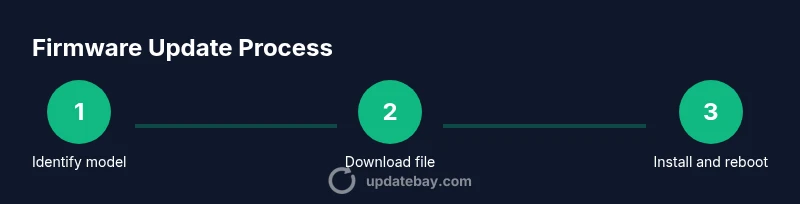
- 1
Identify your router model
Locate the model and hardware revision from the device label or admin UI. Recording this ensures you download the exact firmware file. If you’re unsure, consult the manufacturer’s support page for your model.
Tip: Double-check the hardware revision to avoid flashing the wrong image. - 2
Check current firmware version
Open the router’s status or firmware page to view the installed version. This helps you verify the update after installation and ensures you aren’t missing a critical intermediate release.
Tip: Take a screenshot of the firmware page for reference. - 3
Find and download the correct firmware
Go to the official vendor site or app and locate the firmware file for your exact model and revision. Save it to your computer in an accessible folder. Do not download firmware from third-party sites unless explicitly supported by the vendor.
Tip: Check release notes for deprecations or feature changes. - 4
Choose update method
Decide between automatic updates in the UI/app or manual file upload. Automatic update is simpler but could occur on a vendor-maintained schedule; manual updates give you control over timing and file integrity.
Tip: If using a manual file, verify its checksum if provided. - 5
Prepare the update environment
Connect via Ethernet, disable VPNs or security software on your PC if necessary, and ensure the router is powered and stable. Back up settings and note your current network configuration.
Tip: Keep a backup plan in case you need to restore settings after the update. - 6
Apply the firmware update
Initiate the update from the router UI or app and select the downloaded file if doing a manual update. Do not unplug the device or navigate away during the process.
Tip: Monitor progress and do not interrupt the reboot sequence. - 7
Reboot and verify
Allow the router to reboot completely, then log back in to confirm the new version is displayed. Re-test internet access on multiple devices and check security settings.
Tip: If the login page reappears unexpectedly, perform a hard refresh or try a different browser. - 8
Back up and secure
Once the update is confirmed, reapply your saved settings if needed and re-enable any paused protections. Consider enabling automatic updates if your device supports it.
Tip: Document any new features or changes introduced by the update.
Frequently Asked Questions
Do I need to reset my router after updating firmware?
Not always. Some updates require only a reboot, while others reset certain settings. Always check the vendor release notes for specifics and reconfigure affected options if needed.
Most updates just need a reboot, but check the notes to know if anything resets and what to reconfigure afterward.
Can I update firmware without internet access?
Some routers support updating via a manual USB or directly from a downloaded file, but most devices require internet access to fetch the firmware. Always use official sources when offline updates are supported.
Offline updates are possible on a few models using USB, but usually you’ll need internet access to pull the firmware from the vendor.
What should I do if the update fails?
If an update fails, avoid powering off the device mid-flash. Try again with the correct file and method. If the router becomes unresponsive, use the manufacturer’s recovery mode or support resources to restore its operating state.
If it fails, don’t unplug it mid-flash. Try again with the correct firmware, and use recovery options if needed.
How long does a typical firmware update take?
Most updates complete within 5-15 minutes, plus time for the router to reboot. Larger or more feature-rich updates may take a bit longer; plan for a window of about 20-30 minutes.
Usually 5 to 15 minutes, plus reboot time. Plan for a short window of 20 to 30 minutes.
Is it safe to install third-party firmware on my router?
Third-party firmware can offer advanced features but carries higher risks, including voiding warranties and potential bricking. Only pursue this option if your device is clearly supported and you understand the risks.
Third-party firmware might bring extra features but can void warranties and risk bricking if not supported.
Where can I download firmware safely?
Always download firmware from the official vendor site or the official app. Avoid third-party sources unless explicitly supported by the manufacturer and ensure you match model and revision.
Get firmware from the official vendor or app and verify it matches your exact model.
Watch Video
What to Remember
- Back up settings before flashing.
- Always use the official firmware for your exact model.
- Prefer wired connections to avoid interruption.
- Verify the update after reboot to confirm success.
- Understand your router's recovery options in case of failure.