Can you update iOS while charging? A practical guide
Explore whether you can safely update iOS while charging, with a practical step-by-step approach, safety tips, and troubleshooting to minimize interruptions during the process.


Yes, you can update iOS while charging. Keep your iPhone plugged in, connected to stable Wi‑Fi, and avoid heavy use during the update. For best results, follow the full step-by-step guide and monitor temperature. According to Update Bay, following standard safety guidelines reduces interruptions and overheating risk during the process.
Why You Might Update iOS While Charging
Yes, you can update iOS while charging. In many cases, iOS updates install smoothly when the device is plugged into a reliable charger and connected to a stable Wi‑Fi network. This setup prevents sudden shutdowns due to battery drain and helps ensure the update downloads and installs without interruption. According to Update Bay, adopting best-practice safety guidelines reduces the probability of interruptions and overheating during the process. Keep in mind that environmental factors like temperature can influence performance, so plan updates in a cool, ventilated space and avoid direct sunlight or hot environments.
Safety First: Temperature, Chargers, and Cables
Charging while updating introduces simultaneous energy draw and processing. The safest approach is to use an official Apple charger or a high-quality, MFi-certified adapter, and a solid, undamaged cable. Avoid cheap or damaged cables, as they can cause inconsistent power delivery that interrupts updates. Maintain a comfortable room temperature for the device and remove any cases that could trap heat during the installation window. These steps help prevent thermal throttling that could slow or halt the update process.
Does Charging Affect Update Reliability?
In typical conditions, updating your device while charging does not inherently reduce reliability. The critical factors are power stability and a reliable network connection. When your iPhone remains plugged in and the Wi‑Fi connection is steady, the update should progress normally. If the device gets very hot or the charger is unstable, you may see pauses or a forced restart, which can extend the update window. Plan for a longer window if your environment tends to heat up.
What You Need Before You Begin
Before starting, gather a few essentials to reduce the chance of mid-update issues. Ensure you have a charged, working cable and a certified charger, a stable Wi‑Fi network, and sufficient storage space on the device for the update. Create a quick backup via iCloud or a computer so you can restore data if something unexpected happens. Having these items ready minimizes risk and keeps the process moving smoothly.
Step-by-Step: Prepare
-
Plug into power. Action: Connect the iPhone to a reliable charger and ensure the outlet is stable. Why: A stable power source prevents interruptions if the battery dips during download or installation. Tip: Use a wall outlet rather than a power strip to avoid voltage fluctuations.
-
Connect to Wi‑Fi. Action: Verify a stable Wi‑Fi connection with adequate bandwidth. Why: Updates can be large and require consistent downloading; cellular data may be throttled or incur extra charges. Tip: Pause other bandwidth-heavy tasks during download.
-
Back up data. Action: Create a current backup via iCloud or iTunes/Finder. Why: A backup protects your data if something goes wrong during the update. Tip: Check that the backup completed successfully before proceeding.
-
Check storage. Action: Review available storage and remove nonessential items if space is tight. Why: Insufficient space can cause the update to fail. Tip: Offload large videos or apps to iCloud or a computer if needed.
-
Ensure battery health basics. Action: If your device shows signs of aging or swelling, postpone the update. Why: While charging reduces risk of shutdown, degraded batteries can misbehave under load. Tip: Consider battery maintenance or a professional check if in doubt.
Step-by-Step: Run the Update
-
Open Settings. Action: Go to Settings > General > Software Update. Why: This is where iOS installs are initiated. Tip: If you don’t see an update, refresh by pulling down the screen.
-
Review update details. Action: Tap on the update to view size and changes. Why: Understanding what’s changing helps set expectations for duration. Tip: Ensure you’re connected to power before proceeding.
-
Start the update. Action: Tap Download and Install, or Install Now. Why: The system will begin downloading and verifying the package. Tip: Avoid interrupting the process once it starts.
-
Monitor progress. Action: Observe the progress bar and any prompts. Why: Pauses can occur while the device processes. Tip: If it seems stalled for an extended period, check your network or force restart only as a last resort.
-
Complete and restart. Action: Allow the device to finish the installation and restart automatically. Why: Finalization ensures all components update correctly. Tip: Do not unplug the device during the restart sequence.
-
Verify the update. Action: After reboot, go to Settings > General > Software Update and confirm the version matches the release notes. Why: Confirmation ensures the update completed successfully. Tip: Record the version in case you need to report issues later.
-
Post-update checks. Action: Check key apps for compatibility and reconfigure any preferences. Why: Some apps or settings may require adjustments after a major update. Tip: Run a quick battery check and observe performance for a few hours.
Common Scenarios: When It Works and When Not
In safe environments, updates during charging work well, particularly when the device is on a stable charger and a robust Wi‑Fi network. However, high ambient temperatures or poor power delivery can cause the device to throttle, delaying progress or triggering a restart. In rare cases, a firmware-level problem or a failing battery could necessitate pausing the update. Knowing these scenarios helps you decide whether to proceed now or wait for cooler conditions or a healthier power source.
Troubleshooting If the Update Fails
If the update stalls or fails while charging, proceed with a reset as a last resort only after attempting the standard steps: verify power and network, reboot the device, and retry. If the failure persists, try updating over a verified wired connection elsewhere and ensure you have a recent backup. Restore from the backup if the update leaves you with unstable performance, and contact support if needed. The key is to stay calm, gather details about any error messages, and retry with a stable setup.
After the Update: Battery and Performance Checks
Once the update completes, monitor battery performance and device temperature for the next 24 hours. You may notice changes in battery behavior immediately after a major update as the system recalibrates. If you detect rapid drain, check Settings > Battery to identify apps consuming unexpected power and adjust background activity accordingly. Regular maintenance, including battery health checks and software cleanup, helps maintain long-term reliability during future updates.
Privacy and Security Considerations During Updates
iOS updates often include security patches and new features. Ensure you download updates from legitimate sources and verify the official Apple release notes. Avoid jailbreaking or sideloading software during updates, as this can expose you to security risks. Keeping a recent backup and enabling Find My iPhone enhances resilience in case of any hiccups during the upgrade.
Quick Tips to Minimize Interruptions
- Maintain a stable power source for the entire update window.
- Use a reliable Wi‑Fi network and avoid competing bandwidth-heavy activities.
- Clear enough storage space to prevent mid-update issues.
- Keep the device out of extreme temperatures; heat can slow progress or halt updates.
- Have a recent backup ready in case restoration is needed.
Final Checklist Before You Start
- Power: Plugged into a reliable charger.
- Network: Stable Wi‑Fi connection.
- Storage: Sufficient space available.
- Backup: Recent iCloud or computer backup.
- Environment: Cool, ventilated area away from direct heat sources.
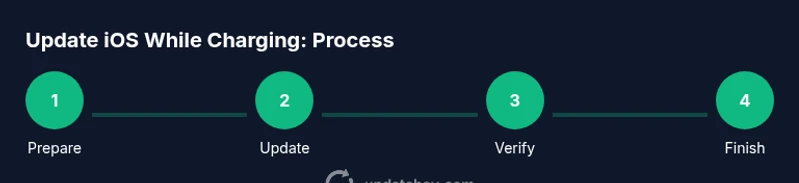
toolsMaterials”: {"items":[{"name":"iPhone with charge cable (Lightning or USB-C)","required":true,"note":"Original or Apple-certified cable recommended"},{"name":"Apple-certified charger or official MagSafe/USB-C adapter","required":true,"note":"Avoid third-party low-quality adapters"},{"name":"Stable Wi‑Fi network","required":true,"note":"Reliable bandwidth to download update"},{"name":"Sufficient device storage","required":true,"note":"Free space for the update package"},{"name":"Backup method (iCloud or computer)","required":true,"note":"Back up before updating"},{"name":"Optional: Temperature monitoring app","required":false,"note":"Useful to monitor device heat"}]} ,"stepByStep": {"steps":[{"number":1,"title":"Plug into power","description":"Connect the iPhone to a reliable charger and ensure the outlet is stable. A steady power source prevents interruptions if the battery dips during download or installation.","tip":"Use a wall outlet rather than a power strip to avoid voltage fluctuations."},{"number":2,"title":"Connect to Wi‑Fi","description":"Verify a stable Wi‑Fi connection with adequate bandwidth. Updates can be large and require consistent downloading to avoid cellular throttling or charges.","tip":"Pause other bandwidth-heavy tasks during download."},{"number":3,"title":"Back up data","description":"Create a current backup via iCloud or a computer so you can recover if something goes wrong. A backup protects your personal information and app data.","tip":"Confirm the backup completed before proceeding."},{"number":4,"title":"Check storage","description":"Review available storage and remove nonessential items to ensure enough space for the update payload. Lack of space can cause a failure.","tip":"Offload large files to iCloud or a computer if needed."},{"number":5,"title":"Review battery health","description":"If the device shows signs of aging or swelling, postpone the update and address the battery condition first. A healthy battery supports a smoother update." ,"tip":"Consider battery maintenance if doubt remains."},{"number":6,"title":"Open Settings and locate update","description":"Navigate to Settings > General > Software Update to start the process. This is where iOS installs are initiated.","tip":"Refresh the page if the update isn’t visible by pulling down."},{"number":7,"title":"Start the update","description":"Tap Download and Install, or Install Now, to begin downloading and verifying the package. Do not interrupt once started.","tip":"Ensure the device remains connected to power throughout."},{"number":8,"title":"Monitor progress","description":"Watch the progress bar and prompts; updates can pause for verification or processing. If stalled, check network or power.","tip":"Avoid using the device heavily during the update."},{"number":9,"title":"Complete and restart","description":"Allow the installation to finish and reboot automatically. This ensures all components update correctly.","tip":"Do not unplug the device during restart."},{"number":10,"title":"Verify the update","description":"After reboot, confirm the version in Settings and compare with release notes to ensure completion.","tip":"Keep a record of the version for future reference."},{"number":11,"title":"Post-update checks","description":"Test essential apps and features, and observe battery behavior for 24 hours. Recalibrate if needed.","tip":"Run a quick battery check to monitor performance."},{"number":12,"title":"Return to normal use","description":"Re-enable any preferences altered for the update and resume regular usage.","tip":"If issues persist, consider restoring from backup."}],"estimatedTime":"45-60 minutes"}},"tipsList":{"tips":[{"type":"pro_tip","text":"Keep the device on a stable charger for the entire duration of the update."},{"type":"warning","text":"Do not unplug the device if the update seems to pause; wait a few minutes before taking action."},{"type":"note","text":"Ensure there is enough storage ahead of time to avoid update failures."},{"type":"pro_tip","text":"Update on a cool, well-ventilated surface to prevent overheating."}]},"keyTakeaways":["Always plug in before updating","Maintain a stable Wi-Fi connection","Back up data before updating","Monitor temperature and avoid interruptions","Verify the update version after restart"],"videoEmbed":{"videoQuery":"how to update ios while charging tutorial"},"faqSection":{"items":[{"question":"Can I update iOS while charging?","questionShort":"Can I update while charging?","answer":"Yes. It is generally safe when you are plugged in and connected to stable Wi‑Fi. Make sure you are in a cool environment and avoid heavy device usage during the update.","voiceAnswer":"Yes, you can update iOS while charging. Just keep the device plugged in, on a steady Wi‑Fi connection, and avoid heavy use until the update finishes.","priority":"high"},{"question":"Will updating while charging drain my battery?","questionShort":"Battery drain during update?","answer":"Charging mitigates battery drain during the update because power is supplied. The update’s processing may still consume some energy, but being plugged in reduces risk of interruption.","voiceAnswer":"Being plugged in minimizes battery drain risk, but the device may still use power to process the update." ,"priority":"high"},{"question":"Should I unplug the device after updating?","questionShort":"Unplug after update?","answer":"No need to unplug immediately; wait for the update to complete and the device to reboot. After verification, you may disconnect if you wish.","voiceAnswer":"Wait until the device finishes updating and restarts before unplugging.","priority":"medium"},{"question":"What if the device overheats during an update?","questionShort":"Overheating during update?","answer":"If the device becomes very hot, pause and let it cool down before continuing. Update in a cooler environment can prevent throttling or failure.","voiceAnswer":"If it overheats, pause, cool down, and resume only when comfortable.","priority":"high"},{"question":"What should I do if the update fails while charging?","questionShort":"Update fails?","answer":"Check power and network connections, ensure sufficient storage, and retry. If it continues to fail, try a different charger or network and consider restoring from backup.","voiceAnswer":"Retry with a stable power source and network; if issues persist, use a backup restore.","priority":"medium"},{"question":"Does the charger type matter for updates?","questionShort":"Charger type matters?","answer":"Using an official or high-quality charger ensures stable power delivery, reducing risk of interruptions. Avoid damaged cables or third-party low-quality adapters.","voiceAnswer":"Yes, a reliable charger and cable help ensure a smooth update.","priority":"low"}]} ,"mainTopicQuery":"ios update"},"mediaPipeline":{"heroTask":{"stockQuery":"iphone charging setup in modern home","overlayTitle":"Update While Charging","badgeText":"2026 Guide","overlayTheme":"dark"},"infographicTask":{"type":"process","htmlContent":"<div class="w-full max-w-3xl mx-auto p-6 bg-slate-900 text-white"><h3 class="text-xl font-bold mb-4">Update iOS While Charging: Process</h3><div class="flex items-center justify-between"><div class="flex flex-col items-center"><div class="w-14 h-14 rounded-full bg-emerald-500 flex items-center justify-center font-bold text-white">1</div><div class="mt-2 text-sm text-center">Prepare</div></div><div class="flex-1 h-1 bg-emerald-500/30 mx-2"></div><div class="flex flex-col items-center"><div class="w-14 h-14 rounded-full bg-emerald-500 flex items-center justify-center font-bold text-white">2</div><div class="mt-2 text-sm text-center">Update</div></div><div class="flex-1 h-1 bg-emerald-500/30 mx-2"></div><div class="flex flex-col items-center"><div class="w-14 h-14 rounded-full bg-emerald-500 flex items-center justify-center font-bold text-white">3</div><div class="mt-2 text-sm text-center">Verify</div></div><div class="flex-1 h-1 bg-emerald-500/30 mx-2"></div><div class="flex flex-col items-center"><div class="w-14 h-14 rounded-full bg-emerald-500 flex items-center justify-center font-bold text-white">4</div><div class="mt-2 text-sm text-center">Finish</div></div></div></div>","altText":"Infographic: four-step process to update iOS while charging","caption":"Process infographic: Prepare, Update, Verify, Finish"}},
taxonomy":{"categorySlug":"operating-systems-updates","tagSlugs":["iphone-updates","software-updates","security-updates","patch-notes","update-bay"]}}
mainTopicQuery_type_check_for_valid_json
Tools & Materials
- iPhone with charge cable (Lightning or USB-C)(Original or Apple-certified cable recommended)
- Apple-certified charger or official MagSafe/USB-C adapter(Avoid third-party low-quality adapters)
- Stable Wi-Fi network(Reliable bandwidth to download update)
- Sufficient device storage(Free space for the update package)
- Backup method (iCloud or computer)(Back up before updating)
- Optional: Temperature monitoring app(Useful to monitor device heat)
Steps
Estimated time: 45-60 minutes
- 1
Plug into power
Connect the iPhone to a reliable charger and ensure the outlet is stable. A steady power source prevents interruptions if the battery dips during download or installation.
Tip: Use a wall outlet rather than a power strip to avoid voltage fluctuations. - 2
Connect to Wi-Fi
Verify a stable Wi-Fi connection with adequate bandwidth. Updates can be large and require consistent downloading to avoid cellular throttling or charges.
Tip: Pause other bandwidth-heavy tasks during download. - 3
Back up data
Create a current backup via iCloud or a computer so you can recover if something goes wrong. A backup protects your personal information and app data.
Tip: Confirm the backup completed before proceeding. - 4
Check storage
Review available storage and remove nonessential items to ensure enough space for the update payload. Lack of space can cause a failure.
Tip: Offload large files to iCloud or a computer if needed. - 5
Review battery health
If the device shows signs of aging or swelling, postpone the update and address the battery condition first. A healthy battery supports a smoother update.
Tip: Consider battery maintenance if doubt remains. - 6
Open Settings and locate update
Navigate to Settings > General > Software Update to start the process. This is where iOS installs are initiated.
Tip: Refresh the page if the update isn’t visible by pulling down. - 7
Start the update
Tap Download and Install, or Install Now, to begin downloading and verifying the package. Do not interrupt once started.
Tip: Ensure the device remains connected to power throughout. - 8
Monitor progress
Watch the progress bar and prompts; updates can pause for verification or processing. If stalled, check network or power.
Tip: Avoid using the device heavily during the update. - 9
Complete and restart
Allow the installation to finish and reboot automatically. This ensures all components update correctly.
Tip: Do not unplug the device during restart. - 10
Verify the update
After reboot, confirm the version in Settings and compare with release notes to ensure completion.
Tip: Keep a record of the version for future reference. - 11
Post-update checks
Test essential apps and features, and observe battery behavior for 24 hours. Recalibrate if needed.
Tip: Run a quick battery check to monitor performance. - 12
Return to normal use
Re-enable any preferences altered for the update and resume regular usage.
Tip: If issues persist, consider restoring from backup.
Frequently Asked Questions
Can I update iOS while charging?
Yes. It is generally safe when you are plugged in and connected to stable Wi‑Fi. Make sure you are in a cool environment and avoid heavy device usage during the update.
Yes, you can update iOS while charging. Just keep the device plugged in, on a steady Wi‑Fi connection, and avoid heavy use until the update finishes.
Will updating while charging drain my battery?
Charging mitigates battery drain during the update because power is supplied. The update’s processing may still consume some energy, but being plugged in reduces risk of interruption.
Being plugged in minimizes battery drain risk, but the device may still use power to process the update.
Should I unplug the device after updating?
No need to unplug immediately; wait for the update to complete and the device to reboot. After verification, you may disconnect if you wish.
Wait until the device finishes updating and restarts before unplugging.
What if the device overheats during an update?
If the device becomes very hot, pause and let it cool down before continuing. Update in a cooler environment can prevent throttling or failure.
If it overheats, pause, cool down, and resume only when comfortable.
What should I do if the update fails while charging?
Check power and network connections, ensure sufficient storage, and retry. If the failure persists, try a different charger or network and consider restoring from backup.
Retry with a stable power source and network; if issues persist, use a backup restore.
Does the charger type matter for updates?
Using an official or high-quality charger ensures stable power delivery, reducing risk of interruptions. Avoid damaged cables or third-party low-quality adapters.
Yes, a reliable charger and cable help ensure a smooth update.
Watch Video
What to Remember
- Always plug in before updating
- Maintain a stable Wi-Fi connection
- Back up data before updating
- Monitor temperature and avoid interruptions
- Verify the update version after restart