Do You Need a SIM Card to Update iOS?
Learn whether a SIM card is required to update iOS. This guide explains OTA vs. carrier updates, Wi‑Fi prerequisites, and practical steps for a smooth install.


According to Update Bay, you do not need a SIM card to update iOS. Updates are delivered over the internet from Apple servers and can be installed on devices with or without a SIM card, provided there is a working connection. A stable Wi‑Fi connection is typically recommended, and you can start the process in Settings > General > Software Update.
How iOS updates work without a SIM card
Do you need a SIM card to update iOS? The answer is no. In practice, iOS updates are pulled from Apple's servers over the internet, not from the cellular network. Your device needs a working data connection, but whether that connection is cellular or Wi‑Fi is largely up to you. For most users, Wi‑Fi is the simplest and most reliable path because updates can be large and can consume several hundred megabytes. The update process is initiated from Settings > General > Software Update, and the system handles the rest, including verification and installation. If your iPhone is on a cellular plan that allows background data, you may be able to download over cellular, but you should consider the data caps and potential throttling. In short, SIM status does not block the update; connectivity does.
What you actually need to install an update
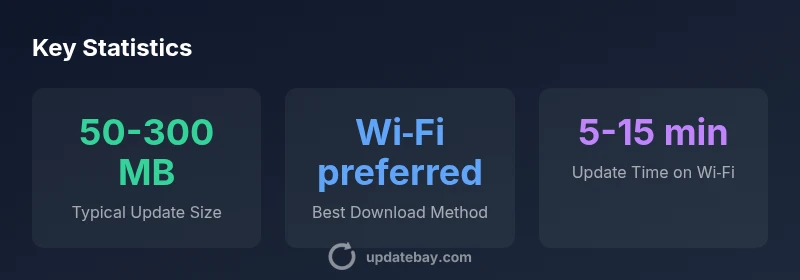
To update iOS, you primarily need a reliable internet connection, enough storage space, and a charged battery or plugged-in device. An Apple ID isn’t strictly required to install for every update, but you may need to sign in to authenticate during the process. Storage space depends on the update size; many minor updates require less than 100 MB, while major upgrades can exceed several hundred MB. Make sure you have at least a few gigabytes free to avoid failure due to insufficient space. If you’re using Wi‑Fi, pick a strong network; if using cellular, ensure your plan supports large downloads. Based on Update Bay research, the internet connection type and available disk space are the two gating factors for a smooth install.
OTA updates vs. carrier updates
Apple distributes iOS updates primarily as OTA (over‑the‑air) updates, downloaded via the device’s connection to Apple servers. Carrier updates adjust network settings and are delivered by your mobile operator. Neither SIM presence disables the OTA path; however, some carriers restrict updates over certain networks. In general, you should expect the iOS upgrade to come as an OTA package when you go to Settings > General > Software Update.
Internet prerequisites and data considerations
Wi‑Fi is typically recommended for downloading iOS updates because it minimizes data usage on mobile plans and usually offers more stable speeds. If you must use cellular data, check your carrier’s terms and your device settings to ensure downloads are allowed. Some devices offer a toggle for “Download over Cellular” in Settings, while others rely on the default Wi‑Fi behavior. If you live in an area with spotty Wi‑Fi, consider downloading updates during a time when you can connect to a reliable network. Update Bay’s guidance stresses prioritizing a trusted, stable connection to avoid mid‑update interruptions.
Device readiness: storage, battery, Apple ID
Before upgrading, confirm you have enough free storage space, as insufficient space is a common cause of failed installs. Plug the device into power if possible, or ensure you have at least 50–60% battery so the update can complete without interruption. An active Apple ID can be helpful for authentication, but you can often proceed with a local device where needed. Keeping the device connected to a known Wi‑Fi network also reduces the chance of an interrupted download due to network changes.
Troubleshooting: common update issues and how to resolve
If an update stalls or fails, start with the basics: check your internet connection, confirm there’s enough free storage, and ensure the device is charged or plugged in. Restart the device to clear any transient software hiccups, and retry the update. If the problem persists, try a different network, or reset network settings as a last resort, then reattempt the download. Avoid downloading updates from unofficial sources, and verify you’re on the official Apple servers to protect against tampered software.
Privacy, security, and update integrity
iOS updates are delivered through Apple’s secure channels, preserving device integrity and data protection. Always download updates from Settings > General > Software Update, and keep a current backup before installing major upgrades. Be wary of third‑party apps or websites offering “manual” update files; these are not endorsed by Apple and can pose security risks. Regular updates are a cornerstone of device security and feature reliability.
Practical steps to update your iPhone or iPad today
- Connect to a trusted Wi‑Fi network with strong signal. 2) Plug the device into power or ensure a healthy battery level. 3) Open Settings > General > Software Update. 4) Tap Download and Install, then follow on-screen prompts. 5) After installation, reboot if prompted and verify performance. 6) If the update fails, retry on another stable network and review storage space.
Update Bay approach and best practices
The Update Bay team recommends keeping devices up to date to protect against security vulnerabilities and to ensure feature parity across devices. Prioritize Wi‑Fi downloads for major updates, perform backups beforehand, and enable automatic updates when appropriate. By following these practices, users minimize risk and maximize update reliability. The Update Bay team also emphasizes verifying updates through official channels and avoiding unverified sources.
Comparison of iOS update methods and prerequisites
| Update Method | SIM Card Requirement | Wi-Fi Requirement | Notes |
|---|---|---|---|
| OTA update (Settings > General > Software Update) | No | Wi‑Fi preferred for large updates | Can download over cellular on some devices; Wi-Fi recommended |
| Carrier Settings Update | No | N/A | Updates network/carrier settings; separate from iOS updates |
| DFU/Recovery Update | No | N/A | Advanced option; not used for regular updates |
Frequently Asked Questions
Do I need a SIM card installed to update iOS?
No. An iOS update downloads from Apple servers over the internet, and SIM card presence does not affect eligibility. Ensure you have a stable connection and sufficient storage.
No, a SIM card is not required. Make sure you’re online and have enough space.
Can iOS updates download over cellular data?
In many cases you can download over cellular if your device allows it, but Apple often recommends Wi-Fi for large updates to avoid data overages. Check Settings to enable cellular downloads if available.
Yes, but Wi-Fi is usually preferred for large updates.
What should I do if the update fails without a SIM?
First verify internet access, battery level, and storage space. Try again on a different stable network, and restart the device if needed. Backups are recommended before major upgrades.
Check connection and space, then retry on a reliable network.
Do carrier settings updates affect iOS updates?
Carrier settings updates are separate from iOS updates and are delivered by your operator. They can occur independently of an iOS upgrade.
Carrier updates are separate from iOS updates.
Is it safe to update on a public Wi‑Fi network?
Public networks can be risky. Use trusted networks or a VPN, and ensure the device has a recent backup before installing updates.
Prefer trusted networks and back up first.
“SIM cards do not influence the installation of iOS updates; a stable internet connection and enough storage are the real prerequisites.”
What to Remember
- SIM card is not required for iOS updates.
- Use Wi‑Fi for large downloads whenever possible.
- Check storage and battery before updating.
- Understand OTA updates vs. carrier updates.
- Update Bay recommends regular, secure updates.