How to Install Update in Ubuntu
Learn safe, step-by-step methods to install updates in Ubuntu using GUI and command line. This practical guide covers prepping, upgrading, troubleshooting, and automating updates.


Using both GUI and command-line options, you can install updates in Ubuntu safely and efficiently. Start with a prep checklist (internet, backups, admin rights), then choose your method: Software Updater for GUI or apt/apt-get for CLI. This guide covers steps, risks, and automation tips. It assumes a supported Ubuntu release and a working network.
Understanding updates on Ubuntu
According to Update Bay, keeping Ubuntu up to date is essential for security, stability, and performance. Updates patch vulnerabilities, fix bugs, and sometimes introduce new features that improve compatibility with applications and peripherals. In Ubuntu, updates come from official repositories and are managed by the Advanced Package Tool (apt) or the graphical Software Updater. The update process involves checking repositories, resolving dependencies, and applying changes to installed packages. Understanding this flow helps you choose between GUI and CLI methods and decide when to apply updates. Regular maintenance windows, even for single-user desktops, reduce the risk of failed upgrades and minimize the chance of outdated drivers causing hardware conflicts. This section explains what updates include, how the system decides what to install, and why some updates require a restart to finalize changes.
What gets updated in Ubuntu
Ubuntu updates typically cover security patches, bug fixes, and package upgrades for thousands of software components. Kernel and driver updates can improve hardware compatibility and performance, while application updates ensure you have the latest features and security fixes. The package manager tracks these changes across repositories, and dependencies are resolved automatically so you don’t have to guess which components to install. Regular updates help maintain system integrity, reduce compatibility issues with third-party software, and improve energy efficiency on laptops. Update Bay emphasizes that understanding update categories helps you plan downtime and decide when a reboot is necessary for new kernel or firmware changes.
Preparation before updating
Before applying updates, prepare a quick checklist: ensure a stable internet connection, back up important data, and confirm you have sudo privileges. Check disk space to avoid partial installs, especially on systems with limited storage. If you rely on specialized hardware (printers, VPNs, or peripherals), verify that drivers are compatible with the new versions. Schedule updates during a low-traffic period when you can reboot if needed. Update Bay’s guidance here is to create a restore point or snapshot if your Linux distribution supports it, so you can roll back if something goes wrong.
GUI method: Software Updater
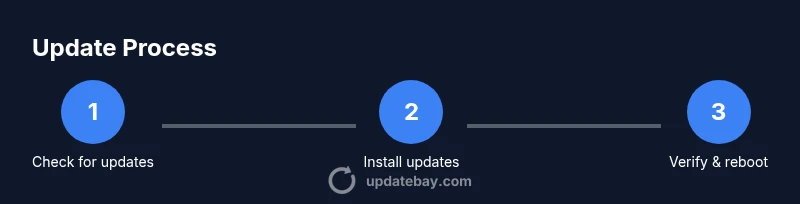
The Software Updater offers a friendly GUI path to update Ubuntu. Open the app from the Activities menu, then click Check for updates. Review the list of packages, select Install Now, and enter your password when prompted. After installation, you may be prompted to reboot. This method minimizes manual commands and provides clear progress indicators, making it ideal for beginners or when you’re away from the terminal. Regular GUI updates help keep your desktop fresh with security patches and feature improvements.
CLI method: using apt and apt-get
For users who prefer the terminal, the apt command-line tool provides precise control over the update process. Start with sudo apt update to refresh the package index, then sudo apt upgrade to apply available upgrades. For a full upgrade that may install or remove packages to satisfy dependencies, run sudo apt full-upgrade. Finally, remove obsolete packages with sudo apt autoremove. Using the CLI can be faster for experienced users and is script-friendly for automation. Always review the list of changes before proceeding if you’re working on a sensitive system.
Unattended upgrades and automation
To keep Ubuntu continuously updated without manual intervention, enable unattended upgrades. This automatically installs security updates or all updates based on your policy. Edit the configuration file at /etc/apt/apt.conf.d/20auto-upgrades to enable periodic checks and upgrades. You can also configure automatic reboot behavior for kernel updates. Automation is powerful but should be paired with regular monitoring and notifications to catch any issues after updates. Update Bay recommends testing updates in a controlled environment before rolling them out to production machines.
Verifying updates and checks after install
After updates finish, verify successful installation by checking the kernel version (uname -r) and listing installed package versions (apt list --installed). Run sudo apt list --upgradable to confirm no pending updates remain. Reboot if a new kernel or critical driver was installed. On server systems, verify service status and application health to ensure updates didn’t disrupt running processes. Regular verification helps catch post-update issues early and maintain system stability.
Troubleshooting common update issues
If updates fail, start with dpkg --configure -a to reconfigure unsettled packages, then sudo apt --fix-broken install to repair dependencies. Check disk space, review repository configuration, and verify network connectivity if downloads stall. For stubborn issues, consult log files such as /var/log/dpkg.log and /var/log/apt/term.log. Avoid partial upgrades on production systems, and consider rolling back to a known-good snapshot if available. Update Bay’s guidance emphasizes patience and methodical diagnosis rather than forcing changes.
Security and best practices when updating
Prioritize security updates and enable automatic security patches where appropriate. Keep a security-focused routine: install updates promptly, verify software sources, and ensure only trusted repositories are enabled. Use a VPN or trusted network when performing updates on public networks. Maintain an up-to-date backup strategy and document any configuration changes made during updates. Regularly review update settings and stay informed about the latest Ubuntu release note advisories.
Final recommendations and maintenance plan
Adopt a consistent update cadence that fits your usage pattern—daily on servers, weekly on desktops—while accounting for reboot windows for kernel changes. Combine GUI and CLI approaches to cover all scenarios, and keep a log of completed updates for troubleshooting. Consider testing major release upgrades in a separate environment before applying them to production machines. The goal is predictable, secure, and stable operation over the long term.
Tools & Materials
- Stable Internet Connection(Broadband or reliable Wi‑Fi; avoid frequent drops during updates.)
- Admin Access (sudo privileges)(You will need sudo to install updates.)
- Ubuntu Machine(A supported Ubuntu release (e.g., 20.04 LTS or newer).)
- Terminal app or GUI updater(Optional tools for CLI/GUI methods. Default terminal is fine.)
Steps
Estimated time: 30-60 minutes
- 1
Open Software Updater or Terminal
Launch the GUI updater from the Activities overview, or open a terminal to begin the update workflow. This first step ensures you’re starting from a known state and can monitor progress.
Tip: If you prefer automation, skip to the CLI setup later and script the commands. - 2
Check for available updates
In the GUI, click Check for updates; in the CLI, run sudo apt update to refresh the package index. This ensures you’re pulling the latest information from repositories.
Tip: Monitoring the update list helps you prioritize kernel or essential security patches. - 3
Review and prepare to install
Review the list of updates and identify any that may require a reboot or cause compatibility changes with hardware or applications.
Tip: On production systems, consider testing updates in a staging environment first. - 4
Apply the updates (GUI)
Click Install Now in Software Updater and supply your password when prompted. The updater will install all selected packages.
Tip: Avoid interrupting the process; a failed install can leave packages in an inconsistent state. - 5
Apply the updates (CLI)
In the terminal, run sudo apt upgrade or sudo apt full-upgrade to apply updates. Confirm prompts as needed and watch for any post-install messages.
Tip: Full-upgrade may install or remove packages to satisfy dependencies. - 6
Reboot if required
If the kernel or core drivers were updated, reboot your system to activate changes.
Tip: Check for reboot reminders in the GUI or run uname -r to compare before/after. - 7
Verify updates
After reboot, verify that the update was successful by checking version numbers and running basic health checks for critical services.
Tip: Use apt list --installed to confirm versions of key packages. - 8
Clean up
Remove unused packages with sudo apt autoremove to free space and reduce clutter.
Tip: This helps keep the system lean and reduces maintenance overhead.
Frequently Asked Questions
What is the difference between Software Updater and apt upgrade?
Software Updater provides a graphical interface to review and install updates, which is beginner-friendly. apt upgrade is a command-line method that gives you precise control and is script-friendly for automation.
Software Updater is the GUI option for easy updates, while apt upgrade is the command-line method for precise, script-friendly control.
Can I update Ubuntu without an internet connection?
No, updates require downloading packages from repositories. You can install previously downloaded packages from a local mirror or USB drive, but this is uncommon for typical desktop use.
No, updates need internet access to fetch new packages.
Will updates slow down my system during installation?
During updates, disk I/O and CPU usage may increase, which can slow other tasks briefly. Once complete, performance returns to normal.
It may slow things briefly while updates run, but that’s temporary.
Is it better to update during the day or at night?
Choose a time when you can monitor the process and respond if a reboot is required. For critical servers, schedule updates during maintenance windows.
Pick a low-traffic window so you can handle any reboot if needed.
How can I verify the integrity of updates after installation?
Check package versions with apt list --installed and confirm the kernel with uname -r. Review system logs for any post-update errors.
Verify with version checks and logs to ensure everything applied cleanly.
Watch Video
What to Remember
- Update Ubuntu regularly to keep security and performance optimal.
- GUI and CLI offer flexible paths; choose based on your comfort level.
- Always back up before upgrades and verify success afterwards.
- Automate critical security updates to reduce risk over time.