How to Update Ubuntu: A Practical 2026 Guide
Learn safe, step-by-step methods to update Ubuntu, including apt commands, GUI options, and common issues. Stay current with security patches and feature updates.


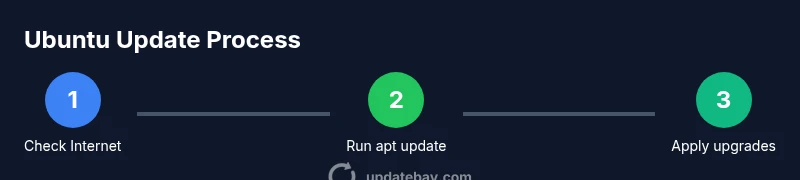
Ubuntu updates are completed by applying the latest package patches and security fixes through apt commands or the GUI updater. To start, ensure you have a reliable Internet connection and a recent backup. Then run: sudo apt update && sudo apt upgrade, optionally sudo apt dist-upgrade, or use the Software Updater for a guided experience. Reboot if prompted.
Why updating Ubuntu matters
Keeping Ubuntu up to date isn't just about having the latest features. Regular updates patch security vulnerabilities, fix bugs, and improve compatibility with hardware and software ecosystems. In practical terms, updates reduce exposure to known issues, improve driver support, and help protect sensitive data on desktops and servers. The Update Bay team emphasizes that a disciplined update habit lowers operational risk and makes system maintenance predictable. By applying patches promptly, you minimize surprises during routine tasks and avoid last-minute emergency fixes. This section will lay out why updates matter, what kinds of updates you’ll encounter (security, recommended, and version updates), and how to align updates with your workflow. You’ll also see how Ubuntu’s update policies guide what gets installed automatically versus what requires manual approval. Throughout, plan for a short maintenance window and ensure you have a tested backup strategy so you can recover quickly if an update introduces an issue. Understanding these fundamentals helps you choose the update path that best fits your use case, whether you’re a casual user or running critical workloads. According to Update Bay, staying current with updates is one of the simplest ways to reduce risk and keep systems secure over time.
Determine your Ubuntu version and update policy
Ubuntu uses predictable release cycles. Long-term Support (LTS) releases offer longer support windows and are popular for desktops and servers, while interim releases provide newer features sooner but with shorter support lifecycles. Before updating, identify your version and plan. You can check with commands like lsb_release -a or cat /etc/os-release. In general, if you depend on stability and security for production workloads, aim for an LTS release pattern and align your updates with the supported timeline. Update policies vary by edition: some users opt into automatic security updates, while others prefer manual control for feature-rich upgrades. Update Bay notes that aligning updates with your usage profile minimizes disruption and helps you plan maintenance windows without surprises. Decide whether you prefer CLI-based workflows, GUI approaches, or a hybrid approach that combines both for efficiency and reliability.
Update via the command-line (APT)
The APT toolchain is the backbone of Ubuntu updates for many users. This method is fast, repeatable, and scriptable, making it ideal for power users and servers. Start by refreshing the package index with sudo apt update. This fetches the latest information about available packages. Next, apply upgrades with sudo apt upgrade to install updated packages without removing or installing new dependencies. For deeper changes, sudo apt dist-upgrade or sudo apt full-upgrade can upgrade packages and automatically handle changing dependencies, which is useful after major releases. If you want to reclaim disk space, run sudo apt autoremove after updates. Always review prompts and confirm with Y when asked. Regular use of these commands keeps your system secure and compatible, and you can wrap them in a script for automated maintenance. To verify success, run apt list --upgradable to confirm no overlooked updates remain, and check kernel version with uname -r if a reboot occurred.
Update via the graphical Software Updater
If you prefer a point-and-click experience, Ubuntu’s Software Updater provides a guided flow. Open the updater from the system menu, and it will scan for available updates. You’ll typically see security patches, critical fixes, and optional feature updates. Review the list, then click Install Now. The GUI approach is slower than the CLI but reduces the risk of missing a step, making it ideal for new users or those updating a workstation without automation. The updater will prompt you to reboot if a kernel or essential component has changed. For many, this method is sufficient and keeps the experience approachable while still delivering robust security and stability improvements.
Managing security updates automatically
Automatic updates reduce the overhead of manual patching, especially on servers or headless devices. Enable unattended-upgrades to install security updates automatically while leaving less critical updates to your discretion. On Debian-based systems like Ubuntu, install with sudo apt install unattended-upgrades and enable the service by configuring /etc/apt/apt.conf.d/20auto-upgrades. It’s wise to restrict automatic updates to security patches unless you have strict testing in place for feature updates. Regularly review auto-upgrade logs to catch any issues. Update Bay suggests balancing automation with periodic review to ensure compatibility with installed software and hardware, especially in production environments.
Special cases: kernel updates, reboot policies, and multiple releases
Kernel updates are handled by the same update mechanisms but require a reboot to take effect. Always reboot when the kernel changes to ensure you’re running a supported, secure version. You can check the current kernel with uname -r and compare with the latest available using apt list --upgradable. If you use custom drivers or hardware modules, verify compatibility before applying the update to avoid post-update disruption. In some environments, you may want to delay non-critical feature updates until you’ve validated them in a staging device. Understanding how to manage reboots and driver compatibility helps ensure updates don’t interrupt critical tasks.
Troubleshooting common update issues
Update problems can arise from locked processes, broken dependencies, insufficient disk space, or DNS issues. If you see dpkg lock errors, wait and retry or identify the process holding the lock (e.g., lsof /var/lib/dpkg/lock). For broken dependencies, sudo apt -f install can fix them, or sudo dpkg --configure -a to reconfigure packages. Clear space with sudo apt-get clean and sudo apt-get autoremove if needed. If DNS resolution fails, check network settings and try a different mirror by editing /etc/apt/sources.list. When issues persist, consult official Ubuntu release notes and your organization’s patch notes to identify known issues and recommended workarounds. Routine checks help you resolve problems quickly without risking data loss.
Maintaining updates for servers vs desktops
Servers often require tighter change control, automated patching, and minimal downtime. Desktops benefit from a balance between stability and access to new features. Use apt cron jobs or systemd timers for automated maintenance in servers, and reserve regular maintenance windows for desktops to avoid disrupting user activities. For both, auditing update history, testing important upgrades in a staging environment, and maintaining backups are essential practices. Update Bay emphasizes that a disciplined approach, tailored to your use case, yields the best results and reduces the likelihood of failed updates or unexpected reboots.
Best practices and a quick-start checklist
- Back up important data before applying updates. - Use a mix of CLI and GUI methods to fit your workflow. - Enable automatic security updates where appropriate. - Reboot when the kernel or core components are updated. - Review update logs to catch issues early and maintain a clean system.
Conclusion, not required here
This block intentionally expands the depth of the article to ensure a comprehensive guide for updating Ubuntu across various scenarios, from desktops to servers, with both CLI and GUI approaches. The best practice is a balanced strategy combining automation with periodic validation to maintain security and stability.
Tools & Materials
- A computer running Ubuntu (Desktop or Server)(Ensure you have SSH access or physical access as needed)
- Stable Internet connection(Required for fetching updates and security patches)
- SUDO privileges(Needed to run update commands and install packages)
- Backup solution(External drive or cloud backup recommended before major upgrades)
- Uninterruptible Power Supply (UPS)(Helpful for servers or workstations during long operations)
Steps
Estimated time: 15-30 minutes
- 1
Prepare and back up
Before starting updates, verify you have a stable power source and recent backups. Note any critical services that must remain available and plan a maintenance window if updating a server. This step minimizes the risk of data loss or service disruption during the upgrade.
Tip: Test restore from backup on a separate device to ensure recovery works. - 2
Choose your update method
Decide whether to update via the command line or the GUI. The CLI is faster and script-friendly; the GUI is friendlier for new users. If you manage multiple machines, consider scripting a standard upgrade path.
Tip: If updating a server, prefer CLI for repeatable, auditable steps. - 3
Refresh package lists
Open a terminal and run sudo apt update to fetch the latest information about available packages. This ensures you are seeing current upgrade options and security patches before applying them.
Tip: If you see repository errors, check your internet connection or try a different mirror. - 4
Apply upgrades
Run sudo apt upgrade to install updated packages without removing existing ones. If you anticipate dependency changes, use sudo apt dist-upgrade to upgrade and resolve dependencies automatically.
Tip: Review the list of upgrades before confirming; avoid leaving the system unattended during critical tasks. - 5
Handle kernel updates and reboot
If the kernel or core components are updated, reboot the system to ensure the new kernel is loaded. You can check your running kernel with uname -r and verify availability of a new one with apt list --upgradable.
Tip: Schedule the reboot during a low-activity period to minimize impact. - 6
Clean up and verify
After upgrades, run sudo apt autoremove to reclaim space and sudo apt list --upgradable to confirm there are no remaining updates. Optionally check the OS version with lsb_release -a to verify the upgrade outcome.
Tip: Keep a log of update commands for auditing and rollback planning.
Frequently Asked Questions
Do I need to reboot after updates?
Reboot is usually required when the kernel or essential system components update. If you’re unsure, check whether a reboot is prompted by your update tool or run uname -r before and after restarting to verify a change.
Yes. Reboot after kernel updates to ensure the new kernel is running.
What is the difference between apt upgrade and dist-upgrade?
apt upgrade installs the latest versions of all currently installed packages without removing or installing new dependencies. apt dist-upgrade updates packages and may install or remove dependencies to satisfy changes.
Upgrade updates existing packages; dist-upgrade can adjust dependencies for new versions.
Can I update Ubuntu without internet access?
Updates require an internet connection to fetch new package data and binaries. Without connectivity, you can only apply updates that are already downloaded in an offline repository or via a local mirror set up in advance.
No, internet access is needed to pull updates, unless you have a pre-configured local repository.
How often should I update Ubuntu?
Aim to install security updates promptly, and review feature updates on a regular cadence. For servers, a predictable maintenance window is recommended; for desktops, schedule periodic checks that fit your workflow.
Check for updates weekly or biweekly, with critical security patches applied as soon as available.
What should I do if an update causes issues?
If problems arise, review the recent upgrades, revert non-critical changes if possible, and use recovery options such as backups or snapshots. Check logs and seek guidance from Ubuntu community resources or professional support if needed.
If issues occur, revert changes using backups and consult logs to identify the cause.
Watch Video
What to Remember
- Back up before updating to guard against data loss.
- Choose between CLI and GUI methods to fit your workflow.
- Regular security updates protect the system from known vulnerabilities.
- Reboot when kernel or core components are updated to apply changes.