Windows 10 Updates: Safe, Practical Guide for 2026
A practical guide from Update Bay on updating Windows 10 safely, backing up data, troubleshooting common update issues, and optimizing settings for reliable performance in 2026.


To update Windows 10 safely, use Windows Update, check driver compatibility, back up important files, and verify post-install stability. This guide walks you through prerequisites, timing, step-by-step actions, and common fixes to minimize downtime and protect data. Whether you’re updating for security, compatibility, or performance, following best practices reduces risk. You’ll learn when to update, how to back up, how to monitor install progress, and how to recover if something goes wrong.
Why Keeping Windows 10 Updated Matters
Keeping Windows 10 updated is essential for security, stability, and access to new features. Updates close security gaps, fix bugs, and improve compatibility with a growing ecosystem of apps and hardware. For everyday users and tech enthusiasts alike, timely updates reduce the risk of malware intrusion, performance degradation, and sudden device failures. According to Update Bay, a disciplined update habit also minimizes downtime and data loss during installation by ensuring you have current backups and a tested rollback plan. The modern update process balances security with usability, delivering both monthly security patches and periodic quality improvements. By staying current, you also benefit from driver improvements, better device management, and smoother integration with cloud services and enterprise tools. This guide emphasizes practical steps you can apply right away to keep Windows 10 safe and reliable.
Understanding Update Channels and Types
Windows 10 uses a combination of update types to keep your system secure and functional. Security updates install promptly to fix known vulnerabilities. Quality updates deliver cumulative improvements and bug fixes, often on a monthly cadence. Feature updates are larger, less frequent releases that introduce new capabilities and performance enhancements. While security and quality updates are generally automatic or user-promoted, feature updates may require planning and compatibility checks. Update Bay notes that a thoughtful approach—assessing driver compatibility, app readiness, and backup readiness—minimizes disruption. Users should review update notes before installation to understand what changes are expected and which optional components can be deferred. Understanding these channels helps you tailor your update strategy to your hardware, use case, and risk tolerance.
Prerequisites: Backups, Compatibility, and Planning
Before you update, establish a reliable backup plan. Create a full system image or a verified cloud backup of essential files. Set a restore point so you can roll back changes if needed. Check hardware compatibility, especially for peripherals, printers, and security software. Ensure enough free disk space for the update to unpack and install. If you rely on specific business software, test updates on a non-production machine or during a maintenance window. Have a power source for laptops and a stable internet connection to avoid mid-update interruptions. These steps reduce post-update surprises and protect data integrity, aligning with best practices recommended by Update Bay.
How to Access Windows Update on Windows 10
Access Windows Update by opening the Settings app, then choosing Update & Security > Windows Update. Click Check for updates to retrieve the latest patches and feature improvements. Review the list of available updates, paying attention to the installation order and any optional components you may want to defer. For drivers or firmware updates, review the vendor notes to ensure compatibility with your hardware. If you plan to install a feature update, consider scheduling a maintenance window and ensuring you have recent backups. After the update completes, restart if prompted and verify system behavior, driver availability, and application performance.
Step-By-Step Overview: What Happens During an Update
During an update, Windows downloads required files, verifies integrity, and applies changes. Depending on the update type, you might experience one or more reboots. A rollback path is usually available if something goes wrong, but this is easiest to execute when you’ve prepared backups beforehand. The process also includes post-install cleanup and a brief stabilization period as services reinitialize. Update Bay suggests watching the progress bar and reading any on-screen prompts carefully, as some updates require user input for features like privacy settings or screen configuration. By understanding the sequence, you can anticipate interruptions and plan your work accordingly.
Step-by-Step: Safe Update Process
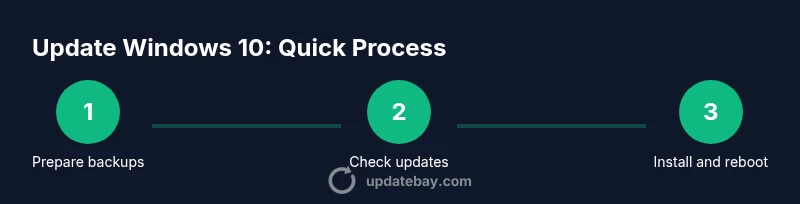
- Prepare backups and restore points to enable rollback if needed. 2. Connect to a reliable power source and a stable network. 3. Check for updates in Settings > Update & Security > Windows Update. 4. Review optional updates and driver packages; defer non-critical ones if possible. 5. Install updates and allow all required restarts. 6. After reboot, verify the update status and version, and test essential apps. 7. If problems arise, use the rollback option or system restore from a saved point. 8. Run a final integrity check and clean temporary files to reclaim space. Tip: Schedule updates during off-peak hours to minimize disruption.
Troubleshooting Common Update Issues
If updates fail, common causes include network instability, insufficient disk space, or corrupted cached files. Start by running Windows Update Troubleshooter, then clear the SoftwareDistribution cache, recheck network settings, and retry installation. If a driver conflict occurs, boot into Safe Mode and install updates with minimal drivers loaded. For stubborn problems, consider performing a clean boot, resetting Windows Update components, or using a system restore point. Always verify driver compatibility with your hardware before a retry.
According to Update Bay, documenting failure codes and symptoms helps you search for targeted fixes and reduces retry time. Keep in mind that not all failures require a full reinstall; many can be resolved with targeted steps and careful rollback.
Bandwidth, Scheduling, and Delivery Optimization
Control bandwidth usage by enabling Delivery Optimization and setting limits, especially on metered networks. Active Hours prevent restarts during productive times, while metered connections can limit automatic downloads for data-sensitive environments. Scheduling updates during a maintenance window helps reduce user impact. If you have multiple devices, consider updating them in a staggered fashion to avoid peak network load. Delivery optimization can also speed up updates by sharing downloaded bits with other devices on your network. These settings empower you to manage updates without sacrificing performance.
Security, Privacy, and Post-Update Hygiene
Post-update hygiene includes reviewing privacy settings, ensuring your security software is up to date, and verifying that sensitive applications are functioning as expected. Regularly scan for malware and verify firewall rules after major updates. If privacy concerns arise, revisit diagnostic and feedback settings introduced by updates and adjust them to your comfort level. Maintain a routine of monthly checks for updates and security advisories, and keep your backup strategy aligned with your data-inportance. Update Bay emphasizes proactive maintenance to reduce risk and maintain system health.
Verifying Success: How to Confirm the Update Took
After installation, confirm success by checking the Windows version in Settings > System > About or by running winver from Run. Review the update history to ensure all listed patches completed successfully. Test core applications, peripherals, and printers to confirm compatibility. If you rely on virtualization or containers, validate those environments after major updates. Keep an eye on system performance for the first 24–72 hours and monitor for any unusual behavior or slowdowns that may indicate driver or software incompatibilities.
Tools & Materials
- Windows 10 PC with active license(Ensure the system is signed in with an administrator account.)
- Backup media or cloud storage(Create a full system backup or disk image.)
- Stable internet connection(Prefer wired Ethernet when possible for reliability.)
- Power source for laptops(Keep charging during update to avoid interruptions.)
- External USB drive (optional)(Useful for local recovery media.)
- Supportive driver/software notes(Have vendor compatibility notes handy in case of driver prompts.)
Steps
Estimated time: 45-90 minutes
- 1
Prepare backups and restore points
Create a full system backup or disk image and set a system restore point. This ensures you can recover in case an update goes wrong. Verify that the backup completed successfully before proceeding.
Tip: Store backups on a separate drive or cloud to protect against local hardware failure. - 2
Check hardware compatibility
Review critical peripherals and drivers for compatibility with the upcoming updates. Update vendor drivers if newer, stable versions are available, but avoid optional drivers that aren’t essential for your setup.
Tip: Note any devices that require vendor-specific software updates and plan those steps after the OS patch. - 3
Connect to a reliable network
Ensure a stable internet connection to prevent partial downloads or corrupted updates. If using Wi‑Fi, prefer a 5 GHz network with strong signal strength; otherwise, use a wired connection.
Tip: Disable VPNs during the update to avoid interference with download integrity. - 4
Open Windows Update and check for updates
Navigate to Settings > Update & Security > Windows Update and select Check for updates. Review optional updates and leave non-critical items unchecked if you want a staged approach.
Tip: Note any pending restarts and plan a maintenance window accordingly. - 5
Install updates and restart as required
Begin installation and allow all required restarts. Do not interrupt the system during the reboot phase. After the restart, confirm that updates completed successfully.
Tip: If a restart is scheduled, save work beforehand to prevent data loss. - 6
Verify the update and test critical apps
Check the Windows version in About Your PC and review the update history. Test essential programs, peripherals, and network services to catch any compatibility issues early.
Tip: Run a quick malware scan and ensure firewall rules remain intact after the update. - 7
If problems occur, use rollback options
If you encounter persistent issues, revert to a restore point or uninstall the problematic updates via Update history. This is easier when you prepared a rollback plan in advance.
Tip: Document any error codes to search for targeted fixes. - 8
Perform post-update maintenance
Clean up temporary files, run a backup verification, and recheck driver statuses. Consider scheduling the next update cycle to avoid long gaps between patches.
Tip: Regular maintenance helps prevent accumulation of performance issues.
Frequently Asked Questions
Is it safe to update Windows 10 on a working workstation?
Yes, as long as you follow a prepared process: backup, verify compatibility, install during a planned window, and monitor after the upgrade. Having a rollback plan minimizes risk.
Yes, update with a plan: backup first, ensure compatibility, schedule time, and monitor the system after installation.
What should I do if an update fails to install?
If an update fails, consult the error code, run the Windows Update Troubleshooter, and attempt a clean reattempt after clearing cached update files. If needed, rollback to a restore point.
If an update fails, use the troubleshooter, clear update cache, and retry or rollback to a restore point.
How can I control when Windows 10 updates install?
Use Active Hours to prevent restarts during work time and adjust the Update settings to defer non-critical updates when appropriate.
Set Active Hours and defer non-critical updates to manage timing.
Do I need to back up before every update?
It’s highly recommended to back up before major updates or feature releases. For smaller, monthly patches, a backup is still wise if you rely on critical data.
Back up before major updates, and consider a backup for critical data before smaller patches.
What’s the difference between security and feature updates?
Security updates fix vulnerabilities, while feature updates add capabilities. Both types improve reliability, but feature updates may require more planning and testing.
Security patches fix vulnerabilities; feature updates bring new tools but may need more testing.
How do I verify that the update installed correctly?
Check the Windows version, review update history, and test essential apps. Look for unexpected reboots or performance issues in the first 24–72 hours.
Check version, history, and test key apps to confirm success.
Watch Video
What to Remember
- Backups first, updates second.
- Review update notes before installation.
- Test critical apps after updates.
- Rollback options are your safety net.
- Schedule and monitor updates to minimize downtime.