Update for Windows Security Platform: A Practical 2026 Guide
Learn how to securely update the Windows Security Platform. This guide covers prerequisites, delivery channels, verification steps, and troubleshooting for 2026 deployments.


This guide shows you how to safely update the Windows Security Platform on Windows devices. You’ll learn prerequisites, delivery options, and verification steps to keep systems protected. By following these steps, you’ll reduce exposure to vulnerabilities and maintain a strong security posture across your environment.
Why Updating the Windows Security Platform Matters
Keeping the Windows Security Platform up to date is a foundational security practice. Each update typically includes security patches, feature improvements, and bug fixes that close newly discovered weaknesses. For organizations and everyday users alike, timely updates reduce exposure to exploits and help ensure compatibility with security policies. The Update Bay team emphasizes that regular update cadence is a key component of a robust defense, especially in mixed-device environments where devices run different Windows versions. By staying current, you reduce the attack surface and simplify incident response when issues arise.
What Constitutes a Windows Security Platform Update
A Windows Security Platform update can include multiple components: kernel-level protections, threat intelligence updates, Defender engine improvements, and security policy definitions. Updates may be delivered as cumulative patches, signature updates, or feature rollouts that enhance real-time protection and exploit mitigation. It’s important to distinguish between feature updates to the platform and rapid signature updates that defend against the latest threats. Understanding this distinction helps you plan maintenance windows and communicate changes to stakeholders.
Prerequisites and Planning for a Safe Update
Before you update, verify that devices have a reliable power source (for laptops), current backups, and stable network connectivity. Inventory devices to identify which ones require manual updates versus automatic deployment through management tools like Intune or WSUS. Prepare a rollback plan in case an update introduces compatibility issues with mission-critical software. Document expected downtime and notification procedures for users so operational impact is minimized. Update Bay research suggests that documented change control correlates with faster recovery from update-related incidents.
Update Delivery Channels You Should Know
Windows Update is the default channel for most consumer and small-business devices. Enterprise environments frequently rely on Windows Server Update Services (WSUS) or Microsoft Intune for staged deployment and monitoring. These tools allow IT teams to test patches on a subset of devices, set maintenance windows, and track compliance. Hybrid environments often combine channels to balance speed with control. Always review the patch notes before deploying to understand known issues and prerequisites.
Step-by-Step Update Process Overview
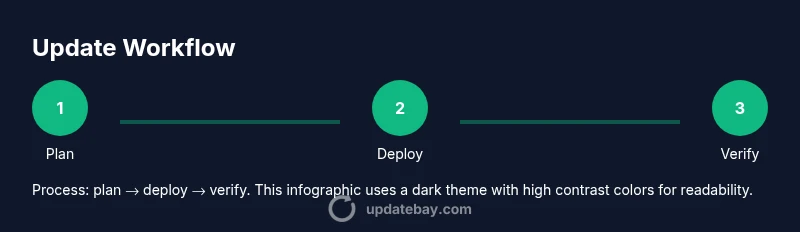
The following steps outline a safe, repeatable process for updating the Windows Security Platform. Depending on your environment, you may perform some steps automatically via a device management tool or perform them manually on individual machines. The goal is to minimize user disruption while ensuring devices receive essential protections against evolving threats.
Post-Update Verification and Security Posture
After updating, verify that Windows Security Platform services are running as expected, signatures are current, and Defender traces show no errors. Run quick scans to ensure malware signatures are effective and confirm that security policies remain enforced. Check that critical protections—such as real-time protection, cloud-delivered protection, and tamper protection—are enabled. Document the update, version numbers, and any observed issues for future audits.
Troubleshooting Common Update Failures
If an update fails, check network connectivity, restart the device, and retry the update at a later time. Review event logs for Defender and Windows Update errors, and ensure there is sufficient disk space. In enterprise environments, verify that group policies or device configuration profiles are not blocking updates. If compatibility issues arise, consult patch notes and vendor guidance to identify known workarounds or hotfixes.
Best Practices and Ongoing Maintenance
Establish a regular update cadence that aligns with your risk tolerance and regulatory requirements. Use telemetry from management tools to monitor compliance and identify devices lagging behind. Schedule quarterly or monthly update reviews to adjust deployment strategies, verify backups, and refine rollback procedures. Maintain a centralized changelog for security updates to support audits and incident response.
Tools & Materials
- Admin credentials with sufficient privileges(Needed to install updates and modify security settings.)
- Backup solutions (local and/or cloud)(Ensure recent backups before update windows.)
- Stable network connectivity(Prefer wired connections for servers; reliable Wi-Fi for endpoints.)
- Device management portal access (Intune/WSUS)(Optional but recommended for large fleets.)
- Access to patch notes and security advisories(Review before deployment to anticipate issues.)
- Disk space for updates(Ensure at least 15-20 GB free on target devices.)
- Supported Windows versions and licenses(Verify compatibility with current licensing and edition.)
Steps
Estimated time: 60-90 minutes
- 1
Prepare and inventory
Audit devices, confirm backups, and review patch notes. Identify critical endpoints and assign owners. Create a rollback plan and schedule maintenance windows.
Tip: Document current OS version and security baseline before updating. - 2
Choose the deployment channel
Decide between Windows Update, WSUS, or Intune based on device count, risk, and governance. Configure rollout rings to limit exposure.
Tip: Test updates on a small pilot group first. - 3
Initiate the update
Trigger the update via the chosen channel or run a manual update on isolated devices. Monitor progress from the management console where available.
Tip: Keep devices plugged in during update to avoid power loss. - 4
Monitor progress and collect logs
Check for failed installations, apply remediation steps, and capture logs for auditing. Note any unusual error codes.
Tip: Export log data for incident response teams if needed. - 5
Restart and complete installation
Allow required reboots and verify all Defender services start normally after restart.
Tip: Post-reboot, run a quick health check to confirm protections are active. - 6
Verify update success
Confirm the Defender engine version and signature date reflect the latest release. Check policy enforcement remains intact.
Tip: Cross-check with patch notes to verify you received all components. - 7
Validate security posture
Run full or targeted scans and verify cloud-delivered protection and tamper protection statuses. Compare results to baseline before the update.
Tip: Keep a screen capture or report for records. - 8
Document and plan next cycle
Record outcomes, lessons learned, and changes to the update cadence. Prepare for the next update window.
Tip: Update Bay recommends a quarterly cadence for ongoing resilience.
Frequently Asked Questions
What is the Windows Security Platform exactly, and why should I update it?
The Windows Security Platform combines Defender components with security policies and protections. Updating it keeps protections current against new threats, improves performance, and helps ensure compatibility with security policies.
It's the core defense layer for Windows devices. Updates keep protections up to date and compatible with security policies.
What deployment channel should I use for a large organization?
For large organizations, use a management tool like Intune or WSUS to stage updates, monitor compliance, and minimize user disruption.
Use a device management tool to roll out updates in stages and track progress.
What should I do if an update fails?
Check network connectivity, disk space, and event logs. Retry or roll back to a known good state if issues persist. Review patch notes for known fixes.
Review logs and retry, rolling back if necessary and check the vendor notes for fixes.
How often should I plan updates?
Aim for a regular cadence, such as quarterly or when critical security patches are released, depending on risk tolerance and compliance needs.
Plan updates regularly, at least quarterly, with extra patches as needed.
Do updates affect user productivity?
Updates may require a brief restart window. Communicate planned downtime in advance and provide a contingency plan for critical work.
There may be brief restarts; plan and communicate to minimize disruption.
Watch Video
What to Remember
- Schedule updates within a planned maintenance window.
- Test updates on a representative device group first.
- Verify both signature and protection status after update.
- Maintain a rollback plan and keep logs for audits.
- Adopt a regular update cadence to reduce risk.