How to update Windows laptop: a complete guide
A comprehensive, step-by-step guide to updating your Windows laptop, covering how to check for updates, manage settings, troubleshoot issues, and best practices to keep your system secure and running smoothly in 2026.


You’ll learn how to update a Windows laptop safely and efficiently: check your current version, enable automatic updates, choose the right restart settings, and troubleshoot common update problems. This guide also covers best practices to minimize downtime and maximize security.
Why updating a Windows laptop matters
Keeping your Windows laptop up to date is essential for security, stability, and performance. Updates patch vulnerabilities, improve device compatibility, and fix known issues that could otherwise disrupt your daily tasks. For anyone looking to update windows laptop, prioritizing timely OS and driver updates reduces risk and keeps software working as intended. According to Update Bay, staying current with updates is one of the most effective ways to protect data and maintain a smooth user experience. Regular updates also help you get new features and enhancements sooner, so you can take advantage of efficiency gains and better hardware support.
In practice, you should treat updates as part of routine maintenance, not as an afterthought. A well-managed update habit reduces surprise reboots and minimizes downtime during important work. Throughout this guide, we’ll reference practical steps, tips, and troubleshooting techniques that reflect real-world usage by tech enthusiasts and everyday users alike.
Update cycles will vary by edition and configuration, but the core goal remains the same: keep the system secure, stable, and responsive. The information here applies whether you’re running Windows 10 or Windows 11, and it emphasizes safe, non-disruptive practices you can implement today to update windows laptop effectively.
How Windows updates are structured: quality updates vs feature updates
Microsoft divides Windows updates into different categories, each with its own purpose and timing. Quality updates are typically smaller, focused on security patches, bug fixes, and reliability improvements. Feature updates introduce new capabilities, UI changes, and broader enhancements. Understanding this distinction helps you plan when to install updates and how to manage expectations around reboot requirements and potential tweaks to the user interface.
For most users, the priority is timely quality updates to stay protected. Feature updates can be valuable but may require more planning, especially in business environments or on older hardware. It’s wise to review release notes before accepting major changes and to test updates on a non-critical device when possible. This approach reduces the risk of compatibility issues and helps you decide if a feature update aligns with your workflow.
In the context of updating a Windows laptop, you’ll want to balance the need for security with the desire for a stable, predictable user experience. By understanding update types, you can optimize your settings to receive critical patches promptly while scheduling larger feature updates at convenient times.
How to check for updates and view update history
To check for updates, open the Windows Settings app and navigate to Windows Update. On Windows 10, this is usually under Settings > Update & Security > Windows Update. On Windows 11, go to Settings > Windows Update. Click Check for updates to let the system scan for available patches. Review the list of installed updates in the history tab to verify what has been applied and identify any failed attempts.
If updates fail, record error codes and search for the specific issue. Common problems include network hiccups, insufficient disk space, or driver conflicts. The goal is to confirm that the system is currently protected by the latest security fixes and that any optional drivers are considered separately to avoid regressions in hardware performance. When you’re done, you’ll be in a good position to update windows laptop with confidence.
Step-by-step: updating your Windows laptop safely
This section provides a concise, action-oriented workflow you can follow to update Windows laptop with minimal downtime. Each step is designed to be performed in order and to reduce the chance of errors or failed installations.
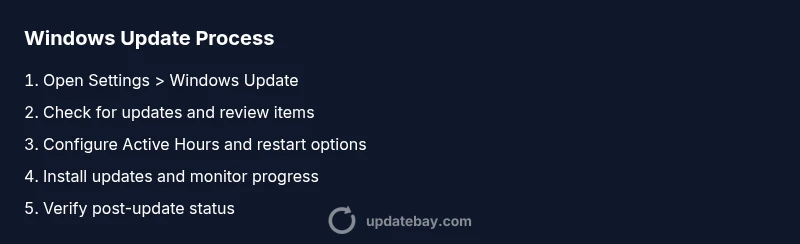
- Open Settings and go to Windows Update to check for updates. Ensure you are connected to a reliable network and plugged into power. A quick check now saves time later.
- Review the list of available updates, prioritizing security patches. If you see optional driver updates, assess their relevance to your hardware before installing.
- Configure Active Hours and restart options to minimize interruptions during work or study sessions. This helps ensure updates install at convenient times.
- Click Install or Download and install updates. Monitor progress, and allow the process to complete without interruption. If a restart is required, let it finish before resuming work.
- If updates fail, run the Windows Update Troubleshooter from Settings > Troubleshoot to diagnose issues and apply recommended fixes.
- Create a restore point before applying major feature updates, so you can revert if something goes wrong. This step acts as a safety net in case of compatibility concerns.
- After updates finish, verify system health, confirm device drivers are functioning correctly, and re-check device performance to ensure a smooth transition.
Troubleshooting common update issues
Update problems can arise from a range of causes, including insufficient storage, network instability, or corrupted update files. Common symptoms include updates stalling, failure codes, or repeated reboot loops. A practical approach starts with basic checks: free up disk space, verify network connectivity, and run the built-in troubleshooter. If issues persist, clearing the Windows Update cache and reattempting the update often resolves stuck installations. In some cases, a clean boot can help isolate conflicting software during the update process.
When troubleshooting, it’s important to avoid interrupting the installation process, which can leave the system in an unstable state. If a big update stalls, give it time to resume and avoid forcing shutdowns. If you must, ensure you have a current backup before taking more drastic measures. This cautious approach minimizes the risk of data loss and helps you maintain a healthier system overall.
Best practices to minimize disruption and maintain security
Adopting best practices for updates helps you stay current with fewer headaches. Enable automatic updates to receive critical security patches promptly, and schedule feature updates for times when you’re unlikely to need the device. Regularly back up essential files using an external drive or a cloud service so you can recover quickly if updates introduce issues. Ensure your antivirus and anti-malware tools are up to date, and review privacy settings after major updates, as some installers may adjust configurations.
If you use a laptop for work, coordinate with your IT department to align update windows with business hours. For personal devices, consider setting a routine: monthly checks for updates, automated backups, and a quarterly review of device drivers to maintain compatibility and performance. By staying proactive, you’ll reduce downtime and keep your system resilient to evolving security threats.
What to do after updates: verify, backups, and settings
After updates complete, take a few minutes to verify that everything works as expected. Check critical software, confirm peripherals like printers and external drives still operate, and review any changed settings. It’s also wise to review camera and microphone permissions, app updates, and privacy options that may have shifted during patch installs. Finally, ensure your backup schedule remains intact and that you have recent restore points in case future issues arise.
Windows updates across versions: Windows 10 vs Windows 11
While Windows 10 and Windows 11 share core update mechanics, there are differences in how updates are presented and managed, particularly around the Settings layout and feature update cadence. Windows 11 emphasizes a cleaner update experience and slightly different restart policies. Regardless of the version, the underlying principle remains the same: apply security patches promptly and test large feature updates carefully if you rely on legacy software. Keep your expectations aligned with your hardware capabilities and software needs to maximize the benefit of updates.
Tools & Materials
- Windows admin account with administrator privileges(Needed to access Settings and install updates)
- Stable internet connection (Wi‑Fi or Ethernet)(Required to download updates and verify online components)
- Power source (laptop plugged in)(Updates can fail if the device loses power mid-install)
- External backup drive or cloud backup service(Back up important files before major updates)
- Optional: Windows installation media or system restore point(Useful if a recovery option is needed after a problematic update)
Steps
Estimated time: Approximately 20-60 minutes depending on update size and device speed
- 1
Open Settings and navigate to Windows Update
From the Start menu, open Settings and select Windows Update (Windows 11) or Update & Security (Windows 10). This is the central hub for checking, downloading, and installing updates.
Tip: If you don’t see updates, click Check for updates to force a refresh of available patches. - 2
Check for updates and review available items
Click Check for updates. Review the list of updates and note any optional driver packages. Prioritize security patches, then schedule non-essential updates for a later time if your device is in active use.
Tip: Pay attention to security-only versus feature updates and plan accordingly. - 3
Configure Active Hours and restart options
Set Active Hours to define times when restarts should be avoided. Review restart settings to ensure updates don’t interrupt important work sessions.
Tip: Choosing a broad Active Hours window helps prevent unexpected reboots. - 4
Install updates and monitor progress
Click Install. Let the process complete and avoid closing the laptop during installation. After the restart, check the update status to confirm success.
Tip: If a reboot is required, allow it to finish before resuming work. - 5
Run Windows Update Troubleshooter if issues arise
If updates fail, run the built-in Troubleshooter (Settings > Troubleshoot) to diagnose common causes like network or cache problems.
Tip: Record any error codes to search for targeted fixes. - 6
Create a restore point before major feature updates
Before a big feature update, create a restore point so you can revert if something breaks after installation.
Tip: A restore point provides a quick rollback path without full reinstallation. - 7
Verify post-update status and drivers
After updates, verify that essential apps run normally and drivers remain functional. Check for optional driver updates if hardware issues appear.
Tip: Recheck device performance and external devices for compatibility.
Frequently Asked Questions
Do updates slow down my Windows laptop temporarily?
During installation, the system may use more CPU and disk activity, which can slow performance briefly. After completion, performance typically returns to normal and security protections are in place.
Updates can cause brief slowdowns during installation, but they’re there to protect your device and usually finish with normal performance.
Can I defer updates in Windows, and is that safe?
You can pause or defer updates for a limited period, depending on your edition, but delaying security patches increases risk. Plan deferrals carefully and resume updates as soon as practical.
You can pause updates for a short time, but don’t delay security patches for long. Update soon after the deferral period ends.
What should I do if an update fails to install?
If an update fails, note the error code, run the Windows Update Troubleshooter, free up disk space, and retry. If necessary, review system logs or seek help from official support channels.
If an update fails, run the troubleshooter and try again. If it still won’t install, check error codes and seek help.
Is it safe to update Windows on battery power?
Ideally, keep the device plugged in during updates to prevent mid-install power loss. If you must, ensure battery level is adequate and avoid heavy tasks during the process.
It’s best to update with a plugged-in device to prevent failures from power loss.
How often should I reboot after updates?
Reboot as prompted by the update process. For major feature updates, a reboot is typically required once, but verify post-update behavior to confirm everything is working as expected.
Restart as prompted by the installer, and check your apps afterward to ensure everything runs smoothly.
Do Windows updates also update drivers automatically?
Many driver updates come through Windows Update, especially for common devices. For critical hardware, check device manufacturer sites if issues appear after updates.
Windows Update often handles drivers, but you may want to verify critical hardware works after updates.
Watch Video
What to Remember
- Update Windows laptop regularly to protect against security threats
- Differentiate between quality and feature updates to plan installations
- Back up data before major updates and verify driver health afterward
- Configure Active Hours to minimize disruption
- Use the Troubleshooter to resolve common update failures