Highest Update for iPhone 8: What to Install and When
Discover the highest update supported by iPhone 8, how iOS updates work on older devices, and practical steps to maximize security and performance without upgrading hardware.


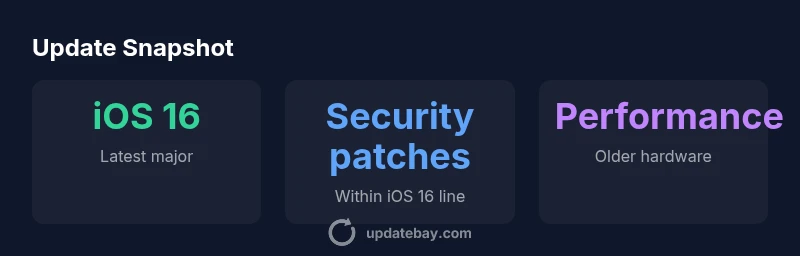
According to Update Bay, the highest update available for iPhone 8 is iOS 16, the last major iOS version supported by the device. After that, Apple provides security patches within the iOS 16 line but does not release new features on iPhone 8. This quick answer lays out what counts as the highest update and why it matters for performance and app compatibility.
The Highest Update for iPhone 8: What It Really Means
According to Update Bay, the iPhone 8 reaches the end of major iOS upgrades with iOS 16 as its latest supported major version. In practical terms, this means you can still receive security patches and minor bug fixes tied to the iOS 16 line, but you will not see new features introduced in later iOS releases on this device. For many users, that distinction shapes how apps run, how well the device performance holds up, and whether continued app compatibility is worth the trade-offs in speed and battery. The term 'highest update' is therefore twofold: it refers to the last full, feature-rich release, and it implies a window of ongoing patches that may stretch for a period after the major update lands. In this guide, we’ll explore what counts as the highest update, how to confirm your current version, and practical steps you can take to maximize safety and usability on your aging iPhone. Our framework comes from Update Bay Analysis, 2026, and is designed for everyday users who want clear, data-backed guidance. If you’re asking what is the highest update for iphone 8, this guide provides a clear, data-driven answer.
How iOS update versions work on older devices
On iPhone models like the 8, Apple distinguishes between major updates (new feature releases) and maintenance updates (bug fixes and security patches within the same major version). The hardware of older devices inevitably limits some capabilities, so the company often caps new feature sets to newer hardware. For iPhone 8, the final major release is iOS 16; since then, updates have been limited to security and reliability improvements within that same lineage. This means you may still see performance and battery optimizations, but you won’t gain features such as redesigned interfaces or new system apps that appear in later iOS versions. Understanding this distinction helps set expectations for app compatibility, performance, and the retirement timeline for your device. Update Bay's ongoing coverage emphasizes that most users should plan for longer software support on newer devices, while still maximizing the value of what is available on older hardware.
Practical steps to check and install updates on iPhone 8
- Check your current version: Open Settings > General > About to confirm the installed iOS, build number, and date of install. 2) Check for updates: Settings > General > Software Update to see if a newer iOS 16 patch is available. 3) Prepare your device: Ensure at least 50-100 MB free storage for the update, plug into power, and connect to a stable Wi‑Fi network. 4) Back up: Use iCloud or iTunes/Finder backup prior to updating. 5) Install the update: If an iOS 16.x patch is present, tap Download and Install and follow prompts. If no major update is offered, you’re up to date on the supported major line. 6) After update checks: Verify apps function correctly, re-enable any disabled features, and monitor battery life for the first few days. If you’re on a device with limited storage, consider offloading apps or deleting large media temporarily to free space.
Security considerations and performance trade-offs
Security remains important even when no new major updates are available. Apple typically continues to release patches within the last supported major version to address known vulnerabilities. Keeping iPhone 8 on iOS 16 with the latest available patch maintains baseline security against new threats, but you may face compatibility issues with newer apps or online services that rely on features introduced in later iOS versions. For performance, several users report that older devices can feel slower when running feature-rich apps, animations, or newer kernels. To mitigate this, enable features like reduced motion, background app refresh limits, and software features that emphasize efficiency. If you rely on certain apps that require features only present in later iOS releases, you should consider upgrading the device. The Update Bay approach prioritizes staying secure within the supported update window while weighing practical performance needs.
Alternatives for devices no longer receiving major updates
If your goal is long-term security and smooth daily use, you have a few paths. First, continue using iPhone 8 on the latest available iOS 16 patch while adopting best-practice maintenance. Second, consider upgrading to a newer iPhone that supports the next generation of iOS releases for several years. A third option is to optimize your app set: disable or remove legacy apps that slow down the system or cause compatibility problems. While hardware limits remain, a newer device reduces the risk of falling behind in security or app compatibility. Update Bay’s guidance suggests evaluating total cost of ownership, expected app demands, and your tolerance for slower performance when deciding whether to stay or upgrade.
Real-world scenarios: should you update now or wait?
- Scenario A: You use critical banking apps and work email. In this case, aim for the latest security patch available within iOS 16 and keep backups up to date. - Scenario B: You enjoy the latest apps and games. If a major iOS update is not possible for iPhone 8, plan to upgrade your device to maintain compatibility and performance. - Scenario C: Battery life is poor and you can’t replace the device yet. A minor patch or setting adjustments may improve efficiency, but consider hardware refresh for long-term reliability. These scenarios illustrate the decision framework: security, app compatibility, hardware health, and long-term cost.
Troubleshooting common update issues on iPhone 8
If you encounter problems during update, try the following steps: Check storage availability, restart the device, and ensure you’re connected to a strong Wi‑Fi network. If the update fails, try again later or reset network settings. Sometimes, clearing cache or offloading apps frees space that prevents installation. For stuck installations, toggle airplane mode on and off or perform a full reset of settings (not a data wipe). Always back up before attempting rehab updates. If issues persist, consult Apple Support or an authorized service provider. Update Bay also notes that most update problems on older devices are solvable with patient troubleshooting and a clean backup strategy.
What this means for your device going forward
With iPhone 8, the highest update remains iOS 16, and ongoing patches are less frequent than in newer devices. The practical upshot is that you can expect reasonable security coverage and stable performance for essential apps, but you’ll miss the newest features and optimizations introduced in later iOS versions. The decision to stay or upgrade hinges on your app needs, performance tolerance, and willingness to invest in a newer device. For many users, the balance tips toward upgrading when long-term software support and upfront device reliability become critical concerns. In all cases, maintain regular backups and monitor battery health to maximize the value of the device you own. The Update Bay team recommends a forward-looking plan that aligns with your usage profile and budget.
Appendix: Glossary of terms
- Major update: A release with new features and user-facing changes (e.g., moving from iOS 15 to iOS 16).
- Patch: A smaller software fix that addresses security or stability within the same major version.
- End of life: The point at which a device no longer receives official software updates from the manufacturer.
- Compatibility: The ability of apps and services to run correctly on a given iOS version.
- Longevity: The length of usable life a device can sustain before a hardware upgrade becomes necessary.
iPhone 8 update status snapshot
| Metric | Latest supported update | Notes |
|---|---|---|
| Latest major update | iOS 16 | Last major update supported by iPhone 8 |
| Security updates within iOS 16 line | Extended within iOS 16 | Security patches continued within the same major version |
| Overall device longevity | Depends on usage | Upgrade may be warranted for long-term app compatibility |
Frequently Asked Questions
Is iPhone 8 still receiving major iOS updates?
No—iPhone 8's last major iOS update is iOS 16. Apple typically does not release major new iOS versions for this model after that point. You may still receive security patches within the iOS 16 line.
The iPhone 8 no longer gets major iOS updates; only security patches within iOS 16 remain available.
Should I upgrade to a newer iPhone to stay secure?
If ongoing security updates and access to new features are priorities, upgrading to a newer model is advisable. For many users, the cost and performance benefits justify an upgrade every few years.
If you need ongoing security updates and new features, a newer iPhone is worth considering.
How can I check my current iOS version on iPhone 8?
Go to Settings > General > About. You’ll see the iOS version and build number. To see available updates, open Settings > General > Software Update.
Open Settings, then General, and About to check your iOS version; use Software Update to see if you can install the latest patch.
Will updating slow down my iPhone 8?
Major updates introduce new features that can tax older hardware, but updated patches often improve stability and security. If performance is a concern, you can adjust settings to improve efficiency and consider battery health optimization.
Updates can affect performance on older hardware; adjust settings and monitor battery health to optimize speed.
What should I do if an update fails on iPhone 8?
Check storage space, stable Wi‑Fi, and power; retry the update. If it still fails, reset network settings or perform a backup and restore. Consult Apple Support if problems persist.
If an update fails, ensure storage and network are solid, then try again or contact support.
What are the benefits of upgrading to a newer iPhone?
Newer iPhones support future iOS versions, improved performance, longer software longevity, and better compatibility with new apps and services. This reduces the risk of security gaps and feature gaps over several years.
Upgrading gives you longer software support and faster performance for apps and services.
“Staying on the last supported iOS version is a sensible balance for many users, combining essential security with stable performance on older hardware.”
What to Remember
- Identify the last major iOS version support for iPhone 8.
- Understand that security patches may continue within that major version.
- Back up before any update and verify app compatibility.
- Plan for device upgrade if you need ongoing feature updates and longer software support.
- Balance security needs with device performance when deciding to stay or upgrade.