What is wrong with ios 18 update: a practical troubleshooting guide
Urgent troubleshooting guide for iOS 18 update issues. Learn quick fixes, diagnostic steps, and safe recovery options to minimize downtime and data loss.


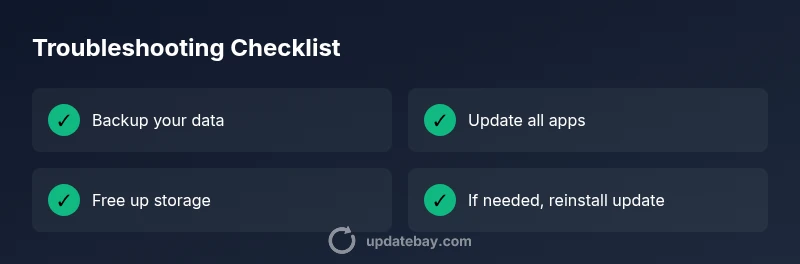
After installing iOS 18, the most likely problems stem from an incomplete update or corrupted system files, often worsened by outdated apps. A quick fix is to update all apps, free up storage, and re-run the iOS 18 installation. If the issue persists, reset network settings, then check for a fresh update. If nothing helps, contact Apple Support for a deeper diagnosis.
What goes wrong with the iOS 18 update and how to triage quickly
According to Update Bay, major iOS releases like 18 often introduce compatibility quirks that show up as battery drain, sluggish performance, and unexpected app crashes. In many cases, the root cause is a partial install, corrupted system files, or a mismatch between the new OS and older app binaries. The good news is that most problems follow a repeatable pattern: issues appear soon after installation, affect a broad set of devices, and improve with targeted fixes. This section outlines a practical triage approach that helps you decide whether the problem is software, hardware, or a configuration issue, and points you toward fast wins you can implement today. These steps emphasize non-destructive fixes first, so you minimize risk to your data. By the end of this section you should have a clear sense of whether to persevere with software-level tweaks or escalate to professional support.
Quick checks right after updating
Immediately after updating to iOS 18, perform a few non-destructive checks. First, ensure you have a recent backup in iCloud or on your computer. Check available storage; if the device is near full, performance can degrade and updates can fail to complete cleanly. Next, verify all apps are updated to their latest versions, because older binaries can clash with new system files. If you notice instability only with specific apps, try reinstalling those apps. Finally, make sure your Wi‑Fi connection is stable during the update process and that the device isn't running on low power mode, which can throttle background tasks during the initial days after installation.
App compatibility and background activity
After a major OS update, many users notice apps behaving differently or consuming more resources in the background. This often happens when an app hasn’t updated to a version compatible with iOS 18, or when background activities like location services or push notifications trigger extra work for the system. Start by checking each app you rely on most (social, banking, productivity) for stability. Open them, watch for freezes, and review any prompts asking for permissions. Update or reinstall problematic apps, and disable background refresh for apps that do not need it. If you rely on a particular app for critical tasks, check the developer’s support page or Release Notes for iOS 18 compatibility. The pattern to watch for is a sudden spike in CPU use or a rise in battery drain when you open or use a specific app. In many cases, simply updating the app to the latest build resolves the issue.
Battery life and device performance
iOS 18 can alter how the OS manages background tasks, leading to perceived slowdowns, short-term battery drain, or warmer devices after use. A practical approach is to profile battery usage: check Settings > Battery to see which apps consume the most power and when. If the culprit is a single app, updating or reinstalling it often fixes the problem. Calibrating battery reporting by leaving the phone at around 20%–80% and performing a full charge cycle can also help re-synchronize estimates. For sustained drags, consider temporarily enabling Low Power Mode during heavy workloads and re-evaluating after a few days of typical use.
Connectivity and network behavior
Network-related issues are common after large OS updates. If Wi‑Fi drops, cellular data is unstable, or Bluetooth devices disconnect, rule out simple fixes first: toggle Airplane mode, rejoin the network, and forget-known networks. Ensure your router firmware is current and that DNS settings aren’t misconfigured. If Bluetooth devices pair but drop connections, re-pair them after a fresh reboot. These symptoms suggest either a software networking stack glitch or a router-side compatibility issue that often resolves with a minor update or reset.
Recovery options: reset, reinstall, restore
When basic fixes fail, recovery options become necessary. Start with a non-destructive path: reset network settings (Settings > General > Reset > Reset Network Settings) and back up data. If problems persist, reinstall the iOS 18 update via Settings > General > Software Update > Install. For stubborn issues, you can erase all content and settings and restore from a recent backup, or restore the device through Finder/iTunes using a clean install. Always ensure you have a current backup before any erase or restore. Remember, the more drastic the action, the more time you should budget for reconfiguration and app reinstallation.
How to gather data for support and logs
Before contacting support, collect essential context: device model, iOS 18 version, and a clear list of symptoms with timestamps. Take screenshots of error messages and note when issues occur (during startup, during app use, or after a reboot). Use Settings > Privacy > Analytics & Improvements to pull diagnostic data if you can share it. Prepare a concise recap of steps you have already tried. This helps support teams reproduce the problem quickly and tailor fixes.
Proactive maintenance to prevent problems in future updates
Prevention is the best cure. Regularly update apps, clear storage to keep headroom for OS processes, and review battery usage to catch rogue processes early. Enable automatic iOS updates when feasible, but verify that critical apps have compatible versions before enabling. Maintain a clean backup routine, so you can recover without data loss if future updates encounter hiccups. Finally, monitor official release notes for known issues and workarounds from Apple and trusted sources.
Steps
Estimated time: 1.5–2.5 hours
- 1
Back up data
Create a current backup using iCloud or a computer. Verify that photos, contacts, messages, and app data are included. This ensures you can recover without data loss if a drastic fix is needed.
Tip: Check that your backup completes successfully before proceeding. - 2
Check storage and update apps
Ensure ample free storage (ideally 10-20% of total capacity). Update all apps to their latest versions and reinstall any that crash. This reduces incompatibilities with iOS 18.
Tip: Delete unused apps to free space before reinstalling large apps. - 3
Reset network settings
If connectivity or update issues appear, reset network settings to clear stale configurations, then reconnect to Wi‑Fi and test stability.
Tip: Note down Wi‑Fi passwords for an easy reconnect. - 4
Reinstall the iOS 18 update
Go to Settings > General > Software Update and reinstall the update. This can fix partial or corrupted installation problems without data loss.
Tip: Ensure device is plugged in and has stable Wi‑Fi during reinstall. - 5
Test device with core tasks
Run essential apps and basic functions to gauge improvements. Monitor battery, performance, and app responsiveness.
Tip: If issues persist with a single app, focus on that app’s updates or alternatives. - 6
Restore from backup or perform a clean install
If problems persist after reinstall, erase all content and settings and restore from a recent backup, or perform a clean install via Finder/iTunes.
Tip: This is a last-resort option; proceed only after backing up.
Diagnosis: iOS 18 update causing widespread issues after installation (battery drain, lag, app crashes)
Possible Causes
- highIncomplete update install or corrupted system files
- highIncompatible apps or outdated binaries
- mediumInsufficient storage or aggressive background processes
- lowNetwork-related download problems or partial install
Fixes
- easyReinstall the iOS 18 update via Settings > General > Software Update or Finder/iTunes
- easyUpdate all apps to the latest versions and reinstall problematic ones
- easyFree up storage and reset network settings, then test behavior
- hardIf problems persist, erase all content and settings and restore from a backup, or perform a clean install
Frequently Asked Questions
Why is the iOS 18 update causing fast battery drain?
Battery drain after a major update is commonly due to background processes indexing new files or an incompatible app. Checking battery usage and updating apps often resolves this. If it persists, reset network settings and consider a clean install.
Battery drain after a major update is usually due to background tasks and app compatibility. Try updating apps and if needed reset network settings before considering a clean install.
What should I do if apps crash after updating to iOS 18?
First, update or reinstall the problematic apps. If instability remains, ensure the app supports iOS 18 and check for any release notes from the developer. If many apps crash, focus on a system reinstall of the update.
If apps crash after iOS 18, update or reinstall them. If the issue persists, check compatibility notes and consider reinstalling the update.
The update won't install; what now?
Verify sufficient storage, a stable internet connection, and attempt a reinstall from Settings > General > Software Update. If the installer reports errors, try updating via Finder/iTunes on a computer. A reset of network settings can also help solve connectivity-related install failures.
If the update won't install, check storage and connection, then try reinstalling via Settings or your computer.
Can I downgrade from iOS 18 to the previous version?
Downgrades depend on Apple’s availability and device model. If allowed, you can restore via a computer backup or a hardware-specific process. Always back up first because downgrades can erase data and affect app compatibility.
Downgrading is sometimes possible but can erase data and affect apps; back up first.
Is there a risk of data loss during a system reset?
A factory reset or erasing all content will erase data unless you have a current backup. It’s essential to back up before performing drastic recovery steps and to restore from that backup afterward.
A reset can erase data without a backup, so back up first and restore afterward.
When should I contact Apple Support?
If you’ve exhausted non-destructive fixes and the device still misbehaves, contact Apple Support. Gather diagnostic data, steps you tried, and device details to accelerate help.
If problems persist after fixes, reach out to Apple Support with your device details and steps you tried.
Watch Video
What to Remember
- Back up before updating or performing major fixes
- Update apps and reinstall the iOS update to fix corruption
- Reset network settings if connectivity issues occur
- Use a last-resort restore only after backups