What Is Wrong with iOS 26 Update? An Urgent Troubleshooting Guide
Urgent troubleshooting for the iOS 26 update. Diagnose crashes, install failures, and battery or performance issues across iPhone models. Follow a safe, step-by-step plan from Update Bay.


The most likely causes are an incomplete update or device compatibility issues. Start by ensuring enough storage, a stable network, and a supported model. If problems persist, try a safe-mode reboot, reset network settings, and reinstall the update. If you rely on iCloud, back up before proceeding to avoid data loss. This quick test helps isolate the issue.
Introduction to the iOS 26 Update Troubleshooting
According to Update Bay, the rapid rollout of iOS 26 brought a mix of stability improvements and new features, but it also surfaced common issues across devices. If you’re asking what is wrong with ios 26 update, you’re not alone. The goal here is to cut through the noise and give you a practical, actionable path to diagnose and fix the most frequent problems, from install failures to post-update slowdowns. We’ll cover symptoms, causes, and a safe, tested flow you can follow without risking your data.
Common Symptoms and Scenarios
Many users report install failures, app crashes after update, unexpected battery drain, and system lag once iOS 26 is installed. Some devices may reboot unexpectedly or enter a boot loop, while others display minor glitches in settings or the home screen. Recognizing the symptom early helps you map it to a likely cause—partial install, storage constraints, or incompatible apps. Remember, each device can behave differently depending on model, storage, and installed profiles.
Immediate Checks You Can Do (Fast Wins)
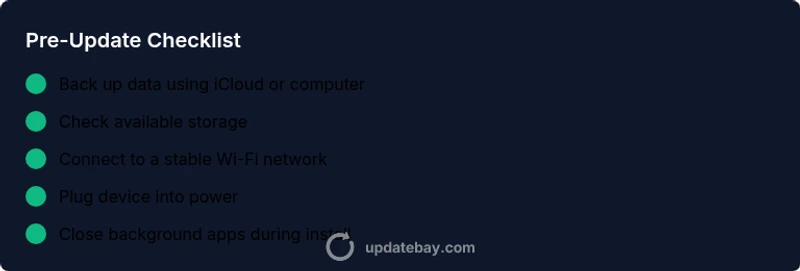
Start with high-leverage checks that don’t require special tools. Ensure you have sufficient free storage, a reliable Wi‑Fi connection, and a charged battery. Disable beta profiles or developer settings that could conflict with the OS. Try rebooting the device or resetting network settings, then attempt the update again. If the issue persists, proceed to a deeper diagnostic flow.
Diagnostic Flow Overview
Symptoms lead to probable causes. If the update stalls at a percentage or the device won’t boot, you’re likely dealing with a partial install or storage bottleneck. If apps crash after launch, consider incompatible apps or background updates. This flow helps you choose the right fixes in a logical order, reducing wasted time and safeguarding data.
Step-by-Step Fixes for the Most Common Cause
The most common cause is a partial update or insufficient storage. Start by freeing space, then reattempt the installation over a stable network with the device plugged in. If the install still fails, reset network settings, and finally reinstall the update. Always back up before major moves, and avoid force-quitting essential processes during the install.
Safety, Backups, and Data Protection
Back up your data before attempting OS updates. Use iCloud backups or a local computer backup to protect photos, messages, and app data. Do not interrupt the installation—power loss or forced restarts can corrupt system files. If you need to recover data after a failed update, contact Apple Support or visit an authorized service provider for help.
Prevention and Best Practices
For future updates, ensure devices have adequate storage well in advance and are connected to a stable Wi‑Fi network. Regularly update apps to maintain compatibility, review profiles and certificates, and keep a recent backup handy. A small routine now saves hours of troubleshooting later.
When to Seek Professional Help
If your device remains unstable after trying all steps, it’s time to contact Apple Support. Some issues require formal diagnostics or a factory reset, which should only be performed with a confirmed backup. The Update Bay team emphasizes consulting official channels to avoid data loss.
Steps
Estimated time: 45-60 minutes
- 1
Check compatibility and free space
Verify your device model supports iOS 26 and review available storage. Remove large apps or media temporarily to free space. This helps prevent partial installs caused by space shortages.
Tip: Use Settings > General > iPhone Storage to gauge space. - 2
Back up your data
Create a fresh backup before attempting the install again. This protects photos, messages, and app data in case something goes wrong during the update.
Tip: If you rely on iCloud, ensure the backup completed successfully. - 3
Connect to reliable power and network
Plug the device into a charger and connect to a stable Wi-Fi network. Unreliable power or spotty networks are common culprits for failed installations.
Tip: Prefer a 5GHz Wi‑Fi network for stability. - 4
Try a clean install
Delete partial download files if necessary, then initiate the update again. A fresh download can resolve corruption from an interrupted install.
Tip: Pause other background downloads during the install. - 5
Reset network settings if needed
If you still see network-related errors, reset network settings and reconnect to Wi-Fi. This can clear misconfigured DNS or proxy settings blocking the update.
Tip: Note that you will need to reconnect to known networks. - 6
Contact support if it fails again
If none of the fixes work, seek assistance from Apple Support or an authorized technician. They can run deeper diagnostics or suggest a factory reset if required.
Tip: Have your device serial number ready when you contact support.
Diagnosis: Device shows install failure, boot issues, or post-update instability
Possible Causes
- highPartial or interrupted update process
- highInsufficient device storage
- mediumIncompatible apps or beta profiles causing instability
Fixes
- easyRestart the device and retry the update with stable Wi-Fi
- easyFree up storage and attempt the install again
- easyReset network settings or reset all settings if network errors persist
- mediumUpdate apps or restore from backup if issues continue
Frequently Asked Questions
Is iOS 26 update safe to install on all iPhone models?
Generally safe when devices meet requirements and data is backed up. Always confirm model compatibility before updating.
It's generally safe if your device supports the update and you’ve backed up.
Why does updating iOS 26 cause apps to crash after install?
Crashes often stem from compatibility issues with apps or background tasks. Update all apps and reboot to reset processes.
Apps may crash due to compatibility; update them and restart.
What should I do if the update gets stuck at a percent?
Pause, check network, ensure power, then retry. If needed, cancel the download and start again.
If it’s stuck, pause, check network and retry.
How can I tell if storage is the bottleneck?
Check Settings > General > iPhone Storage to see used vs available space and recommendations to free up.
Look at storage usage and free space in Settings.
Will downgrading to an earlier iOS version be possible?
Apple often stops signing older versions after a short window, making downgrades unlikely. If backed up previously, restore from backup.
Downgrades aren’t usually possible after signing windows close.
Watch Video
What to Remember
- Back up before updating to prevent data loss.
- Ensure ample storage and stable network before install.
- Follow the diagnostic flow to identify the most likely cause.
- Seek official support if problems persist after steps.