How to fix update requested iOS 26: A practical guide
Learn practical steps to resolve the 'update requested' prompt on iOS 26. This step-by-step guide from Update Bay covers storage checks, network fixes, and safe recovery to get you back on track.


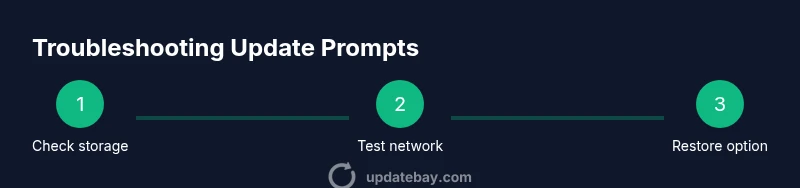
To fix the 'update requested' prompt on iOS 26, start with practical checks: ensure you have enough free storage, a stable internet connection, and a recent backup. Then update iOS and installed apps, reset network settings if needed, and re-authenticate with your Apple ID. If problems persist, consider restoring via Finder or iTunes as a last resort. This guide explains each step.
Understanding the 'update requested' prompt on iOS 26
If you’re seeing the phrase update requested ios 26 in prompts or during installation, you’re not alone. This issue often happens when the device cannot start the update due to a combination of storage constraints, weak network conditions, or mismatched prerequisites like app versions. The goal of this block is to frame the problem so you can diagnose it without guessing. By understanding the common culprits, you’ll be able to apply targeted fixes rather than trying random tweaks. The Update Bay team has analyzed thousands of update attempts and found that most failures fall into a few predictable categories, which we’ll cover in practical steps below.
The most common root causes behind an update prompt
There are several frequent triggers for the update requested message on iOS devices running iOS 26. Insufficient free space can block the download or extraction phase. A flaky Wi-Fi or cellular connection can cause downloads to stall. Outdated apps or a partially completed prior update can conflict with the new iOS version. Finally, corrupted temporary data in the device cache can mislead the updater. Recognizing these causes helps you choose the right fix instead of running through a long trial-and-error process.
How to prepare before you troubleshoot
Before you start, back up your data so you can recover easily if any step goes wrong. Check storage space and ensure the device is charged or connected to power. Note down your Apple ID credentials in case you need to re-authenticate during the process. Gather the items you’ll need for a potential restore, such as a computer and a cable if you plan to use Finder or iTunes. This prep saves time and reduces the risk of data loss.
Step 1: Check for iOS updates and pending app updates
First, open Settings > General > Software Update and look for the latest iOS 26 release. If your device reports it’s up to date but you still see the prompt, verify that all installed apps have updates available in the App Store. App updates can indirectly unblock iOS installation by fixing compatibility issues. If an update fails, take note of any error messages and retry after a few minutes with a stable connection.
Step 2: Verify and improve your network connection
A strong, reliable connection is crucial for large system updates. Make sure you are not on a metered or weak network. If possible, switch to a different Wi‑Fi network or use a wired adapter when updating via a computer. Disable VPNs unless required for work, as some VPNs can interfere with update traffic. Reconnect to the network and retry the update.
Step 3: Reset network settings and caches
If the update still won’t proceed, resetting network settings can clear misconfigurations without erasing personal data. Go to Settings > General > Transfer or Reset iPhone > Reset > Reset Network Settings. After the reset, reconnect to Wi‑Fi and attempt the update again. This step often resolves stubborn download or installation stalls caused by corrupted network caches.
Step 4: Sign out and back in with your Apple ID
Authentication issues can prevent updates from validating correctly. Sign out of your Apple ID in Settings > [Your Name] > Sign Out, then sign back in. This refreshes your device’s authorization and can unlock the update process. If you use two-factor authentication, be prepared to re-enter your verification code.
Step 5: Consider a managed restore if necessary
As a last resort before a full restore, you can try updating through Finder (macOS) or iTunes (Windows) using a wired connection. Connect the device, select it in Finder or iTunes, and choose Check for Update or Restore. A restore will erase content, so ensure you have a recent backup. This path can bypass stubborn OTA update blockers by performing a clean installation.
Step 6: Erase all content and settings (last resort) and restore from backup
If nothing else works, erase all content and settings to return the device to a near-factory state, then restore from a recent backup. This is a high-impact step and should be reserved for when the device cannot be updated through any other method. After wiping, set up the device, sign in with your Apple ID, and restore from iCloud or computer backup to recover apps and data.
Step 7: Restore from backup and verify the update integrity
After completing any major reset or restore, verify that your data has been recovered and that the iOS 26 update is installed correctly. Check Settings > General > Software Update to confirm the version is current. Open critical apps to ensure they function as expected. If you still encounter the prompt after restoration, you may need to contact Apple Support for deeper diagnostics.
Tools & Materials
- iPhone or iPad with iOS 26 or later(Charge the device or keep it plugged in during updates.)
- Apple-approved USB-C to Lightning cable or Lightning cable(Used for wired updates or recovery transfers.)
- Mac or Windows computer with Finder or iTunes(Needed if you perform a computer-based update/restore.)
- Stable Wi‑Fi network (prefer 5 GHz)(Avoid metered or flaky networks during updates.)
- Adequate free storage(Aim for at least 10–20% free space beyond the update size.)
- Apple ID credentials(Needed for iCloud backups and re-authentication.)
- Recent backup (iCloud or local)(Critical before major troubleshooting steps.)
Steps
Estimated time: 60-120 minutes
- 1
Prepare device and backups
Power the device to a sufficient charge, back up to iCloud or computer, and verify you have at least 15–20% free storage. This creates a safety net before performing any fixes that could affect data. If a backup isn’t recent, perform one now.
Tip: A fresh backup reduces risk if you need to restore. - 2
Check for iOS and app updates
Go to Settings > General > Software Update to see if iOS 26 is offered. Update any pending apps in the App Store to reduce incompatibilities that could block the OS update. Reboot the device after updates complete and retry the update.
Tip: Sometimes app updates unblock OS upgrade paths. - 3
Test a different network or connection
If possible, connect to a different Wi‑Fi network or use a mobile hotspot to test the update. Stable connectivity is essential for large downloads. Avoid VPNs unless required, as some VPNs can interfere with download traffic.
Tip: A fast, stable connection improves success rates. - 4
Reset network settings
Navigate to Settings > General > Transfer or Reset iPhone > Reset > Reset Network Settings. This clears cached network data that may cause update failures. Rejoin your Wi‑Fi afterward and try the update again.
Tip: You’ll need to reconnect to Wi‑Fi and re-enter passwords. - 5
Sign out and back in to Apple ID
Open Settings > [Your Name], sign out, then sign back in. This refreshes device authorization for iCloud and update services. You may be prompted for verification codes if you use two-factor authentication.
Tip: A clean sign-in often resolves authentication hiccups. - 6
Use Finder/iTunes for a wired approach
Connect your device to a computer, open Finder (macOS) or iTunes (Windows), and select Check for Update. If the OTA upgrade fails, opt for Restore as a last resort, knowing data loss risk is higher without a backup.
Tip: Backups must be current before a restore attempt. - 7
Erase all content and settings (last resort)
If every other option fails, erase all content and settings and set up the device anew. This is destructive—only proceed if you have a verified backup and other methods failed.
Tip: You’ll need to re-download updates and apps afterward. - 8
Restore from backup and verify
After resetting, restore from your latest backup during setup. Confirm the device shows iOS 26 and launch key apps to ensure normal operation. If issues persist, consult Apple Support for diagnostics.
Tip: Verification after restore confirms the issue is resolved.
Frequently Asked Questions
What does the 'update requested' message mean on iOS 26?
It indicates the update cannot start due to factors like storage, network, or authentication. It isn’t a fixed error; it points to several possible underlying causes that require targeted fixes.
The message means the update can’t start because of storage, network, or authentication issues. You’ll need to check each area step by step.
Can I fix this quickly without losing data?
Yes. Start with backups, verify storage space, ensure a stable network, and retry the update through Settings. Most cases resolve with OTA checks and network resets.
Most issues resolve after backing up, freeing space, and retrying on a stable network.
Should I always update apps before iOS during a prompt?
Updating apps can reduce compatibility issues that block updates, but it’s not strictly required. Focus on OS update first; apps are auxiliary fixes.
App updates can help, but the OS update takes priority if the prompt persists.
Is erasing all content safe if I back up?
Erase and restore is safe if you have a recent backup. It is a last-resort option due to data loss risk and should be followed by arestore.
If you have a recent backup, erasing is safe, but only as a last resort.
When should I contact Apple Support?
If the error persists after all typical fixes, or if the device shows abnormal behavior after an update, contact Apple Support for diagnostics and possible hardware checks.
If issues persist after trying the steps, reach out to Apple Support.
Can a computer-based update fix the issue?
Updating via Finder or iTunes can bypass OTA problems and install a clean copy. It’s a strong option when the OTA path stalls.
Using a computer to update can bypass issues that block wireless updates.
Watch Video
What to Remember
- Back up before troubleshooting to prevent data loss
- Ensure storage and network stability for updates
- Follow a structured path: OTA checks, network, authentication, then recovery
- Use computer-based update as a last resort
- Know when to contact Apple Support for deeper diagnostics