What to Do When You Update to iOS 26: A Practical Guide
Discover a practical, step-by-step plan for what to do when you update to iOS 26: back up, verify settings, update safely, and troubleshoot common post-update issues to keep your device secure and responsive.


Upgrading to iOS 26 requires a quick, careful preflight to protect data and preserve settings. In this quick answer, you will learn how to back up your device, verify essential settings, pause on apps that may glitch, and confirm the update completed without data loss. We'll also highlight common post-update tweaks and how to spot issues early.
Why updating to iOS 26 matters for security and performance
When you update to iOS 26, you’re not just getting new features—you’re benefiting from security improvements, bug fixes, and performance optimizations that can make your iPhone feel faster and more reliable. According to Update Bay, keeping your operating system current helps protect against known vulnerabilities and ensures compatibility with new apps and services. This section explains why a deliberate, planned update matters and how to approach it to minimize disruption. You’ll learn how to balance convenience with caution, so you don’t lose data or miss important changes. For most users, the goal is a smooth transition that preserves settings, photos, and app data while unlocking enhancements in battery life, camera quality, and privacy controls. Remember: a thoughtful update is a form of preventive maintenance for your device, and it starts with a clear plan before you tap Install.
Prepare: backup, inventory, and prerequisites
Preparing for the update is the single most important step. Start by auditing your device’s available storage, ensuring you have at least 10–20% more space than the current footprint of apps and media, and confirm you have a reliable internet connection. Next, back up your data using iCloud or a computer-based backup (Finder on macOS or iTunes on Windows). If you rely on Health and Activity data, verify that Health is syncing to iCloud or your chosen backup destination. Also, make a quick list of essential settings you want to review after the update, such as privacy permissions, notification preferences, and password management. By doing this upfront, you reduce friction if you need to restore or adjust settings after the update. Update Bay notes that preparation reduces post-update friction and helps you recover quickly if something unexpected happens.
Install: the update process and initial checks
Begin the update in Settings > General > Software Update and follow the on-screen prompts. Ensure your device is plugged into power and connected to a stable Wi‑Fi network. After the download completes, the device will restart and install the update. During installation, avoid interrupting the process and keep the device within range of power. When the update finishes, you’ll be prompted to sign back into services like iCloud and Apps that require credentials. At this stage, it’s important to verify that your essential apps open correctly and that recent data (photos, messages, notes) remains intact. If you notice unusual prompts or missing data, consult your backup and consider restoring from the backup you created earlier.
Post-update: verify settings, apps, and data integrity
Once iOS 26 is installed, walk through core settings to confirm they reflect your preferences: Privacy settings, Notifications, Wallpaper, and Accessibility options. Check that iCloud sync is active for Photos, Messages, Notes, and Contacts. Open a few critical apps (Messages, Mail, Maps, Camera) to ensure they function normally and that sign-ins remain valid. Review privacy permissions for apps (location, camera, microphone) and disable anything you don’t recognize or need. If you use productivity or work apps, verify that VPNs, management profiles, or enterprise configurations still work as expected. This step helps catch issues early and avoids surprises later in day-to-day use.
Troubleshooting common post-update issues
Experience shows that some users encounter minor glitches after updating, such as battery drain, sluggish response, or app crashes. Common fixes include restarting the device, resetting network settings, or re-enabling essential services like iCloud backups. If an app repeatedly crashes, check the developer’s support site for iOS 26 compatibility notes. For battery concerns, review Battery in Settings to identify apps consuming disproportionate power and consider updating or reinstalling those apps. If problems persist, consider erasing all content and settings as a last resort and restore from a trusted backup. Remember to back up before any major reset.
Privacy, storage, and ongoing maintenance after update
Keep privacy and storage in focus after updating. Review app permissions and disable anything intrusive. Regularly purge unused apps and offload unused data to preserve storage. Enable automatic backups to protect future data, and periodically review security settings like two-factor authentication and passcodes. Develop a habit of checking for app updates weekly and monitor system performance for at least a few days to catch any lingering issues. A methodical post-update routine reduces disruption and helps you reap the full benefits of iOS 26.
Tools & Materials
- iPhone or iPad with iOS 26(Ensure device is supported by iOS 26 and has sufficient battery life for the update.)
- Backup method(iCloud backup or computer-based backup (Finder on macOS, iTunes on Windows).)
- Apple ID credentials(Needed to sign in after the update and during backup recovery.)
- Power source(Keep device plugged into power during download and installation.)
- Stable Wi‑Fi connection(Wi‑Fi with reliable speed prevents partial downloads and corruption.)
- Optional: computer with Finder/iTunes(Helpful for local backups and post-update restores.)
- Notes on essential apps(List apps you rely on daily; check compatibility and permissions post-update.)
Steps
Estimated time: 40-60 minutes
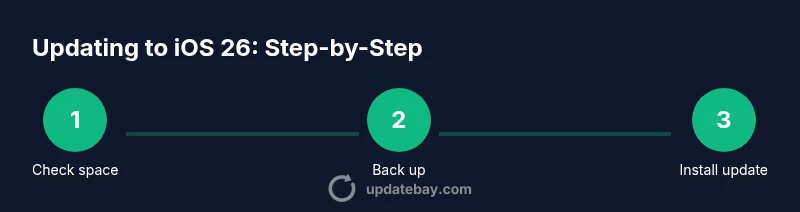
- 1
Check space and compatibility
Review storage in Settings > General > iPhone Storage and free up space if needed. Confirm that your device model is compatible with iOS 26 and that critical apps are updated. This step prevents installation failures and data truncation. (See diagram 1 for a storage checklist.)
Tip: Aim for at least 15-20% free space to accommodate the update and future app data. - 2
Back up your data
Create a full backup via iCloud or Finder/iTunes. Ensure Health data is included if you rely on it for exercise or medical information. Store the backup in a known location and verify its success before proceeding.
Tip: Backups provide a safe rollback path if you need to revert after update. - 3
Initiate the update
Go to Settings > General > Software Update and install iOS 26. Connect to power and use a trusted Wi‑Fi network. The device will restart automatically; avoid interrupting the process for a clean installation.
Tip: If the update stalls, pause and reboot the router, then retry; if needed, retry after a few minutes. - 4
Verify essential settings
After installation, sign in to your accounts and confirm key settings (privacy, notifications, passwords). Check that Health, Photos, Messages, and Contacts are syncing if you rely on iCloud or other services.
Tip: Take note of any permission prompts and grant only what you need. - 5
Test core apps
Open your most-used apps to ensure they run correctly and that data appears as expected. If an app crashes, check for updates or reinstall. Test camera, maps, and browser performance for usability.
Tip: If critical apps fail, check developer notes for iOS 26 compatibility updates. - 6
Monitor and refine
Over the next 24-48 hours, monitor battery life, device temperature, and performance. Clear caches if needed and adjust settings to optimize for the new OS behavior.
Tip: Keep a list of tweaks you make so you can revert if any change feels off.
Frequently Asked Questions
Is my iPhone or iPad compatible with iOS 26?
Most recent models will support iOS 26, but older devices may not. Check Apple's official compatibility list for your specific model and consider performance expectations before updating.
Check your device model against Apple's compatibility list before updating to iOS 26, then plan for potential performance differences.
What if the update fails during installation?
If the update stalls, pause, restart your device, and retry the update. If it continues to fail, restore from a backup and contact support if necessary.
If the update fails, restart and retry, or restore from backup if issues persist.
Will I lose data if I update to iOS 26?
A proper backup minimizes data loss risk. As long as you completed a recent backup, your photos, messages, and settings should restore correctly after the update.
With a recent backup, data loss is unlikely, and you can restore your data after the update.
Should I back up before updating to iOS 26?
Yes. Create a full backup (iCloud or Finder/iTunes) before updating. This ensures you can recover if something goes wrong during installation.
Always back up before updating to secure your data.
How long does the iOS 26 update usually take?
The download time depends on your connection, and the installation may take 15–30 minutes. Plan for 30–60 minutes total including post-update checks.
Expect about half an hour to an hour for the whole process depending on your device and connection.
Can I downgrade from iOS 26 if something goes wrong?
Downgrading is typically limited and depends on Apple’s support window. If possible, restore from a backup taken before upgrading, but downgrades are not always available.
Downgrades aren’t always possible; backups are your best safeguard.
Watch Video
What to Remember
- Back up before updating to iOS 26.
- Verify settings and app compatibility post-update.
- Monitor device performance and battery life after upgrade.
- Troubleshoot promptly to minimize downtime.
- Maintain ongoing privacy and storage hygiene.