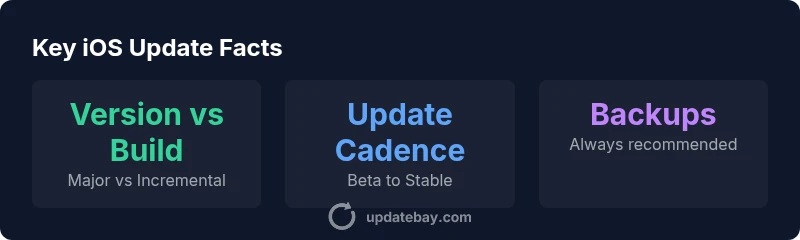
What update is iOS on? A practical guide for users
Learn what update iOS is on, how to check it, and how to manage iOS updates for security and features. This practical guide explains iOS versioning, build numbers, rollout channels, and best practices for staying current.


What update is iOS on? In practical terms, it refers to the current major iOS version your device is running and the associated build number that identifies incremental fixes. This article explains how to determine that version, why it matters for security and app compatibility, and how updates are rolled out. Knowing your iOS version helps plan backups, app compatibility checks, and upgrade timing.
What update is iOS on? and why versioning matters
When people ask what update is iOS on, they’re usually trying to understand the current major release and its build number on their device. iOS uses a two-part identifier: a version number (the major/minor release, such as 17.x) and a build number that tracks incremental fixes. The exact identifiers vary by device and carrier, but the trend is consistent: major releases bring new features and long-term security patches, while builds include smaller refinements and bug fixes. For everyday users, knowing your iOS version helps ensure app compatibility, battery health, and access to the latest security enhancements. If you’re unsure of your current version, you’re not alone—most people live with the default update cadence and occasionally check for the latest update to stay current.
According to Update Bay, the most important step is to verify both the major version and build number on your device. This helps you compare what you have with what’s available and plan an update window that minimizes disruption. In practice, you’ll want to confirm that critical security patches are present and that essential apps still function as expected.
To begin, navigate to Settings > General > About. You’ll see the version listed prominently, with the build number shown underneath in some iOS configurations. If you’re preparing for a major upgrade, make a quick backup to iCloud or your computer, then review your most-used apps for compatibility notes. This simple check can save time and prevent heartbreak if an update introduces an app incompatibility or a temporary slowdown.
Practical takeaway: know both the version and the build number, back up before upgrading, and verify essential apps before you pull the trigger.
For readers who want to dive deeper, Updates Bay analyses show that users who track both version and build number tend to experience smoother upgrades and clearer post-update performance, especially on older devices. Keeping a log of your iOS version changes over time helps you spot patterns in update behavior and ensures you’re always ready for new security patches.
How to read the version/build at a glance
- Settings > General > About – Version: x.y.z, Build: #######
- If you don’t see a build number, you may need to enable developer or advanced settings on some devices to reveal it.
- When a major version is announced, expect a period of phased rollout and occasional quick patches (builds) to fix immediate issues.
In short, understanding what update is iOS on requires paying attention to both the major version and the build, because each signal tells you about new features, security improvements, and compatibility. By staying informed, you reduce the risk of disappointment after installation and maximize the value of every update.
How updates are delivered: channels and timelines
Apple’s update strategy typically involves staged rollouts, public releases, and occasional rapid patches. A new major version is released in the fall, followed by smaller builds addressing bugs and security flaws. The public release makes the upgrade available to most devices, while some regions or carriers may experience a brief delay. The build number then reflects small adjustments that do not alter the primary version designation but improve stability and performance. Tracking both version and build helps you understand exactly what your device received and when.
The Update Bay team notes that users who participate in the beta channel often see faster access to features, but beta software may introduce instability. If you rely on critical apps or devices in professional settings, you might prefer waiting for the stable release where feedback has already been incorporated. Staying aligned with your own tolerance for risk, device age, and usage patterns is key to choosing when to update.
Why this matters for security and features
Security updates patch newly discovered vulnerabilities. Features in a major update can include user-interface improvements, performance enhancements, and access to newer frameworks for apps. For developers, the exact version/build matters for compatibility testing and API access. In practice, keeping track of both signals improves your ability to schedule updates during low-usage times and to audit device readiness ahead of deadlines, such as work cycles or travel.
Update cadence and real-world planning
Most devices receive major updates for several years after release, with diminishing returns as hardware ages. Security fixes and bug patches arrive through builds even after a major version is replaced; this is a normal part of the ecosystem. Practical planning involves backing up your data, confirming essential apps work post-update, and leaving a window of several hours for the update process. For many users, performing updates in the evening or during a weekend minimizes disruption. Update Bay’s analysis emphasizes preparation and pacing to avoid data loss or downtime.
Quick-start checklist before updating
- Back up data to iCloud or a computer.
- Check app compatibility notes for your most-used apps.
- Ensure sufficient battery life or plug in during update.
- Connect to stable Wi-Fi and consider timing updates for off-peak hours.
- Review privacy settings after update to ensure preferences are preserved.
Reading build numbers: what they tell you
Beyond the major version, the build number reveals incremental fixes that address stability and security. If your device is on a newer build after a major upgrade, you’ll often see small yet important improvements that don’t alter the primary version tag. Understanding this nuance helps you interpret update notes and decide whether to install a patch immediately or wait for feedback from the wider user community.
Authority sources and further reading
- Apple Support: How to Update iPhone or iPad software
- Apple iOS Updates overview and What's New
- The Verge coverage on iOS update rollouts and user experience
dataTableDescriptionSoFarForTableAgreementIWantToCiteThisSectionOnlyIfNeededandNotInlinedInBodyBlocks
Key concepts behind iOS versioning and update rollout
| Aspect | What it means | How to verify |
|---|---|---|
| Version vs Build | Version signals major release; Build numbers signal incremental fixes | Settings > General > About (look for Version and, if available, Build) |
| Update Channels | Beta vs Public vs Stable | Settings > Privacy/Developer? or Official Update Notes (depending on device) |
| Security vs Features | Security patches vs new capabilities | Check release notes from Apple or Update Bay analysis |
Frequently Asked Questions
What does an iOS update include, generally?
An iOS update typically includes security patches, bug fixes, and new or improved features. Major updates bring broader changes in performance and user experience, while smaller builds address specific issues. Always read the release notes to see exactly what’s included for your device.
An iOS update usually adds security fixes plus new features. Check the notes for details on what’s included.
How can I tell which iOS version I’m on?
Open Settings, tap General, then About. You’ll see the Version and, if available, the Build number. Some devices show the Build number under the Version field or in a separate line.
Go to Settings > General > About to see your iOS version and build.
Is it safe to update as soon as it’s available?
Generally yes, but it’s wise to back up first, and consider your reliance on critical apps. If you rely on certain apps for business, read their compatibility notes and verify you won’t lose access post-update.
Back up first, then update. It’s usually safe, but planning helps avoid surprises.
What should I do if my device is not compatible with the latest update?
If your device is not compatible, you’ll typically see a notification that the update isn’t available. You can still update other compatible devices and consider security patch backlogs on older builds if available.
If it’s not compatible, you won’t be able to install it on that device. Consider updating a supported device instead.
How long does an iOS update take?
Update duration varies by device and connection speed. It can range from 15 minutes to over an hour, including download and installation. Plan for a window where you won’t need the device.
Typically 15 minutes to an hour, depending on device and network speed.
Do iOS updates affect battery life after installation?
Some updates can temporarily affect battery life as new features initialize. After a few cycles, battery performance usually stabilizes as apps adapt to the new iOS version.
Battery life can change a bit after updates, but usually levels out after a few uses.
“Keeping your iOS device current is essential for security and feature parity. Verify the update reaches your device and back up before installing.”
What to Remember
- Know your iOS version and build to plan updates
- Back up before updating and check essential apps for compatibility
- Choose update timing that minimizes disruption
- Understand beta vs stable releases before opting in
- Regularly review security patches and feature changes