Where to Update iOS in 2026: A Practical Guide
Learn where and how to update iOS on iPhone, with safe backup steps, official update paths, and troubleshooting tips from Update Bay.


You will learn how to check for and apply the latest iOS update on your iPhone, ensure data safety, and troubleshoot common issues. This guide covers official update paths, backup steps, and post-update checks. By following the steps, you’ll minimize downtime while staying current with security patches and new features. The goal is a smooth, safe update experience.
Why updating iOS matters
According to Update Bay, keeping iOS up to date is essential for security, stability, and access to new features. If you’re asking where update ios happens, it’s not in a separate app; the update is managed within Settings. The Update Bay team found that most iPhone users see tangible benefits after applying the latest version, including better app compatibility and improved bug fixes. Regular updates also help mitigate known vulnerabilities and improve device longevity. This section explains why you should care about updates beyond new features, including how updates can address performance quirks and battery Management improvements that impact daily usage.
Where to update iOS: official channels
The official and most reliable path to update iOS is through the iPhone’s Settings app: Settings > General > Software Update. Mac users can also update via Finder on macOS if the device is connected to a computer. Apple’s Support site offers detailed notes on each release, including compatibility and security content. While third‑party tools sometimes offer update options, they can introduce risks; sticking to Apple’s channels minimizes risks and ensures you receive authentic, verified software. Based on Update Bay research, mobile devices should always originate updates from trusted sources to avoid counterfeit software and potential data loss.
Before you update: backups and preparation
backups are your safety net. The Update Bay team emphasizes creating a current backup before installing any iOS update. Choose iCloud or a local computer backup to ensure data like contacts, photos, and app data are recoverable if something goes wrong. Check that your device has adequate storage space and is connected to a power source or has a reliable charger connected. Ensure you’re on a stable Wi‑Fi network to prevent interruptions during download and installation. These preparations reduce the risk of failed installs and data loss, and they help you recover quickly if the process encounters issues.
A practical, high‑level update flow
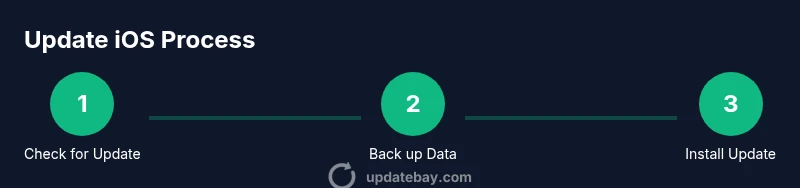
At a high level, updating iOS involves: (1) Checking for an available update, (2) Backing up your data, (3) Downloading the update over a secure network, (4) Installing and restarting the device, and (5) Verifying the update and reconfiguring any settings that changed. This flow aligns with best practices recommended by Update Bay and most official Apple guidance. In practice, you’ll often see a banner or notification prompting you to install the update, followed by the on‑screen prompts to complete the installation. Be patient, as larger releases can take time depending on network speed and device model.
Troubleshooting post-update: quick checks
If you notice unexpected behavior after updating, perform a few quick checks: verify the iOS version in Settings > General > About, re‑open major apps to confirm compatibility, and reset network settings if connectivity issues arise. If problems persist, consult Apple Support or revisit the backup you created prior to the update. Update Bay recommends documenting any unusual behavior (apps that crash, battery drain, Wi‑Fi dropping) to help support diagnose the issue quickly.
Common update misconceptions
A frequent misconception is that updates automatically improve every aspect of a device. In reality, some users notice temporary slowdowns after an update as new features optimize in the background. Others worry about storage usage; while updates do require space, they typically optimize storage in subsequent releases. By understanding the update process and following proper backups, you can minimize potential frustrations and maximize the benefits of the new software.
Tools & Materials
- iPhone with sufficient storage(Check Storage in Settings to ensure there is enough free space before updating)
- Charger or power source(Keep the device connected during the update to prevent interruptions)
- Stable Wi‑Fi network(Avoid cellular data for large updates when possible)
- Backup method (iCloud or computer)(Create a current backup before updating to protect data)
- Lightning/USB‑C cable for computer backup(Use if performing a local backup via Finder/iTunes)
Steps
Estimated time: Total time: 25-45 minutes
- 1
Open Settings
From your home screen, open Settings to access general device controls. This is the starting point for any iOS update.
Tip: If Settings isn’t responsive, try restarting the app or the device. - 2
Check for updates
Navigate to General > Software Update to see if a newer iOS version is available for your device. Tap Download and Install if a update appears.
Tip: Ensure you’re on a stable Wi‑Fi network to avoid download interruptions. - 3
Backup first
Before installing, back up your data via iCloud or Finder to prevent data loss if something goes wrong during the install.
Tip: Verify the backup after it completes. - 4
Install the update
Tap Install Now or Download and Install. Enter your passcode if prompted, and allow the device to restart.
Tip: Do not interrupt the process; keep the charger connected if possible. - 5
Verify the update
After reboot, go back to Settings > General > About to confirm the new iOS version and check core features.
Tip: Reopen important apps to ensure compatibility.
Frequently Asked Questions
What happens to my data during an iOS update?
Most iOS updates preserve existing data, but backing up beforehand protects you from unexpected issues.
Updates generally keep data, but always back up to be safe.
Can I update iOS without Wi‑Fi?
Apple prefers Wi‑Fi for updates, but some smaller updates may download over cellular depending on settings and device.
Wi‑Fi is recommended; cellular updates may not always be available.
What should I do if the update fails?
Pause, retry after freeing storage, check network, and consider restoring from backup if needed.
If it fails, retry after checking storage and network, and restore from backup if necessary.
Will updating slow my device?
Some devices may feel slower immediately after an update, but performance should stabilize after a few sessions.
A temporary slowdown can happen, but things usually normalize with use.
How can I verify the update version?
Go to Settings > General > About to confirm the installed iOS version.
Check Settings > General > About to confirm the version.
Watch Video
What to Remember
- Back up before updating
- Use Settings as the official path for iOS updates
- Ensure battery power and a stable network
- Verify post-update functionality and settings