Where is Update & Security in Windows 11: A Practical How-To
Learn where to find Update & Security in Windows 11, how to manage Windows updates, security settings, and best practices for keeping your device safe. Practical steps, explanations, and tips from Update Bay to help you stay protected.


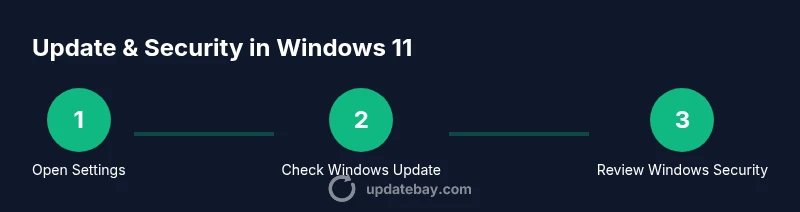
To locate update and security controls in Windows 11, open Settings, then click Windows Update for update options. For security settings, open Start > Settings > Privacy & security > Windows Security, or search for Windows Security in the taskbar. This quick path helps you keep your device current and protected. From there you can review available updates, enable automatic updates, check protection status, and access advanced settings.
Why Update & Security Matter in Windows 11
Keeping Windows 11 up to date is the core defense against evolving threats and software glitches. Regular updates patch security holes, improve system stability, and bring new features that enhance performance. According to Update Bay, users who routinely install updates tend to experience fewer security incidents and longer device lifespans. Beyond patches, security settings—such as firewall controls, antivirus protections, and privacy options—work together to form a layered defense. In short, Update & Security isn’t a single checkbox; it’s a routine that protects data, preserves functionality, and reduces downtime. This section explains why staying current matters for both personal and professional devices and how to balance convenience with protection.
How Windows Update Works in Windows 11
Windows Update delivers two major categories of updates: quality updates (security patches and reliability fixes) and feature updates (larger changes that refresh user experience). Updates are typically downloaded and installed automatically, but you can adjust active hours, pause updates, or trigger a manual check. Windows Update also prioritizes critical patches that fix exploits or serious bugs. Understanding the update cadence helps you plan maintenance windows and avoid interruptions during work. Update Bay’s guidelines emphasize testing updates on non-critical devices before broad rollout in mixed environments.
Accessing Update Settings in Windows 11
To manage updates, open Settings (Win + I) and select Windows Update. Here you’ll see the current status, last check time, and available updates. You can pause updates for up to a certain number of days, view update history, and access optional updates. The option to set active hours ensures your device isn’t interrupted during your peak productivity times. If you rely on a metered connection, you can set that in the data usage section to limit download size.
Accessing Security Settings in Windows 11
Security settings live under Privacy & security in Settings, including Windows Security, Firewall & network protection, App & browser control, and Device security. You can open Windows Security directly from the Start menu or by searching for Windows Security. Regular checks here help you verify that your antivirus is up to date, real-time protection is enabled, and cloud-delivered protection is active. This multi-layer approach reduces the risk of malware and data breaches.
Understanding Windows Security Center and Defender
Windows Security Center consolidates a variety of protections, including antivirus, firewall, device health, and account protection. Defender integrates with other Windows 11 protections to monitor threats in real time. Turn on real-time protection, enable firewall rules, and review quarantine actions as needed. Advanced users might configure controlled folder access and exploit protection to tailor defenses to their workflow, while keeping usability in mind.
Best Practices for Automatic Updates and Patches
Enable automatic updates to minimize gaps in protection. Schedule a weekly review of update history to catch failed patches and understand troubleshooting steps. Use a test device or virtual machine for complex updates before applying them to critical hardware. Ensure you have a current backup strategy (system restore points, file backups, and cloud sync) so you can recover quickly if an update doesn’t go as planned.
How to Troubleshoot Update and Security Issues
Troubleshooting starts with checking connectivity and Windows Update service status. Run the Windows Update troubleshooter, review error codes, and search for documented fixes. If updates stall, you can reset Windows Update components, run System File Checker (sfc /scannow), and verify that time settings are correct. For security issues, confirm that Windows Security components are enabled and that there are no conflicting third-party security tools.
Privacy & Security in Windows 11: What to Check
Privacy controls influence how data is collected and used by apps and services. Review advertising ID usage, diagnostic data limits, and location permissions. Security and privacy work together: reduced data sharing can lessen exposure, but you may still need essential telemetry for software updates and security signals. Regularly revisiting these settings keeps you in control without sacrificing protection.
Quick Tips: Shortcuts and Search Tricks
Use the taskbar search to locate “Windows Security” or “Windows Update” instantly. Create a desktop shortcut for Settings > Update & Security for faster access. Consider enabling maintenance tasks overnight and using Focus Assist during long updates to minimize interruptions. Keeping notes on which settings you customize helps you reproduce a secure baseline later.
What’s New in Recent Windows 11 Updates
Microsoft periodically refreshes Windows 11 with feature updates and quality patches. New security enhancements may include improved ransomware protection, smarter device health checks, and strengthened firewall capabilities. Stay informed about changelogs and patch notes to understand how changes affect your workflows. The Update Bay team notes that staying current with these updates is essential for ongoing protection and performance.
Tools & Materials
- Windows 11 PC(A device running Windows 11 (Home/Pro/Enterprise))
- Active internet connection(Stable network for downloading updates)
- Admin access(Needed to modify settings and install updates)
- Backup solution(Optional: create restore points or file backups before major updates)
- Windows Security tools(Firewall and Defender, usability permitting)
Steps
Estimated time: 30-45 minutes
- 1
Open Settings
Open the Windows Settings app from the Start menu or press Windows key + I to launch Settings. This is your gateway to Update & Security in Windows 11. The goal is to reach the correct submenus quickly without navigating in circles.
Tip: If Settings isn’t visible, right-click the Start button and choose Settings from the quick menu. - 2
Access Windows Update
In Settings, select Windows Update. This panel shows your update status, last check, and available updates. You’ll also find options to pause updates and view update history.
Tip: Note any pending updates and plan a maintenance window if you’re on a shared device. - 3
Review Update History
Click View update history to see installed patches and failed attempts. This helps you identify if a recent update caused issues and whether you need to re-run a patch or seek alternatives.
Tip: If you find a failed update, use the “Retry” option or run the Windows Update Troubleshooter. - 4
Open Windows Security
From Start or Settings, search for Windows Security to open the Defender-centered pane. This consolidates protection controls like antivirus, firewall, and device health checks.
Tip: Enable real-time protection and cloud-delivered protection for best defense. - 5
Check Firewall & Network Protection
Within Windows Security, review Firewall & network protection to ensure your network is protected and that allowed apps haven’t inadvertently opened risky ports.
Tip: If in doubt, reset to recommended defaults. - 6
Review App & Browser Control
Examine SmartScreen settings and web protection to guard against phishing and malicious sites. Adjust settings based on your risk tolerance and usage patterns.
Tip: Disable only if you have a trusted, secure browser setup. - 7
Enable Device Security Features
Enable features like core isolation, memory integrity, and Secure Boot if supported by hardware. These protections reduce the risk of deeper-level attacks.
Tip: Check hardware compatibility before enabling advanced protections. - 8
Set Automatic Updates
In Windows Update, ensure automatic updates are enabled. This minimizes exposure and keeps drivers and firmware current.
Tip: Optionally set active hours to avoid interruptions during work. - 9
Create a Backup Before Major Updates
Create a restore point or full backup before applying large feature updates. This ensures you can recover quickly if something goes wrong.
Tip: Test recovery restores in a safe environment before relying on backups. - 10
Troubleshoot Issues If Updates Fail
If updates fail, run the built-in troubleshooter, reset Windows Update components, and verify system time and network settings. Revisit security warnings if problems persist.
Tip: Document error codes for faster support or refer to official guides.
Frequently Asked Questions
Where exactly is Update in Windows 11 settings?
In Windows 11, Update is under Settings > Windows Update. You can view status, pause updates, and check history from this page.
Open Settings, go to Windows Update to manage updates.
How do I access Windows Security in Windows 11?
Windows Security can be opened from Start > Settings > Privacy & security > Windows Security, or by searching 'Windows Security' in the taskbar.
Open Windows Security from the Start menu or search bar.
What should I do if updates fail to install?
Run the Windows Update troubleshooter, check internet connectivity, verify system time, and consider resetting Windows Update components if needed.
Run troubleshooter and check your internet and time settings.
Can I customize security settings without affecting updates?
Yes. You can adjust Windows Security controls, firewall rules, and privacy settings independently of Windows Update, but to stay protected you should keep security features enabled.
Yes—adjust security settings and keep protections enabled.
Watch Video
What to Remember
- Enable automatic updates to stay protected
- Review Windows Security regularly for real-time protections
- Check update history to spot failed patches early
- Use backups and restore points before major updates
- Keep privacy and security settings aligned with usage
- Leverage search and shortcuts for quick access