Which Update Is Windows 11? A Practical Guide to Windows Updates
Learn which updates apply to Windows 11, the cadence of feature vs monthly security updates, and practical steps to stay current. Update Bay explains upgrade paths from Windows 10 and how to manage updates with minimal downtime.


Which update is Windows 11? Demystifying the question
For many users, the wording which update is windows 11 can be confusing. The concise answer is that Windows 11 is an operating system release, not a single patch. Updates to Windows 11 occur in two principal streams: feature updates, which are major upgrades that refresh the OS, and monthly quality updates, which address security and reliability. This distinction matters when planning hardware compatibility, application readiness, and IT rollout schedules. By understanding this, you can map the exact maintenance task to the OS version you interact with daily.
In practice, the Windows 11 experience is defined by two update tracks: an occasional but substantial feature upgrade and a steady cadence of smaller monthly fixes. This reduces the risk of surprise downtime while keeping security and performance current. Update Bay emphasizes that recognizing this split helps users and admins anticipate changes, prepare for restarts, and manage driver and app compatibility ahead of time.
How Windows 11 updates are structured
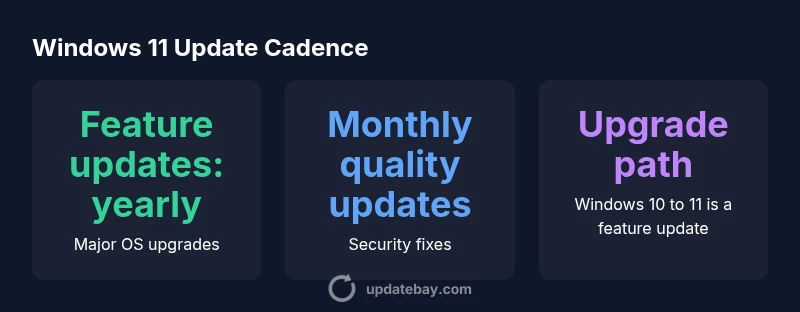
Microsoft structures Windows updates into two core families: feature updates and quality updates. Feature updates are significant OS upgrades that introduce new features, UI changes, and performance improvements. They arrive on a roughly annual cadence and often require more planning and testing, especially in business environments. Quality updates, sometimes called cumulative or monthly updates, address security vulnerabilities, bug fixes, and reliability improvements. They roll out monthly and typically require shorter downtime. Understanding this structure helps you align expectations with the resources needed for deployment, testing, and rollback if necessary.
The cadence is designed to balance progress with stability. Feature updates push the OS forward, while quality updates keep it secure and reliable in between major releases. For most users, the decision to adopt a feature update hinges on hardware compatibility, software readiness, and organizational policy. As a result, you may see prompts to defer or schedule installations to fit maintenance windows—an important consideration for both individual users and IT teams.
Feature updates vs monthly quality updates
Two primary update families shape Windows 11 maintenance:
- Feature updates: These are the large, major upgrades that deliver new capabilities and UI enhancements. They function as the equivalent of a new OS version within Windows 11 and are typically scheduled once per year, though the exact timing may vary by channel and edition. Planning for these upgrades involves hardware checks, driver validation, and testing of business-critical apps.
- Monthly quality updates: These are smaller, frequent patches focusing on security fixes, reliability improvements, and bug squashes. They occur on a monthly basis and usually require shorter installation times and fewer reboots. Keeping up with these updates is essential for protecting devices and maintaining system stability.
For organizations, the separation matters: feature updates may necessitate change management, pilot programs, and training, while quality updates can be applied automatically or during scheduled maintenance windows. The distinction also helps you explain to end users why a system might reboot more than once in a given period and how to plan around it.
How to identify your Windows 11 update
To determine which update is currently installed on your device, you can use several built-in indicators:
- Open Settings > Windows Update to view the latest feature and quality updates installed, including their build numbers.
- Use the Winver command (Win + R, then type winver) to see the current Windows version and build, which reflects whether you’re on a feature update.
- In enterprise scenarios, consult your Update Management tool or IT admin dashboard for the exact deployment channel (e.g., Semi-Annual, Monthly, or Long-Term Servicing Channel).
Regularly checking update history helps you verify that the expected feature upgrade and the monthly patches are present. If you see a build that corresponds to your organization’s planned feature update, you’re aligned with the Windows 11 update cadence.