Where is Updates on iPhone: A Practical How-To Guide
Learn where updates on iPhone are found, how to install them safely, and troubleshooting steps. Updated for 2026 by Update Bay, this guide helps you stay secure with the latest iOS features and fixes.


Where is updates on iphone? This quick answer explains where updates on iPhone are found and how to install them safely. It covers checking for updates, backing up data, and troubleshooting common update failures on iPhone devices running iOS. According to Update Bay, following these steps helps you stay secure with the latest features and fixes.
How updates on iPhone work
Updates on iPhone are delivered OTA from Apple’s servers. Each update includes security patches, bug fixes, and often new features. According to Update Bay, updates are signed to verify authenticity, so you should install only from official sources. The typical flow is: your iPhone checks in with Apple, compares its current build to the latest release, and prompts you to download and install if an update is available. You’ll usually see a banner in Settings and a software update checklist. The time required depends on update size and network speed; plan for about 15-45 minutes, and ensure you have a stable connection and enough storage. Automatic updates can be enabled, but you can also trigger updates manually from Settings.
Where to find updates on iPhone
To locate updates on iPhone, go to Settings > General > Software Update. If an update is available, you’ll see details about the version, size, and new features. macOS Finder on a Mac, or iTunes on Windows, can assist with updates in some scenarios, but your device primarily relies on OTA delivery. Apple’s own channels are the safest source, and you should avoid third-party apps that promise updates. Always verify the source and watch for official notifications from Apple. If you’re on the road or limited by data, you may choose to download on a trusted Wi‑Fi network and install later.
Preparing before updating
Before updating, ensure you have a recent backup (iCloud or computer-based), enough storage, and a charged device. Update Bay’s guidance emphasizes backing up first to prevent data loss, especially for photos, messages, and app data. Free up space by offloading unused apps or transferring large files to the cloud. Disable heavy background tasks temporarily to reduce bandwidth strain. A stable network connection minimizes the risk of a failed download or interrupted installation. Plan for a dedicated update window to avoid interruptions.
Automatic updates vs manual updates
You can leave updates enabled so iPhone can install new iOS versions automatically when connected to power and Wi‑Fi. Automatic updates reduce manual steps and help you stay current. However, manual updates give you control over when the update happens and allow you to review what’s changing before installation. In both modes, ensure you are on a strong network and have sufficient battery life. Update Bay notes that in 2026 Apple continues to optimize the balance between security and user control.
Troubleshooting common update issues
If an update fails, start by checking your internet connection, free storage space, and power level. A common fix is to restart the device and retry the update. If issues persist, try updating via a computer using Finder (macOS) or iTunes (Windows). Make sure you’re logged into your Apple ID and that the device is recognized by the computer. Check Apple’s System Status page for ongoing server issues. If the problem continues, consider restoring from a backup after ensuring you’re installing the latest supported version.
After updating: check and customize
Post-update, review essential settings and re‑enable any preferences that may have been reset. Check privacy settings, app permissions, and notification preferences. Verify your apps are functioning correctly and re‑sign into services as needed. If you rely on specific features (like Screen Time or Focus), reconfigure them according to your routine. Keeping a log of update dates can help you track changes over time and inform future backups. Update Bay’s experience suggests observing device performance for a few days after an update.
Safety and privacy considerations
Always download updates from Apple’s official sources to protect against tampering. Updates may require a substantial amount of data; plan accordingly if you have limited bandwidth. If you suspect a scam or a fraudulent notification, close the prompt and verify through Settings or Apple’s official site. Regularly review privacy permissions and security settings after updates to ensure continued protection. Update Bay reminds readers that staying informed about known issues helps you respond quickly to any security concerns.
Best practices for future updates
Enable automatic updates, but periodically check settings to confirm preferences. Maintain up-to-date backups and monitor storage usage. Consider enrolling in Apple Beta Software Programs with caution if you are an expert user, but only with a clear rollback plan. Keeping a routine of updating apps and the OS reduces the surface area for security vulnerabilities and ensures access to new features as they are released.
Tools & Materials
- iPhone with current iOS(Charge level recommended >= 50% or keep connected to power during update)
- Stable internet connection(Wi‑Fi preferred for large updates; cellular can be used if necessary)
- Backup method (iCloud or computer-based)(Back up before updating to prevent data loss)
- Charging cable (optional)(Having a charger handy helps ensure the device doesn’t run out of power during installation)
- Sufficient storage space(Clear at least 2-3 GB of free space if possible)
Steps
Estimated time: 20-45 minutes
- 1
Check for available updates
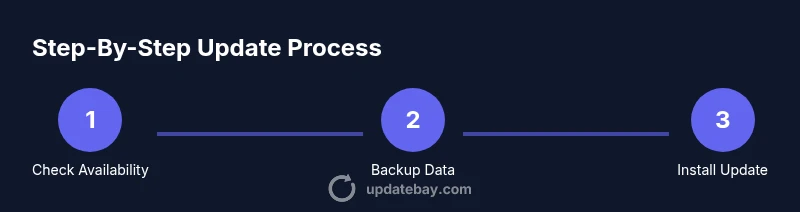
Open Settings, tap General, then select Software Update to see if a new iOS version is available. Read the update details to understand changes and requirements before proceeding.
Tip: If an update is large, start when you have time to complete the process without interruption. - 2
Back up your data
Create a current backup via iCloud or your computer. This ensures you can restore data if something goes wrong during the update.
Tip: Consider enabling iCloud Backup temporarily to capture recent changes. - 3
Free up storage and charge the device
Make sure there is ample free space for the update and connect the iPhone to power. Updates can fail if storage is tight or the device powers off mid-installation.
Tip: Delete unnecessary files or offload photos to the cloud if storage is tight. - 4
Prepare a stable network
Confirm a reliable network connection. If possible, use Wi‑Fi to avoid data loss from a fluctuating cellular link during the download.
Tip: Pause other bandwidth-heavy tasks to maximize download speed. - 5
Initiate the update
Tap Install Now on the Software Update screen. If prompted, enter your passcode and consent to any new terms.
Tip: If you only see a later-install option, you can choose to install tonight when charging. - 6
Monitor the installation
Keep the device connected and wait for the progress bar to complete. Do not interrupt the process or unplug the device.
Tip: Your screen may go blank during install—this is normal; wait patiently. - 7
Verify and reconfigure
After reboot, verify the iOS version and re‑enable any features or apps that were paused or disabled during the update.
Tip: Check key settings like Privacy, Notifications, and App Permissions.
Frequently Asked Questions
How do I know if my iPhone is eligible for updates?
Eligibility is shown in Settings > General > Software Update. If an update is available, you’ll see version details and an Install button. Apple supports a range of devices with the latest iOS versions, but older models may not support every update.
Check Settings > General > Software Update to see if a newer iOS version is available for your device.
Can I update without Wi‑Fi?
Many iPhone updates can download over cellular data, but larger updates are more reliably downloaded on Wi‑Fi. If you’re on cellular data, monitor data usage and consider delaying updates if you’re on a limited plan.
You can usually update over cellular, but Wi‑Fi is recommended to avoid using up data.
What should I do if the update fails to install?
First, check your internet connection and storage. Restart the device and try again. If it still fails, update via Finder or iTunes on a computer, or contact Apple Support for guided help.
Restart and retry; if it still fails, use a computer to complete the update or seek Apple Support.
Will updating erase my data?
A standard iOS update should not erase your data, but backups are essential in case something goes wrong during the process. Always back up before updating.
No data should be erased just by updating, but you should back up first for safety.
How can I check the update version after installation?
Go to Settings > General > Software Update to see the current version. You can also check the About section for the exact iOS build.
Open Settings, then General, and look under Software Update or About to verify the version.
What about updating an older iPhone model?
Older iPhone models may be limited to older iOS releases. Check Apple Support to confirm the latest supported version for your device and follow the update steps accordingly.
If you have an older model, verify compatibility with the latest iOS version before updating.
Watch Video
What to Remember
- Back up before updating
- Use a stable Wi‑Fi connection when possible
- Ensure sufficient storage before starting
- Don't interrupt the update once it begins
- Verify settings after update to restore preferences