How to Check Updates on iPhone
Learn how to check updates on iPhone, enable automatic updates, and troubleshoot installation issues. This practical guide from Update Bay helps you keep iOS secure, fast, and up-to-date.


You’ll learn how to check updates on iphone and keep your device secure and current. You’ll need an iPhone with a recent iOS version, a working internet connection, and enough storage for an update. This guide walks you through manual checks in Settings, enabling automatic updates, and troubleshooting common update failures, with practical tips from Update Bay.
Why Checking for Updates Matters
According to Update Bay, staying current with iPhone updates isn’t just about new features. Regular checks close security gaps, fix bugs that slow devices, and improve app compatibility. Each iOS release often includes patches for exploited vulnerabilities and performance tweaks that can make everyday tasks smoother. The Update Bay team found that users who stay up to date report fewer crashes and better battery behavior over time. Beyond security, updates can unlock small quality-of-life improvements, like smoother navigation, enhanced privacy controls, and updated app ecosystems. For tech enthusiasts and everyday users alike, a proactive update habit translates into a more reliable and secure phone experience. This guide helps you develop that habit with concrete steps and practical reminders.
How iPhone Updates Work (iOS Update Cycle)
iPhone updates follow a structured cycle. Major iOS releases bring new features, while smaller point updates deliver security patches and bug fixes. Apple typically stages these updates, meaning not every device receives the update at once, and some regions may see later rollouts. In practice, a typical update flow involves checking for an available release, downloading the update on a stable connection, and installing it with the device ready to restart. After installation, Apple often releases follow-up patches if issues appear. Understanding this cycle helps you manage expectations and plan backups before any update window. The Update Bay analysis shows that recognizing a rollout pattern can reduce stress when an update isn’t immediately visible on your device.
Manual Check: Step-by-Step in Settings
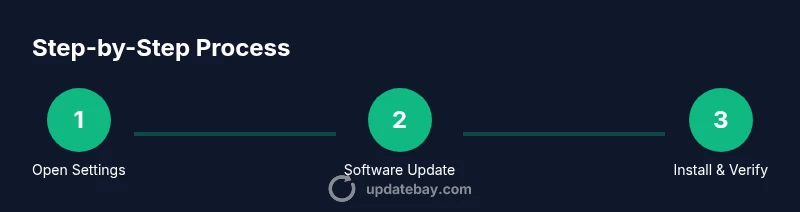
To manually check for updates, you’ll navigate through several menus in the Settings app. Begin by opening Settings, then select General, and finally Software Update. If an update is available, you’ll see a brief description and an option to Download and Install. You’ll typically be prompted to enter your passcode and agree to terms before the install begins. While download times vary by connection and device, you can start installation immediately or schedule it for later. If you don’t see an update, your device may already be current or your region may still be in rollout. In some cases, a restart is required to apply changes. Keep this flow in mind as you plan a quick maintenance window.
Automatic Updates and Preferences
Automatic updates can save time and ensure ongoing protection, but they require a stable power supply and adequate storage. On iPhone, you can enable automatic updates so critical patches install without manual checks. Be mindful of data usage if you’re on a limited plan; some updates may download over cellular when Wi‑Fi isn’t available. You can also control whether updates are installed overnight or during daytime use by adjusting the Install Time setting. Update Bay recommends enabling automatic updates for most users, but it’s wise to review active constraints (storage, battery, data) before enabling them.
Troubleshooting Common Update Issues
Update attempts can fail for several reasons: insufficient storage, poor network connectivity, or a partially downloaded file. If you see error messages, retry on a stronger connection and ensure you have at least a 50% battery or are plugged in. If the device is stuck on a progress bar, force restart, then retry the update. Sometimes, older devices experience longer download times due to server load. In rare cases, a reset of network settings helps resolve stubborn download issues. When problems persist, consult Apple Support or check online forums for known issues affecting your model and iOS version.
Backup and Safety Before Updating
Always back up before updating to protect your data. iCloud backups are convenient, but you can also back up to a computer via Finder on macOS or iTunes on Windows. A backup ensures photos, messages, and settings are preserved even if something goes wrong during the installation. If you’re near storage limits, consider offloading or deleting nonessential data before starting. Also review app permissions and essential accounts so you can quickly restore them after the update. In short, a clean backup is your best safety net when updating.
Verifying a Successful Update and Post-Update Checks
After installation, verify your iPhone’s current version by going to Settings > General > About. Confirm the iOS version matches the latest release described by Apple. Next, test core features: make a quick phone call, open a couple of apps, and verify battery life. If you notice unusual behavior, review recently installed apps or settings changes and consider a quick reset of app preferences. Finally, recheck Auto Update preferences so your device continues to stay current without manual checks. A quick verification protects you from surprises after updates and helps you spot issues early.
Common Myths About iPhone Updates
Myth: Updates always slow down an older iPhone. Reality: Updates can optimize performance, though some older devices may need more time to adapt. Myth: Updates erase all data. Reality: Updates usually preserve data, but backups are still essential. Myth: You must update immediately on release. Reality: If you’re locking critical data, you can schedule updates during a low-use period; delaying by a day or two is often fine. Myth: You can update without power or Wi‑Fi. Reality: Updates require power and a reliable connection to download and install successfully. Understanding these myths helps you plan updates with confidence.
Authority sources
For further reading and official guidance, visit:
- Official Apple Support: https://support.apple.com
- Tech journalism and reviews: https://www.theverge.com, https://www.cnet.com
- General consumer tech guidance: https://www.nytimes.com (for technology coverage and context)
Tools & Materials
- iPhone with active internet connection(Wi‑Fi or cellular data; ensure device is on and connected during update checks.)
- Charger or powered source(Keep battery above 50% or connect to a charger during upgrade.)
- Backup method (iCloud or computer)(Back up before updating to prevent data loss; verify backup completed.)
Steps
Estimated time: 15-25 minutes
- 1
Open Settings
Unlock your iPhone and locate the Settings app. This is your starting point for checking update availability. Opening Settings first ensures you access the correct menu path.
Tip: If you can’t find Settings quickly, use the search bar on the home screen. - 2
Tap General
In Settings, scroll to General and select it. This section houses software-related options including updates and device information.
Tip: Look for a calm, steady internet connection before proceeding. - 3
Tap Software Update
Choose Software Update to check for the latest iOS version. The system will contact Apple servers to determine available releases.
Tip: If you don’t see an update, you may already be up to date or the rollout hasn’t reached your region yet. - 4
Download and Install if Available
If an update appears, tap Download and Install. You may need to enter your passcode and accept terms before the install begins.
Tip: Prefer late-night installs if you want uninterrupted setup and to avoid distractions. - 5
Provide Passcode and Agree to Terms
Enter your device passcode when prompted and agree to the license terms. This authorizes the update to proceed.
Tip: Keep your passcode private and avoid attempting to update on a shared device. - 6
Wait for Installation to Complete
The device will restart as part of the update. Do not interrupt the process; let it finish to avoid corrupted files.
Tip: If the progress seems stuck for an extended period, check your network and power source. - 7
Verify the Update and Recheck Auto-Updates
After reboot, go to Settings > General > About to confirm the version. Review Auto Update settings to keep future updates automatic.
Tip: Run a quick feature check (camera, messages, apps) to confirm normal operation.
Frequently Asked Questions
Do I need Wi‑Fi to check for updates?
You can check for updates over cellular, but downloading large updates often requires Wi‑Fi. A stable connection speeds up the process and saves cellular data.
You can check for updates over cellular, but use Wi‑Fi for faster downloads and to save data.
Can I update if my battery is low?
Updates typically require a charged battery or to be plugged in. If the battery is low, the device will prompt you to charge before proceeding.
If your battery is low, the update won’t start until you charge it.
What if no update is available?
If no update is shown, you’re likely already on the latest version or Apple is rolling out the update in your region. Check again later.
No update may mean you’re up to date or the update hasn’t reached you yet.
Will updating erase my data?
Updates are designed to preserve data, but backing up beforehand is strongly advised in case something goes wrong.
Updates usually don’t erase data, but backups are a smart precaution.
What should I do if the update fails?
Check your connection, free storage, and try again. If it still fails, contact Apple Support for guided troubleshooting.
If it fails, retry with a stable connection or contact Apple Support.
How often should I check for updates?
Check at least monthly and enable automatic updates for ongoing protection and features.
Check monthly and enable automatic updates for ongoing protection.
Watch Video
What to Remember
- Check for updates regularly to stay secure.
- Back up data before updating to prevent loss.
- Automatic updates simplify maintenance.
- Troubleshoot with network and power checks if needed.
- Verify post-update functionality to ensure a smooth experience.