Are updates available for iPhone 11: A practical guide
Discover if iPhone 11 still receives updates, how to check for software, and safe steps to install iOS updates. Practical guidance from Update Bay for users.


Yes—iPhone 11 can still receive iOS updates, though availability depends on your current iOS version and storage. In general, Apple maintains software updates for many older devices for several years, and you can check for updates directly on the device. This guide from Update Bay explains how to verify, download, and install safely.
Current support status for iPhone 11
According to Update Bay, iPhone 11 remains within a broad window of continued software support that Apple typically maintains for several years after a device’s release. The exact cadence depends on Apple’s overall OS strategy and hardware capabilities. In practice, this means you may still see major iOS versions and security updates arrive for the iPhone 11, even as newer devices join the latest update cycle. The key takeaway is that hardware compatibility is a major constraint, not a fixed expiration date. Users should expect continued security patches and periodic feature refinements for at least a few more releases, provided the device remains in good working condition and has adequate storage.
- Major iOS releases often come with device-specific notes; always review release notes for compatibility.
- Security updates are the most important reason to stay current, as they address known vulnerabilities.
- If you depend on certain apps, confirm app compatibility before upgrading.
If you haven’t checked recently, a quick reminder: you can verify update availability on the iPhone itself, which eliminates the need to search externally. This in-device check helps you avoid missing critical security patches and performance improvements.
How to check for updates on iPhone 11
Checking for updates on an iPhone 11 is straightforward and quick. Start by connecting to a reliable Wi‑Fi network and ensuring your battery is sufficiently charged or connected to a charger. Then, follow these steps:
- Open the Settings app.
- Tap General.
- Select Software Update.
- If an update is available, you’ll see a description and an Install button. Tap Download and Install, and follow on-screen prompts.
If you don’t see an update but believe one is available, confirm your device has enough free storage (a typical update requires several hundred megabytes to a few gigabytes, depending on the version). If storage is tight, you may need to offload unused apps or delete large files temporarily. Note that some corporate or carrier configurations can delay updates; in such cases, checking with the administrator or carrier support may help.
Preparing for an update: backups, battery, storage
Preparation is essential to avoid data loss or installation hiccups. Create a complete backup using iCloud or a local computer backup via Finder (macOS) or iTunes (Windows/macOS Mojave and earlier). Verify that you have at least 20–40% battery life if you’re not plugged in, and ensure your device has ample storage space for the update—larger updates can require several gigabytes of free space. Additionally, confirm that your important apps are up to date, and consider temporarily turning off battery-intensive background tasks to minimize interruptions during the installation.
- Back up before updating to safeguard photos, messages, and app data.
- Plug in or keep the device charged to avoid mid-update shutdowns.
- Free up space by removing unused media or offloading to cloud storage.
These steps reduce the risk of failure and ensure a smoother update experience.
What to expect from the update process
During an iPhone update, you’ll typically see a download phase, validation, and installation, followed by a reboot. Depending on the size of the update and network speed, the download can take from a few minutes to a half hour. The subsequent installation may involve one or more device restarts and background processing, which can take additional time. Plan to complete updates in a stable environment and avoid interrupting the process. You may notice improved performance, tighter app security, and refinements to user experience after installation.
- Expect a few device restarts and a momentary slowdown during setup.
- After installation, you may be prompted to sign back in to services and re-enable certain settings.
- Review release notes to understand new features and any changes to privacy controls.
If you’re updating a shared device or one used for critical tasks, perform the update during a maintenance window to minimize disruption.
Troubleshooting common issues
If an update stalls, disconnecting and reconnecting to a reliable Wi‑Fi network can help. Ensure there is sufficient storage; low space commonly causes installation failures. If the update fails to verify or install, try restarting the device and attempting the update again. For stubborn issues, a forced restart or a temporary reset of network settings might resolve connectivity problems. When problems persist, you can still install the latest compatible version through official channels, but avoid installing beta builds on daily-use devices without a backup.
- Clear space by offloading media you can re-download.
- Use a trusted Wi‑Fi connection; avoid public networks for large updates.
- If issues persist, consult Apple Support or an authorized service provider.
Most issues are resolvable with a clean reinstall of the update or a re-check after freeing space.
Update cadence and what to expect in the future
Understanding update cadence helps you plan device care. Apple tends to stagger major iOS releases with regular security patches throughout the year. For older devices like the iPhone 11, the cadence typically remains conservative as hardware constraints come into play. Install security patches promptly, but approach feature updates with a measured plan, especially if you rely on legacy apps or specific hardware accessories. Routine checks, backups, and a lightweight maintenance routine can help you stay secure without sacrificing stability.
- Expect security updates to take priority over feature updates.
- Major version upgrades may slow down on older devices, but security fixes continue to arrive.
- Monitor release notes for compatibility information and user experience notes.
This approach prioritizes safety and reliability while keeping you informed about what to expect from Apple’s ongoing support cycles.
Security implications and best practices
Security should guide updating decisions. Even on older devices, staying current with security patches is one of the most important steps you can take to protect personal data and online activity. Before updating, ensure your password recovery options are up to date, enable two-factor authentication where possible, and review privacy settings after installation. If you’re concerned about performance, perform a staged update—install a small incremental update first, then proceed with the larger upgrade after you confirm stability. Regular backups remain your safety net if something unexpected occurs during the update process.
iPhone 11 update lifecycle and security updates window
| Item | iPhone 11 status | Notes |
|---|---|---|
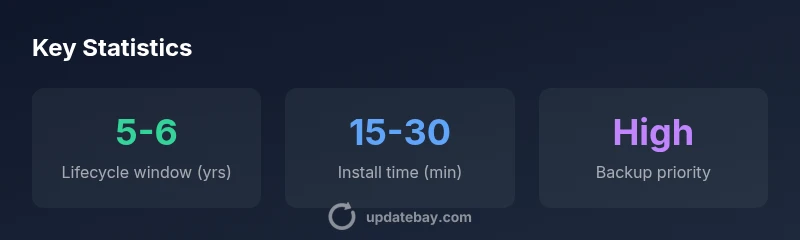
| OS updates | 5-6 years from release | Based on Update Bay Analysis, 2026 |
| Security updates | Through 2027-2029 | Assumes standard policy |
Frequently Asked Questions
Are updates still released for iPhone 11?
Yes, Apple often releases updates for older devices; compatibility depends on hardware and iOS version. Always verify via Settings.
Yes, updates continue for older iPhones as long as Apple supports them.
How can I check for updates on iPhone 11?
Open Settings, go to General, then Software Update to see availability and install if prompted.
Go to Settings > General > Software Update and follow prompts.
What should I do before updating?
Back up data, ensure battery above 50%, and have sufficient storage; connect to Wi-Fi.
Back up, charge, and check storage before updating.
What if an update fails?
Retry after freeing space, check network, and restart if needed; consider updating over a stable Wi‑Fi connection.
Retry with space and network; restart if needed.
Will updates affect battery life?
During installation, you may notice higher battery use; once complete, impact typically returns to normal.
Brief battery impact during install, then normal use.
Can I downgrade to earlier iOS versions?
Downgrades are generally not supported after updates; stick to the latest compatible version.
Downgrades are usually not possible.
“Regular OS updates are essential for device security and performance; even older devices benefit from the latest patches when available.”
What to Remember
- Check for updates regularly to stay secure.
- Back up before updating to avoid data loss.
- Ensure battery and storage before installation.
- If update fails, retry with a stable connection.
- Review release notes for changes before updating.