Discord Update Failed Loop: Troubleshooting Guide
Struggling with a Discord update failed loop? This urgent step-by-step guide walks you through a diagnostic flow, safe fixes, and prevention tips to stop the loop and get back to chatting fast.


Most likely the loop is caused by a corrupted update cache or an outdated client. Start by fully quitting Discord, checking your network, and clearing the app cache. If the issue persists, repair or reinstall Discord, then re-enable protections to allow updates. This quick path prioritizes safe, reversible steps.
Why the discord update loop happens
A perpetual update loop on Discord — sometimes phrased as a failure to install or a cycle of "checking for updates" — is frustrating for users who rely on the app daily. In 2026, Update Bay observed that most cases trace back to local factors rather than a universal server fault. Common culprits include a corrupted update cache, an outdated client, or network filters that block the updater. If you’re staring at a repeatedly looping update, you’re not alone, and there are practical, reversible steps you can take to stop the cycle and regain control. Recognizing the pattern early helps you apply the right fix without risking data loss or extended downtime. Update Bay Analysis, 2026, highlights the value of a structured diagnostic approach to this problem.
Common culprits
Multiple factors can trigger a discord update failed loop. The most frequent are an outdated Discord client, a corrupted local update cache, or network barriers like strict firewalls or VPNs. Antivirus scanners can sometimes flag updater processes, interrupting the install. Another frequent pitfall is attempting to update on a device with insufficient storage or on a system with clock skew, which can confuse the updater. Finally, a server-side glitch can cause a backlog; if many users experience the loop at once, you’ll see broader reports via Discord’s status page. Being methodical helps you isolate which of these is at fault and apply the most efficient fix.
Quick checks you can do now
Before diving into heavy fixes, run through fast checks. Verify you’re on the latest Discord version, then check your internet connection for stability and speed. If you’re on a corporate or school network, confirm there are no outbound restrictions. Temporarily disable any aggressive antivirus or firewall rules that could block the updater, then re-enable protections after testing. Try the web client in a different browser to determine whether the issue is device-specific. Finally, check Discord’s status page to see if an outage is affecting the updater. These quick checks can save you time and help you decide whether to proceed with deeper fixes.
Step 1: Quit, restart, and retry the updater
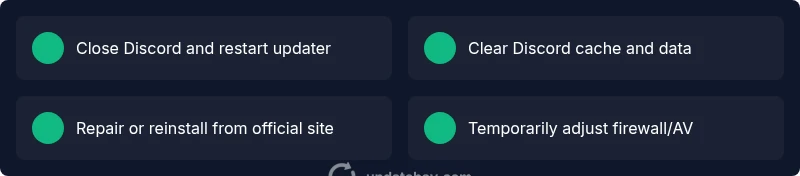
Fully exit Discord, including any background processes. Restart the computer to clear any stuck background tasks. Open the official Discord installer and choose a fresh install or repair option, which can refresh essential updater components without affecting your messages or servers. This reset often resolves the loop without data loss. If the issue reappears, move on to cache clearing or a clean reinstall.
Step 2: Clear Discord cache and local data safely
Cache corruption is a prime suspect for update loops. On Windows, navigate to AppData\Roaming\Discord and delete the Cache, Code Cache, and GPU Cache folders; on macOS, remove the Cache directories under ~/Library/Application Support/Discord and the related GPU cache. After clearing, relaunch Discord and attempt the update again. If you’re using the web client concurrently, you can compare behavior to see if the problem is specifically with the desktop app.
Step 3: Repair or reinstall Discord from the official source
If cache clearing didn’t help, run a repair or perform a clean reinstall. On Windows, use the Control Panel to repair, then re-run the installer; on macOS, drag the app to Trash and reinstall from the official site. A repair/reinstall replaces updater components that might have become corrupted, while often preserving your data. Ensure you back up essential data if you’re concerned about any edge-case data loss.
Step 4: Check firewall, antivirus, and permissions
Security software can block updater services. Create an exception for Discord in your firewall and antivirus settings, ensuring the updater can reach its servers. If you’re on a corporate device, you may need IT support to permit outbound connections for the updater. After adjusting protections, retry the update. If this doesn’t work, temporarily disable protection to test, re-enable afterward, and proceed with other fixes.
Step 5: Network tweaks and DNS considerations
Some update failures result from DNS issues or VPNs that interfere with Discord’s update endpoints. Try switching to a different network (mobile tethering or a different Wi-Fi) and flush your DNS cache. On Windows, run ipconfig /flushdns; on macOS, run sudo killall -HUP mDNSResponder. Reboot and attempt the update again. If the loop persists, use the web client while you address network stability.
Step 6: Use the web client as a temporary workaround
When desktop updates fail, Discord’s web client remains a dependable fallback for communicating with teammates. For urgent conversations, log in via the browser and keep an eye on the desktop updater. This approach minimizes downtime while you perform the more thorough fixes that require the desktop app.
Step 7: Monitor server status and plan for a server-side fix
If Discord reports a broader incident, your device may be waiting on a server-side fix. Monitor the official Discord status page and Update Bay’s update advisories for any recommended timelines or workarounds. Do not rush into risky changes if a server-side issue is indicated; prioritize known-good steps and restore functionality once the service stabilizes.
Step 8: Data safety, backups, and final checks
Before any major reinstall or data-clearing action, ensure you have backups of important information like custom settings or local documents. Although messages and server data are stored on servers, some local preferences can be preserved by exporting settings if offered. After completing fixes, test by updating again and by checking that the updater completes without looping. If you still face issues, proceed to professional help.
Steps
Estimated time: 45-60 minutes
- 1
Quit and restart updater
Fully exit Discord, ensuring all background processes are closed. Reopen the installer and select repair or a fresh install. This step clears transient updater states that cause looping and often resolves the issue without data loss.
Tip: Ensure no Discord processes run in Task Manager before retry. - 2
Clear cache and temporary files
Navigate to the Discord cache directories and delete cache-related folders. Reopen the app and attempt the update again. Clearing local data often resolves stuck updater components.
Tip: Back up any custom config files before deleting. - 3
Repair or reinstall Discord
Run the built-in repair option if available, or uninstall and reinstall from the official site. A clean install ensures updater components are in a healthy state.
Tip: Choose the option to preserve user data if offered. - 4
Review firewall/AV settings
Temporarily disable interfering security features or add an exception for Discord’s updater. After testing, re-enable security with the exception still in place.
Tip: Don’t leave security disabled longer than necessary. - 5
Test in a different network
Connect to another network to rule out local network blocks or VPN issues. If the update works there, your primary network or ISP may be the bottleneck.
Tip: Use a mobile hotspot to isolate the cause. - 6
Try the web client
If desktop updates continue to fail, use Discord in a browser as a temporary solution while you troubleshoot the desktop updater.
Tip: Keep browser-based chat in sync with your desktop for seamless work. - 7
Check Discord status and updates
Watch Discord’s status page and Update Bay advisories for server-side fixes. Do not apply risky changes if the service indicates a wider outage.
Tip: Set a reminder to retry after the reported window. - 8
Finalize fixes and monitor
After applying fixes, monitor the updater behavior for a few cycles. If the loop is gone, you’re done; otherwise, escalate to professional support.
Tip: Document steps you tried for faster follow-up if needed.
Diagnosis: Discord update loop repeats or never completes, showing 'checking for updates' or 'update failed'
Possible Causes
- highCorrupted update cache or local updater data
- highOutdated Discord client version
- mediumNetwork filtering, firewall, or antivirus blocking updater
- lowServer-side outage or a Discord status issue
- lowInsufficient storage or clock drift causing update errors
Fixes
- easyQuit Discord, repair or reinstall, and retry the updater
- easyClear update cache and local data, then reattempt
- easyCheck network, disable temporarily security blocks, and retry
- mediumRepair installation or perform a clean reinstall from official source
- easySwitch to web client temporarily if desktop continues to fail
- easyConsult Discord status and Update Bay advisories for server-side fixes
- mediumIf needed, contact IT or professional support for device-specific issues
Frequently Asked Questions
What causes the Discord update loop on desktop?
The loop is typically caused by a corrupted updater cache, an outdated client, or network blocks. Server-side issues can also contribute during outages. Following a structured flow helps differentiate between these causes and apply the safest fixes first.
Common causes are cache corruption and outdated versions. Try the quick checks and then the step-by-step fixes.
Is clearing the cache safe for my Discord data?
Clearing cache removes transient updater files and can resolve the loop without touching your messages or servers. Your chat history remains on Discord servers. Local settings may reset, so reconfigure if needed after reboot.
Yes, clearing cache is generally safe and often effective.
Should I reinstall the app or just use the web version while troubleshooting?
If the desktop updater is faulty, a repair or clean reinstall is usually more effective than staying on the web version long-term. The web version is a good temporary workaround but won’t replace the desktop experience for heavy users.
Reinstall is usually better, with the web as a temporary fallback.
Can server outages cause this issue?
Yes, a server-side outage or update can temporarily cause update failures for many users. Check Discord’s status page and Update Bay advisories before performing invasive local steps.
Outages can cause the loop; check status pages first.
Does this affect mobile Discord or only the desktop app?
Most update loops are desktop-specific due to updater components. Mobile apps have separate update processes. If mobile shows similar symptoms, there may be a broader account or server issue.
Usually desktop-only, but verify across devices.
How long should these steps take before I consider professional help?
If you’ve followed a thorough diagnostic flow for 60 minutes without success, or if data loss is a concern, it’s reasonable to escalate to IT support or Discord official help.
If fixes take over an hour, seek assistance.
Watch Video
What to Remember
- Start with the simplest fixes first.
- Clear cache before reinstalling to avoid data loss.
- Check network/firewall as a common blocker.
- Use the web client as a safe workaround.
- Monitor status pages for server-side issues and updates.