How to Fix Update Failed Discord: A Practical Troubleshooting Guide
Experiencing an update failed Discord error? This practical guide delivers quick fixes, a diagnostic flow, and safe, step-by-step solutions to restore updates on Windows, macOS, Android, and iOS. Learn today with Update Bay.


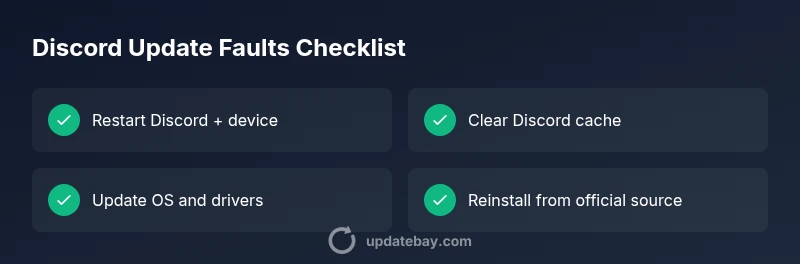
If Discord shows an update failure, start with the basics: restart the app and your device, clear the Discord cache, and verify your internet connection. If the issue persists, disable VPNs or firewall blocks temporarily, update your OS, and consider reinstalling Discord from the official site. These steps address the most common causes of update failure.
Why Discord updates fail: a quick overview
Discord updates can fail for a variety of reasons, from a flaky network to corrupted cache or outdated system components. If you see a generic update error or the updater stalls mid-download, the root cause is usually local to your device or network rather than a global Discord outage. Understanding the common failure points helps you prioritize fixes and avoid unnecessary tinkering. In many cases, a simple sequence of checks—network stability, cache health, and permissions—clears the problem quickly. Throughout this guide, we will link each fix to its likely cause so you can apply the right remedy with confidence. As you work, keep in mind that updates bring important security and feature improvements; addressing a failed update promptly reduces friction and keeps your Discord experience secure and smooth.
Common causes of update failures on Discord
- Unstable or slow internet connection can interrupt the update process, especially on large patches.
- A corrupted Discord cache or partial update files can prevent the updater from finishing.
- Antivirus software or firewall rules may block network access required for the update.
- System time drift or missing OS updates can interfere with secure update verification.
- Server-side issues are rarer but possible during peak traffic or maintenance windows. Understanding these causes helps you pick the right fix without guessing.
Prerequisites: safety checks before you touch the app
- Ensure you’re on a stable network; switch to a wired connection if possible.
- Temporarily disable VPNs or proxies to rule out network routing issues.
- Back up important Discord settings or login information in case you need to re-authenticate after a reinstall.
- Confirm you’re using the official Discord installer from the website or app store, not a third-party mirror.
- Check your system clock and ensure it’s synchronized with internet time; incorrect time can break SSL verification and updates.
Diagnostic approach: symptom to solution path
A methodical diagnostic flow helps you identify the root cause and apply the simplest fix first. Start with basic checks (network, cache) and progress to deeper steps (reinstall, OS updates) only if necessary. If a fix resolves the issue, test by issuing another update to confirm the problem is fully resolved. If not, revert to the next recommended solution and continue following the flow until Discord updates successfully.
Quick-fix at-a-glance: practical steps you can try now
- Restart Discord and your device to reset temporary states.
- Clear Discord cache (and, if needed, app data) and re-launch.
- Check for OS updates and install any pending patches.
- Temporarily disable antivirus or firewall blocks that may be interfering with the updater.
- If the problem persists, reinstall Discord from the official source and log back in.
- If you’re on a managed device, contact IT for policy-related blocks or restrictions.
OS-specific considerations: Windows, macOS, Android, iOS
Windows users often benefit from running the installer as administrator and ensuring the Windows Update service is active. macOS users should verify Gatekeeper settings and grant necessary permissions for the updater. Android and iOS updates are typically managed through app stores; a store cache clear or a fresh install may be required if the in-app updater fails. Across all platforms, keeping your device software aligned with Discord’s requirements reduces update friction.
When to reinstall and how to do it safely
Reinstalling Discord is a robust remedy when updates refuse to install or keep failing mid-progress. Uninstall the app, restart, and install the newest version from the official website or store. After reinstall, sign back in and reconfigure settings. This approach resets the updater’s state without affecting your account data in most cases, but you should re-enter your preferences and saved data where needed.
Prevention: keep Discord updates healthy going forward
- Schedule regular system updates to minimize compatibility issues with new Discord patches.
- Maintain a clean cache by periodic maintenance, especially after major updates.
- Use a reliable internet connection and avoid unstable VPNs during updates.
- Review security software rules to ensure they don’t block Discord’s updater.
- Keep backups of essential login information and settings to ease recovery after reinstallation.
Steps
Estimated time: 20-45 minutes
- 1
Check network stability
Test your internet connection with a speed test and ensure latency is reasonable. If you’re on Wi-Fi, try a wired connection or move closer to the router. Disable VPNs temporarily to see if they’re interfering with the update process.
Tip: A stable connection dramatically reduces update failures; prioritize speed and low latency. - 2
Restart apps and device
Close Discord completely, not just the tray icon. Exit any software that may hold onto network resources. Reboot your computer or mobile device to reset the app state and system processes involved in the update.
Tip: A fresh start clears stuck processes that can block updates. - 3
Clear cache and storage for Discord
On desktop, clear the Discord cache folders (usually in AppData or Library/Application Support). On mobile, clear app cache or reinstall the app to reset updater state without losing your login.
Tip: Clearing cache eliminates corrupted update remnants that halt installation. - 4
Check security software settings
Review antivirus and firewall rules to ensure Discord updater is allowed. Temporarily disable real-time protection if necessary, then reattempt the update. Remember to re-enable protections afterward.
Tip: Security software can inadvertently block legitimate updater traffic; whitelist Discord if possible. - 5
Update OS and dependencies
Ensure your operating system is up to date and that any required runtime components (like .NET, Java, or Visual C++ redistributables) are installed. A missing dependency can cause update verification to fail.
Tip: Keeping the OS current reduces compatibility issues with new Discord builds. - 6
Reinstall Discord from official sources
Uninstall Discord, reboot, and install the latest version from the official site or trusted app store. Sign back in and verify that the updater runs smoothly on first launch.
Tip: Reinstalling from official sources minimizes risk of tampered or corrupted installers.
Diagnosis: Discord shows an update failed or updater stalls during download/install
Possible Causes
- highUnstable internet connection or VPN interference
- highCorrupted Discord cache or update files
- mediumAntivirus or firewall blocking the updater
- mediumDiscord server-side issue or throttling
- lowOutdated operating system components
Fixes
- easyRestart Discord and the device to clear transient issues
- easyClear Discord cache and temporary files, then retry the update
- easyTest with a stable network (disable VPN/proxy if applicable)
- mediumInstall any pending OS updates and required dependencies
- easyReinstall Discord from the official source
- easyTemporarily disable antivirus/firewall blocks affecting the updater
Frequently Asked Questions
What causes the Discord update to fail?
Update failures are usually caused by a corrupted cache, unstable network, or security software blocking the updater. Sometimes OS or store issues contribute. Identifying the primary cause helps you apply the right remedy quickly.
Typically, a corrupted cache or network issue causes update failures; are you on a stable connection and has the cache been cleared?
Do I need to reinstall Discord to fix every update error?
Not always. Start with simple steps like restarting, cache clearing, and checking security settings. Reinstall is a robust option if updates continue to fail after basic fixes.
Most issues clear up with simple steps, but you may need to reinstall if the updater is consistently blocked.
Can antivirus software block Discord updates?
Yes. Some antivirus or firewall configurations can block updater traffic. Temporarily adjusting rules, whitelisting Discord, or temporarily disabling protection can help test this theory.
Yes, security software can block the updater; try whitelisting Discord and retesting.
Is it safe to disable security features to fix the update?
Only temporarily and with careful monitoring. Re-enable protections immediately after testing. Never leave protections off on shared devices or networks.
Temporarily disabling protections is sometimes necessary, but re-enable them right away.
What should I do if the issue persists across devices?
Check if the Discord servers are experiencing outages and verify your account integrity. If the problem spans devices, contact Discord support and provide logs of the steps you tried.
If multiple devices fail, server issues or account problems may be involved. Contact support with details.
Will a store-update solve all problems on mobile?
Often, refreshing the store cache or reinstalling the mobile app resolves mobile-specific updater issues. If the problem continues, ensure the device OS is compatible with the latest Discord version.
On mobile, reinstalling from the store or clearing store cache often fixes updater issues.
Watch Video
What to Remember
- Identify whether the issue is local or server-related.
- Start with network and cache fixes before reinstall.
- Reinstall only after simpler steps fail to avoid data loss.
- Keep OS and security tools aligned with Discord’s requirements.
- If problems persist, contact official support channels.