Do Updates: Safe, Repeatable Upgrade Guide
Learn a practical, safe approach to do updates across devices and software. This guide covers planning, backups, compatibility checks, installation, verification, rollback, automation considerations, and troubleshooting.


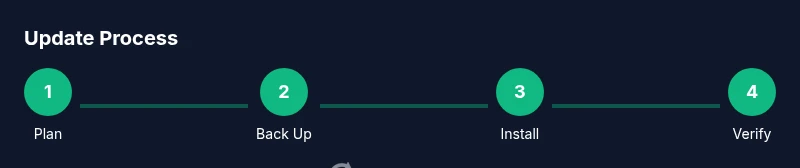
In this guide, you’ll learn how to do updates across devices and software in a safe, repeatable way. You’ll cover planning, backups, update checks, installation, post-update verification, and rollback options. Key prerequisites include stable internet, admin access, a current backup, and a maintenance window. Following these steps minimizes downtime and protects data.
Why do updates matter
In today’s tech landscape, doing updates isn’t optional—it's essential safety and performance maintenance. Regular updates patch security flaws, improve stability, and add features that keep your devices compatible with new apps and services. The Update Bay team emphasizes that a deliberate update habit reduces the blast radius of issues when something goes wrong, making recovery faster and cheaper. When you do updates consistently across operating systems, firmware, drivers, and apps, you’re less likely to encounter compatibility problems or missed security patches. This article uses plain language and practical steps to help you implement a repeatable update routine that works across desktops, laptops, smartphones, routers, and smart devices. The core idea is straightforward: plan, back up, verify, install, and verify again. By treating updates as an ordinary part of maintenance—like cleaning your keyboard or backing up your photos—you remove the fear and guesswork that often accompanies software changes. Do updates with intention, not as a one-off panic response to a warning.
Quick wins for a pain-free update cycle
A smoother update experience starts with proactive habits. Turn on automatic updates for non-critical software where possible, and defer major OS upgrades to a scheduled window. Create a lightweight update calendar that blocks out 30–60 minutes every few weeks to check for pending updates across devices. Use a centralized patch-management approach for teams or households with multiple machines to ensure consistency. Before each cycle, prepare by confirming power stability (plug in laptops or use an Uninterruptible Power Supply), and ensure you have verified backups. Keep an update log that records what was updated, why, and the outcome. These small, recurring practices dramatically reduce the friction and downtime typically associated with software maintenance. Do not skip backups or skip documenting changes; both practices reduce risk and speed recovery if something goes wrong.
Scheduling updates across devices
Effective update scheduling considers the diversity of devices in use. Start with critical devices (operating systems and security patches) and work outward to apps, firmware, and drivers. For personal setups, set a weekly cadence that covers desktop, laptop, phone, and router firmware. For families or teams, implement a shared maintenance window and use auto-updates where feasible to keep everyone aligned. Document the order of operations and create a rollback plan for each device type. If a device is in heavy use, schedule updates during low-activity periods or overnight to minimize disruption. By coordinating across devices, you reduce the chance of version mismatches that can break workflows or compatibility with peripheral hardware.
Backups and data safety
Backups are the safety net that makes updates tolerable. Before installing updates, create a fresh backup snapshot of important data on external storage or a secure cloud solution. Verify that the backup completed successfully and that you can restore a sample file. For devices with protected profiles or encrypted data, confirm that you have the necessary recovery keys. Consider enabling versioning where possible so you can revert to a recent state without losing data. Document the backup date, scope, and storage location in a simple, shareable note. While backups can take time, they are usually much faster and cheaper than recovering from corrupted data or a failed update. Treat backup readiness as a gating factor before you proceed with any major update.
Checking compatibility before updating
Before you install updates, check compatibility with essential apps, hardware peripherals, and network configurations. Read vendor release notes for security patches, feature changes, and any known issues. Verify that your device meets minimum system requirements and that drivers or firmware are compatible with your current setup. If you rely on legacy software, identify alternatives or compatibility modes that will prevent downtime. For mobile devices, ensure enough free storage and battery life to complete the update. If a required service is offline or incompatible, postpone the update until the issue is resolved. Proactively addressing compatibility reduces post-update frustration and the need for rollback.
Installing updates: best practices
Approach installation with a steady, staged process. Start with the most critical updates, then proceed to others in a defined order. Use a maintenance window and avoid multitasking during installation. For large updates, ensure devices remain plugged in and connected to a stable network. After installation, reboot if required and revisit essential applications to confirm they launch correctly. Keep fallback options handy in case the update introduces new issues. If you’re updating multiple devices, verify each one’s status individually to catch device-specific quirks early. Document any deviations from the plan and adjust future cycles accordingly.
Verifying success and rollbacks
Verification confirms that updates worked as intended. Check for successful boot, updated version numbers, and absence of obvious errors in logs or dashboards. Run critical tasks to ensure end-to-end functionality remains intact. If a problem is detected, initiate a rollback using your predefined recovery plan, restore the previous backup, or uninstall the problematic update if possible. After a rollback, run verification steps again and re-schedule updates if necessary. Keeping a clear record of results helps identify recurring issues and informs future update timing. Regular verification turns updates from a risk to a predictable maintenance step.
Common pitfalls and how to avoid them
Common pitfalls include rushing through updates, skipping backups, and updating during busy periods. Avoid these by scheduling, backing up, and testing in a controlled environment first. Be mindful of power interruptions and unreliable networks that can corrupt updates; use a UPS or a wired connection when possible. Don’t assume all devices update in the same way—some may require manual approval or vendor-specific tooling. Finally, resist the urge to skip documentation. A concise log makes future updates faster and safer.
Automating updates: pros and cons
Automation can dramatically reduce manual effort and ensure consistency across devices. Use built-in OS features or reputable patch-management tools to schedule updates, perform pre/post-install checks, and keep logs. However, automation can mask issues that would surface during manual checks. It can also introduce security risks if tools aren’t properly configured or if update feeds are compromised. Weigh the benefits and risks, tailor automation to your environment, and maintain a human review step for critical updates. By carefully balancing automation with oversight, you preserve reliability while minimizing downtime.
Tools & Materials
- Internet connection(Stable, preferably wired for large updates)
- Admin access to devices(Needed to install system updates and drivers)
- Backup storage(External drive or cloud storage with enough space)
- Backup software or service(For creating and verifying restore points)
- Power source/UPS(Keep devices powered during updates)
- Update notes/log(Document changes and outcomes)
Steps
Estimated time: 1.5–3 hours depending on device count and update scope
- 1
Prepare and plan
Identify which devices will be updated, check for critical work constraints, and set a maintenance window. Gather backup resources and confirm admin access before making changes.
Tip: Document the planned window and notify users who will be affected. - 2
Back up data
Create a fresh backup of important files and system states. Verify backups by performing a quick restore test on a non-critical file.
Tip: Keep backups in a separate location from your primary device. - 3
Check compatibility
Review release notes for each update to ensure key apps and hardware will continue to function post-update.
Tip: If in doubt, test on a non-production device first. - 4
Install updates (phase 1)
Apply critical OS and security patches first on all devices that support staged updates.
Tip: Pause if a device is low on battery or in a restricted network. - 5
Install updates (phase 2)
Proceed with remaining driver, firmware, and application updates in a controlled sequence.
Tip: Avoid mass updates during peak activity times. - 6
Restart and verify
Reboot devices as required and verify version numbers, services, and startup integrity.
Tip: Check essential apps for expected behavior post-restart. - 7
Post-update testing
Run key workflows to ensure end-to-end functionality and performance are as expected.
Tip: Document any anomalies and plan a quick remediation. - 8
Rollback planning
If issues arise, follow the rollback plan to restore the previous state or uninstall problematic updates.
Tip: Maintain backup restore points until stability is confirmed. - 9
Document and review
Record outcomes, lessons learned, and any required follow-up updates. Review cadence for future cycles.
Tip: Update the update plan based on experience.
Frequently Asked Questions
What should I update first?
Start with OS and security updates, then apply driver, firmware, and app updates in that order to minimize risk.
Begin with operating system and security updates, then proceed to drivers, firmware, and apps.
Should I back up before updating?
Yes. Create a current backup of important data and verify it. This protects you from data loss if an update fails.
Yes, make a backup before updating to protect your data.
How do I verify that an update succeeded?
Check version numbers, run critical workflows, and test essential apps to confirm everything works as expected.
Check the version, run key tasks, and test critical apps.
What if the update breaks something?
Use your rollback plan to restore the previous state or uninstall the problematic update if possible, then troubleshoot.
If something breaks, revert to the previous state and investigate.
How often should I update?
Aim for a regular cadence (weekly or biweekly for personal devices; monthly for teams) and address critical patches immediately.
Keep a regular cadence, especially for security patches.
Can I automate updates?
Automation can save time but requires careful configuration and monitoring to avoid unwanted changes.
Yes, but monitor automation to prevent issues.
Watch Video
What to Remember
- Plan updates with a clear window
- Back up before installing updates
- Verify success after updates
- Prepare a rollback strategy in advance
- Document outcomes for future cycles