What to Do for Software Update: A Practical Guide
Learn how to safely update software across devices with a step-by-step approach. Prepare, verify, and monitor updates to improve security and performance.


What to do for software update involves preparing your device, checking official update channels, and following a safe, step-by-step process to install patches without disruption. This guide outlines the essential actions, why they matter, and practical tips you can apply today. According to Update Bay, staying current with updates reduces exposure to vulnerabilities and keeps apps functioning smoothly.
What counts as a software update
Software updates come in several forms, from security patches to feature enhancements and firmware updates. When you hear the phrase what to do for software update, you're usually dealing with packages delivered by device manufacturers and software vendors. For most users, updates fall into these categories: security fixes that close vulnerabilities, bug fixes that address known issues, performance improvements that optimize speed or battery life, and compatibility updates that ensure new apps work with the latest system changes. Understanding what qualifies as an update helps you prioritize and plan the upgrade without unnecessary risk. According to Update Bay, keeping your software up to date reduces exposure to known threats and improves overall reliability.
Why updates matter for security and performance
Software updates are not optional luxuries; they are essential maintenance for digital safety and reliability. Security patches address newly discovered vulnerabilities, reducing the window of opportunity for attackers. Feature updates can bring better usability, new controls, and improved accessibility, while bug fixes resolve issues that could cause crashes or data loss. Performance improvements and resource optimizations can also extend device life and improve user experience. Update Bay analysis shows that many users underestimate the importance of timely updates, which can leave devices exposed even when other protections are in place.
How to determine which updates you need
Not every update is equally urgent, and some updates are optional or optional for certain features. Start by distinguishing critical security patches from cosmetic UI tweaks. Focus on updates that fix vulnerabilities, address bugs that affect your daily tasks, and improve compatibility with essential applications. For mobile devices, enable automatic updates if you prioritize security; for desktops, review release notes before approving major versions to understand what changes and potential compatibility issues might arise. This process helps you decide what to do for software update without overloading your system with unnecessary changes.
Preparing your environment before updating
Preparation reduces risk. Ensure you have a recent backup, ideally tested restoration. Charge your device or connect it to a power adaptor; updates can fail if power is lost mid-process. Connect to a stable network, preferably Wi-Fi with an uninterrupted connection, to avoid partial downloads. Close unnecessary apps to prevent conflicts and clear enough storage space so the update can unpack and install without error. A calm, prepared environment makes the update smoother and minimizes the chance of data loss.
Platform-specific considerations: Windows, macOS, Linux, and mobile
Different ecosystems handle updates in distinct ways. Windows updates typically run through Settings > Update & Security, while macOS uses System Preferences > Software Update. Linux distributions vary by package manager and release channels. Mobile platforms also differ: iOS and Android manage updates through their respective app stores and system update menus. In all cases, use the official updater provided by the vendor to ensure authenticity and integrity of the update. Knowing how updates are delivered helps you plan and execute the process confidently.
After updating: verify and monitor
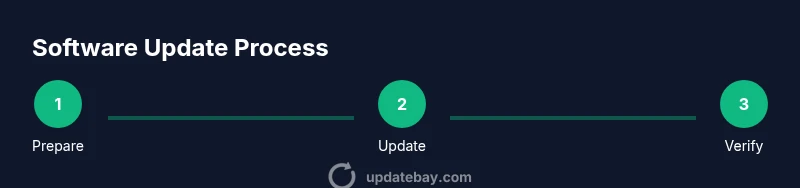
Post-update checks are crucial. Verify the new version is installed by checking the system information and update history. Reopen essential apps and features to confirm they work as expected. Look for any new settings that were introduced and adjust them to your preferences. If you notice instability or missing features, consult official support channels and consider rolling back if a critical issue appears. Ongoing maintenance includes enabling automatic updates and periodically reviewing update notes to stay current.
Tools & Materials
- Stable internet connection(Prefer wired or strong Wi‑Fi to prevent partial downloads.)
- Charged device or power adapter(Avoid updates on battery power; plug in to prevent mid-update shutdown.)
- Backup storage(External drive or cloud backup with recent restore points.)
- Official update source(Use built-in updater or vendor website/releases; avoid third-party installers.)
- Credentials for the device/platform(Keep login ready in case re-authentication is required after updates.)
- Optional: power backup(Uninterruptible power supply can help during long updates.)
Steps
Estimated time: 30-60 minutes
- 1
Back up data before updating
Create a full backup to an external drive or cloud storage. Verify you can restore a sample file to confirm integrity. Document the current system state (installed apps, settings) to simplify potential post-update recovery.
Tip: Test a small restore from backup to confirm reliability. - 2
Charge device and secure a stable connection
Plug the device into power and connect to a reliable network. Ensure there is no planned reboot or shutdown during the update window. Close nonessential apps to reduce resource conflicts.
Tip: Avoid updating over a flaky mobile hotspot; use stable Wi-Fi when possible. - 3
Check for updates through official channels
Open the device’s official updater (Settings > Update, or system updater) and check for available updates. If multiple updates exist, review the order and any prerequisites before proceeding.
Tip: Only download updates from the official updater to avoid tampering risks. - 4
Review release notes before installing
Read the release notes to understand changes, bug fixes, and any known issues. Note requirements or potential compatibility impacts with critical applications.
Tip: Note any prerequisites or special instructions mentioned by the vendor. - 5
Install updates and monitor progress
Start the update and let it complete without interruption. If prompted, approve any reboots or confirmations. Do not unplug or forcibly stop the process.
Tip: If the update stalls, pause and verify network/power stability before retrying. - 6
Verify installation and test critical apps
Check the new version in system information, reopen essential apps, and test key features. Look for new settings and adjust as needed. If issues arise, consult official support resources and consider rollback if necessary.
Tip: Keep a brief log of post-update issues to aid support.
Frequently Asked Questions
What is a software update and why should I install it?
A software update is a package released by developers to improve security, fix bugs, and add features. Installing updates helps protect your devices and keeps apps running smoothly. Regular updates reduce risk by patching vulnerabilities.
Software updates fix bugs and strengthen security; it's important to keep your devices current.
Can I enable automatic updates, and should I?
Yes, enabling automatic updates ensures patches install when available. This reduces exposure to vulnerabilities, but you should periodically review update notes for any features changes.
Automatic updates help you stay secure; just review major changes occasionally.
What should I do if an update fails to install?
Check power, network, and storage, then retry. If it still fails, try a clean reboot and reattempt from the official updater. If problems persist, contact official support and review vendor guidance.
If an update fails, pause and check connections, then retry or seek support.
Is it safe to update firmware or drivers as part of software updates?
Firmware and driver updates should come from official sources and be done with care. Verify compatibility with your hardware and back up data beforehand to prevent issues.
Firmware updates can improve hardware performance but come with higher risk; use trusted sources.
How can I back up before updating?
Use built‑in backup tools or trusted third‑party solutions. Ensure backups are recent and test a restore to confirm viability.
Back up first, then update to protect your data.
What if I update my phone and some apps stop working?
Check for app updates, restart the device, and review any new permissions or settings. If issues persist, revert to a previous backup if possible or contact app support.
If apps break after updating, update the apps or revert if needed.
Watch Video
What to Remember
- Back up before updating.
- Use official update channels.
- Read release notes before installing.
- Verify post-update functionality.
- Enable automatic updates where possible.