Does Windows Update Make Your Computer Slow? Quick Troubleshooting Guide
Does windows update make computer slow? Learn why updates slow PCs and how to fix it fast. Update Bay guides you through symptoms, quick fixes, and long-term tips for smoother Windows performance.


Yes, Windows updates can temporarily slow a PC during installation, background indexing, and driver updates. Common culprits: large feature updates, disk fragmentation, insufficient RAM, or background services. Quick fixes: pause updates, run Windows Update Troubleshooter, temporarily disable startup programs, ensure SSD/HDD health, free disk space, reboot, and schedule updates for off-hours.
Why Windows Update Slow Your Computer?
If you’ve noticed a slowdown during or after a Windows update, you’re not imagining it. The question does does windows update make computer slow is common, and according to Update Bay, updates trigger a cascade of background tasks that contend for CPU time, disk I/O, and memory. Feature updates, driver installations, and index rebuilding can all take priority for a while, especially on older hardware. This is typically temporary, but in some cases it signals a deeper bottleneck. By recognizing the pattern—sluggish response during install, spikes in disk activity, or services running at high CPU—you can act before performance degrades further.
What Windows Update Actually Does in the Background
During an update, Windows may run multiple processes at once: downloading files, applying patches, reboot cycling, and indexing added content. These tasks use disk I/O, CPU, and network bandwidth. If you’re on a traditional hard drive rather than an SSD, the impact can be more noticeable. Background antivirus scans and telemetry can also temporarily raise activity. Once installation completes and indexing re-scans, performance usually returns to normal—unless there is an underlying hardware bottleneck or software conflict.
Common Early Signs of Slowdown After Updates
Watch for longer boot times, UI lag, stuttering, or apps taking longer to respond. High disk usage in Task Manager, spikes in CPU activity from update-related services, and fans ramping up quickly can all indicate update-driven slowdowns. If you see these signs during or right after an update, it’s a good indicator that the slowdown is update-related rather than malware or a fixed hardware fault.
Quick Fixes You Can Try Right Now
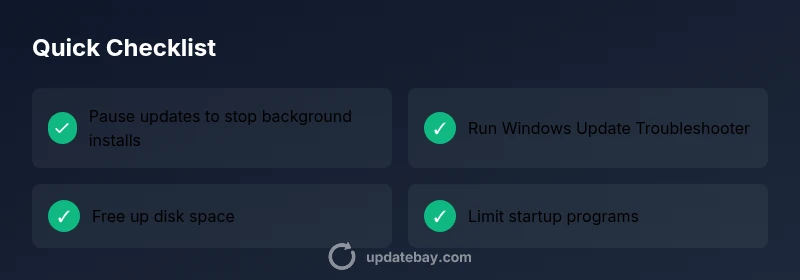
- Pause updates temporarily: Go to Settings > Windows Update and pause updates for a window that fits your schedule. This stops ongoing installations so you can troubleshoot without new background load.
- Run the Windows Update troubleshooter: Settings > Update & Security > Troubleshoot > Additional troubleshooters > Windows Update. Let it detect and fix common issues.
- Free up disk space: Delete temporary files, run Disk Cleanup, and consider Storage Sense to keep available space for update processes.
- Disable unnecessary startup programs: Open Task Manager > Startup and disable apps you don’t need at boot.
- Check driver health and updates: Ensure critical drivers are current after the major update completes, not during installation.
- Reboot and schedule updates: A planned reboot after closing busy applications can reduce conflicts and improve post-update performance.
A Deeper Diagnostic Flow to Confirm the Cause
If slowdowns persist after the initial fixes, use a structured approach to determine the root cause. First, check Task Manager to identify which processes spike during updates (CPU, disk, or network). Next, verify drive health (S.M.A.R.T. status) and run CHKDSK if errors appear. Finally, assess RAM usage and consider upgrading if memory pressure remains high during updates. This helps separate software bottlenecks from hardware limitations.
Long-Term Tweaks to Prevent Slowdowns After Updates
- Schedule updates for off-hours whenever possible to minimize user impact.
- Maintain solid-state drives for faster I/O and quicker index rebuilds after updates.
- Regularly run maintenance tasks like disk cleanup and defragmentation (for HDDs) to keep performance steady.
- Keep drivers and firmware aligned with Windows versions to reduce compatibility slowdowns.
- Enable performance-mode profiles or high-performance power settings when heavy tasks run, then revert after completion.
Safety, Warnings, and When to Seek Help
Do not interrupt a Windows update during critical phases, as this can corrupt system files. If you frequently experience slowdowns after updates, consider professional help to diagnose hardware faults or deeply ingrained software conflicts. Regular backups and a planned update schedule reduce risk and downtime.
Steps
Estimated time: 30-60 minutes
- 1
Pause updates and restart
Open Settings > Windows Update and pause updates. Restart the PC to end any ongoing background tasks. This helps you assess if slowing is tied to the current update cycle.
Tip: Schedule pauses around your work to avoid losing progress. - 2
Check resource usage
Launch Task Manager to observe CPU, memory, and disk usage. Note which processes spike during updates and decide which can be temporarily disabled.
Tip: Sort by Disk or CPU to see the heaviest offenders first. - 3
Free up disk space
Delete temp files, run Disk Cleanup, or enable Storage Sense to reclaim space. Ensure there is ample free space for update operations and paging.
Tip: Aim for at least 10-20% free disk space on HDDs and 15-25GB on SSDs. - 4
Limit startup programs
Disable unnecessary apps from starting with Windows. Fewer startup tasks reduce boot lag and free resources for updates.
Tip: Re-enable only essential apps after troubleshooting. - 5
Run Windows Update Troubleshooter
Use Settings > Update & Security > Troubleshoot to diagnose and repair update-related issues. Follow on-screen prompts for automated fixes.
Tip: If the troubleshooter finds issues, apply suggested fixes before rebooting. - 6
Check hardware health
Run a SMART diagnostic on the drive and monitor RAM usage during updates. If problems persist, consider hardware upgrades like RAM or an SSD.
Tip: Back up data before performing disk checks or hardware changes.
Diagnosis: PC feels slow during or after Windows updates
Possible Causes
- highUpdate-related background tasks consuming CPU/disk I/O
- mediumLow disk space or failing HDD/SSD health
- lowToo many startup programs or background services enabled
- lowOutdated drivers or firmware mismatches
Fixes
- easyPause updates and reboot to end current update cycle
- easyFree up disk space and run Disk Cleanup
- easyDisable unnecessary startup programs
- mediumCheck disk health (S.M.A.R.T. status) and run CHKDSK if needed
- mediumUpdate drivers/firmware after updates finish
Frequently Asked Questions
Can Windows updates slow down my PC permanently?
Usually the slowdown is temporary during the update. If it persists after updates finish, check hardware bottlenecks, malware, or conflicting software and consider a repair or upgrade.
Usually updates slow things temporarily; if it sticks, investigate hardware or software conflicts.
Why is my PC slow only after a Windows update?
Post-update slowdowns often come from background tasks, indexing, or driver changes. Verify task manager metrics, restart services, and ensure updates completed cleanly.
Most often it’s background work finishing up after an update; check performance in Task Manager.
How can I speed up Windows after an update?
Free up disk space, disable unnecessary startup programs, run the update troubleshooter, and ensure drivers are current after the update cycle completes.
Clear space, limit startup apps, run the troubleshooter, and update drivers after the update finishes.
Should I uninstall a Windows update to fix performance?
Only if you identify a specific problematic update. Use Update history to uninstall cautiously and test performance after removal.
Uninstall only if you’ve pinpointed a particular update causing issues.
Is it safe to upgrade hardware to fix slowdowns caused by updates?
Yes, upgrading to an SSD or increasing RAM can substantially improve update handling and overall performance, especially on older systems.
Hardware upgrades like SSDs or extra RAM can make updates faster.
Watch Video
What to Remember
- Identify the update phase causing slowdown and act quickly
- Free disk space and reduce startup load to regain speed
- Use the Windows Update troubleshooter for common fixes
- Schedule updates and consider hardware upgrades for sustained performance
- Seek professional help if slowdowns persist after fixes