Why Is My Update Taking So Long? A Practical Troubleshooting Guide
Learn why updates slow down and how to speed them up safely. This practical guide covers common causes, network and device factors, and a step-by-step troubleshooting plan.


Most updates slow down because of two or three factors: a slow or unstable internet connection, a large patch, and limited device resources. Start by testing your network speed, switching to a wired or more stable Wi‑Fi, and ensuring enough free storage. If the update still drags, try pausing other apps and retrying during off‑peak hours.
Why updates take longer than expected
In practice, software updates are a mix of download, unpack, install, and verify steps. For many users, the question why is my update taking so long often boils down to three intertwined factors: network, server readiness, and device capability. If the update is large, the client may need to download gigabytes of data, which can stretch even fast connections. Additionally, servers can throttle or stagger downloads to prevent outages, especially during peak hours. Finally, your device's storage speed, CPU, and memory influence how quickly each phase completes. Being aware of these drivers helps you triage effectively and avoid unnecessary frustration.
Common culprits slowing updates
Delays almost always come from a mix of network, server, and device constraints. The most common offender is a slow or unstable internet connection, which can turn a minutes-long update into a drawn-out ordeal. Next is the update size themselves; larger patches take longer to download and install, particularly when servers throttle during peak times. Other factors include limited local storage or RAM, background antivirus scans, and VPNs or proxies that add latency. If you’re seeing a clock ticking with little progress, review these items one by one to identify the bottleneck.
Proactive checks can dramatically cut wait times. Ensure the patch size aligns with your plan, and verify that your device has enough free space. Pause nonessential downloads on other devices on the same network and consider temporarily disabling real-time scanning if safe to do so. These steps often reveal the real cause without venting into needless replacements.
The role of your network and update servers
Your network path—from your router to the update servers—matters. Congested Wi‑Fi, weak signal, or VPNs can introduce delays before the download begins. On the server side, content delivery networks throttle during peak times to protect service quality. Time-of-day matters; updates often speed up late at night when demand is lower. Understanding these dynamics helps you decide where to focus: your network or the server side. If you’re consistently slow, test with a wired connection or move closer to the router, then check if the service provider or platform reports any ongoing issues.
Additionally, DNS resolution, firewall rules, and proxy settings can subtly degrade performance. Temporarily disabling a overly aggressive firewall or switching to a more direct routing can improve download efficiency. When possible, schedule large updates for off-peak windows to leverage reduced concurrency on the servers.
Device performance factors
Even a fast connection can’t rescue an update if the device itself is a bottleneck. Disk speed, available RAM, and processor load all contribute to how quickly an update is installed. If your storage is nearing capacity or the drive is slow (e.g., older HDDs), unpacking and applying patches can stall. Background tasks like indexing, antivirus real-time scanning, and file syncing also steal CPU cycles and disk I/O. Running an update on a cooler, lightly loaded system often yields faster results. In some cases, a simple reboot clears lingering processes that block the update.
Update size, compression, and throttling
Patch packages vary widely in size, and some platforms use differential updates that only replace changed blocks. Even so, big deltas can take time to download and apply, especially if compression adds CPU overhead during decompression. Server-side throttling and client-side rate limiting are common, especially during peak hours, which slows the effective download rate. Recognizing this helps manage expectations: the same patch can behave very differently depending on network conditions and server load. If you consistently hit slow downloads, consider off-peak scheduling or multiple smaller updates when available.
Quick fixes you can try now
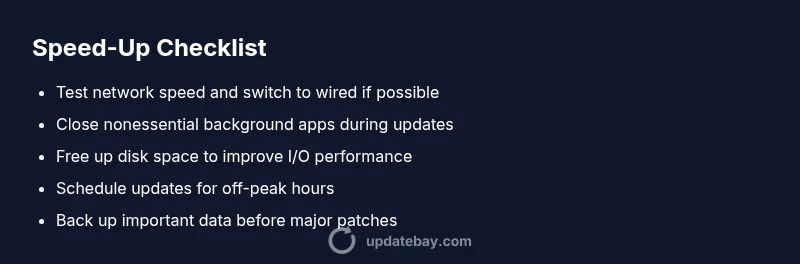
If you’re currently stuck, start with practical, low-friction steps. Check your network stability and consider a wired connection or closer proximity to the router. Pause other heavy activities on the network and close nonessential apps on the device. Clear some disk space to improve I/O performance and restart the update process. If possible, temporarily disable real-time antivirus scanning, then re-enable it after the update completes. Finally, reboot the device to clear caches and resolve stalled processes.
Scheduling updates for speed and reliability
Strategic timing can shave minutes off lengthy installations. Schedule large updates for off-peak hours when your network and servers experience less load. Many platforms allow you to set automatic installation during maintenance windows. If your device supports it, enable power-saving features that won’t suspend or throttle the update mid-way. Regularly checking for smaller, frequent patches rather than waiting for one massive release can also improve perceived speed and reliability.
Safety, cautions, and when to seek help
Always back up important data before performing major updates. Interrupting a patch can cause corruption, so avoid canceling unless the system clearly is unresponsive after a long wait. If updates fail repeatedly despite trying the common fixes, contact the platform’s support or your device manufacturer. Document any error codes or screenshots to speed up troubleshooting. For critical systems, consider professional support to avoid data loss or system instability.
Steps
Estimated time: 30-60 minutes
- 1
Prepare your environment
Ensure the device is plugged in or has sufficient battery life. Check free disk space and close nonessential apps. If possible, connect to a stable wired network and pause other high-bandwidth tasks before starting the update.
Tip: A quick preflight check saves time by preventing mid‑update stalls. - 2
Pause conflicting processes
Temporarily pause background scans and other downloads. Restart the update to ensure it starts from a clean state. If the update was partially installed, allow it to roll back or redo the process.
Tip: This clears resource contention that can slow installation. - 3
Switch to a stable connection
If on Wi‑Fi, move closer to the router or switch to a wired Ethernet connection. Restart the router if the connection seems flaky. Retry the update after stabilizing the link.
Tip: Wired connections are typically more reliable for large downloads. - 4
Schedule off-peak installation
Set the update to install during off-peak hours or overnight. Ensure the device remains powered during the entire process and avoid interruptions.
Tip: Off-peak timing reduces server contention and speeds up the install. - 5
If still slow, retry or escalate
If delays persist, reboot the device, clear cache if applicable, and re-initiate the update. If repeated failures occur, contact support with any error codes you’ve seen.
Tip: Always back up important data before major retries.
Diagnosis: Update progress stalls or runs exceptionally slowly
Possible Causes
- highSlow or unstable internet connection
- mediumLarge update size or server throttling
- lowBackground processes consuming disk or CPU
- lowInsufficient local storage or memory
Fixes
- easyTest network speed and switch to wired or stable Wi‑Fi
- easyPause other downloads and restart the router or try off‑peak timing
- easyFree up storage and close background services
- easySchedule updates during off‑peak hours or enable maintenance windows
Frequently Asked Questions
Why is my update slow even on good network?
Even with a strong connection, large patches and server load can slow the process. Check the size of the update and the scheduled install time, and verify device storage and background activity.
Even with a strong connection, big updates and server load can slow things down. Check the update size, schedule, and your device storage.
Should I pause or cancel an update that's stuck?
If the update appears stalled, pause it and give the system a moment to reset. Do not force-quit during a critical write operation. Try resuming after a short wait.
If it seems stuck, pause and wait a bit before resuming. Avoid force-quitting during a critical write.
Can antivirus slow down updates?
Real-time antivirus scans can interfere with installation. Temporarily disable scans during the update if it is safe to do so, then re-enable after completion.
Antivirus scans can slow updates; disable temporarily if safe, then re-enable afterward.
Does updating at night speed things up?
Yes, many users experience faster updates at night due to lower server load. Scheduling updates during off-peak hours can help.
Yes, off-peak hours can speed things up because servers are less busy.
What if the update fails after a long wait?
Note any error messages, restart the device, and retry the update. If failures persist, contact support with the error code.
If it keeps failing, jot down the error, restart, and try again; contact support if it continues.
Is there a risk to interrupt an update?
Interrupting a write operation can corrupt the patch. Let the installer finish unless it is clearly stuck after a long wait.
Interrupting can corrupt the patch; only cancel if clearly stuck.
Watch Video
What to Remember
- Check network and storage first
- Use off-peak scheduling for big updates
- Close background tasks to free resources
- Back up data before starting major patches