How Long Does an Update on Your Phone Take? A Practical Guide
Learn how long phone updates typically take, with OS vs app updates, network effects, and practical tips to plan for a smooth update experience. Ranges, not exact times, based on Update Bay Analysis, 2026.


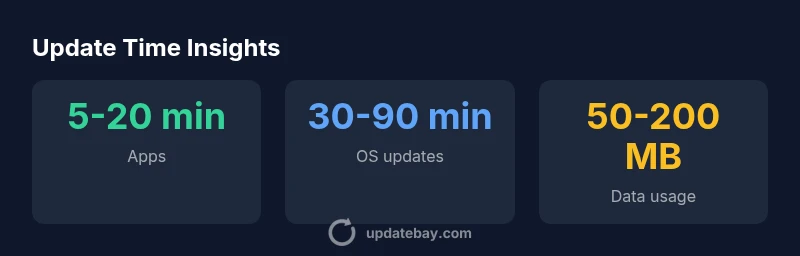
Most routine phone updates complete in about 5–20 minutes on stable Wi-Fi, while OS upgrades or large patches can take 30–90 minutes or more. If you’re on cellular data, expect longer times. The exact duration depends on device, update size, and network conditions. Plan a window and avoid interrupting the process. Keep your device charged.
Why phone update times vary
According to Update Bay, the duration of a phone update isn’t a fixed value. The timing hinges on three intertwined factors: the update size and type, your device’s hardware state, and the stability of your internet connection. In our experience, most routine updates finish quickly when Wi‑Fi is solid, but large OS upgrades or cumulative patches can stretch toward longer windows. The Update Bay team found that newer devices often complete updates faster due to efficient background processes and faster flash storage, whereas older models may see longer installation phases. Being cognizant of these variables helps set realistic expectations and reduces frustration during the process.
- Real-world timing varies by device class, OS version, and network quality.
- Anticipate extended times for major OS upgrades compared with incremental app updates.
- A well-prepped device (battery, storage, and network) minimizes slowdowns.
Takeaway: Don’t expect a universal duration—start with a window and adjust as the process progresses.
What counts as an update on your phone?
Updates come in several flavors, each with its own typical duration. App updates are usually small and quick, OS or firmware upgrades can be much larger, and carrier/security patches may sit somewhere in between. Some updates bundle multiple changes (apps plus OS components) into one install. Understanding what’s changing helps you set realistic expectations for the time needed and whether you should kick off the process now or wait until you have a longer window. Update Bay’s experience shows that the nature of the update—whether it’s a routine security patch or a major OS overhaul—drives the overall time more than any single factor.
- App updates: smaller in size, shorter in time.
- OS/firmware updates: larger, often requiring reboots.
- Hybrid updates: can mix app and system changes in one cycle.
Takeaway: Identify the update type before you tap install to gauge expected duration.
Network matters: Wi‑Fi vs cellular
Network conditions are a major determinant of update speed. A stable Wi‑Fi connection typically yields the fastest downloads and smoother installation, while cellular networks (especially congested 4G/5G signals) can introduce variability and longer wait times. Some devices pause downloads if the signal dips, then resume automatically when the connection improves. If you’re updating over a metered or weak network, you may see slower progress and more pauses. To minimize surprises, start updates on a strong, private Wi‑Fi network whenever possible, and avoid moving between locations mid‑download.
- Wi‑Fi generally beats cellular for large downloads.
- A fluctuating connection can extend overall time due to pauses.
- On cellular, expect longer durations and potential retries.
Takeaway: Prefer a stable Wi‑Fi connection for large OS updates to reduce time and risk of interruption.
OS updates vs app updates: time differences
OS updates (system updates) are inherently more time‑consuming than app updates because they replace core software components, verify integrity, and prepare a broader set of system services for your device. App updates tend to be incremental and are often downloaded in parallel thanks to background processes. Some devices also apply security patches during OS updates, increasing the total duration. In general, you’ll notice OS updates requiring more time and more device attention (reboots and screen prompts) than routine app updates. Update Bay’s data confirms this pattern across major brands and devices in 2026.
- OS updates: longer, involve system partition changes and reboots.
- App updates: shorter, frequently resumed in the background.
- Combined updates: time varies based on how many components are updated.
Takeaway: Expect OS updates to take roughly twice as long as typical app updates, with variation by device and size.
Preparing for an update: pre‑update checks
Preparation matters as much as the update itself. Before you start, ensure your device is charged or connected to power, has at least 50% battery life, and sits on a stable Wi‑Fi network. Free up storage by removing unused apps or media to avoid space constraints. Back up important data as a precaution, especially for major OS upgrades. Close unnecessary apps to allocate CPU and network bandwidth to the update, and temporarily disable battery optimization if your device prompts you. These steps reduce the chance of mid‑update interruptions and retries that extend total time. Update Bay recommends planning updates during off‑peak hours when network traffic is lower.
- Charge to at least 50% or connect to power.
- Ensure 1–2 GB of free storage for OS upgrades.
- Back up important data beforehand.
- Use Wi‑Fi, not cellular, for large downloads.
Takeaway: A quick pre‑check can shave minutes off the total update time and reduce risk of failure.
Bottlenecks and speed‑up strategies
Several common bottlenecks can lengthen update times. Low storage, crowded background processes, flaky Wi‑Fi, and older hardware with slower flash memory all contribute. If your device is stuck, pause and cancel pending app updates, free space, and reboot the router to refresh the connection. Enabling Do Not Disturb during the update minimizes background interruptions. Some devices offer a “use only during updates” mode that prioritizes downloading and installing updates. In many cases, a clean restart and ensuring no other heavy tasks run in the background can shave 5–15 minutes off the total time, especially on older models.
- Free up storage space before updating.
- Pause other downloads and close non‑essential apps.
- Use a strong Wi‑Fi signal and restart the router if needed.
- Consider a fresh start on older devices to reduce slowdowns.
Takeaway: Target a clean state and a strong network to minimize delays during updates.
What happens behind the scenes during an update
A phone update is more than a file copy. The process includes downloading, verifying integrity, decrypting payloads, installing new system components, and performing one or more reboots. Some updates perform in‑place replacements, while others re‑partition storage for new system files. The installer may migrate user data, reconfigure settings, and trigger post‑update housekeeping. Because of these steps, even a modest‑sized OS update can feel longer than a typical app update. Understanding these stages helps you anticipate what you’ll see on screen at each milestone.
- Stage 1: download and verify.
- Stage 2: install and prepare reboots.
- Stage 3: finalization and cleanup.
Takeaway: Visual progress bars may represent multiple sub‑steps; patience improves with awareness of the underlying sequence.
Estimating completion time for your device: a practical framework
Estimating the time for your device involves combining update size, hardware specs, and network performance. A practical rule of thumb is: larger OS updates on older devices tend to require longer windows, while small app updates on newer devices are brisk. If you know the approximate size (in MB or GB) and the current network speed, you can approximate download time with the simple formula: time = size / speed, then add installation time based on past experiences with similar updates. Always leave extra buffer for unexpected pauses or reboots. Update Bay’s framework emphasizes using actual device history and current network conditions to refine estimates in real time.
- Use update size and network speed to estimate download time.
- Add a conservative installation window based on device age.
- Expect potential pauses or reboots that extend time.
Takeaway: Realistic estimates require both historical data and live network insight; track progress and adjust expectations as needed.
Post‑update verification and tweaks
After an update completes, take a few minutes to verify that core features work as expected. Check that security settings and permissions remain correct, re‑run critical apps to ensure compatibility, and confirm that key settings (display, battery, privacy) are configured as you prefer. Some devices require a brief re‑setup after major OS upgrades, so be prepared for minor tweaks. If you notice unusual battery drain or sluggish performance, revisit settings or consider a cache wipe for specific apps. A quick health check helps ensure the update produced the intended improvements rather than introducing new quirks.
- Verify essential apps open and function correctly.
- Review privacy and notification settings.
- Reboot if the device seems sluggish after the update.
Takeaway: A brief post‑update check prevents lingering issues and confirms that the upgrade delivered its benefits.
Time ranges by device category
Not all devices age the same when it comes to updates. New flagship phones with fast storage and efficient processors typically complete OS updates around the 30–60 minute mark, while mid‑range or older devices may stretch toward 60–120 minutes. In some cases with very large OS upgrades on slower devices, the window can exceed two hours. If you’re updating a tablet or a phone with older hardware, treat it as a longer process and plan accordingly. These ranges align with Update Bay Analysis, 2026 and reflect variation across brands, carriers, and update payloads.
Data usage and privacy during updates
Update downloads consume data, especially for OS upgrades that can exceed 1 GB on larger devices. If you’re on a capped data plan, monitor usage and consider performing updates on Wi‑Fi. The update process also involves encryption and integrity checks to protect your data; maintaining a trusted network helps ensure security and reduces the risk of interruption. For privacy, keep your device within reach of your account credentials in case you’re prompted to validate ownership, and review installation prompts carefully to avoid accidentally granting permissions during setup. Update Bay emphasizes secure networks and trusted sources as best practices during any update.
- Expect higher data usage for OS upgrades.
- Use Wi‑Fi to avoid data overages.
- Watch for security prompts and verify source integrity.
Takeaway: Protect data, ensure network security, and minimize data overage while updates are in progress.
Practical takeaway: plan, prepare, and verify
In practice, the most reliable strategy for updates is to plan ahead, prepare the device, and verify results afterward. Schedule updates during off‑peak hours on a stable Wi‑Fi network, back up important data beforehand, and ensure the device has ample storage and battery. Track progress and be prepared for a longer window on OS upgrades, especially on older hardware. By following these steps, you reduce the chances of mid‑update interruptions and improve the odds of a smooth, successful installation. Update Bay’s recommendations emphasize proactive preparation and post‑update checks as the core elements of a positive update experience.
Update duration ranges by type
| Update Type | Typical Time Range | Notes |
|---|---|---|
| App updates | 5-20 minutes | Usually small; downloads and installs quickly |
| OS/system updates | 30-90 minutes | Larger, may include reboots and migrations |
| Firmware/driver updates | 15-60 minutes | Device‑specific; varies by model |
Frequently Asked Questions
How long does a typical app update take on a phone?
Most typical app updates finish in 5–20 minutes, depending on device speed and network conditions. Smaller updates and faster connections shorten the window even more. Expect a few minutes longer on slower networks.
Most app updates finish in 5 to 20 minutes, but it can take longer if your connection is slow.
Are OS updates always longer than app updates?
Generally yes. OS updates involve core system components and may require reboots, verification, and migrations, which adds time. App updates tend to be smaller and install more quickly in the background.
Yes, OS updates usually take longer than app updates because they touch the core of the operating system.
Can updates fail or take longer due to storage issues?
Yes. Low storage can halt or slow a update, especially OS upgrades that need space for temporary files and migrations. Free up space before starting to reduce risk of a failed install.
Storage problems can cause updates to stall or fail; free up space before you start.
Should I update over cellular or Wi‑Fi?
Wi‑Fi is preferred for large downloads due to speed and stability. If you must use cellular, ensure a strong signal and monitor data usage to avoid overage.
Wi‑Fi is best for updates; use cellular only if you have a strong signal and enough data.
Is it normal for a phone to restart during an update?
Yes. Many OS updates require one or more reboots to finalize system changes. Allow for restarts and follow on‑screen prompts.
Yes, some updates reboot the device to finish installing changes.
Why are updates longer on older devices?
Older devices often have slower storage and processors, which extends download and installation times. Updates may still complete correctly, but expect longer wait times than on newer hardware.
Older hardware tends to take longer due to slower components.
“Phone updates are an essential routine, but the real driver of duration is the update size and your connection quality.”
What to Remember
- Plan an update window and avoid interrupting the process
- Prefer Wi‑Fi over cellular for large downloads
- Charge the device or keep it plugged in during updates
- OS updates typically take longer than app updates
- Back up data before performing updates