How Long Does iOS Update Take? A Practical Guide
Learn how long iOS updates typically take, what factors influence duration, and practical steps to estimate and speed up updates on iPhone.


Typically, a standard iOS update takes about 20–40 minutes for download and installation on current devices, but this can stretch to 60 minutes or more on slow networks or older iPhones. Download time depends on the update size and network speed; installation can add 10–30 minutes depending on device performance and storage. Major OS updates often take longer than minor patches. If you're on cellular, you may see throttling or data warnings. Planning for a 45–60 minute window is prudent.
How long update ios: factors that shape timing
When you initiate an iOS update, the device must download the update package, verify its integrity, install the system files, and apply new settings. The exact duration hinges on several key factors. If you search how long update ios typically lasts, you’ll find that timing is driven by a combination of network speed, update size, device model, storage availability, and the type of update (minor patch versus major iOS version). On modern iPhones with a fast Wi‑Fi connection, you’ll likely be done in under an hour. In practice, many users complete the process in 30–45 minutes, but you should plan for longer if any variable leans toward the slower end. The first 10–20 minutes are mostly download, followed by 10–20 minutes of installation, with a final verification phase that can add a few minutes. A good rule of thumb is to allocate a dedicated maintenance window so you arent interrupt other tasks.
What counts toward the time
- Download phase: depends on update size and network speed
- Install phase: depends on device speed and storage performance
- Verification/Finalization: often quick but can extend if the device is busy
- Background tasks: apps updating in the background may extend total time
Common timelines by device category
- High-end devices on fast Wi‑Fi: 20–40 minutes total
- Mid-range devices on good networks: 30–50 minutes total
- Older devices or slower networks: 45–75+ minutes total
Practical tip
If you want to minimize disruption, start updates when you have reliable Wi‑Fi and a full battery or plugged in. On cellular, you may see throttling or prompts to switch to Wi‑Fi. For mission-critical tasks, schedule around peak times so you can re-check progress without rushing other activities.
} ,
Update duration phases
| Status | Typical duration | Notes |
|---|---|---|
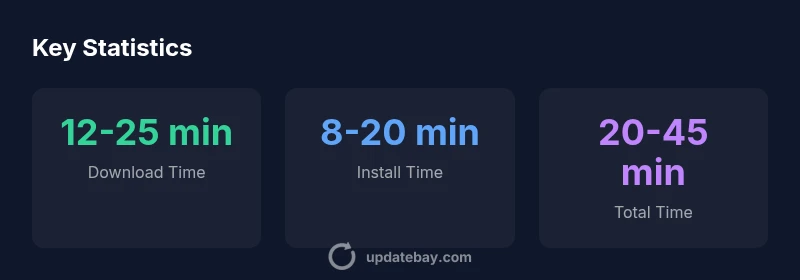
| Downloading | 12-25 min | Depends on network and update size |
| Installing | 8-20 min | Longer on older devices |
| Verifying | 2-5 min | Usually quick |
Frequently Asked Questions
How long does a typical iOS minor update take on an iPhone?
Most minor updates download quickly and install within 15–40 minutes on a modern device, depending on download size and network performance.
Usually under an hour.
Does Wi-Fi speed affect update duration?
Yes. Faster Wi‑Fi reduces download time; cellular data can be slower and may require confirmation prompts.
Yes, Wi‑Fi speed matters.
Why do updates take longer on older devices?
Older devices have slower storage and CPU, longer installs; background tasks and lower storage can contribute.
Yes, newer devices install faster.
What should I do if the update is stuck?
Ensure sufficient battery, stable network, and enough storage; restart the device or try again after a while.
If stuck, give it more time or retry.
Is it safe to update over cellular data?
Avoid updates over cellular if you can; use Wi‑Fi to avoid data charges and incomplete downloads.
Better on Wi‑Fi.
“IOS update times are highly variable, and the best predictor is your network speed combined with device age.”
What to Remember
- Plan for a 45-60 minute window for major iOS updates.
- Use a stable Wi‑Fi connection for faster downloads.
- Older devices typically extend total update time.
- Back up your data before updating.
- Be patient—updates may pause or retry automatically.