How to Get Rid of a Beta Update: A Practical Guide
Discover practical, platform-aware ways to opt out of beta updates, downgrade where possible, and secure your devices. Learn safe backup practices and settings tweaks to return to a stable release with Update Bay guidance.


Goal: If you’re wondering how to get rid of beta update, this quick guide outlines safe opt-out and downgrade steps across major platforms. It covers when downgrades are possible, how to adjust update settings to avoid future beta prompts, and what data you should back up before changes. Use these steps to return to a stable, supported release with minimal risk to your apps and files.
What a beta update is and why you might want to remove it
Beta updates are preview builds released to testers before general availability. They can bring exciting features, but they may also introduce instability, bugs, or changed behaviors. If you rely on mission-critical apps or need predictable performance, you’ll want to consider how to get rid of beta update and switch back to a stable release. This section explains the rationale behind opting out and how to approach the process safely, with device-specific tips and caveats. The goal is to minimize disruption while preserving your data and settings.
According to Update Bay, many users see improved reliability after moving off beta channels, especially on devices with older hardware or essential workflows. Our guidance emphasizes careful preparation and platform-specific steps to avoid inadvertent data loss.
Quick path: opt out of beta programs on major platforms
Opting out is often the simplest route. Here’s a high-level view of common platforms:
- Windows: Sign out of the Windows Insider Program and choose a stable build channel in Settings > Update & Security > Windows Insider Program.
- macOS: Leave the beta channel through System Settings > Software Update > Details or by removing the beta profile if applicable.
- Android: In Settings > System > Advanced > Android Version or Beta program, switch to the public stable channel and re-enroll only if you want future betas.
- iOS: Open Settings > General > Software Update > Beta Updates and turn it off or leave the beta program via Apple’s beta site if enrolled. Note: Steps vary by device and OS version; always back up before changing enrollment.
Downgrade vs. stop updates: Understanding the difference
Downgrading returns you to a previous stable release, while stopping updates simply halts new beta prompts. Downgrades may require reinstalling the base OS or restoring from a backup, which can affect apps and data formats. Stopping updates often keeps your current release but may still prompt for security patches. Weigh the trade-offs, especially around security support timelines and vendor policies.
Windows: Remove Windows beta updates and roll back Insider builds
Windows users can exit the Insider Program and switch to the stable release channel. If a downgrade is available, follow Settings → Update & Security → Windows Insider Program to opt out, then choose a stable build. Prepare by creating a full system backup, as downgrades can require reinstalling components. After downgrading, verify that Windows Update settings no longer re-enroll you in betas and that automatic updates are set to a standard schedule.
Android and iOS: Leaving beta programs and unwinding changes
Android and iOS users should unenroll via their respective beta program portals or device settings. After leaving, you may need to reinstall the public version from the official app store or restore from a backup if data integrity is affected. Disable automatic updates for beta channels if the option exists, and monitor for any beta-specific features that persist post-unenrollment.
macOS and Linux: Handling beta versions
On macOS, you can stop beta updates by removing the beta profile and opting into the standard update channel. Linux distributions vary, but you can disable beta repositories or channels in your package manager to prevent future beta releases. Always back up your home directory and important configs before making changes.
Common pitfalls and troubleshooting
Expect prompts to rejoin betas after major OS updates or app beta programs. If you can’t downgrade, focus on stabilizing by applying security patches and removing beta-specific profiles. Clear caches, reset update preferences, and verify that you’re not enrolled in multiple beta channels on different devices. Use a recovery plan if something goes wrong.
Data safety and backups before making changes
Back up all critical data before unenrolling or downgrading. Create a full device backup or clone essential files to a secure location. Verify backups by performing a quick restore test on a spare device or in a controlled environment. This minimizes risk if the downgrade process requires a fresh install or if data compatibility issues arise.
Next steps with Update Bay and staying current safely
After returning to a stable release, monitor for official security patches and software updates. Revisit your update settings regularly to ensure you don’t re-enter beta channels without intention. Update Bay will continue to track beta policy changes and provide practical guidance to help you stay in control of software updates.
Tools & Materials
- Backup storage (external drive or cloud)(Ensure you have enough space to store a full device backup or critical data.)
- Admin access(You’ll need administrator rights to change system update settings and profiles.)
- Device model and OS/version details(Have these ready in case support or platform docs ask for them.)
- Stable OS installer or backup image(Optional, only if a downgrade requires reinstall.)
Steps
Estimated time: 60-120 minutes
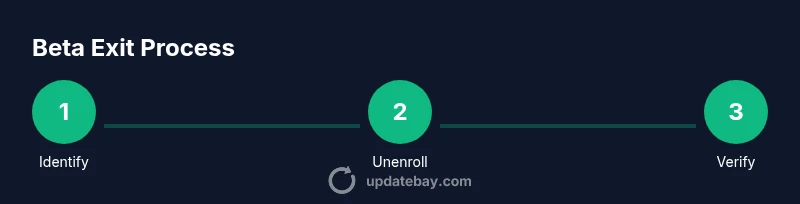
- 1
Identify platform and current beta enrollment
Check which beta program you’re enrolled in and confirm the current release channel across your devices. This prevents attempting steps that don’t apply to your setup.
Tip: Document the exact beta profile or channel name before making changes. - 2
Back up important data
Create a full device backup or clone critical files to a secure location. This protects you if a downgrade or reinstallation is required.
Tip: Verify backup integrity by restoring a test file. - 3
Unenroll from the beta program
Navigate to the platform’s beta settings and opt out of the beta program or remove the beta profile. This halts future beta prompts.
Tip: If there’s no visible option, remove the beta profile from the device settings or through the official beta portal. - 4
Downgrade to the stable release (if supported)
If a downgrade path is offered, follow official instructions to install the latest stable release. This step may involve a reinstall.
Tip: Downgrading is not always supported on all devices; proceed only if documented by the platform. - 5
Reconfigure update settings to default
Reset update preferences to standard, non-beta channels and disable automatic beta prompts where available.
Tip: Disable any beta-related app preferences or notification settings. - 6
Verify update status and protection
Check that the device shows a regular release and that future beta prompts are minimized. Keep monitoring for security updates.
Tip: Schedule a follow-up check after major OS updates to ensure settings persist.
Frequently Asked Questions
Can I stay on beta updates indefinitely without consequences?
Staying on beta updates long-term can expose you to ongoing instability and compatibility issues with apps. It’s generally safer to opt out when reliability matters most.
Staying on beta updates long-term can lead to instability, so opting out is usually the safer choice for stability and compatibility.
Will downgrading affect my data or settings?
Downgrades may reset some settings or require reinstallation of apps. Always back up before proceeding to protect data and ensure you can restore configurations.
Downgrading can affect apps and settings, so back up first and be prepared to reinstall some items.
What if my device doesn’t offer a downgrade option?
If a downgrade isn’t offered, you may need to wait for the stable release or perform a factory restore as advised by the platform’s support team. Always confirm options before taking action.
If there’s no downgrade option, check official guidance or consider a factory restore as a last resort.
Does leaving beta updates restore all features to a prior version?
Leaving beta updates doesn’t guarantee all features revert. Some beta features may persist, while others disappear once you return to stable software.
Removing beta updates won’t guarantee all beta features disappear, but stability improves as you settle into the standard release.
Are there warranty or policy implications to leaving beta programs?
Generally, opting out of beta programs does not void warranties, but always check manufacturer policies and ensure you follow official downgrade procedures to avoid unsupported configurations.
Leaving beta programs usually won’t affect warranty, but follow official steps to stay compliant.
Watch Video
What to Remember
- Opt out before downgrading to minimize risk
- Back up data to protect files and apps
- Downgrades may not be supported on all devices
- Reset update channels to prevent re-entry into beta
- Verify post-change stability with a follow-up check