How to Get Rid of a New Apple Update: Delays and Downgrades
A practical, step-by-step guide to delaying, managing, or safely downgrading a new Apple update on iPhone and Mac, with expert tips from Update Bay.


In this guide you’ll learn practical steps to delay or avoid a new Apple update on iPhone and Mac, plus safe downgrade options where available. You’ll discover how to pause automatic updates, manage beta profiles, and control app update settings to keep your devices stable while you decide on the update.
Why readers want to get rid of new apple update
According to Update Bay, many users seek to postpone or avoid a new apple update to preserve stability and battery life. In this section we explore the common concerns that drive people to look for ways to get rid of new apple update, including performance hiccups, app compatibility issues, and nagging prompts. Understanding these motivations helps tailor safe, realistic strategies that minimize risk while you decide on the update. By recognizing the why, you can approach the process with a clear plan and realistic expectations. This article cites guidance from Update Bay and related practical sources to help you stay in control without compromising essential security features.
Safety and security considerations when delaying updates
Delaying an update does not eliminate risk entirely. Security patches address known vulnerabilities, and postponing them can leave devices more exposed to exploits. The balance is between maintaining stability and receiving critical fixes. If you choose to delay, keep a fixed review window (e.g., 2–4 weeks) and ensure you still install essential security patches when available. The Update Bay approach recommends documenting your rationale and the date you plan to re-evaluate, so you can return to normal update cadence safely and without surprises.
How to pause updates on iPhone and iPad (iOS)
On iOS devices, you can reduce unexpected updates by turning off automatic updates and controlling when apps update. Go to Settings > General > Software Update > Automatic Updates and toggle Install iOS Updates and App Updates off. You should also review Settings > App Store to disable automatic updates for apps. This ensures your device won’t push a forceful update during busy periods, while you test compatibility or wait for a fix. For best results, perform a manual update decision after you’ve confirmed the update won’t impact your primary apps and workflows.
How to pause updates on Mac (macOS)
Mac users can similarly curb automatic updates by adjusting System Settings. Open System Settings > General > Software Update > Automatic Updates and switch them off. This prevents macOS from installing new versions automatically, giving you time to back up, test critical applications, and schedule a convenient update window. If you rely on certain drivers or third-party software, schedule a controlled installation after verifying compatibility.
Handling beta software updates and profiles
If a beta profile is installed on your device, you may see pre-release updates that are less stable. Navigate to Settings > General > Profile & Device Management (or Profiles) and remove any Beta Software Update profile. After removal, your device will stop receiving beta releases until you opt in again. Be mindful that removing profiles may require re-enrollment if you later participate in beta programs. This step reduces the chance of unexpected updates during your testing cycle.
App updates and settings you should review
App updates can occur independently of system updates. In Settings > App Store, disable Automatic Updates for apps if you want to control timing. Consider creating a quarterly check-in to review which apps require updates for security or performance, and which can wait. If you rely on critical apps (banking, productivity, or navigation), verify their compatibility with the current OS version before delaying updates. This ensures you won’t miss important app-level fixes while postponing the OS update.
Downgrading: is it possible and how to prepare
Downgrading an iOS device to an earlier version is not generally supported long-term. Apple typically only allows downgrades for a brief window after a new version release, and only under specific conditions. If a downgrade is still possible, you would need to obtain the appropriate IPSW file and use recovery tools on a computer. This process carries risk of data loss and may violate device warranties if mishandled. Always back up before attempting any downgrade and consult official Apple Support guidance to confirm current options.
Final checks before deciding to update later
Before you finalize any delay plan, run a full backup (iCloud or local) to preserve data, then test essential apps and workflows with the current OS. Schedule a reminder to re-evaluate the update after your planned window. If critical apps show incompatibility, contact the app developers for updates or alternatives, and monitor official patch notes for a timely fix. This approach helps you stay in control without compromising security or usability.
Tools & Materials
- iPhone or iPad(Used to manage iOS/iPadOS updates and settings)
- Mac computer or Windows PC(For macOS updates and potential downgrades via Finder/iTunes)
- Recent backup(iCloud or local backup before changing update settings)
- Stable Wi-Fi connection(Needed to download any needed updates or IPSW if downgrading)
- Beta profile (if previously installed)(If you no longer want pre-release updates, you’ll remove it)
- Official Apple Support access(Helpful if you plan to downgrade or need official guidance)
Steps
Estimated time: 45-90 minutes
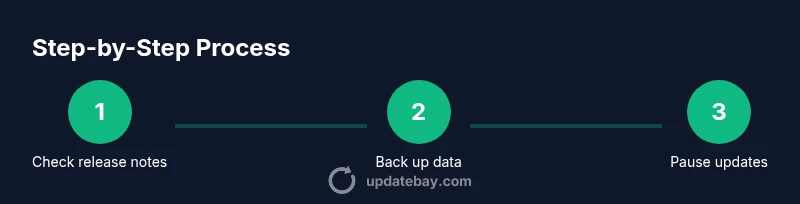
- 1
Check update notes
Review the release notes for the new Apple update to understand changes, bug fixes, and potential issues. This helps you decide whether delaying or downgrading is worth pursuing.
Tip: Open the Apple developer or support page and skim for major changes that affect your apps or workflows. - 2
Back up your data
Create a full backup of your iPhone/iPad and Mac before altering update settings. This preserves your data in case you need to revert.
Tip: Use iCloud for convenience or a local backup on your computer for extra safety. - 3
Pause iPhone auto updates
On iPhone, go to Settings > General > Software Update > Automatic Updates and switch Install iOS Updates and App Updates off. This stops automatic OS and app installations.
Tip: Do not leave this off indefinitely; schedule a short window to test compatibility before re-enabling. - 4
Pause Mac auto updates
On Mac, open System Settings > General > Software Update > Automatic Updates and toggle them off. This prevents background downloads of new versions.
Tip: If you rely on Time Machine, ensure backups run before any manual update attempt. - 5
Remove any beta profile
If you’re enrolled in a beta program, remove the Beta Software Update profile via Settings > General > Profile & Device Management and restart the device.
Tip: After removal, your device will stop receiving beta updates, reducing the risk of unstable builds. - 6
Manage app updates
In Settings > App Store, turn off Automatic Updates to control when apps update. Verify critical apps are compatible with your current OS.
Tip: Create a quarterly review to keep essential apps up to date without forcing system updates. - 7
Consider downgrade options carefully
If you decide to downgrade, confirm whether a downgrade window is open and follow official steps. Downgrades can lead to data loss if not done correctly.
Tip: Only proceed with downgrades if you have complete backups and your device is eligible. - 8
Test and revisit
After implementing delays, test core functionalities and set a reminder to reassess updates after your planned window.
Tip: Document what you tested so you can compare across-update outcomes later.
Frequently Asked Questions
Can I permanently stop Apple updates?
Permanently stopping updates is not recommended. Apple periodically requires updates for security. You can extend delays, but plan a re-evaluation schedule.
You can delay updates, but Apple requires updates for security. Re-evaluate regularly.
Will delaying updates affect security?
Yes, delaying updates can leave vulnerabilities unpatched. Balance delay with a planned re-evaluation and apply critical security updates when possible.
Delaying can leave you vulnerable; plan to apply critical fixes on a schedule.
How long can I safely delay an update?
There is no universal safe delay; use a defined window (e.g., 2–4 weeks) to test compatibility before re-enabling automatic updates.
Use a defined window, like a few weeks, to test compatibility before re-enabling.
Can I downgrade iOS without a computer?
Downgrading without a computer is not supported. If eligible, you’ll need a computer and the appropriate IPSW file to proceed under official guidance.
Downgrades require a computer and the right file, if your device supports it.
Will turning off automatic app updates affect performance?
Not directly; turning off auto-updates gives you control but you may miss important app fixes. Review apps periodically.
It won’t boost performance, but you’ll control when fixes get installed.
Is delaying updates safe for all apps?
Most apps remain usable while updates are delayed, but some may require OS updates for full compatibility. Test critical apps after any OS delay.
Test critical apps after delaying OS updates to ensure compatibility.
Watch Video
What to Remember
- Pause updates safely with clear windows
- Back up before making changes
- Remove beta profiles if present
- Downgrades are limited; verify eligibility